We’re reader-supported — some links are affiliate links. Learn more →

Skip to content

Independent software research. Some links may earn us a commission at no extra cost to you. Learn more →

ICode

Tag: small-business

  • How to Use Surfer SEO for a Small Business

    How to Use Surfer SEO for a Small Business

    Home / SEO Tools / Guides / How to use Surfer SEO for a small business

    Use case · seo tools · updated October 8, 2026

    How to use Surfer SEO for a small business

    A small team cannot optimise everything at once. What it can do is build a repeatable habit: brief a page well, check it before publishing, and revisit the pages that carry commercial weight. Surfer SEO supports exactly that rhythm.

    Surfer official homepage for the SEO content platform
    Surfer official homepage (image: surferseo.com)

    Independent analysis. This page may contain affiliate links. Some links here are referral links; if you sign up through one we may earn a reward at no extra cost to you, and it never changes what we recommend. We are an independent publisher and are not affiliated with, endorsed by, or an official partner of any tool mentioned. See our Affiliate Disclosure.

    TL;DR

    • Use the editor to build clear briefs for every new page.
    • Improve pages that already get impressions before writing more.
    • Audit service and product pages, not only blog posts.
    • Document a workflow so anyone can follow the same steps.
    • Review tracking on a steady cadence and report trends, not noise.

    On this page: What this covers · What a small business needs · Content briefs for a small team · Improving pages you already have · Auditing the site, not one page · A workflow your team can repeat · Tracking that stays honest · Keeping effort and cost in check · Where this fits

    What this covers

    A small team cannot optimise everything at once. What it can do is build a repeatable habit: brief a page well, check it before publishing, and revisit the pages that carry commercial weight.

    This guide looks at how Surfer SEO supports that rhythm in practice, and where it needs a human hand.

    Surfer pricing plans
    Surfer pricing (image: surferseo.com)

    What a small business needs from an SEO tool

    The value of a tool comes down to a few practical needs.

    Need Why it matters How Surfer helps
    Clear briefsWriters need direction, not guessworkThe editor suggests terms and structure to cover
    Less reworkSmall teams cannot rewrite endlesslyAudits show what to change before publishing
    ConsistencySeveral people edit the same siteA shared editor gives everyone the same target
    PriorityYou cannot optimise everything at onceTracking shows which pages are moving
    Simple reportingYou need to explain progressPosition tracking gives a plain view over time
    Based on publicly documented behaviour, checked October 8, 2026.
    Surfer Content Editor for content briefs
    Surfer Content Editor (image: surferseo.com)

    Content briefs for a small team

    A brief is the cheapest quality lever a small team has. Use the editor to build one that names the target term, the questions to answer, and an approximate length.

    Give the writer the brief and the score as guidance. Judge the finished page on whether it helps the reader, not on the number alone.

    Surfer AI content optimization page
    Surfer AI (image: surferseo.com)

    Improving pages you already have

    Start with pages that already get impressions but few clicks. A clearer title and a more complete answer often move the needle faster than a new post.

    Work in small passes: fix the structure, cover the missing terms, tighten the introduction. Then re-audit.

    Surfer Content Audit for site-wide audits
    Surfer Content Audit (image: surferseo.com)

    Auditing the site, not just one page

    Run audits across your main money pages, not only blog posts. Service and product pages often carry the most commercial value.

    Group fixes by effort. Quick wins, such as missing headings, come first.

    Surfer integrations page
    Surfer integrations (image: surferseo.com)

    A workflow your team can repeat

    Document the steps: pick a keyword, build a brief, draft, audit, edit, publish, then add to tracking.

    Keep one person responsible for the final check so quality does not depend on who happened to publish.

    Surfer keyword research tool page
    Surfer keyword research (image: surferseo.com)

    Tracking that stays honest

    Review tracking on a weekly or monthly cadence. Report movement and what you changed, not just rankings.

    Be honest about noise. Short-term shifts are common; trends over weeks matter more.
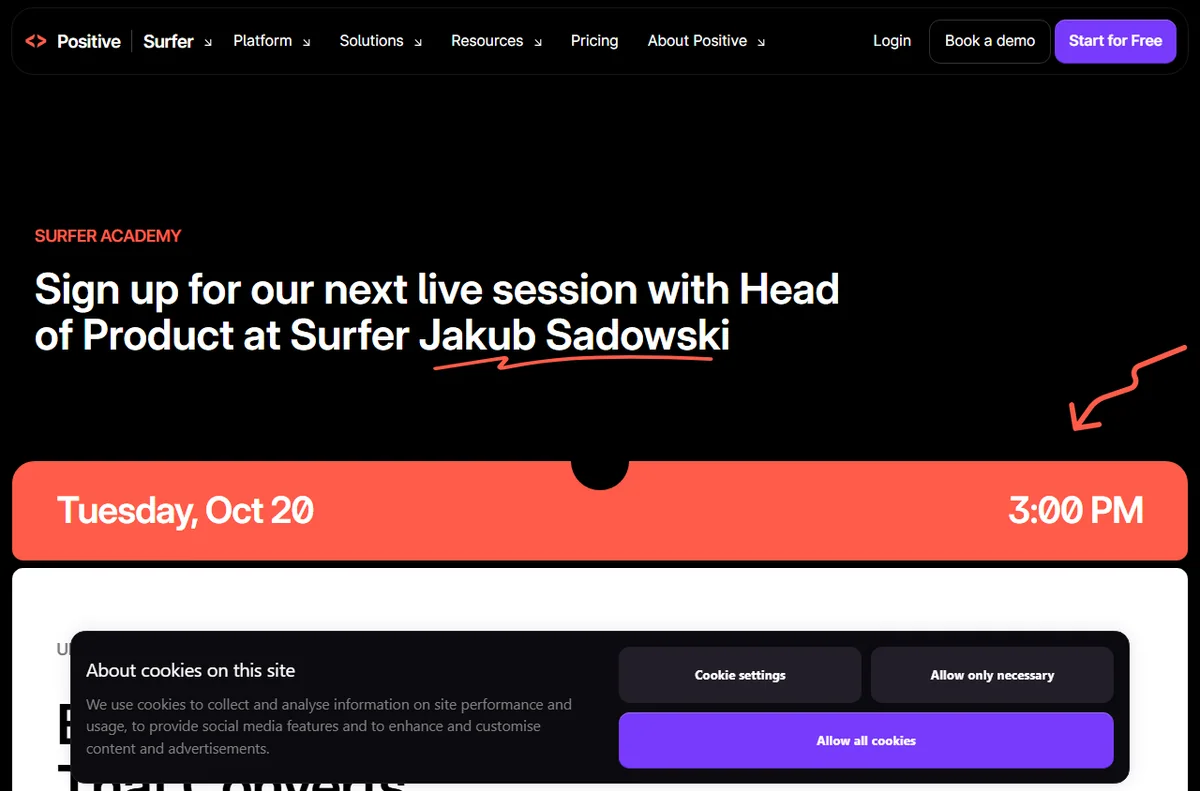
    Surfer Academy tutorials
    Surfer Academy (image: surferseo.com)

    Keeping effort and cost in check

    The main cost is the subscription plus your time. Weigh it against the value of the pages you improve. Check the official pricing page for current tiers.

    Start small, prove the workflow on a handful of pages, then expand.

    Where this fits in your wider stack

    For the full picture, read the independent Surfer SEO review and start from the SEO tools hub. If you want a broader shortlist, see best SEO tools for small business, or dig into best SEO audit tools.

    Frequently asked

    Is Surfer SEO worth it for a small team?

    It helps most when you publish regularly and want a repeatable way to brief and check content. If you rarely publish, the value is lower.

    Can it replace a writer?

    No. It guides structure and coverage. The writing and judgement still come from a person.

    How often should we audit pages?

    Audit a page when you write it, then revisit the ones that matter every few months or when rankings slip.

    Which plan suits a small business?

    It depends on how many pages you manage. Check the official pricing page to match a tier to your volume.

    Surfer blog with SEO workflow guides
    Surfer blog (image: surferseo.com)

    Build a repeatable SEO workflow

    See the current plans and pick the tier that fits your site.

    Referral link — we may earn a reward if you sign up, at no extra cost to you. We are an independent publisher. See our Affiliate Disclosure.
  • How to Use Divi for a Small Business

    How to Use Divi for a Small Business

    Home / Developer Tools / Guides / How to use Divi for a small business

    Use case · developer tools · updated October 8, 2026

    How to use Divi for a small business

    A small business rarely needs a sprawling website. It needs a handful of pages that load quickly, look consistent and are easy to update without a developer on call. Divi is built for exactly that middle ground between a rigid template and a custom build.

    Divi by Elegant Themes WordPress theme and visual page builder
    Divi by Elegant Themes (image: elegantthemes.com)

    Independent analysis. This page may contain affiliate links. Some links here are referral links; if you sign up through one we may earn a reward at no extra cost to you, and it never changes what we recommend. We are an independent publisher and are not affiliated with, endorsed by, or an official partner of any tool mentioned. See our Affiliate Disclosure.

    TL;DR

    • Start from saved templates so every page shares a consistent structure.
    • Keep one clear action per page instead of several competing buttons.
    • Use the Divi library to reuse sections across campaigns and pages.
    • Assign global headers, footers and post templates in the Theme Builder.
    • Document your setup so anyone can edit pages later.

    On this page: What this covers · What a small business needs · Getting the foundations right · Landing pages that do a job · Reusable layouts and the library · Theme Builder across the site · Maintenance and handover · Keeping effort and cost in check · Where this fits

    What this covers

    A small business rarely needs a sprawling website. It needs a handful of pages that work hard, look consistent and are quick to update.

    This guide looks at how Divi fits that reality: where it saves time, where it needs discipline, and how to keep the site easy to maintain.

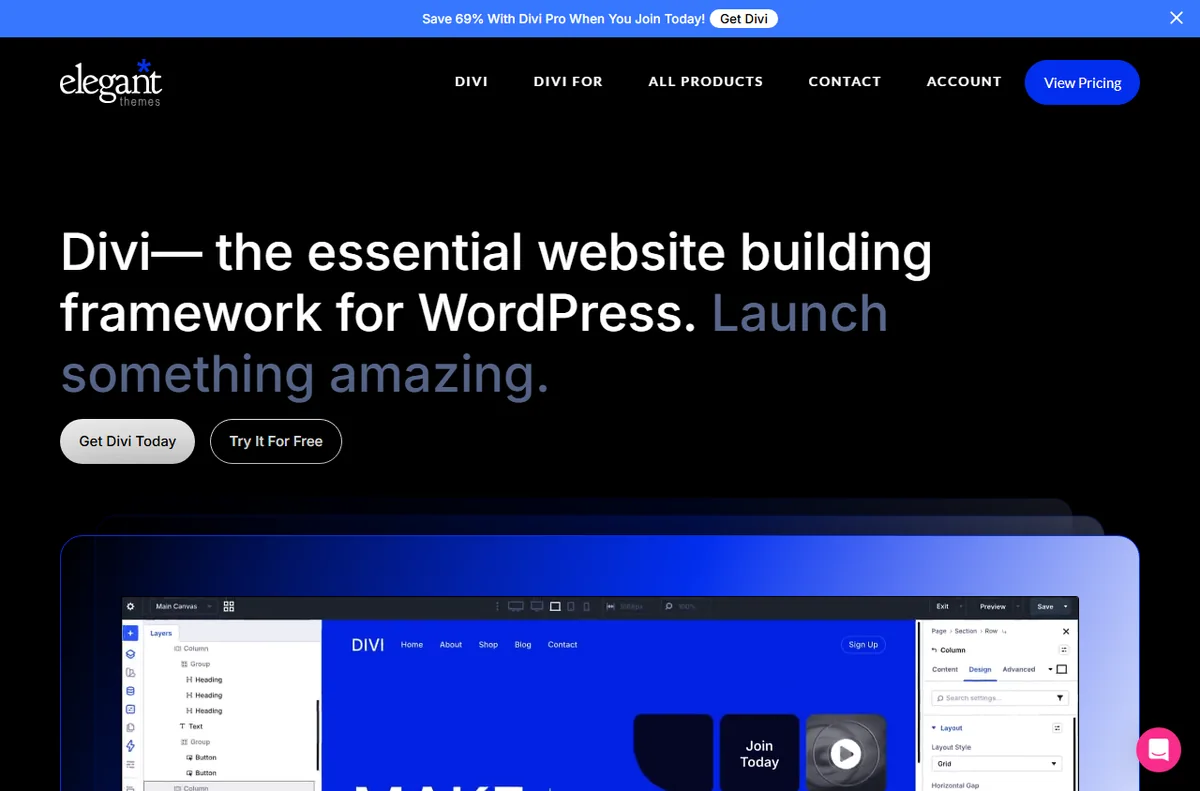
    Elegant Themes homepage
    Elegant Themes homepage (image: elegantthemes.com)

    What a small business needs from a builder

    Not every feature matters equally. These are the priorities that usually decide whether a builder earns its place.

    Priority Why it matters How Divi helps
    Fast page creationYou need pages live without a long build cycleLayout packs and the Visual Builder get a page up quickly
    ConsistencyYour brand should look the same everywhereGlobal defaults and Theme Builder templates apply styling site-wide
    Low maintenanceYou may not have a full-time developerVisual edits and a library reduce the need to touch code
    ReuseSimilar pages should not be rebuilt each timeSaved sections can be dropped into new pages
    Cost controlBudgets are tightOne licence covers design and layout without a stack of separate tools
    Based on publicly documented behaviour, checked October 8, 2026.
    Divi documentation and help center
    Divi documentation (image: elegantthemes.com)

    Getting the foundations right

    Set your brand colours, fonts and button styles once, then leave them alone. Consistency is what makes a small site look considered rather than assembled.

    Decide on a simple set of page types: home, a service or product page, about, and contact. Build each from a saved template so they share structure.

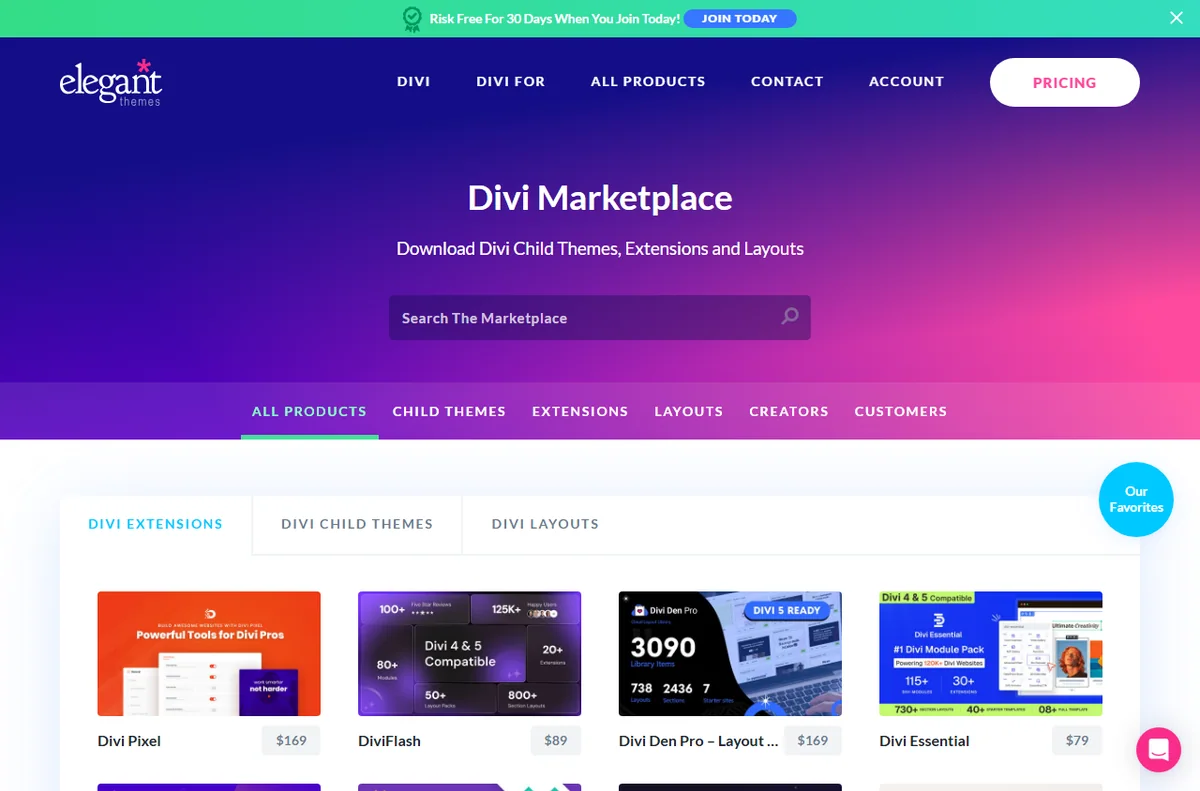
    Divi Marketplace with layout packs
    Divi Marketplace (image: elegantthemes.com)

    Landing pages that do a job

    Most small business pages have one job: to get a call, a form fill or a purchase. Keep the primary action obvious on every page. One clear button beats five competing calls to action.

    Build a reusable hero section and reuse it, changing only the headline and image. That keeps campaign pages quick to ship without losing consistency.

    Divi Layouts library of reusable layouts
    Divi Layouts library (image: elegantthemes.com)

    Reusable layouts and the library

    Save the sections you like to the Divi library and give them clear names, such as Hero Services or CTA Contact.

    A tidy library is the difference between a ten-minute page and an afternoon of rebuilding. It also makes it easy to reuse a layout across campaigns.

    Elegant Themes blog with Theme Builder tutorials
    Elegant Themes blog (image: elegantthemes.com)

    Theme Builder across the site

    Assign a global header and footer so navigation and contact details stay consistent on every page.

    Add templates for blog posts and archives if you publish content, so new posts inherit the right layout automatically.

    Maintenance and handover

    Document which template controls which part of the site. A short note saves time when a colleague or a freelancer edits a page later.

    Keep a staging copy for larger changes and push them live once checked. It is far cheaper than fixing a live page in a hurry.

    Keeping effort and cost in check

    The main cost is your time plus the licence. Compare that with what a custom build would take. Check the official pricing page for current licence options.

    Avoid buying add-ons you do not need. A focused setup is easier to maintain than a large stack of overlapping plugins.

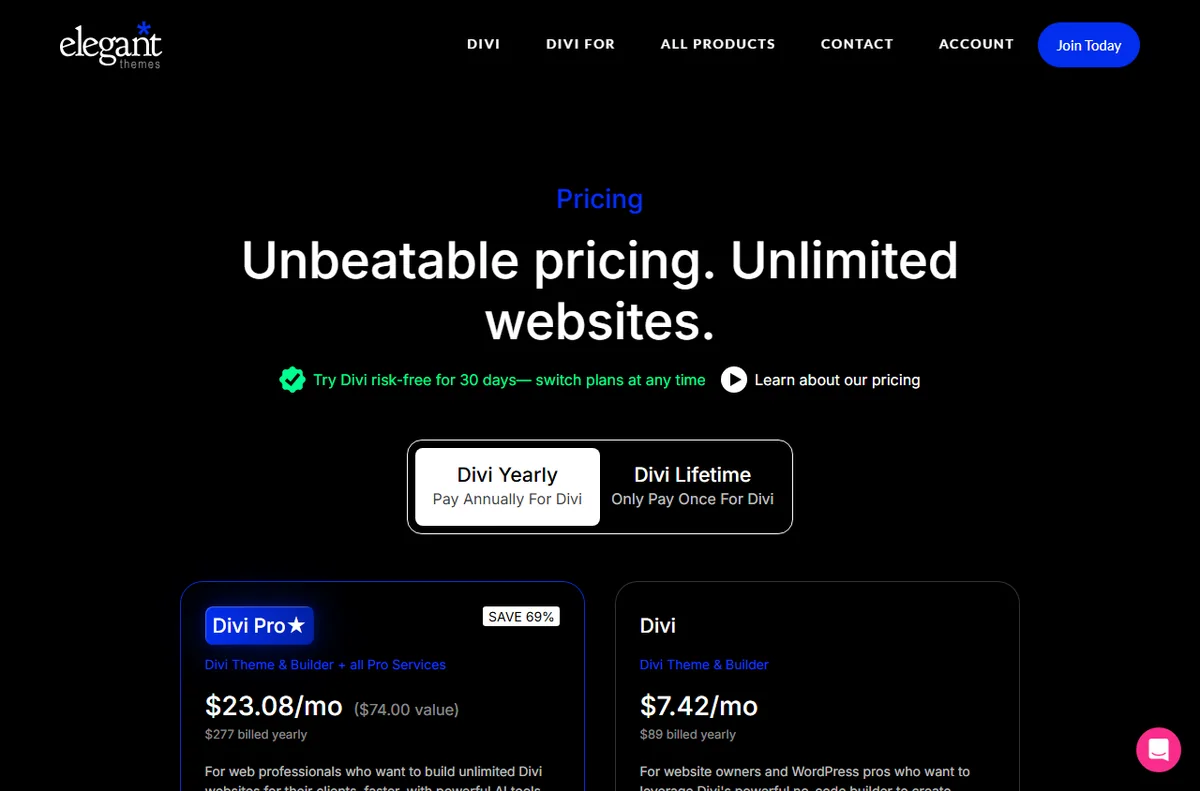
    GreenGeeks hosting/Div plan page
    Elegant Themes pricing (image: elegantthemes.com)

    Where this fits in your wider stack

    For a fuller picture, read the independent Divi review and browse the developer tools hub. If you are filling gaps around the builder, see best WordPress plugins for small business, or step back and compare best website builders for small business.

    Frequently asked

    Is Divi a good fit for a small business site?

    It suits teams that want visual control and consistency without a developer for every change. Large, highly custom projects may still need code.

    Can I reuse one design across several pages?

    Yes. Save sections and pages to the library and assign templates in the Theme Builder to apply styling site-wide.

    Do I need extra plugins with Divi?

    You can run a functional site without many. Add plugins only when a specific need, such as SEO or forms, is not already covered.

    How do I know which licence to buy?

    Licence tiers and site limits change. Check the official pricing page to match a plan to the number of sites you run.

    Put Divi to work on your site

    Review the current plans and what each licence covers.

    Referral link — we may earn a reward if you sign up, at no extra cost to you. We are an independent publisher. See our Affiliate Disclosure.

  • How to Use GreenGeeks for a Small Business

    How to Use GreenGeeks for a Small Business

    Home / Hosting / Guides / How to use GreenGeeks for a small business

    Guide · hosting · updated October 8, 2026

    How to use GreenGeeks for a small business

    Small businesses choose hosting for different reasons: some for speed, some for support, and some because the provider matches their values. This guide looks at how a small team can use GreenGeeks well, from a clean initial setup to the routines that keep a business site healthy over time.

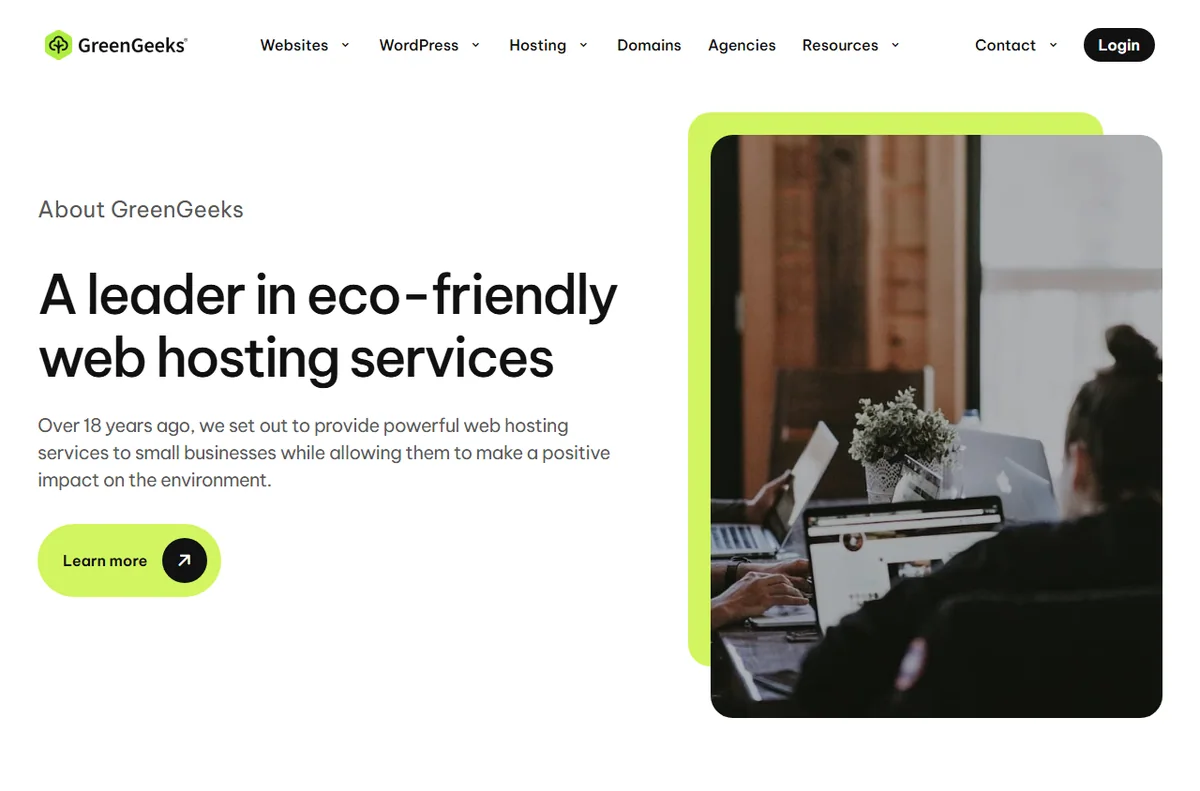
    GreenGeeks eco-friendly web hosting homepage
    GreenGeeks official homepage (image: greengeeks.com)

    Independent analysis. This page may contain affiliate links. Some links here are referral links; if you sign up through one we may earn a reward at no extra cost to you, and it never changes what we recommend. We are an independent publisher and are not affiliated with, endorsed by, or an official partner of any tool mentioned. See our Affiliate Disclosure.

    TL;DR

    • Choose a tier that matches how many sites you will realistically run.
    • Use email and hosting together if it reduces admin overhead.
    • Test changes on staging before they reach customers.
    • Understand what green hosting does and does not claim.
    • Watch renewal rates so the annual cost has no surprises.

    On this page: What this covers · When it fits a small business · Setting up for a small team · Green hosting in practice · Email and domains · Testing with staging · Prioritising features · Keeping costs predictable · Where this fits

    What this covers

    This is a use-case guide, not a setup tutorial. It focuses on how a small business gets real value from GreenGeeks once the site is live: which habits save time, which features are worth enabling and where the running costs come from.

    It also covers what a green hosting claim actually means, so you can judge whether it aligns with how your business presents itself.

    GreenGeeks shared hosting overview
    GreenGeeks shared hosting (image: greengeeks.com)

    When it fits a small business

    This provider suits teams that want a managed, familiar hosting setup and value a sustainability angle they can mention alongside their other choices.

    If your priority is raw control over the server stack, or if your workload is unusually heavy, compare against a general plan designed for that instead.

    GreenGeeks client area sign-in page
    GreenGeeks client area (image: greengeeks.com)

    Setting up for a small team

    • Keep one owner account and stop sharing its password around the team.
    • Give each person only the access their role needs.
    • Note where the domain is registered and who can edit its nameservers.
    • Agree a naming convention for sites and environments so everyone knows which is which.
    GreenGeeks about page describing green hosting
    About GreenGeeks (image: greengeeks.com)

    Green hosting in practice

    Green hosting usually means the provider offsets or matches the energy your site consumes, rather than meaning your site runs without any energy use at all.

    That is a useful detail to get right in your own marketing. Describe it accurately: a matched-energy claim is credible, an absolute claim is not.

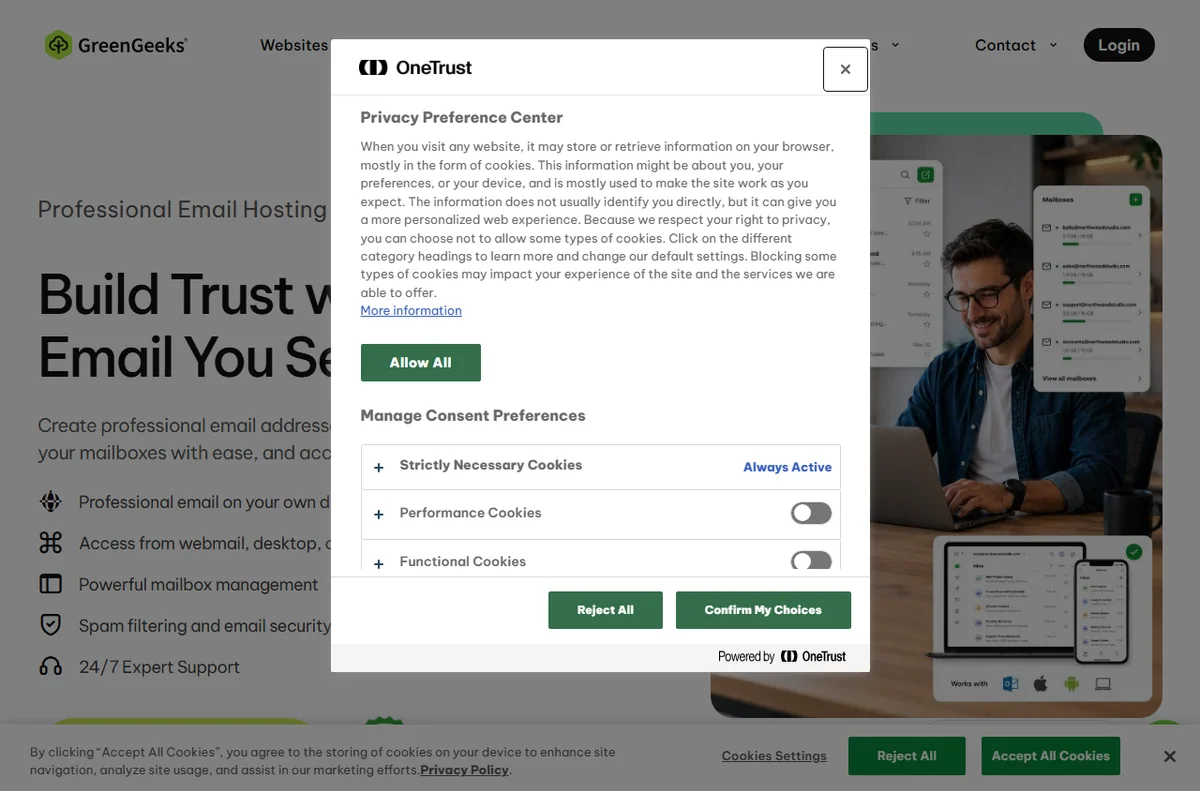
    GreenGeeks business email hosting page
    GreenGeeks email hosting (image: greengeeks.com)

    Email and domains

    Hosting email alongside the site reduces the number of vendors you coordinate and keeps DNS records in one place.

    Decide early whether the team will use hosting mailboxes or a separate email provider, because moving later means touching DNS and every device that connects.

    GreenGeeks support and help center
    GreenGeeks support (image: greengeeks.com)

    Testing with staging

    Staging gives you a copy of the site to test updates and layout changes without exposing them to customers.

    Make it a habit: change on staging, verify, then promote to live. It converts risky edits into routine ones and is the highest-value process for a small team.

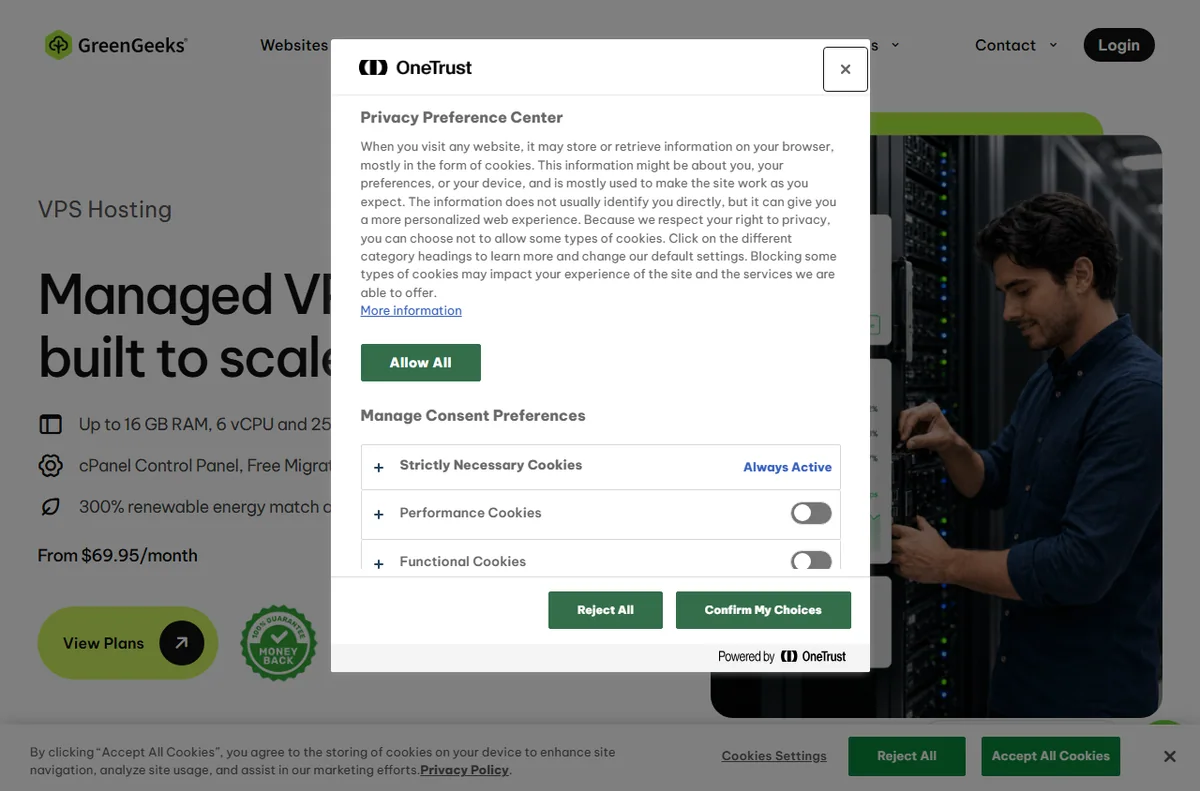
    GreenGeeks VPS hosting feature comparison
    GreenGeeks VPS hosting (image: greengeeks.com)

    Prioritising features

    These features matter most for a small business site. Rank them against your own situation.

    Feature Day-to-day value Priority
    Scheduled backupsRecovery from mistakes and incidentsHigh
    StagingSafe testing before changes go liveHigh
    Free SSLTrust and security basicsHigh
    Email hostingFewer vendors to coordinateMedium
    Green hosting angleAlignment with brand valuesMedium
    Multiple sitesFewer accounts to manageMedium
    Based on publicly documented behaviour, checked October 8, 2026.

    Keeping costs predictable

    Look past the introductory price. Check the renewal rate, the number of included sites and mailboxes, and whether extras are billed monthly or annually.

    Review the plan once a year against actual usage so you are not paying for capacity you do not use, or running too close to a limit.

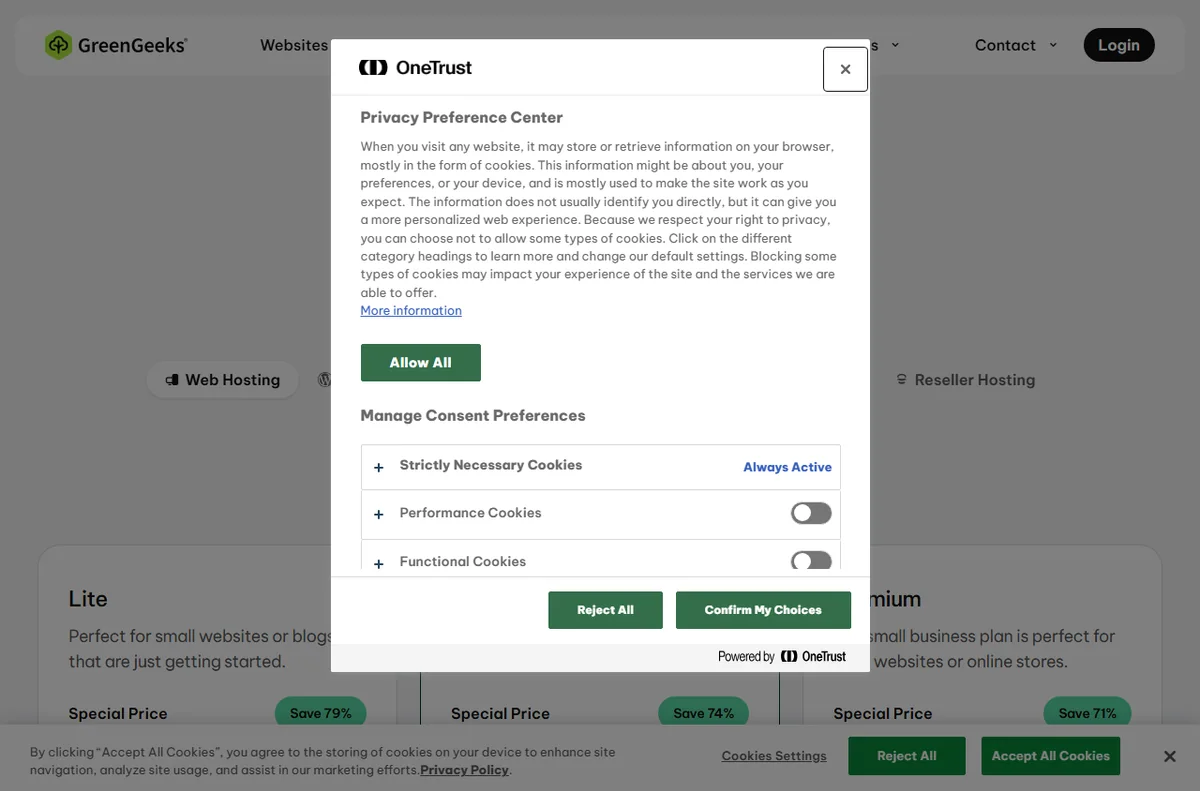
    GreenGeeks hosting/Div plan page
    GreenGeeks pricing (image: greengeeks.com)

    Where this fits in your wider stack

    For a fuller picture before you commit, read the independent GreenGeeks review and browse the hosting hub. If you are shortlisting, compare the best web hosting for small business and read how to choose web hosting. Understanding hosting renewal pricing early also helps you plan the annual budget.

    Frequently asked

    Does green hosting make my site carbon neutral on its own?

    Usually it means the provider matches or offsets the energy used, so describe it as a matching or offsetting claim rather than an absolute one.

    Is it worth hosting email with the same provider?

    It can reduce admin overhead, especially for a small team, but weigh it against how you manage email today.

    Do I need staging for a simple website?

    Even a simple site benefits, because it lets you test updates without risking the live version.

    How often should we review the hosting plan?

    Once a year is a sensible baseline, or sooner if usage changes sharply.

    Choosing hosting for your business?

    Check the current plan limits and pricing on the provider page before you decide.

    Referral link — we may earn a reward if you sign up, at no extra cost to you. We are an independent publisher. See our Affiliate Disclosure.

  • How to Use ScalaHosting for a Small Business

    How to Use ScalaHosting for a Small Business

    Home / Hosting / Guides / How to use ScalaHosting for a small business

    Guide · hosting · updated October 8, 2026

    How to use ScalaHosting for a small business

    A small business rarely needs exotic hosting. It needs a site that stays up, changes safely and does not demand a specialist to maintain. This guide looks at how a small team can use ScalaHosting day to day, from the first setup to the habits that keep costs and risk under control.

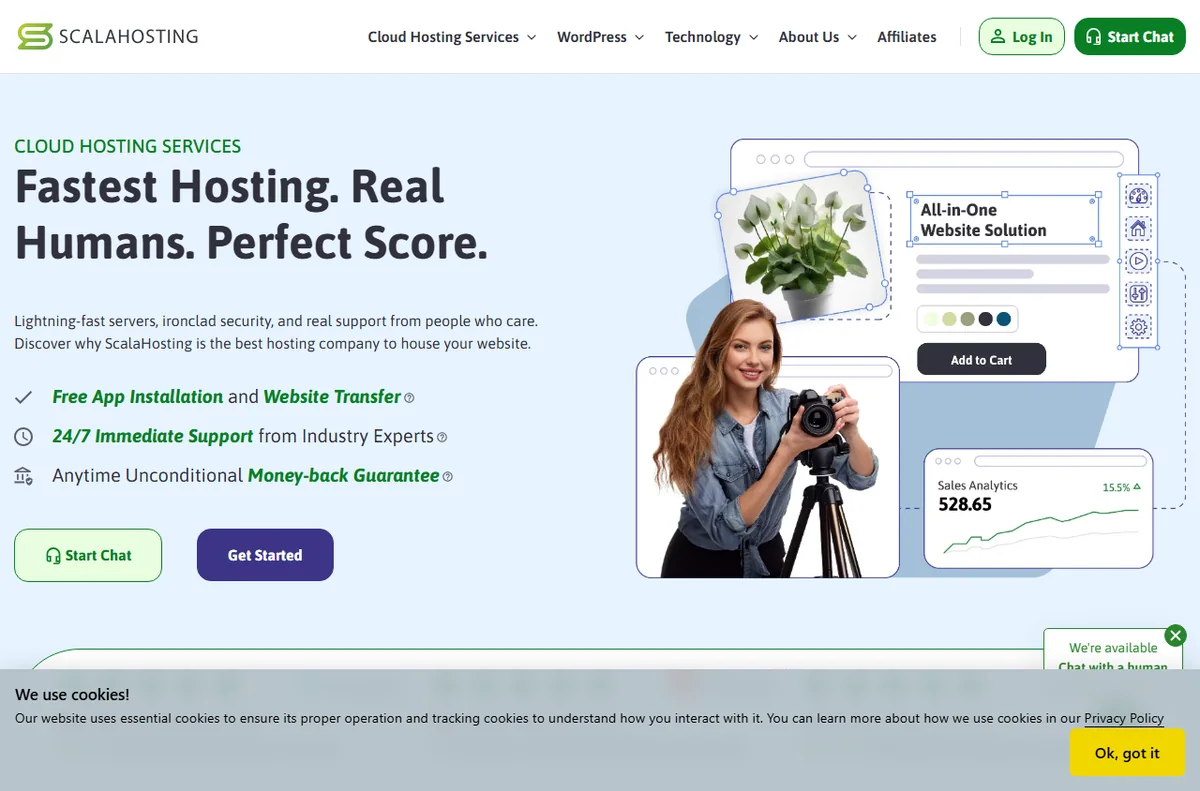
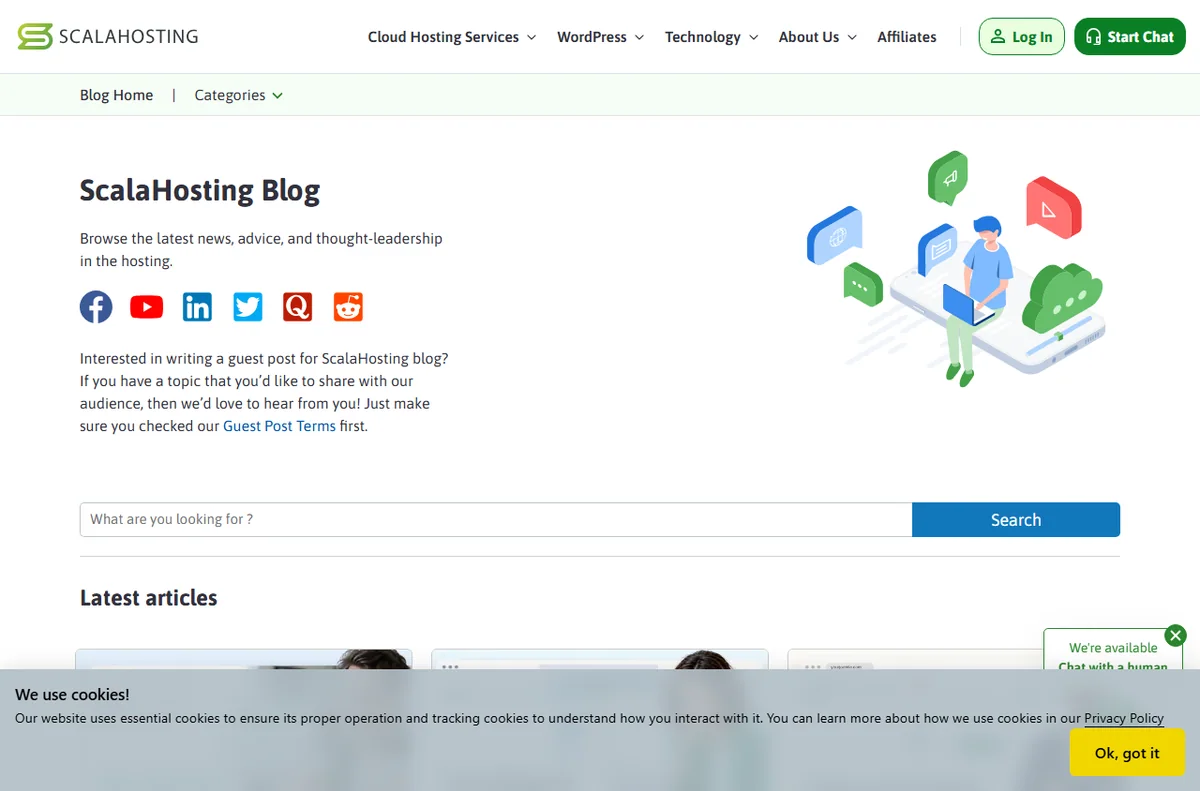
    ScalaHosting official homepage for managed cloud hosting
    ScalaHosting official homepage (image: scalahosting.com)

    Independent analysis. This page may contain affiliate links. Some links here are referral links; if you sign up through one we may earn a reward at no extra cost to you, and it never changes what we recommend. We are an independent publisher and are not affiliated with, endorsed by, or an official partner of any tool mentioned. See our Affiliate Disclosure.

    TL;DR

    • Match the plan to your real workload, not to the lowest headline number.
    • Use staging so changes are tested before customers see them.
    • Rely on scheduled backups instead of manual ones.
    • Keep email, domains and hosting decisions in one place where possible.
    • Watch renewal timing so the running cost stays predictable.

    On this page: What this covers · When it fits a small business · Setting up for a small team · Running several sites · Testing with staging · Backups and recovery · Prioritising features · Keeping costs predictable · Where this fits

    What this covers

    This is a use-case guide rather than a step-by-step setup. It focuses on how a small business actually runs hosting month to month: who does what, which features earn their keep, and where the hidden effort usually sits.

    The aim is to help you get more value from the plan you already have, or to judge whether a managed option is worth the premium for your situation.

    ScalaHosting small business web hosting page
    ScalaHosting web hosting (image: scalahosting.com)

    When it fits a small business

    Managed hosting suits teams that want the platform to handle updates, caching and routine security work so the business can focus on its own operations.

    If you have in-house technical staff who prefer to tune every layer of the stack, a general hosting plan may be the better fit. The right answer depends on whether your time or your control matters more.

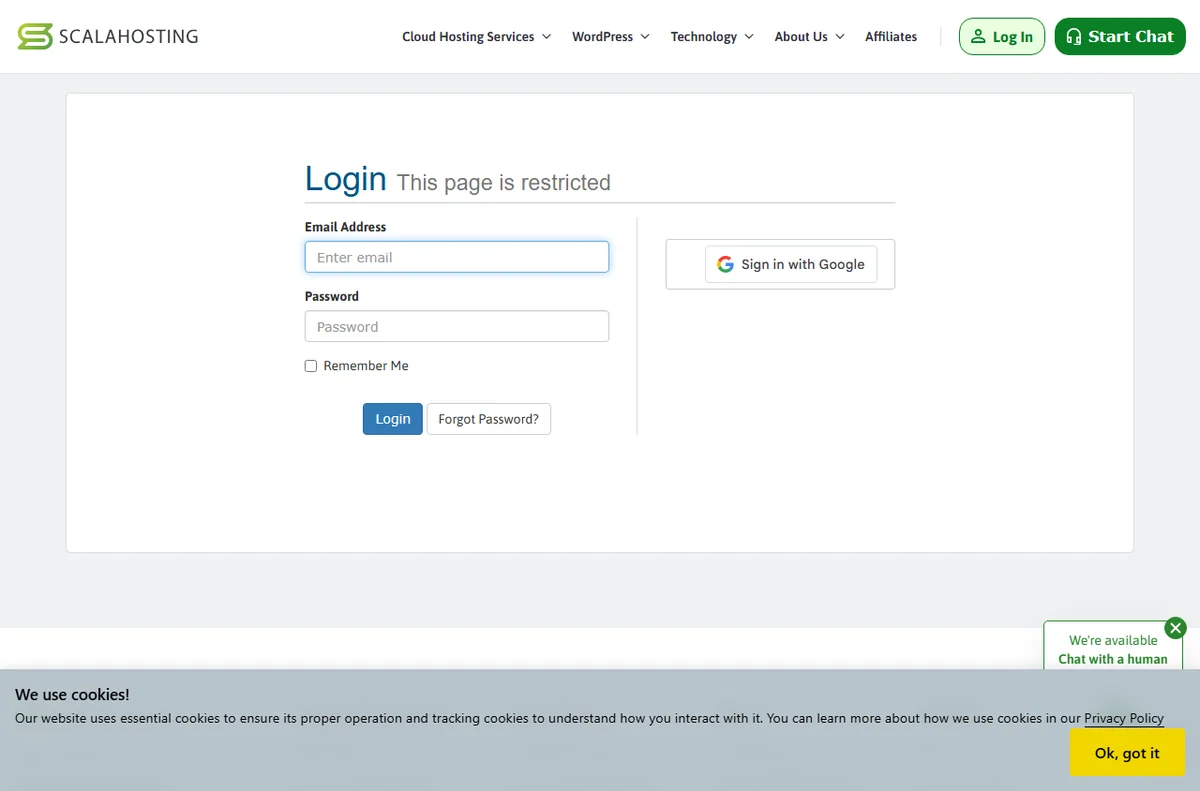
    ScalaHosting client area sign-in page
    ScalaHosting client area sign-in (image: scalahosting.com)

    Setting up for a small team

    • Create one shared owner account and avoid sharing its password around the team.
    • Give each team member only the access they need rather than full admin rights.
    • Record where the domain is registered and who can change its nameservers.
    • Agree a simple naming convention for sites and environments so nobody guesses.
    ScalaHosting managed cloud hosting for multiple sites
    ScalaHosting managed cloud hosting (image: scalahosting.com)

    Running several sites

    Most small businesses end up with more than one site: the main presence, perhaps a campaign landing page and sometimes a separate storefront.

    Choose a plan with enough site slots so you are not juggling accounts, and keep each site isolated so a problem on one does not spread to the others.

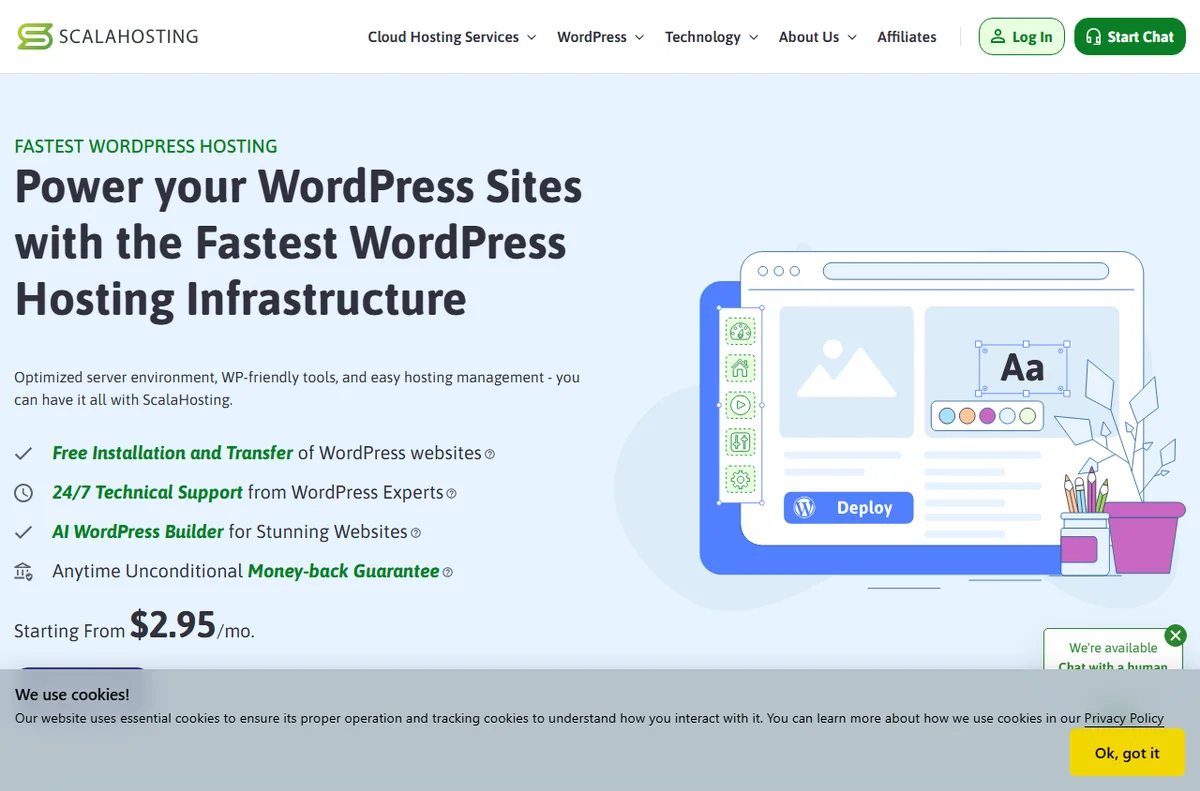
    ScalaHosting managed WordPress hosting with staging
    ScalaHosting WordPress hosting (image: scalahosting.com)

    Testing with staging

    Staging is a copy of your site where you can try theme updates, plugin changes and layout edits without touching the live version.

    For a small team this is the single most useful habit: push a change to staging, check it, then promote it. It turns risky edits into routine ones.

    ScalaHosting cloud VPS hosting plans
    ScalaHosting cloud VPS (image: scalahosting.com)

    Backups and recovery

    Scheduled backups are only useful if you have tested a restore. Pick a frequency that matches how often your content changes, and make sure backups are stored somewhere separate from the live site.

    Write down the recovery steps in one short note so anyone on the team can follow them under pressure.

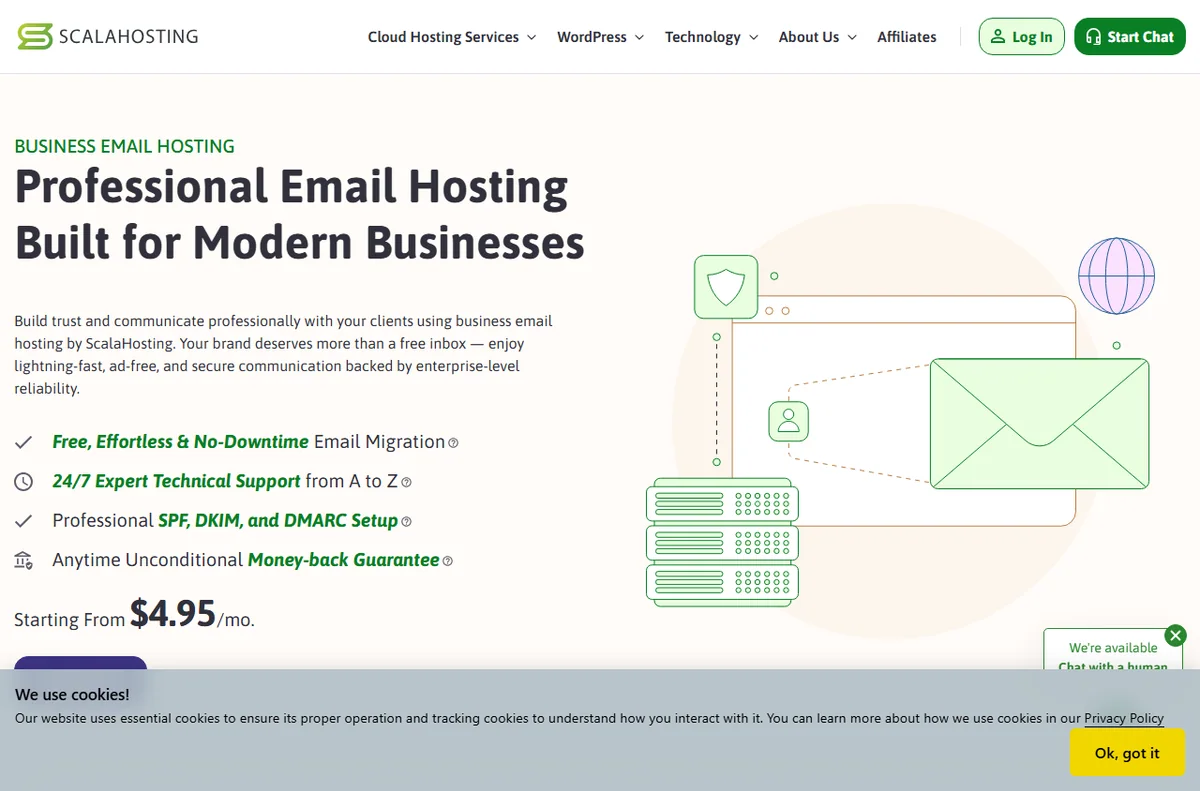
    ScalaHosting business email hosting features
    ScalaHosting email hosting (image: scalahosting.com)

    Prioritising features

    Not every feature matters equally for a small business. This table ranks them by practical value.

    Feature Day-to-day value Priority
    StagingSafe testing before changes go liveHigh
    Scheduled backupsRecovery from mistakes and incidentsHigh
    Free SSLTrust and security basicsHigh
    Multiple sitesFewer accounts to manageMedium
    Email hostingOne less vendor to coordinateMedium
    Advanced cachingSpeed under heavier trafficMedium
    Based on publicly documented behaviour, checked October 8, 2026.

    Keeping costs predictable

    The headline price is rarely the whole story. Check what the renewal rate will be, how many sites and mailboxes are included, and whether add-ons are billed monthly or yearly.

    Review the plan once a year against actual usage. That short habit prevents paying for capacity you no longer use, or outgrowing a plan without noticing.

    ScalaHosting blog with hosting guides
    ScalaHosting blog (image: scalahosting.com)

    Where this fits in your wider stack

    For a deeper look before you commit, read the independent ScalaHosting review and browse the hosting hub. If you are shortlisting providers, see the best web hosting for small business. Content-led businesses should also check best hosting for bloggers, and it pays to understand hosting renewal pricing early.

    Frequently asked

    Is managed hosting worth it for a very small team?

    It usually is when nobody on the team has time to maintain a server, because it removes routine maintenance work.

    How many sites can a small business run on one plan?

    That depends on the tier you choose, so check the current plan limits on the official page.

    Do we still need backups if the host provides them?

    Yes. Keep your own scheduled backups as well, and make sure you have tested a restore.

    Should we host email with the same provider?

    It can simplify administration, but weigh it against how you already manage email across the business.

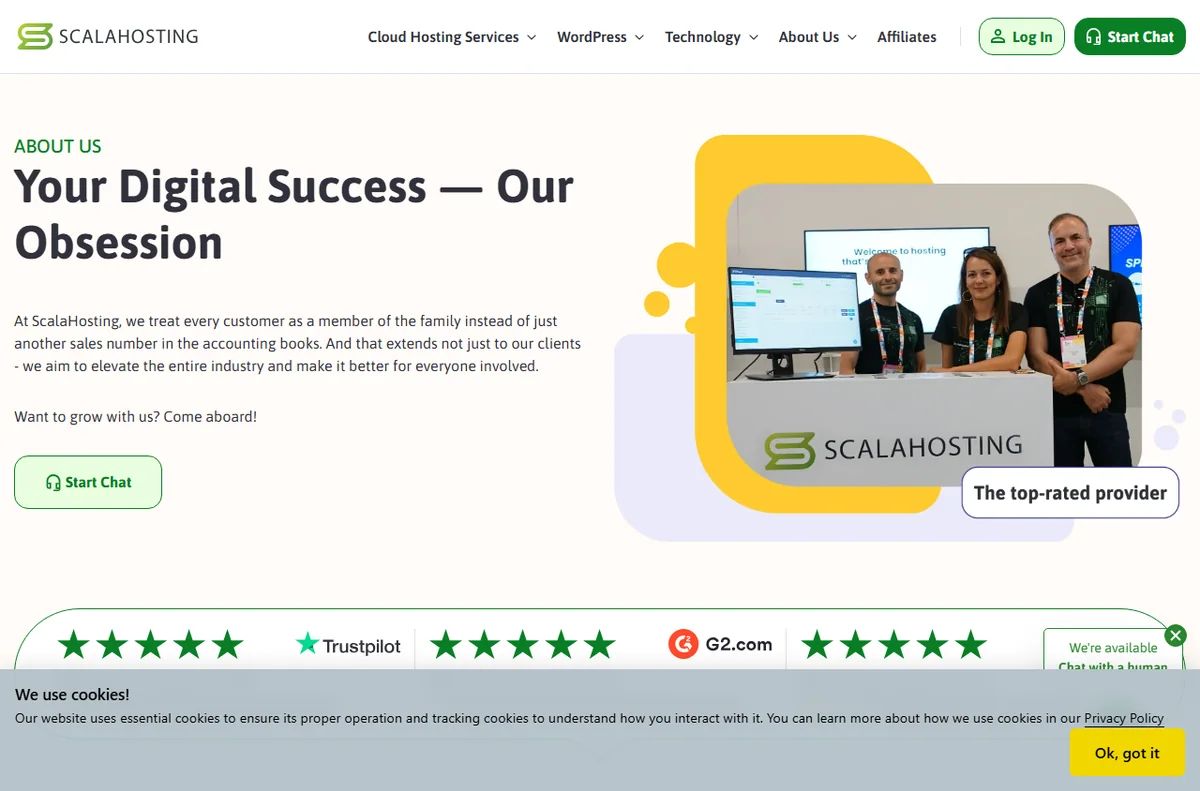
    ScalaHosting about page
    About ScalaHosting (image: scalahosting.com)

    Sizing hosting for your business?

    Check the current plan limits and pricing on the provider page before deciding.

    Referral link — we may earn a reward if you sign up, at no extra cost to you. We are an independent publisher. See our Affiliate Disclosure.
  • How to Use MailerLite for a Small Business

    How to Use MailerLite for a Small Business

    Home / Email Marketing / Guides / How to use MailerLite

    Use case · email marketing · updated October 8, 2026

    How to use MailerLite for a small business

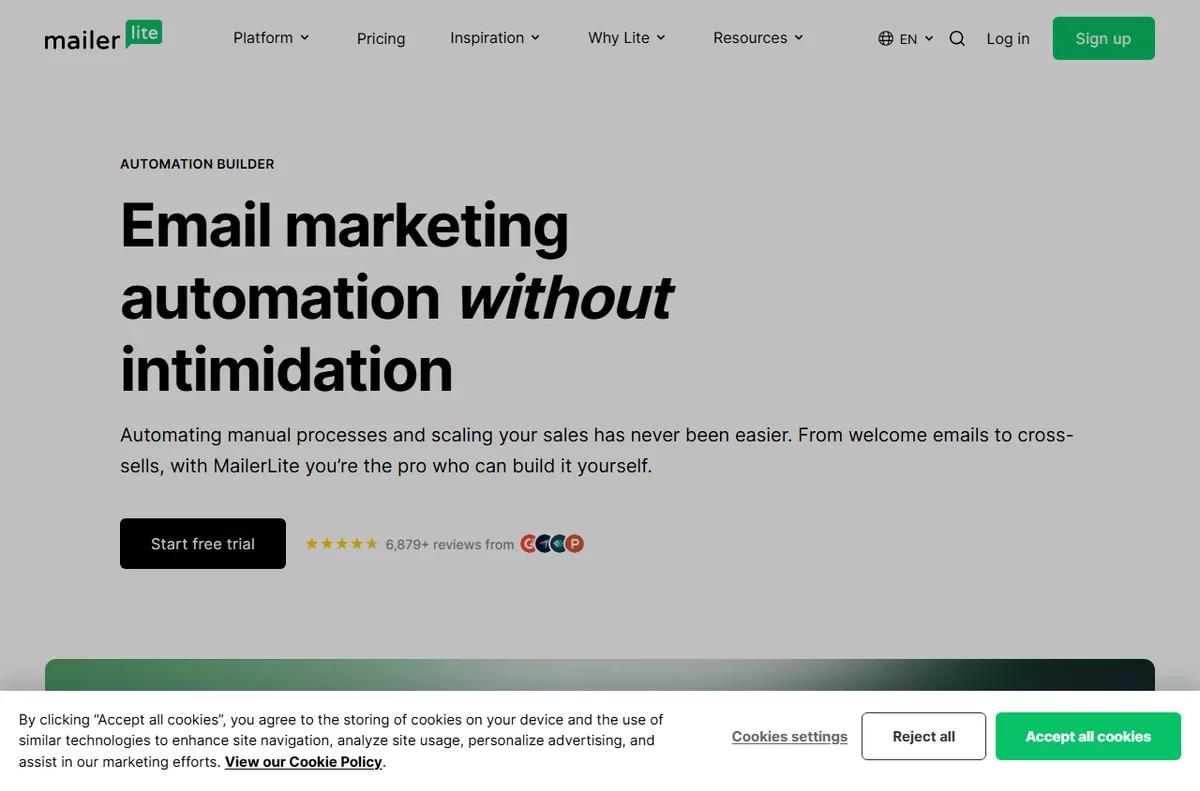
    MailerLite is a tool; the value comes from how a small business uses it. This post covers the practical patterns that tend to earn their keep: welcome series, a sustainable newsletter, simple segmentation, a few automations and honest reporting.

    MailerLite email marketing homepage
    MailerLite official homepage (image: mailerlite.com)

    Independent analysis. This page may contain affiliate links. Some links here are referral links; if you sign up through one we may earn a reward at no extra cost to you, and it never changes what we recommend. We are an independent publisher and are not affiliated with, endorsed by, or an official partner of any tool mentioned. See our Affiliate Disclosure.

    TL;DR

    • A welcome series does more work than most one-off campaigns.
    • A predictable newsletter rhythm beats sporadic bursts.
    • Segment by behaviour, not by guesswork.
    • Automate the handful of messages you send every time.
    • Keep consent and list hygiene in view as the list grows.

    On this page: What this covers · Where MailerLite earns its place · A welcome series that does a job · A newsletter rhythm you can keep · Segmentation without overcomplicating · What to automate first · Reading the numbers that matter · Consent and list hygiene · Where this fits in your wider stack

    What this covers

    Once the account is set up, the question shifts from configuration to habit. This post is about the patterns a small business can sustain: a few automations that always run, a newsletter cadence you can keep, and segmentation you will actually act on.

    It avoids theory. Each section maps to something you can build in an afternoon and improve over time.

    Where MailerLite earns its place

    For a small team, email is often the most reliable channel you own. These are the jobs worth setting up first.

    • Welcome new subscribers automatically.
    • Send a regular newsletter to stay in touch.
    • Segment by interest or purchase behaviour.
    • Follow up after a purchase or a key action.
    • Report on what actually gets opened and clicked.
    MailerLite automation builder for welcome series
    MailerLite automation (image: mailerlite.com)

    A welcome series that does a job

    The first messages after sign-up get the most attention you will ever have. A short series that sets expectations, delivers the promised value and points to one clear next step usually outperforms a single generic hello.

    MailerLite newsletter templates
    MailerLite templates (image: mailerlite.com)

    A newsletter rhythm you can keep

    Pick a cadence you can sustain and protect it. A monthly issue that always ships beats a burst of weekly sends that fades after a month, both for your audience and for your own workload.

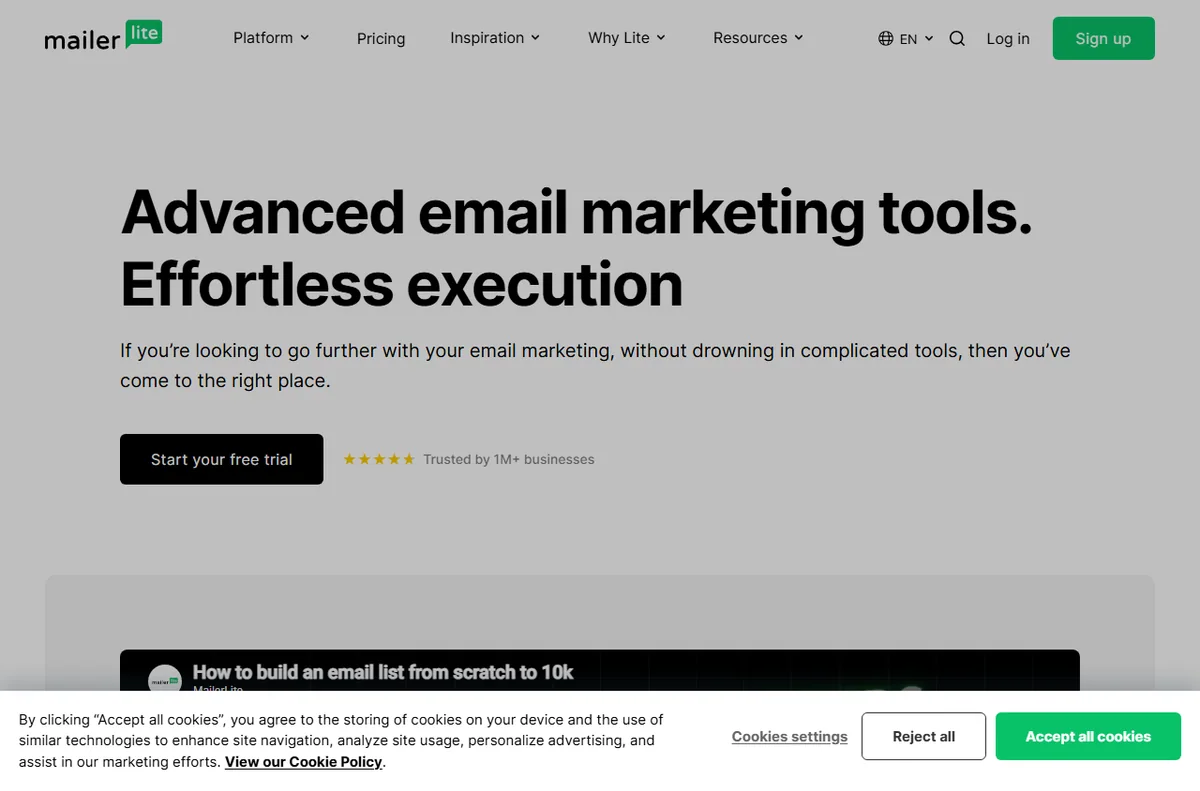
    MailerLite email marketing features for segmentation
    MailerLite features (image: mailerlite.com)

    Segmentation without overcomplicating

    Start with a few meaningful groups: customers, subscribers, and one based on a clear action such as a recent purchase. More segments than you can act on adds work without changing what you send.

    MailerLite integrations to trigger automations
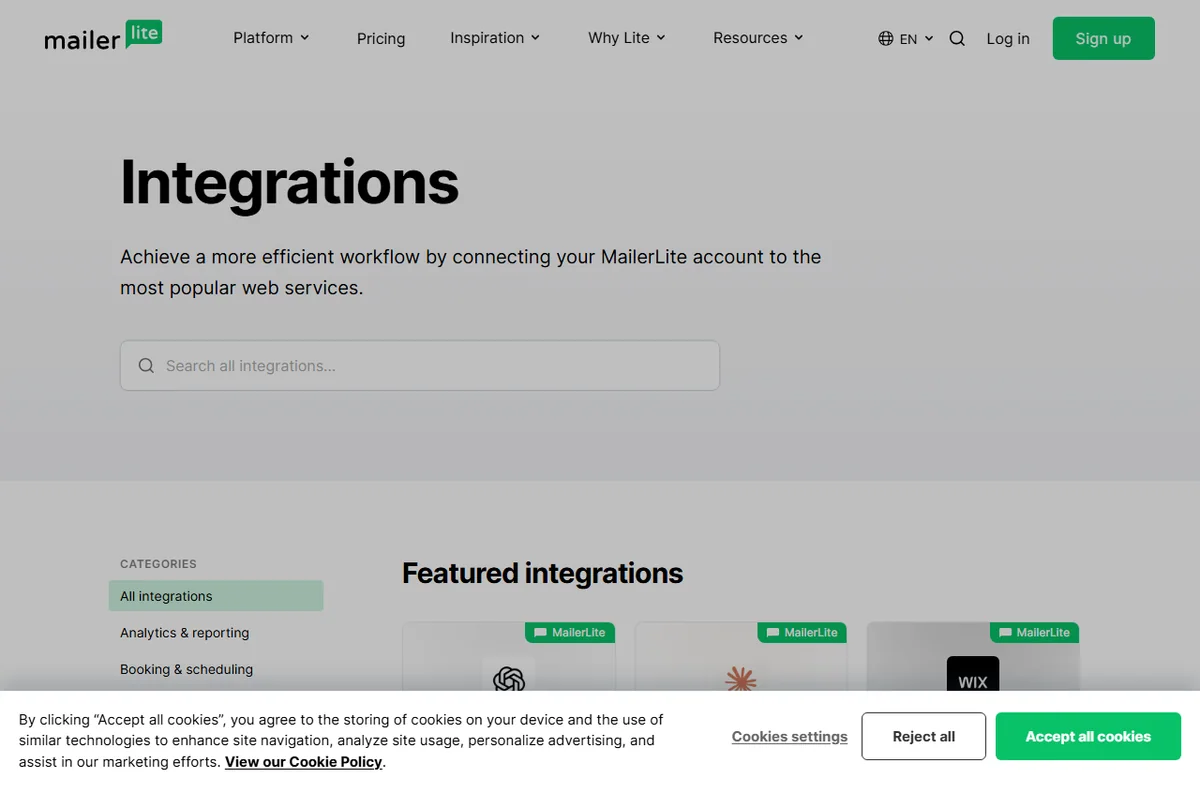
    MailerLite integrations (image: mailerlite.com)

    What to automate first

    Automate the messages you would otherwise send by hand every time.

    Automation Priority Why
    Welcome sequenceHighEvery new subscriber sees it
    Post-purchase follow-upHighTied to repeat business
    Re-engagement for inactive readersMediumProtects list quality over time
    Birthday or milestone messageLowNice to have, rarely urgent
    Complex branching journeysLaterWorth the effort only at larger scale
    Based on publicly documented behaviour, checked October 8, 2026.
    MailerLite dashboard sign-in where campaign statistics are accessed
    MailerLite dashboard sign-in (image: mailerlite.com)

    Reading the numbers that matter

    Open and click rates are directional, not definitive, and privacy features affect how they are measured. Watch trends over time and use the results to decide what to send next rather than chasing a single number in isolation.

    MailerLite sign-up forms with consent
    MailerLite sign-up forms (image: mailerlite.com)

    Consent and list hygiene

    Only email people who agreed to hear from you, make unsubscribing easy, and remove addresses that consistently bounce. A smaller engaged list is worth more than a large indifferent one, and it protects your deliverability.

    Where this fits in your wider stack

    If you are still choosing a tool, read the independent MailerLite review and start from the email marketing hub. Weighing options? See best email marketing software, browse best email newsletter tools, and if you are starting out, read best email marketing for beginners.

    Frequently asked

    How should a small business use MailerLite?

    Start with a welcome sequence and a newsletter you can keep up, then add segmentation and automations as you learn what your audience responds to.

    How often should I email my list?

    Choose a cadence you can sustain; consistency matters more than raw frequency.

    Should I segment my list?

    Yes, but keep it simple. A few groups tied to clear behaviour are easier to act on than many fine-grained ones.

    What metrics should I track?

    Watch open and click trends over time, plus unsubscribes and bounces, rather than optimising one number in isolation.

    MailerLite landing page builder
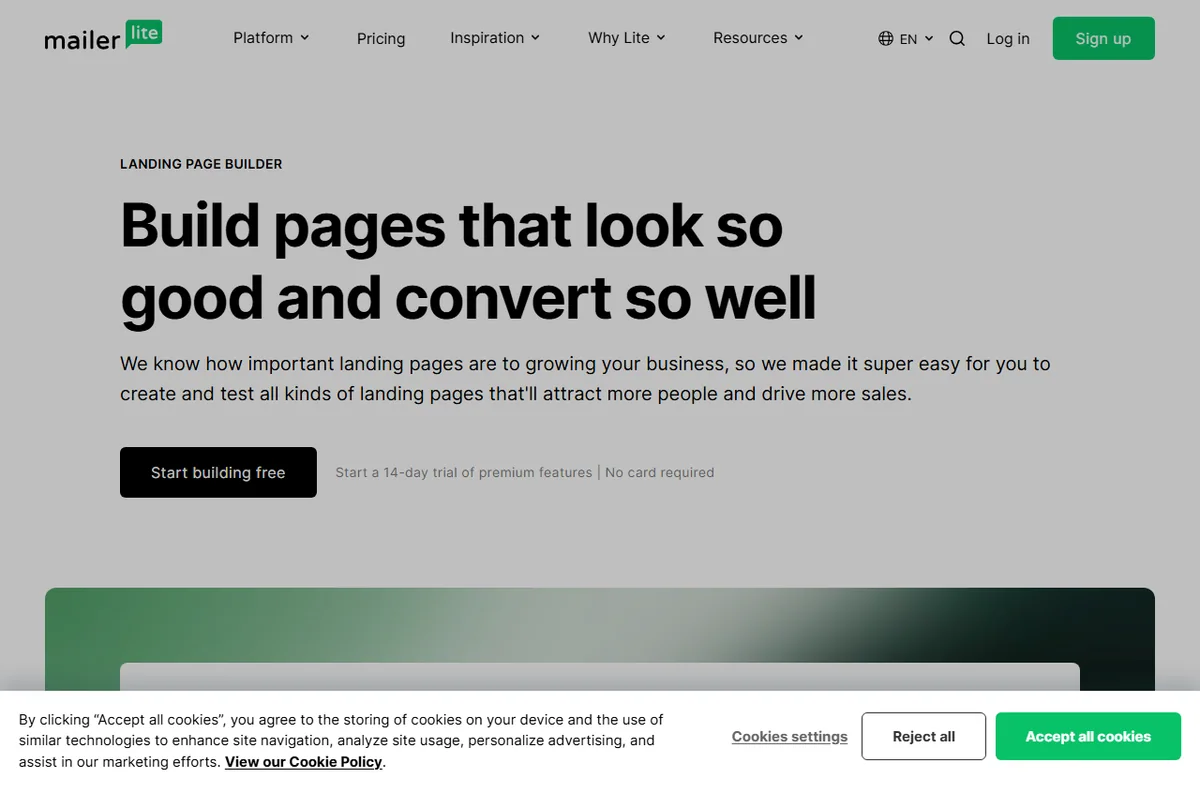
    MailerLite landing pages (image: mailerlite.com)

    Get more from MailerLite

    Start with a welcome series and one newsletter you can keep.

    Referral link — we may earn a reward if you sign up, at no extra cost to you. We are an independent publisher. See our Affiliate Disclosure.

  • How to Use Elementor for a Small Business

    How to Use Elementor for a Small Business

    Home / Developer Tools / Guides / How to use Elementor

    Use case · developer tools · updated October 8, 2026

    How to use Elementor for a small business

    Elementor is only useful if it solves real jobs for your business. This post looks at how a small business uses it in practice: landing pages, a theme you can maintain, reusable blocks, freelancer handoff and ongoing upkeep.

    Elementor official homepage for the WordPress page builder
    Elementor official homepage (image: elementor.com)

    Independent analysis. This page may contain affiliate links. Some links here are referral links; if you sign up through one we may earn a reward at no extra cost to you, and it never changes what we recommend. We are an independent publisher and are not affiliated with, endorsed by, or an official partner of any tool mentioned. See our Affiliate Disclosure.

    TL;DR

    • Use Elementor for landing pages when speed to launch matters.
    • A theme builder removes the need for custom header and footer code.
    • Reusable blocks keep repeated sections consistent.
    • Clear naming and structure make freelancer handoff easier.
    • Budget time for updates and performance checks each month.

    On this page: What this covers · Where Elementor earns its place · Landing pages for campaigns · A theme you can maintain · Reusable blocks and global widgets · Deciding what to build first · Working with freelancers · Keeping it healthy · Where this fits in your wider stack

    What this covers

    A page builder is a tool, and the return comes from the jobs you point it at. For a small team, that usually means shipping pages faster, keeping site-wide elements consistent and avoiding a developer bottleneck for routine changes.

    This post stays practical. It covers the patterns that tend to pay off and the maintenance that keeps a built site from drifting.

    Where Elementor earns its place

    Small teams rarely need every feature a builder offers. These are the jobs where it tends to pay off.

    • Campaign landing pages built and shipped in hours.
    • A custom header, footer and blog template without code.
    • Reusable hero and call-to-action sections.
    • Client-friendly editing for non-technical staff.
    • Rapid redesigns when the brand or offer changes.
    Elementor template library for building campaign landing pages
    Elementor template library (image: elementor.com)

    Landing pages for campaigns

    When a campaign needs a focused page, Elementor lets a marketer assemble it from sections, then duplicate and adjust for the next offer. The win is turnaround time, not novelty: the same page template can serve several campaigns with small edits.

    Elementor Hello theme page for a maintainable WordPress theme
    Elementor Hello theme (image: elementor.com)

    A theme you can maintain

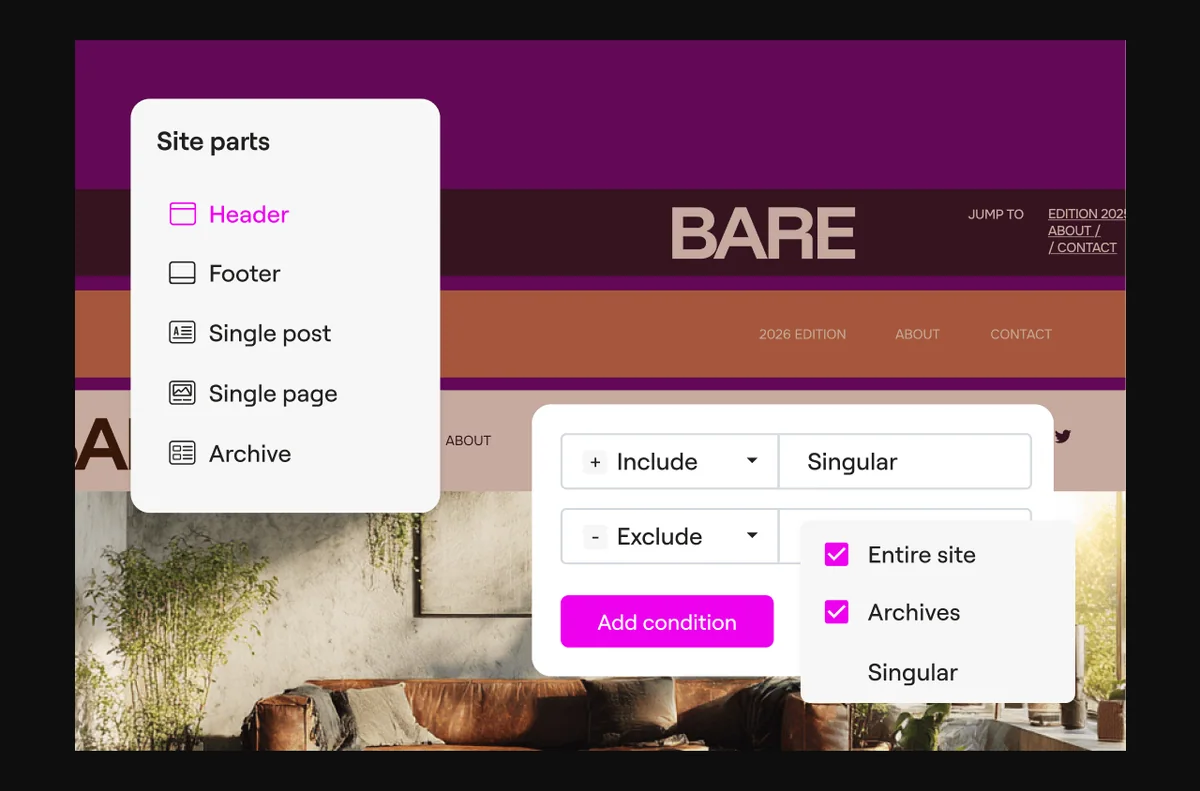
    The theme builder lets you design headers, footers, archive and single templates visually. That means a small business can change site-wide elements without waiting on a developer for every tweak, and it keeps those elements consistent across the site.

    Elementor Theme Builder for global templates and widgets
    Elementor Theme Builder (image: elementor.com)

    Reusable blocks and global widgets

    Save a section as a template or promote a widget to global, and an edit propagates everywhere it is used. This is the difference between a tidy site and one where five versions of the same button slowly drift apart.

    Elementor pricing plans to match scope
    Elementor pricing (image: elementor.com)

    Deciding what to build first

    A simple priority order keeps the first build phase focused and avoids rework.

    Job Priority Why it comes first
    Landing page for the current campaignHighDirectly tied to revenue this month
    Header and footer templatesHighTouches every page on the site
    Reusable call-to-action blockMediumReused across many pages
    Blog and archive templatesMediumNeeded once content volume grows
    Full redesign of old pagesLowBetter done once patterns are settled
    Based on publicly documented behaviour, checked October 8, 2026.
    Elementor blog resources for working with builders
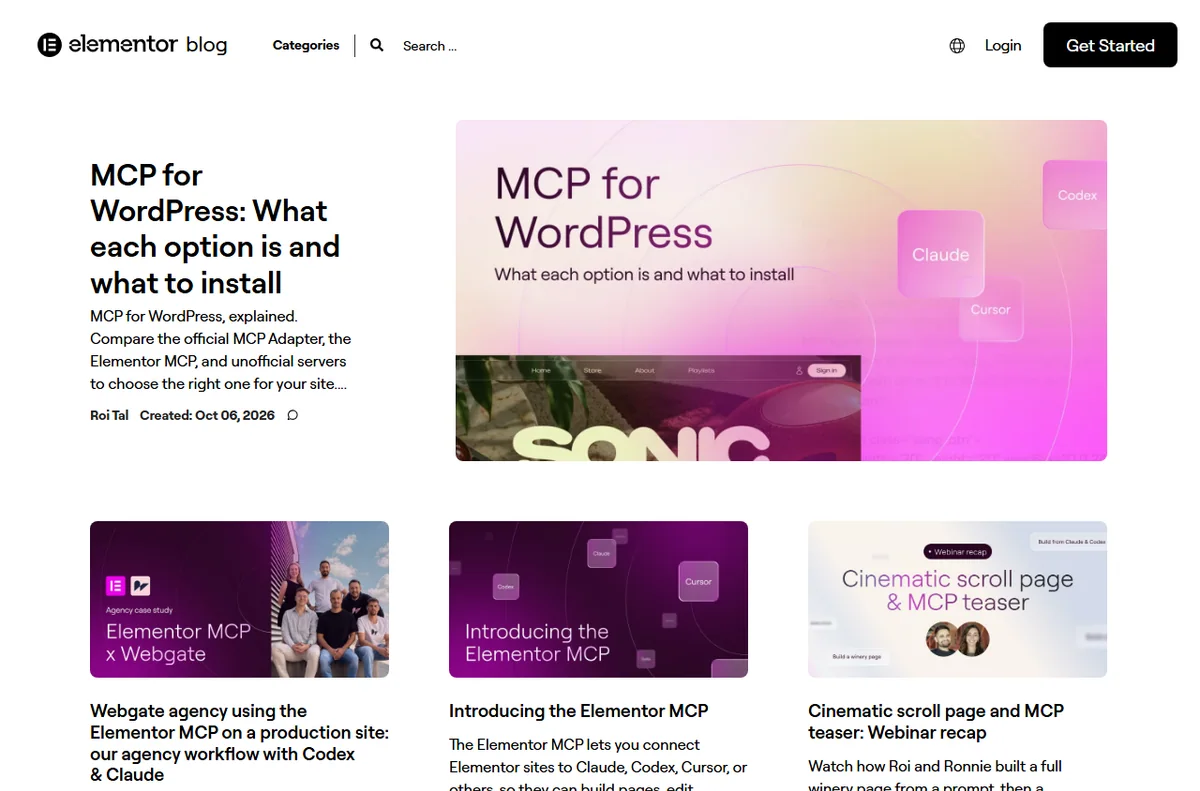
    Elementor blog (image: elementor.com)

    Working with freelancers

    Naming conventions and saved templates make a site easier to hand to a freelancer. A short document listing global colours, fonts and template names saves billable hours later, because the next person is not reverse-engineering your layout decisions.

    Elementor Knowledge Hub for maintenance tutorials
    Elementor Knowledge Hub (image: elementor.com)

    Keeping it healthy

    Schedule a monthly pass: update the plugin and its add-ons, check a live page for layout drift, and confirm images are still reasonably sized. Small habits prevent the slow accumulation that makes a site feel heavy.

    Where this fits in your wider stack

    If you are still choosing, read the independent Elementor review and the Elementor vs Divi comparison. For the wider context, start from the developer tools hub, compare best website builders for small business, and review website performance tools.

    Frequently asked

    Is Elementor good for a small business website?

    It suits teams that want to ship pages without a developer, as long as they keep plugins lean and images optimised.

    Do I need a developer to use Elementor?

    No, but a developer is useful for the initial theme setup and for anything involving custom code.

    Can my staff edit the site safely?

    Yes. Assign appropriate user roles and rely on saved templates so edits stay consistent.

    How do I keep an Elementor site fast?

    Compress images, limit plugins and test a real page with a performance tool.

    Elementor website builder product page for WordPress
    Elementor website builder (image: elementor.com)

    Put Elementor to work

    Start with the pages that matter this month, then build templates from them.

    Referral link — we may earn a reward if you sign up, at no extra cost to you. We are an independent publisher. See our Affiliate Disclosure.

  • How to Use DreamHost for a Small Business

    How to Use DreamHost for a Small Business

    Home / Hosting / Guides / How to use DreamHost for a small business

    Use case · hosting · updated October 8, 2026

    How to use DreamHost for a small business: the useful parts

    Once hosting is set up, the question becomes how to get steady value from it. For a small business, that means reliable email, a safe way to change the site, tested backups, and no surprises at renewal.

    DreamHost web hosting homepage
    DreamHost official homepage (image: dreamhost.com)

    Independent analysis. This page may contain affiliate links. Some links here are referral links; if you sign up through one we may earn a reward at no extra cost to you, and it never changes what we recommend. We are an independent publisher and are not affiliated with, endorsed by, or an official partner of any tool mentioned. See our Affiliate Disclosure.

    TL;DR

    • Set up business email on your own domain for credibility.
    • Use staging before any plugin or theme change.
    • Confirm backups and test a restore at least once.
    • Keep a short map of what lives where in the panel.
    • Diary the renewal date so the price never surprises you.

    On this page: What this covers · A small-business workflow · Business email on your domain · Staging before changes · Backups and restores · Keeping costs under control · Working in the panel · Where this fits

    What this covers

    This guide is about the everyday use of shared hosting, not the purchase. The pieces that actually earn their keep for a small business are email, a safe change process, dependable backups, and a clear picture of the bill.

    Each section below gives you a habit to adopt, with the reason it matters for a business rather than a hobby site.

    DreamHost hosting features page for small business sites
    DreamHost features (image: dreamhost.com)

    A small-business workflow

    Start with these four areas. They cover the incidents that cost a small business the most: lost email, a broken update, a missing backup, and a surprise renewal.

    Area Why it matters First action
    EmailA domain address looks more credible than a free inboxCreate the role mailboxes you actually use
    StagingLets you test changes without touching the live siteCopy the site to staging before the next update
    BackupsProtects the business if an update goes wrongConfirm backups run, then test one restore
    Cost controlRenewal prices are usually higher than the first termNote the renewal date and expected price now
    Based on publicly documented behaviour, checked October 8, 2026.
    DreamHost business email page on a custom domain
    DreamHost email (image: dreamhost.com)

    Business email on your domain

    Business email on your own domain looks more credible than a free address, and it keeps customer conversations separate from your personal inbox. Set up mailboxes for the roles you actually use, such as hello and billing, and forward or alias the rest.

    Keep the list of mailboxes short. Fewer addresses are easier to secure and easier to hand over when someone leaves.

    DreamHost WordPress hosting page with staging workflow
    DreamHost WordPress hosting (image: dreamhost.com)

    Staging before changes

    Use a staging copy before plugin or theme changes. Test the change on staging, confirm it behaves, then apply it to the live site. This stops a broken update from reaching customers during a busy trading period.

    DreamHost hosting plans page covering backups
    DreamHost hosting plans (image: dreamhost.com)

    Backups and restores

    Confirm that backups are on, and then prove you can restore one. A backup you have never tested is a guess, and the worst time to discover that is during an incident.

    Add a manual backup before large changes so you always have a recent, clean point to return to.

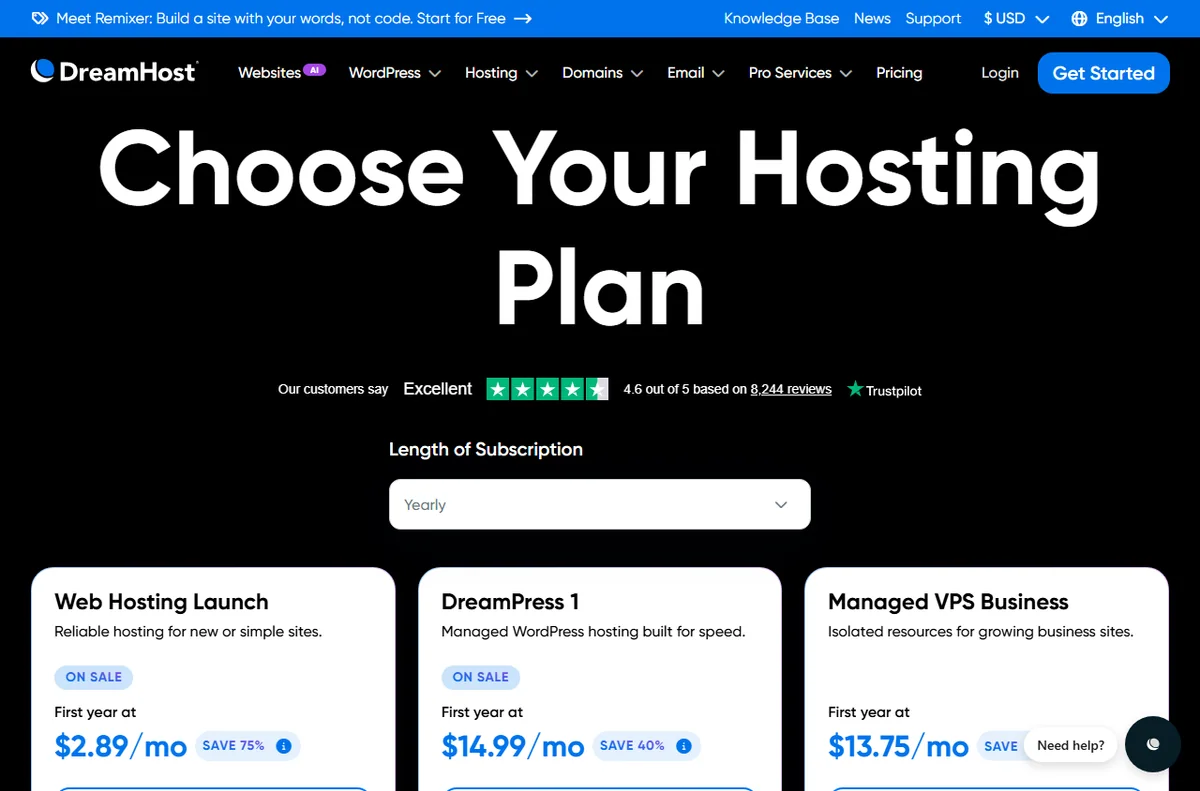
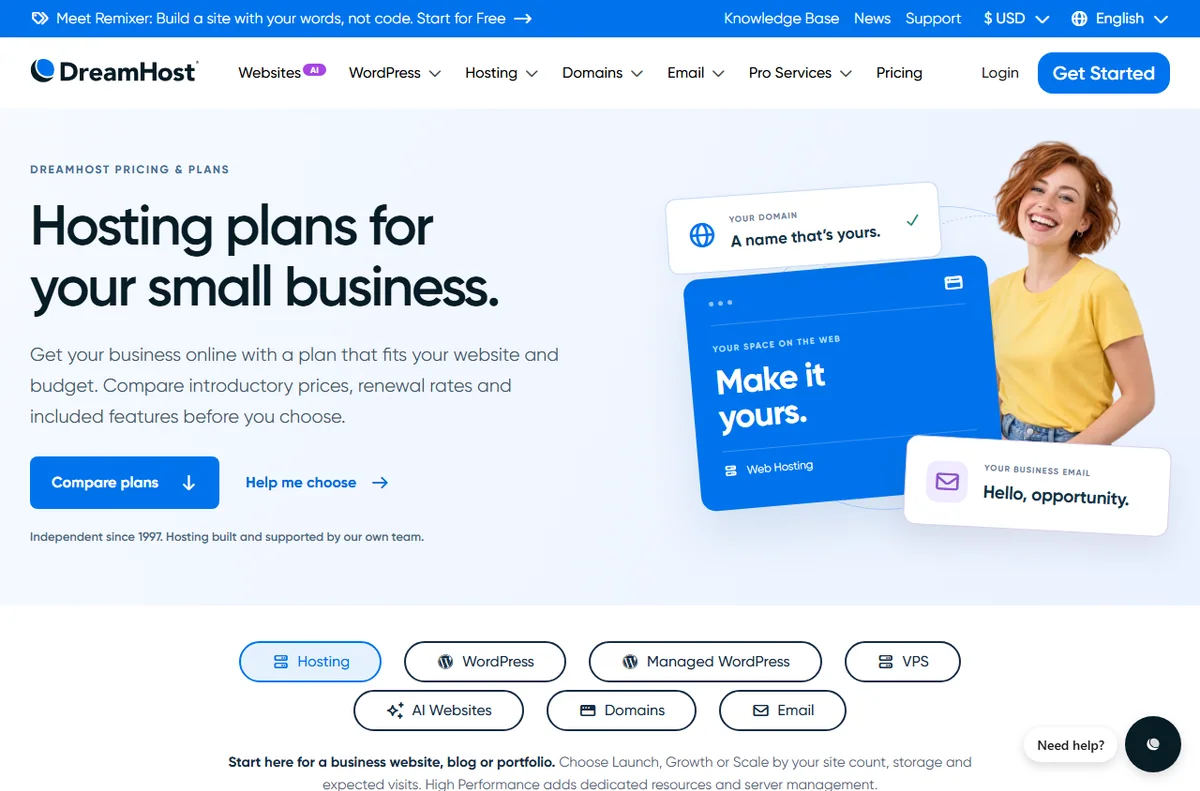
    DreamHost pricing and plans page
    DreamHost pricing (image: dreamhost.com)

    Keeping costs under control

    Hosting costs tend to rise at renewal, because the first term often carries a discount. Note the renewal date and the price you will pay, and compare it against alternatives before it renews automatically.

    That single habit keeps hosting from becoming a quiet, recurring overspend.

    DreamHost account sign-in page for the control panel
    DreamHost sign-in (image: dreamhost.com)

    Working in the panel

    The control panel is where you manage domains, databases, email, and WordPress installs. Keep a short, written map of what lives where, so that a handover or an absence does not depend on one person remembering the details.

    DreamHost domain registration page
    DreamHost domains (image: dreamhost.com)

    Where this fits in your wider stack

    For a closer look at the host, read the independent DreamHost review. To weigh it against the field, see best web hosting for small business and best hosting for bloggers, and plan ahead with hosting renewal pricing.

    Frequently asked

    Is business email included with hosting?

    Email features vary by plan, so check the plan details on the official pricing page for exactly what is included.

    How do I test a change safely?

    Copy the site to a staging environment, apply the change there, confirm it works, then apply it to the live site.

    Why do hosting prices rise at renewal?

    Introductory terms often carry a discount, so the renewal price is higher. Noting the renewal date and price in advance avoids surprises.

    Can one plan run several small sites?

    Many plans support multiple sites. Confirm the current limits on the official pricing page before you rely on it.

    Get more from your hosting

    Set up email, staging, and tested backups so the site runs itself.

    Referral link — we may earn a reward if you sign up, at no extra cost to you. We are an independent publisher. See our Affiliate Disclosure.
  • How to Use Kinsta for a Small Business

    How to Use Kinsta for a Small Business

    Home / Hosting / Guides / How to use Kinsta for a small business

    Use case · hosting · updated October 8, 2026

    How to use Kinsta for a small business: a practical workflow

    A small business rarely wants to think about servers, but it does need sites that stay up, load quickly, and can be changed without fear. Kinsta is managed WordPress hosting, so the platform handles the infrastructure while your team works on the site.

    Kinsta managed WordPress hosting homepage
    Kinsta official homepage (image: kinsta.com)

    Independent analysis. This page may contain affiliate links. Some links here are referral links; if you sign up through one we may earn a reward at no extra cost to you, and it never changes what we recommend. We are an independent publisher and are not affiliated with, endorsed by, or an official partner of any tool mentioned. See our Affiliate Disclosure.

    TL;DR

    • Make staging the default place to test every change.
    • Keep backups running and prove you can restore them.
    • Turn on caching, then measure key pages before and after.
    • Run several sites under one account to cut overhead.
    • Give each person the access they need and nothing more.

    On this page: What this covers · A small-business workflow · Staging for safe changes · Backups you can trust · Caching and performance · Managing more than one site · Team access and handovers · Where this fits

    What this covers

    This guide is about how a small business actually uses managed WordPress hosting day to day, rather than how to pick a plan. The value shows up in a repeatable workflow: test changes safely, keep a recent restore point, and keep the site fast.

    None of these habits require a developer on staff. They are small routines that prevent the expensive kind of incident, the one where a routine update takes the storefront offline on a busy afternoon.

    Kinsta homepage highlighting the managed WordPress workflow
    Kinsta features (image: kinsta.com)

    A small-business workflow

    Treat these four areas as the backbone of how you run the site. Each one has a first action you can take this week.

    Area Why it matters First action
    StagingLets you test plugins and design changes without touching the live siteCreate a staging copy before your next update
    BackupsProtects revenue if an update breaks the siteConfirm backups run, then practise one restore in staging
    CachingSpeeds up pages and absorbs traffic spikesEnable caching and re-test the key pages
    Multi-siteKeeps several properties under one loginGroup your sites in one account and label them clearly
    Based on publicly documented behaviour, checked October 8, 2026.
    Kinsta guide on using staging environments
    Kinsta staging (image: kinsta.com)

    Staging for safe changes

    Staging is a full copy of your site on its own URL. Push plugin updates, theme edits, or content experiments there first, check the result, then move the change to live.

    This single habit prevents most downtime. If an update breaks a layout or a checkout flow, you find out on a private copy instead of in front of customers.

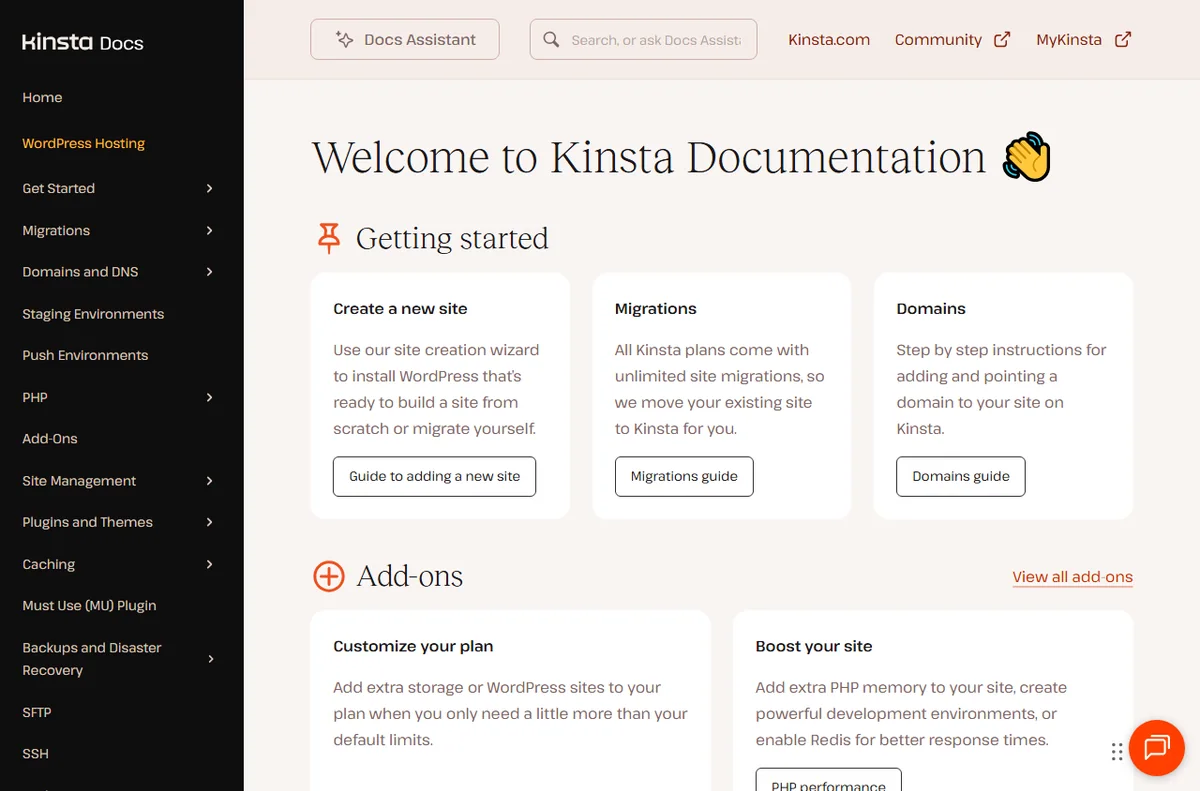
    Kinsta documentation on backups and site management
    Kinsta docs (image: kinsta.com)

    Backups you can trust

    A backup you have never tested is only a guess. Confirm that automatic backups are active, then walk through a restore in staging so you know the steps and how long they take.

    Add a manual backup before large changes such as a major plugin upgrade. That gives you a clean point to return to if something goes wrong.

    Kinsta managed WordPress hosting performance page
    Kinsta WordPress hosting (image: kinsta.com)

    Caching and performance

    Managed caching does most of the speed work, but content still matters. Compress large images, keep your plugin list lean, and measure your key pages before and after you change anything.

    Measuring beats assuming. A page that feels faster is not the same as one that loads faster for a visitor on a slower connection.

    Kinsta pricing page with plans for multiple sites
    Kinsta pricing (image: kinsta.com)

    Managing more than one site

    If you run a main site plus a landing page or two, keeping them in one account simplifies billing and access. Label each site by purpose so anyone on the team knows what is safe to change and what needs a second pair of eyes.

    Kinsta MyKinsta sign-in page for team access
    Kinsta sign-in (image: kinsta.com)

    Team access and handovers

    Give each team member their own login rather than sharing one account, so changes can be traced to a person. When someone leaves, revoke their access and rotate any shared credentials the site relies on, such as mail or payment integrations.

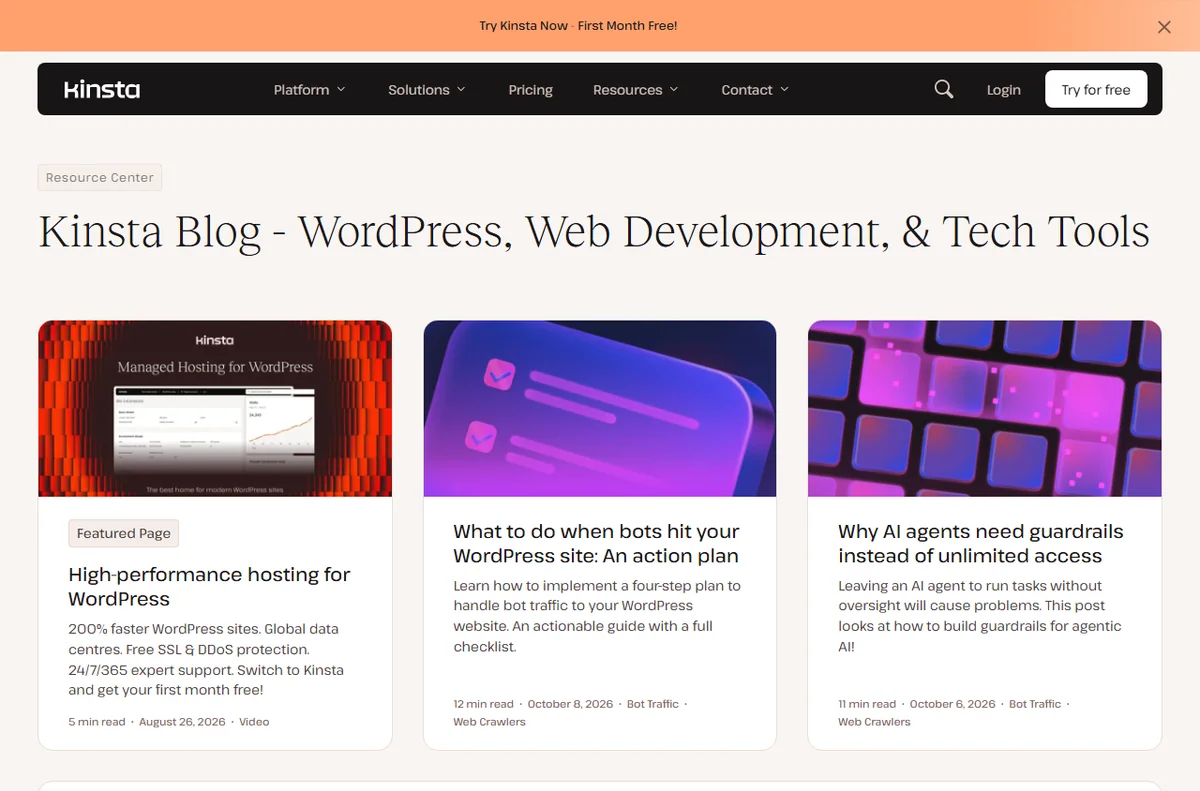
    Kinsta blog with WordPress guides and tutorials
    Kinsta blog (image: kinsta.com)

    Where this fits in your wider stack

    If you are still choosing a host, start with the independent Kinsta review and the Kinsta vs Hostinger comparison. To see how it stacks up against the wider market, read best web hosting for small business, and budget for later changes with hosting renewal pricing.

    Frequently asked

    Can a small business run staging without a developer?

    Yes. Staging is a copy of the site on its own URL, and pushing a change back to live is a built-in action rather than a manual file transfer.

    How often should I back up?

    Automatic backups run on a schedule, so the useful habit is to add a manual backup before any large change and keep a recent restore point on hand.

    Will caching break my forms or checkout?

    Test those paths after enabling caching. If something misbehaves, most platforms let you exclude specific pages from the cache.

    Do I need a separate account for each site?

    No. Several sites can sit under one account, which simplifies billing and lets you manage access from a single place.

    Put a small-business workflow in place

    Start with staging, backups, and caching, then grow the account with your sites.

    Referral link — we may earn a reward if you sign up, at no extra cost to you. We are an independent publisher. See our Affiliate Disclosure.

  • How to Use 1Password for a Small Business

    How to Use 1Password for a Small Business

    Home / Security & Privacy / Guides / How to use 1Password for a small business

    Use case · security & privacy · updated October 8, 2026

    How to use 1Password for a small business

    For a small business, the value of 1Password is not the encrypted database itself but the routine it creates: people share access through vaults instead of pasting passwords into chat, and access disappears cleanly when someone leaves.

    1Password home for password and secrets management
    1Password official homepage (image: 1password.com)

    Independent analysis. This page may contain affiliate links. Some links here are referral links; if you sign up through one we may earn a reward at no extra cost to you, and it never changes what we recommend. We are an independent publisher and are not affiliated with, endorsed by, or an official partner of any tool mentioned. See our Affiliate Disclosure.

    TL;DR

    • Shared vaults replace passwords sent over chat.
    • Onboarding is faster when access is granted by vault.
    • Offboarding must remove access in one pass.
    • Safe sharing covers one-off secrets, not just logins.
    • Recovery access should be planned, not improvised.

    On this page: What this covers · Shared vaults for shared work · Onboarding new people · Offboarding cleanly · Sharing secrets safely · Recovery and break-glass access · Where to start · Where this fits in your wider stack

    What this covers

    Most small businesses adopt a password manager to stop the same three habits: passwords sent over chat, one login shared by several people, and no clear record of who can reach what.

    This guide focuses on the routines that fix those habits, using 1Password as the example. It steers clear of quoting plan prices or trial terms, since those belong on the official pricing page.

    1Password password manager product page explaining shared vaults
    1Password features (image: 1password.com)

    Shared vaults for shared work

    The core habit is simple: anything more than one person needs goes into a shared vault rather than a private one. That way access is granted once and updated in one place.

    Keep the number of vaults small and meaningful. A team vault plus a couple of role-specific vaults is usually enough; a vault per project quickly becomes a maze nobody can audit.

    1Password sign-up page used to add people to the account
    1Password sign-up (image: 1password.com)

    Onboarding new people

    When access is organised by vault, onboarding becomes a short checklist rather than a scavenger hunt. You invite the person, add them to the vaults their role needs, and they start from day one.

    Pair the invite with a brief note on expectations: use the manager for every logins, turn on two-factor, and ask for access instead of borrowing it. Setting that tone early saves cleanup later.

    1Password business page covering team accounts and permissions
    1Password for business (image: 1password.com)

    Offboarding cleanly

    Offboarding is where password managers prove their worth, because access is revoked in one place. Remove the person from the account or the relevant vaults, then rotate anything sensitive they could have copied.

    Do not skip rotation for high-value logins such as banking or infrastructure. Leaving a known credential in place after someone leaves is the kind of gap that only shows up in an incident review.

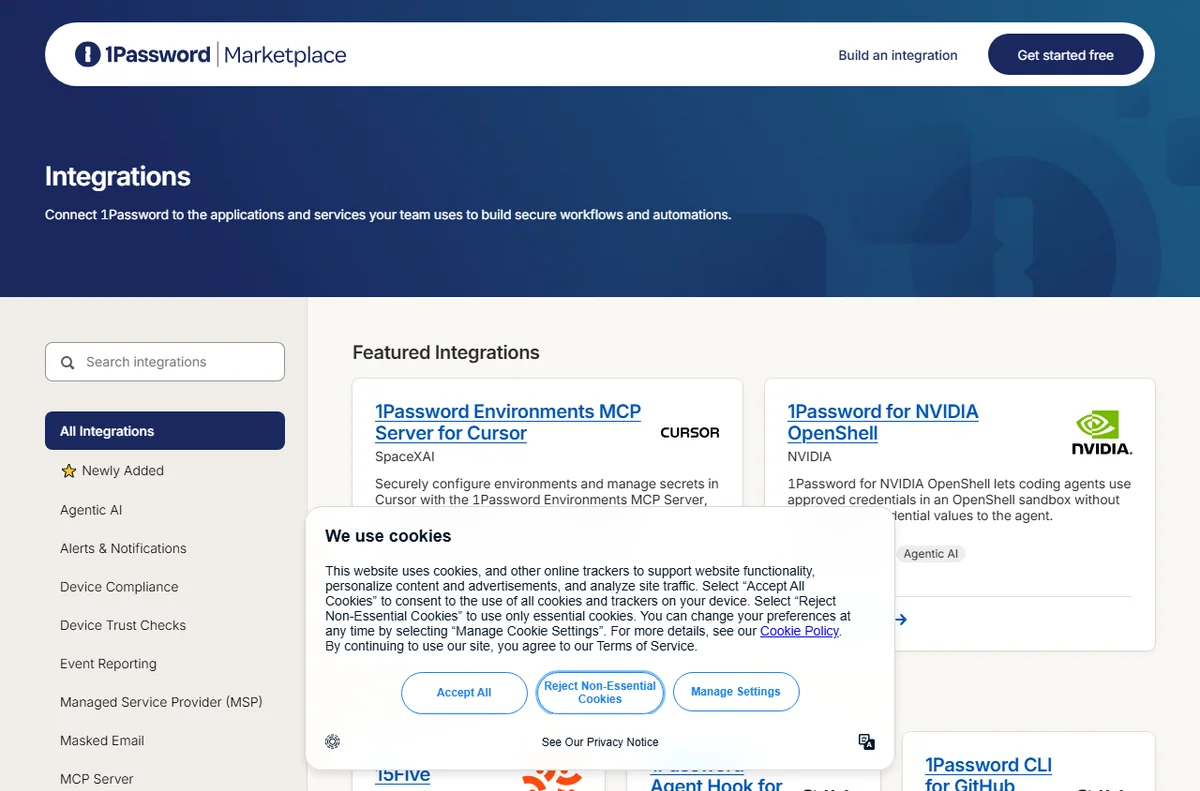
    1Password Marketplace of integrations for secure sharing
    1Password integrations (image: 1password.com)

    Sharing secrets safely

    Not every secret is a login. API keys, Wi-Fi codes and recovery phrases also need a home, and secure notes keep them out of email and chat threads.

    For one-off sharing with someone outside the account, use a link that expires rather than a permanent item. Time-limited sharing matches the way a short-term contractor relationship actually works.

    1Password app sign-in page
    1Password app sign-in (image: 1password.com)

    Recovery and break-glass access

    A password manager becomes a single point of failure if nobody can get in when the wrong person is unavailable. Plan the recovery path before you need it.

    Decide who holds emergency access, where the recovery details live, and how often you verify they still work. A recovery plan nobody has tested is a comforting idea, not a safeguard.

    1Password pricing page with plan tiers
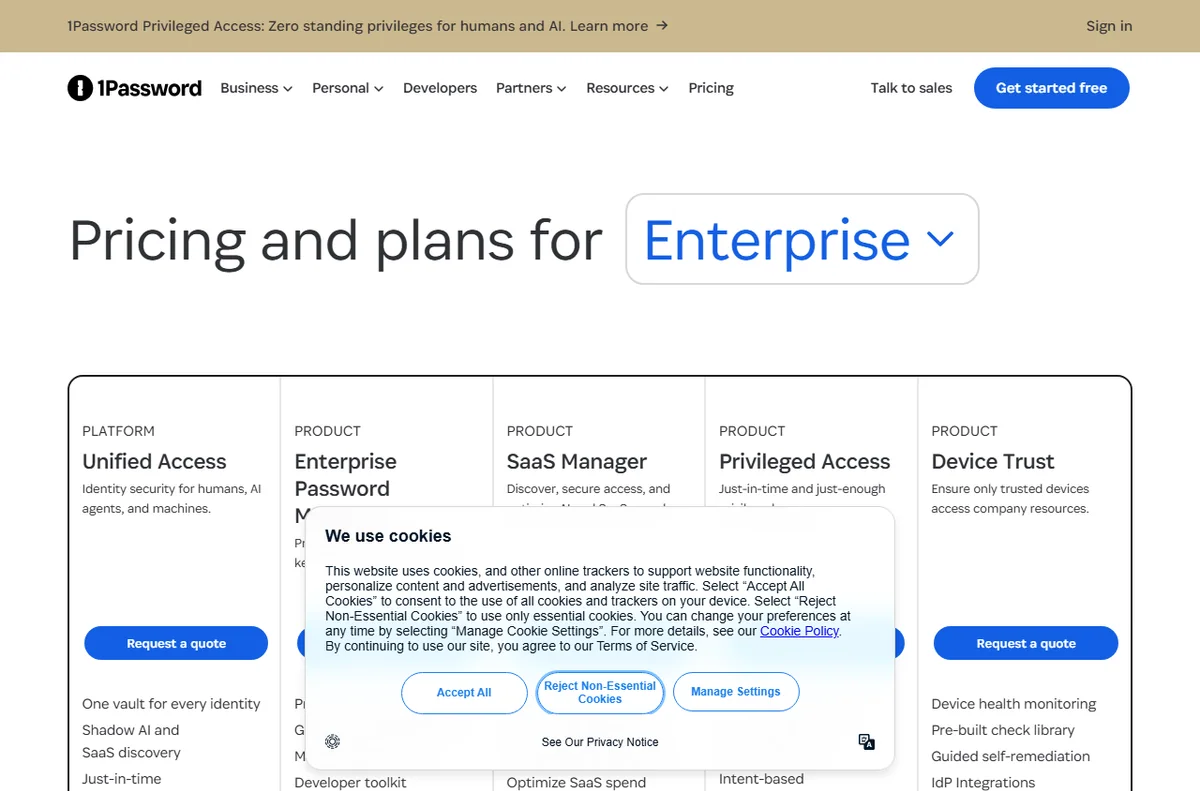
    1Password pricing (image: 1password.com)

    Where to start

    New teams do not need every feature immediately. Use the table below to pick the first routines that match your situation.

    Situation Routine to set up first Why it matters
    Two to five peopleOne shared team vaultReplaces passwords sent over chat
    Frequent hiringAccess by role, not by personOnboarding becomes a checklist
    ContractorsTime-limited sharing linksAccess expires without manual cleanup
    Regulated workTested recovery accessKeeps an audit trail intact
    Owner-run businessA written recovery planAvoids a lockout nobody else can fix
    Based on publicly documented behaviour, checked October 8, 2026.
    1Password downloads page for installing the app
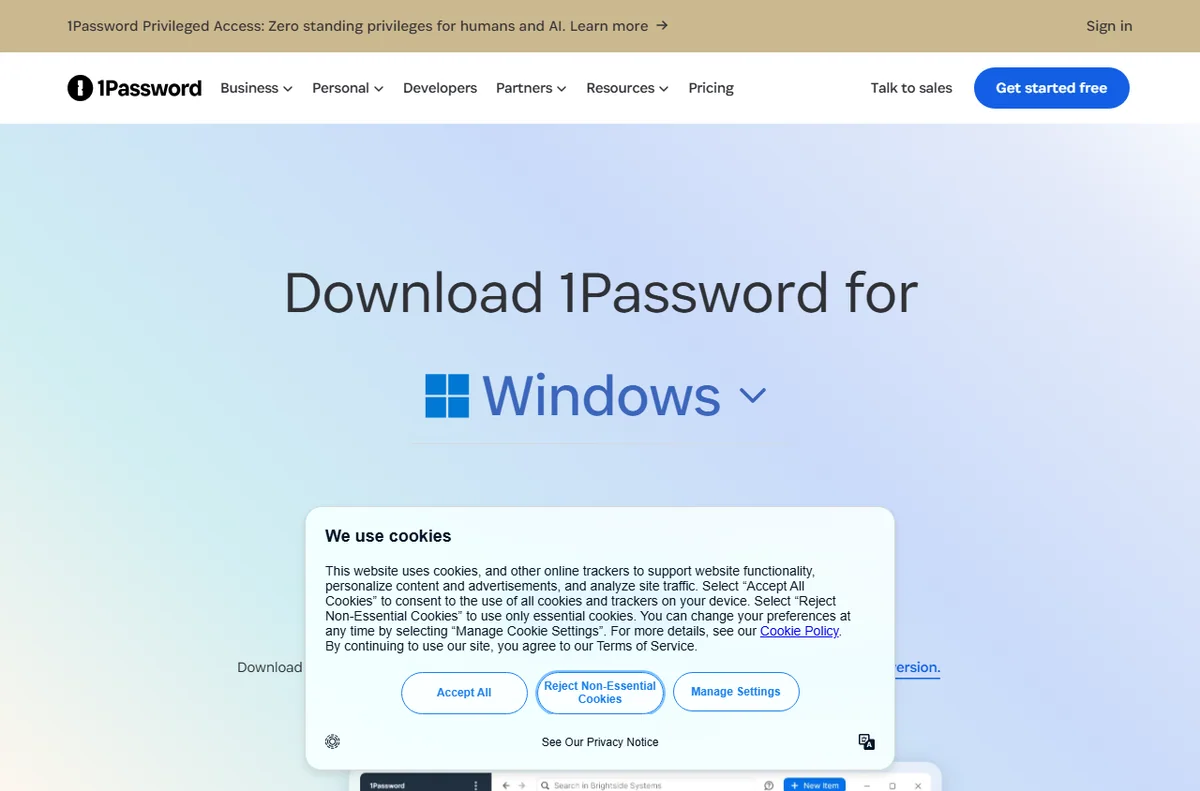
    1Password downloads (image: 1password.com)

    Where this fits in your wider stack

    To choose the right tool for a team, read the 1Password vs Bitwarden comparison, then compare the field in the best password managers for small business. Broaden the picture with the best security tools for small business, and if your team works remotely, add the best VPN for small business to the shortlist.

    Frequently asked

    How is a shared vault better than a shared login?

    A shared vault lets each person keep their own account while granting access to the same items. A shared login means one credential known to many people and no clear audit trail.

    What should I check when someone leaves?

    Remove them from the account and relevant vaults, then rotate any high-value credentials they could have saved or copied.

    Can I share a secret with someone outside the team?

    Yes. Use a time-limited share for outside parties so the access expires on its own instead of lingering indefinitely.

    Do we really need a recovery plan?

    Yes. Without one, the manager can lock the whole team out when a single keyholder is unavailable. Test the plan so it works when it matters.

    Use 1Password across your team

    Set up a shared vault and make access a routine rather than an exception.

    Referral link — we may earn a reward if you sign up, at no extra cost to you. We are an independent publisher. See our Affiliate Disclosure.

  • How to Use PayPal for a Small Business

    How to Use PayPal for a Small Business

    Home / Payments / Guides / How to use PayPal for a small business

    Use case · payments · updated October 8, 2026

    How to use PayPal for a small business

    Once a PayPal account is live, the interesting question is not how to switch it on but where it earns its place. For a small business there are a handful of jobs it does well, and knowing them keeps the account focused rather than cluttered.

    PayPal official homepage for sending and accepting payments
    PayPal official homepage (image: paypal.com)

    Independent analysis. This page may contain affiliate links. Some links here are referral links; if you sign up through one we may earn a reward at no extra cost to you, and it never changes what we recommend. We are an independent publisher and are not affiliated with, endorsed by, or an official partner of any tool mentioned. See our Affiliate Disclosure.

    TL;DR

    • Invoicing is often the first job worth setting up.
    • Checkout buttons let you offer PayPal beside cards.
    • Recurring billing suits memberships and retainers.
    • Refund handling keeps disputes off your desk.
    • Clean reporting makes month-end reconciliation faster.

    On this page: What this covers · Six ways small businesses use PayPal · Invoicing and getting paid · Checkout buttons and site payments · Recurring billing and subscriptions · Refunds and disputes · Reporting and reconciliation · Where to start · Where this fits in your wider stack

    What this covers

    PayPal is rarely the only way a small business gets paid, but it is often the most familiar to buyers. That familiarity is the real asset: a customer who already trusts the brand is one less hesitation at checkout.

    This guide lists the practical jobs PayPal handles well for a small team, then helps you decide which to set up first. It avoids specific fees or plan limits, because those are best confirmed on the official pricing page.

    PayPal business solutions page listing ways to get paid
    PayPal business solutions (image: paypal.com)

    Six ways small businesses use PayPal

    • Invoicing: send a payable invoice by email and let the status track itself.
    • Site checkout: add a payment button or a gateway integration to your store.
    • Recurring billing: charge a subscription or membership on a schedule.

    • Refunds and disputes: reverse a charge and answer a buyer claim from one place.

    • Reporting: reconcile sales, fees and payouts against your bookkeeping.
    • Cross-border payments: receive money from buyers in other countries and currencies.
    PayPal invoicing page to create and send invoices
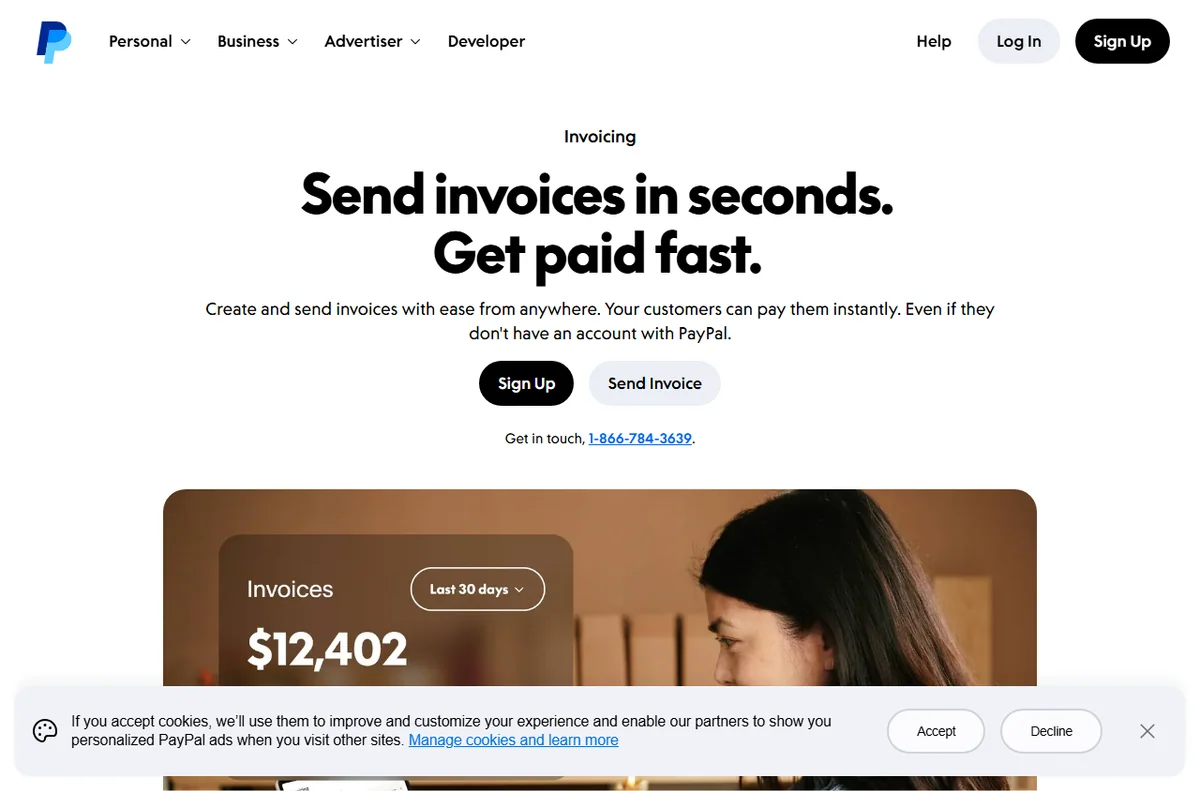
    PayPal invoicing (image: paypal.com)

    Invoicing and getting paid

    For service businesses, invoicing is usually the first feature worth learning. You create an invoice, send it by email and the customer pays online without a back-and-forth about bank details.

    The quiet benefit is the paper trail. Each invoice carries a status, so you can see what is paid, what is outstanding and what has been refunded without rebuilding the picture in a spreadsheet.

    PayPal accept payments page for online checkout buttons
    PayPal accept payments (image: paypal.com)

    Checkout buttons and site payments

    If you run an online store, PayPal can sit beside your card processor as an extra option. The setup ranges from a simple button for a single product to a full gateway integration on a platform.

    The decision is mostly about how much control you want. A button is fast to add; a full integration gives you a smoother flow and better reporting, at the cost of more setup time.

    PayPal payments page section covering recurring billing and subscriptions
    PayPal recurring payments (image: paypal.com)

    Recurring billing and subscriptions

    Memberships, retainers and box-of-the-month services all depend on repeat charges. PayPal supports this pattern so you are not manually re-invoicing each cycle.

    Before switching recurring revenue on, decide how you will handle failed payments and cancellations. Those two paths cause more support tickets than the charges themselves.

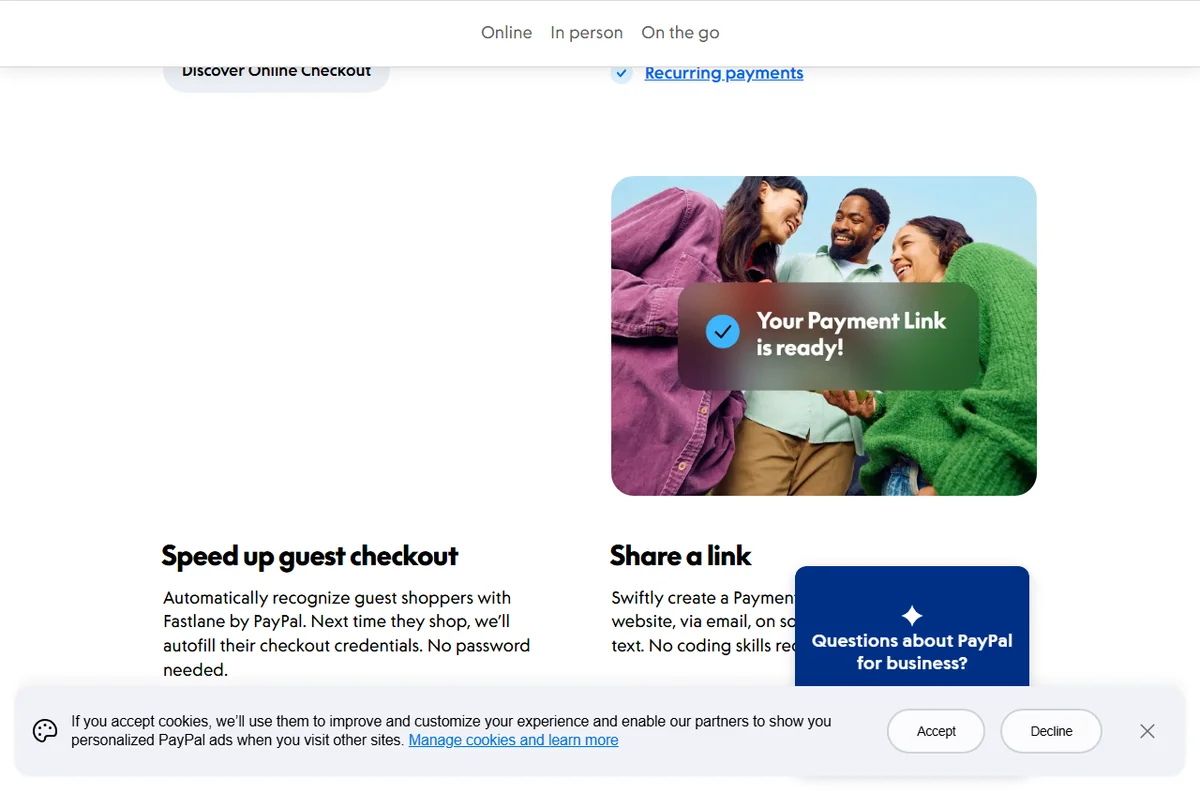
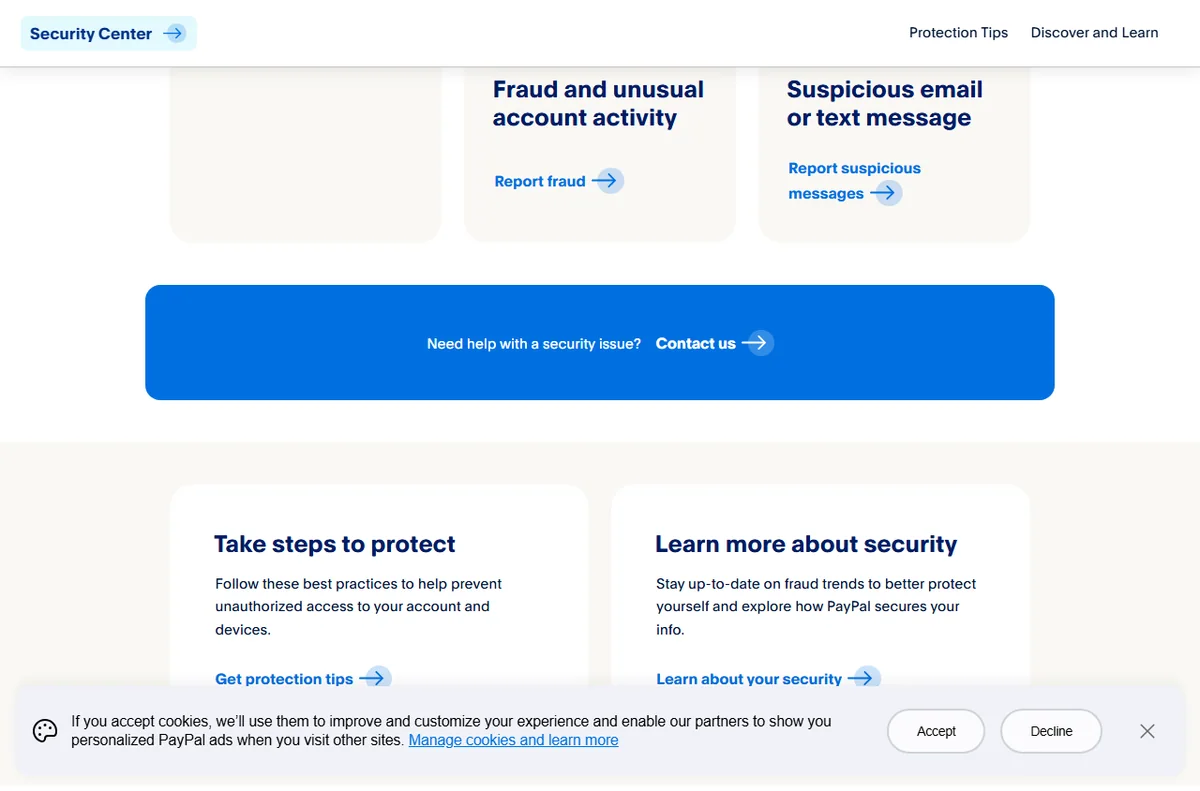
    PayPal Security Center section on disputes, chargebacks and fraud
    PayPal disputes and fraud (image: paypal.com)

    Refunds and disputes

    Refunds are a normal cost of selling, and handling them quickly protects your standing with buyers. PayPal lets you reverse a payment directly, with the original transaction as the reference.

    Disputes are the other side of the same coin. Respond with clear evidence, keep the timeline tight, and treat the process as a reason to document your sales terms up front.

    PayPal business page section on sales reporting and insights
    PayPal reporting (image: paypal.com)

    Reporting and reconciliation

    Every payout carries a fee, and those fees need to reach your books. Downloading a transaction report at a regular interval keeps reconciliation to minutes instead of hours.

    If you sell through more than one channel, export from each and match them against your platform data. Consistency matters more than perfection here.

    Where to start

    You do not need every feature on day one. Use the table below to pick the first two that match how you actually sell today.

    Way you sell Best PayPal feature When to prioritise it
    Occasional invoicesInvoicingYou bill a handful of clients and want a record
    Own-website salesCheckout buttons or gatewayYou run a store and want PayPal beside cards
    MembershipsRecurring billingRevenue depends on repeat charges
    Returns and refundsRefunds and disputesYou sell physical goods people send back
    Monthly bookkeepingReportingYou reconcile every month and need clean data
    Based on publicly documented behaviour, checked October 8, 2026.
    PayPal merchant fees page showing transaction pricing
    PayPal fees (image: paypal.com)

    Where this fits in your wider stack

    This page is one part of a wider path. Compare the two big names in the Wise vs PayPal comparison, then review the best payment gateways for small business and the best money transfer services. When you are done, the payments hub keeps the rest of the stack in one place.

    Frequently asked

    Should I use PayPal as my only payment method?

    Usually not. PayPal works best alongside a card processor, so buyers who prefer a card are not turned away and buyers who trust PayPal have their option.

    How many PayPal features do I need on day one?

    Pick the one or two that match how you sell right now. Adding invoicing when you mostly run a store, or the reverse, just creates admin.

    What slows refunds down?

    Unclear return terms and slow replies. Documenting your policy and answering disputes with evidence keeps the process predictable.

    How do I keep PayPal fees out of my books by accident?

    Export a transaction report on a fixed schedule and reconcile it against your platform data, so fees are recorded rather than quietly absorbed.

    Put PayPal to work in your business

    Start with the feature that matches how you sell today, then grow from there.

    Referral link — we may earn a reward if you sign up, at no extra cost to you. We are an independent publisher. See our Affiliate Disclosure.