We’re reader-supported — some links are affiliate links. Learn more →

Skip to content

Independent software research. Some links may earn us a commission at no extra cost to you. Learn more →

ICode

Category: E-commerce

  • Common WooCommerce problems and how to fix them

    Common WooCommerce problems and how to fix them

    Home / E-commerce / Guides / Common WooCommerce problems

    Problem · e-commerce · updated October 9, 2026

    Common WooCommerce problems and how to fix them

    Most WooCommerce problems fall into a few areas: a checkout that will not complete, products that will not show or update, payments that fail, a store that is slow, and emails that never arrive. Here are the ones that come up most, and what to check first.

    Independent analysis. This page may contain affiliate links. If you sign up through a link on this page we may earn a reward at no extra cost to you, and it never changes what we recommend. We are an independent publisher and are not affiliated with, endorsed by, or an official partner of any tool mentioned. See our Affiliate Disclosure.

    TL;DR

    • A checkout that will not complete is usually a plugin or payment conflict.
    • Products that will not show are usually visibility, stock or caching.
    • Failed payments are often gateway settings or currency.
    • A slow store is usually hosting, caching or heavy plugins.
    • Missing order emails are usually SMTP or deliverability.

    On this page: Why things go wrong · Checkout will not complete · Products will not show · Payments fail · Store is slow · Order emails missing · Symptom to fix · Where this fits

    Why things go wrong

    A WooCommerce store stacks WordPress, the theme, the plugin and its extensions on top of each other, so a fault in any layer can break the store.

    A habit that saves time: test with only WooCommerce and a default theme active, and note what changed last, such as a new plugin or an update.

    If the problem appeared right after an update, that update is the first thing to check.
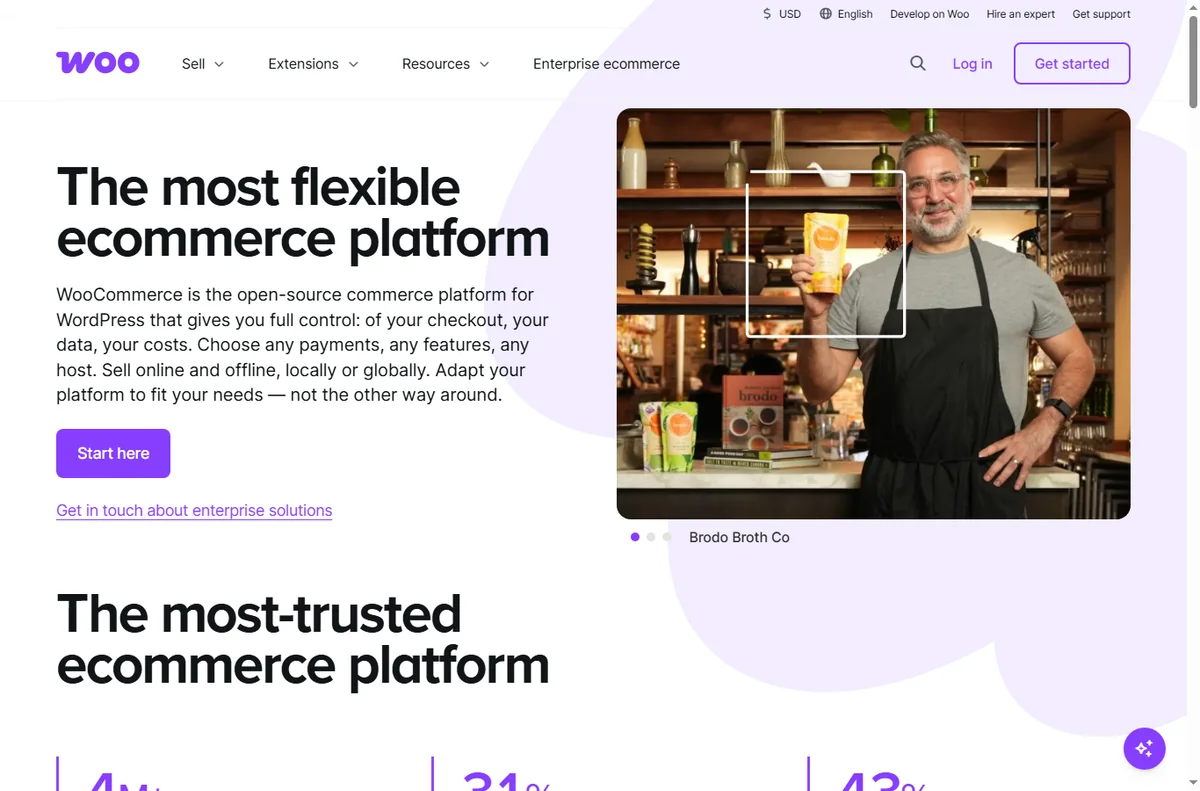
    Woocommerce home page
    Woocommerce home (image: woocommerce.com)

    Checkout will not complete

    A checkout that stalls or throws an error is often a conflict between plugins or a broken payment step.

    Disable other plugins on a staging copy, switch to a default theme, and confirm the payment gateway is connected in live mode.
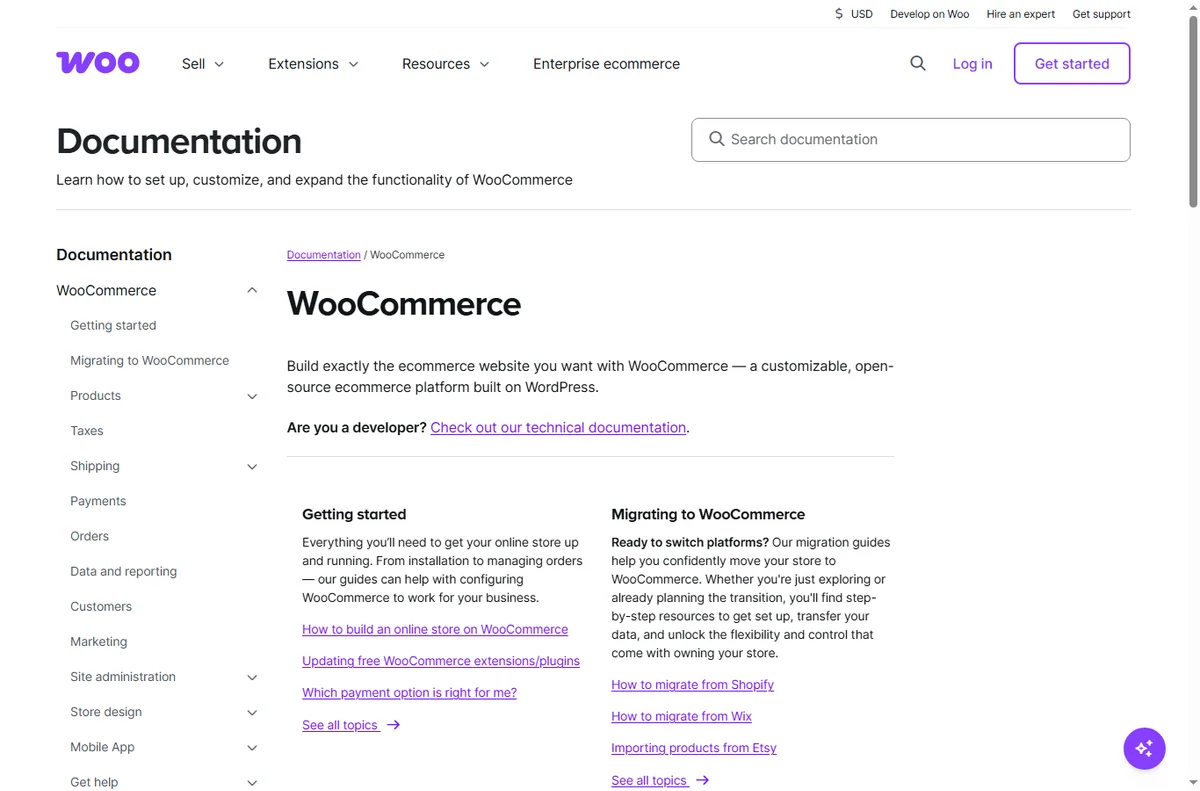
    Woocommerce docs page
    Woocommerce docs (image: woocommerce.com)

    Products will not show

    A product that is missing from the shop is usually set to draft, out of stock, or hidden by a cache.

    Check the product’s visibility and stock, confirm the category is published, and clear the site and page cache.

    Payments fail

    Failed payments are usually about the gateway: wrong live keys, an unsupported currency, or a required field the gateway rejects.

    Verify the gateway credentials, the store currency, and run a real test transaction at a low value before assuming a bug.
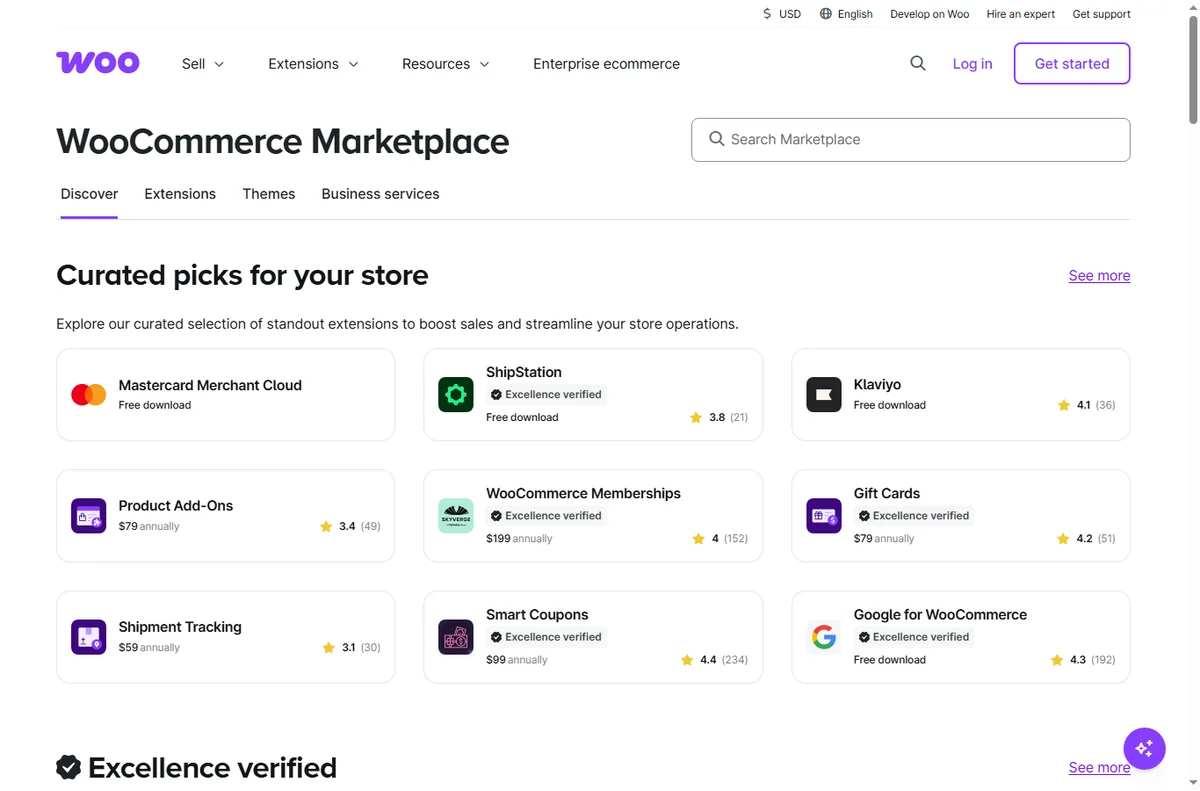
    Woocommerce extensions page
    Woocommerce extensions (image: woocommerce.com)

    Store is slow

    A slow store is usually hosting, missing caching, or too many heavy plugins loading on every page.

    Enable caching and object caching, remove unused plugins, and check whether the host meets the store’s needs.

    Woocommerce features page
    Woocommerce features (image: woocommerce.com)

    Order emails missing

    Transactional emails that never arrive are usually about sending: WordPress alone is a poor mail sender.

    Route mail through an SMTP or transactional service, check the sending domain, and confirm the emails are not landing in spam.

    Symptom to fix

    SymptomLikely causeFix
    Checkout will not completePlugin or payment conflictTest with a default theme, check the gateway
    Products will not showVisibility, stock or cacheCheck visibility and stock, clear cache
    Payments failGateway keys or currencyVerify keys and currency, test live
    Store is slowHosting, cache or pluginsAdd caching, remove heavy plugins
    Order emails missingWordPress mail or deliverabilityUse SMTP, check sending domain
    General guidance, checked October 9, 2026. Confirm specifics inside your own WooCommerce setup.
    Woocommerce payments page
    Woocommerce payments (image: woocommerce.com)

    Where this fits

    Start with the e-commerce hub. For the basics read what WooCommerce is, and for the setup steps see how to set up WooCommerce. If you are choosing a platform, read Shopify vs WooCommerce.

    Woocommerce pricing page
    Woocommerce pricing (image: woocommerce.com)

    Frequently asked

    Can I fix these myself?

    Most of them. Products, plugins and caching are in your control. Anything on the host needs a support ticket.

    Why did checkout break?

    Usually a plugin or payment change. Test with a default theme and only WooCommerce active to isolate it.

    Why are orders not emailing?

    WordPress mail is unreliable on its own. Route it through SMTP and check the sending domain.

    Should I switch platforms?

    Not straight away. Confirm whether it is a setting, a plugin or the host first.

    How long do fixes take?

    Most settings apply at once, but caching and email reputation can take time to settle.

    Fix your store

    Isolate the layer, then get help if you need it.

    Some links on this page may be referral links — we may earn a reward if you sign up, at no extra cost to you. We are an independent publisher. See our Affiliate Disclosure.

    Related reading

  • What is WooCommerce?

    What is WooCommerce?

    Home / E-commerce / Guides / What is WooCommerce

    Knowledge · e-commerce · updated October 9, 2026

    What is WooCommerce?

    WooCommerce is a free, open-source e-commerce plugin that turns a WordPress site into an online store you own and control. This guide explains what it does, how it is organised, and what it is not.

    Independent analysis. This page may contain affiliate links. If you sign up through a link on this page we may earn a reward at no extra cost to you, and it never changes what we recommend. We are an independent publisher and are not affiliated with, endorsed by, or an official partner of any tool mentioned. See our Affiliate Disclosure.

    TL;DR

    • WooCommerce is an open-source e-commerce plugin for WordPress.
    • It turns an existing WordPress site into a store.
    • You own the store and the data; hosting and extensions are the real costs.
    • Features, extension terms and prices change, so check the current pricing before you commit.
    • It is not a hosted all-in-one platform: you still run hosting and updates.

    On this page: What WooCommerce is · How it is organised · What it is good at · What it is not · Concept cheat sheet · Where this fits

    Woocommerce home page
    Woocommerce home (image: woocommerce.com)

    What WooCommerce is

    WooCommerce is software you add to WordPress rather than a standalone store hosted for you.

    The core product is the plugin: it adds products, carts and checkout to a site you already run.

    Around the core it adds payments, shipping, tax and orders, with extensions for anything more specialised.

    Because it runs on your WordPress site, you choose the host and you look after updates, backups and speed.

    Woocommerce docs page
    Woocommerce docs (image: woocommerce.com)

    How WooCommerce is organised

    Everything hangs off your WordPress site. Products are a content type, and orders, customers and coupons sit alongside them.

    You create products, set prices and stock, then connect payments and shipping at checkout.

    The core is free; extra capabilities come as extensions, each added to the same site.

    As the store grows you scale the host, add caching, and add extensions rather than change platform.

    Woocommerce extensions page
    Woocommerce extensions (image: woocommerce.com)

    What WooCommerce is good at

    • Owning your store, data and customer relationships.
    • Customising design and checkout with full control.
    • Selling unlimited products without a platform plan.
    • Extending with thousands of plugins for niche needs.
    • Running a store on a platform you already know.
    Woocommerce features page
    Woocommerce features (image: woocommerce.com)

    What WooCommerce is not

    • Not a hosted service: you manage hosting, updates and security.
    • Not turnkey: setup takes more work than a hosted store builder.
    • Not inherently fast: performance depends on your host and setup.
    • Not free in total: the plugin is free, but hosting and extensions are not.

    Concept cheat sheet

    ConceptMeaningWhy it matters
    PluginSoftware added to WordPressAdds the store to your site
    ProductAn item you sellThe unit customers buy
    CheckoutWhere payment and shipping happenTurns a cart into an order
    Payment gatewayConnects the store to a processorHow money is collected
    ExtensionAdd-on for extra featuresAdds specialist capability
    HostingThe server your site runs onOwns speed, uptime and security
    Based on publicly documented behaviour, checked October 9, 2026.
    Woocommerce payments page
    Woocommerce payments (image: woocommerce.com)

    Where this fits

    Start with the e-commerce hub. For the practical steps see how to set up WooCommerce, and for everyday usage read how to use WooCommerce for a small business. If you are choosing a platform, read Shopify vs WooCommerce.

    Woocommerce pricing page
    Woocommerce pricing (image: woocommerce.com)

    Frequently asked

    Is WooCommerce free?

    The plugin itself is free and open source. Hosting, domains and extensions are the real costs, so check current pricing before you budget.

    Do I need WordPress?

    Yes. WooCommerce is a plugin, so it runs on a self-hosted WordPress site rather than on its own.

    Can it handle a small store?

    Easily. It scales from a handful of products to large catalogues, with hosting being the main limit.

    Do I need to code?

    Not for basic selling, but customisation and performance work benefit from some technical comfort.

    Is it better than a hosted store builder?

    It depends. WooCommerce wins on ownership and flexibility; hosted builders win on hands-off simplicity.

    Open your store

    Own your store on WordPress with WooCommerce.

    Some links on this page may be referral links — we may earn a reward if you sign up, at no extra cost to you. We are an independent publisher. See our Affiliate Disclosure.
    Related reading

  • How to use WooCommerce for a small business

    How to use WooCommerce for a small business

    Home / E-commerce / Guides / How to use WooCommerce for a small business

    Guide · e-commerce · updated October 9, 2026

    How to use WooCommerce for a small business

    Once a store is live, the question changes from how to build it to how a small team runs it without adding headcount. This guide covers the workflows that matter: selling more from the same catalogue, keeping operations tidy, and growing repeat orders.

    Independent analysis. This page may contain affiliate links. If you sign up through a link on this page we may earn a reward at no extra cost to you, and it never changes what we recommend. We are an independent publisher and are not affiliated with, endorsed by, or an official partner of any tool mentioned. See our Affiliate Disclosure.

    TL;DR

    • Own your store: you control the catalogue, data and checkout.
    • Turn one good product page into a repeatable template.
    • Use extensions only where they save real time.
    • Handle tax and shipping with rules, not manual notes.
    • Grow repeat orders rather than chasing new traffic only.

    On this page: Product template · Keep the store healthy · Operations · Repeat orders · Grow on purpose · Where this fits

    Woocommerce home page
    Woocommerce home (image: woocommerce.com)

    Build one product page you can reuse

    A small business does not need hundreds of product pages to look professional. It needs a handful that are genuinely good, then a template you repeat for everything else.

    • Lead with one clear benefit and a real photo.
    • Answer the three questions buyers always ask: size, delivery, returns.
    • Put price, stock and a single call to action above the fold.
    • Reuse the structure so a new product takes minutes, not hours.
    Woocommerce docs page
    Woocommerce docs (image: woocommerce.com)

    Keep the store healthy week to week

    A store quietly rots if nobody tends it: prices drift, stock goes wrong, plugins fall behind. Set a short weekly routine and stick to it.

    1. Check orders that are stuck or unfulfilled.
    2. Review out-of-stock items and either restock or hide them.
    3. Apply core, theme and plugin updates on staging first.
    4. Look at one abandoned-cart or refund reason and fix the cause.
    Woocommerce extensions page
    Woocommerce extensions (image: woocommerce.com)

    Handle tax and shipping with rules

    Manual notes about who pays what do not scale. Put your tax and shipping logic into the store so every order is calculated the same way, then spot-check it each quarter.

    We do not quote fees, because rates and threshold rules change. Check the current settings your host and gateway provide, and confirm them against your local tax rules before peak season.

    Woocommerce features page
    Woocommerce features (image: woocommerce.com)

    Sell to the customers you already have

    Winning a new customer costs more than selling again to an existing one. WooCommerce gives you the raw material — order history and email opt-ins — to encourage repeat business.

    • Add a simple related-products block to each page.
    • Email past buyers when a relevant item is back in stock.
    • Offer a bundle of things that are usually bought together.
    • Ask for one review after a delivered order; social proof compounds.

    Grow on purpose, not by accident

    Add functionality only when a real task justifies it. Every extension is another update to maintain, so a lean store is easier to run and less likely to break.

    When you do add something, measure it. If an extension does not save time or increase orders within a reasonable period, remove it.

    Woocommerce payments page
    Woocommerce payments (image: woocommerce.com)

    Where this fits

    Begin with the e-commerce hub and compare platforms in Shopify vs WooCommerce. For the setup mechanics, see how to set up WooCommerce, and shortlist an environment with best e-commerce platforms.

    Woocommerce pricing page
    Woocommerce pricing (image: woocommerce.com)

    Frequently asked

    Can a small team run WooCommerce without a developer?

    Yes. Day-to-day work is content and settings. Keep a developer or a good host on call for updates and anything involving code.

    Do I need many extensions?

    No. Start with the bare minimum and add an extension only when a specific task demands it.

    How do I reduce abandoned carts?

    Show clear shipping costs early, keep checkout short, and follow up once with a helpful reminder rather than a barrage.

    What should I track first?

    Conversion rate and repeat purchase rate. Together they show whether the store converts and whether buyers come back.

    Run your store on WooCommerce

    One good template, tidy operations, and repeat customers.

    Some links on this page may be referral links — we may earn a reward if you sign up, at no extra cost to you. We are an independent publisher. See our Affiliate Disclosure.

    Related reading

  • How to set up WooCommerce (step-by-step)

    How to set up WooCommerce (step-by-step)

    Home / E-commerce / Guides / How to set up WooCommerce

    Tutorial · e-commerce · updated October 9, 2026

    How to set up WooCommerce: from plugin install to a working checkout

    Setting up WooCommerce comes down to an ordered list: prepare a clean WordPress base, install the plugin, add products, set tax and shipping, connect a payment gateway, and test checkout before you launch.

    Independent analysis. This page may contain affiliate links. If you sign up through a link on this page we may earn a reward at no extra cost to you, and it never changes what we recommend. We are an independent publisher and are not affiliated with, endorsed by, or an official partner of any tool mentioned. See our Affiliate Disclosure.

    TL;DR

    • WooCommerce is a plugin, so your WordPress base comes first.
    • Add one product end to end before you build a catalogue.
    • Configure tax and shipping before you take a real order.
    • Connect a payment gateway and run a test purchase, then refund it.
    • Test checkout on a phone, not only on your desktop.

    On this page: WordPress base · Install · Products · Tax and shipping · Payments · Test and launch

    Woocommerce home page
    Woocommerce home (image: woocommerce.com)

    Step 1 — Prepare a clean WordPress base

    WooCommerce is an extension of WordPress, not a separate platform, so your site is the foundation. Use a host that supports WordPress well, keep the core, theme and plugins updated, and remove anything you are not using before you add a store.

    Confirm that SSL is active so the site loads over HTTPS. A store that asks for card details on an insecure page will lose trust and may lose search visibility. If your host offers a one-click staging site, build the store there first.

    Woocommerce docs page
    Woocommerce docs (image: woocommerce.com)

    Step 2 — Install WooCommerce and run the wizard

    Install the WooCommerce plugin from the WordPress plugin directory and activate it. A setup wizard then walks you through the essentials: store address, currency, what you sell, and whether you want to enable payments and shipping.

    1. Install and activate the WooCommerce plugin.
    2. Answer the setup wizard questions honestly — they set sensible defaults.
    3. Choose a store theme you can live with, or let WooCommerce use your current theme.
    4. Skim the status screen: it flags missing pages or extensions.
    Woocommerce extensions page
    Woocommerce extensions (image: woocommerce.com)

    Step 3 — Add your first products

    Create a single product first and complete every field: title, description, image, price and stock. Only once that product looks right should you duplicate the pattern for the rest of the catalogue.

    • Give each product one clear name, not a keyword pile.
    • Write the description for a buyer, not for a search engine.
    • Set stock so you cannot oversell.
    • Use simple products first; add variable products only when options exist.

    Step 4 — Set tax and shipping

    Tax and shipping are where most first stores lose money quietly. Configure them before you take an order, because both rules depend on where you and your customers are.

    Set up at least one shipping zone and one method, then check a sample basket to see the total a customer would pay. We do not quote fees here because rates and rules change — check the current settings your host and gateway provide for your region.

    Woocommerce features page
    Woocommerce features (image: woocommerce.com)

    Step 5 — Connect a payment gateway

    WooCommerce itself does not process cards; a payment gateway does. Add at least one gateway, connect it in test mode, and confirm the connection with a sandbox transaction.

    Run one real test purchase with a live-eligible gateway, then refund it. A checkout that fails only for real customers is the most expensive kind of bug.

    Step 6 — Test the full journey and launch

    Place a test order as a brand-new customer: add to cart, check out, pay, receive the confirmation email, and view the order in your dashboard. Repeat the same flow on a phone.

    Publish only once the loop works without your help, then remove any test products so reports start clean.

    Woocommerce payments page
    Woocommerce payments (image: woocommerce.com)

    Where this fits

    Start from the e-commerce hub and compare platforms in Shopify vs WooCommerce. To pick an environment first, read best hosting for WooCommerce, and for day-to-day operation see how to use WooCommerce for a small business.

    Woocommerce pricing page
    Woocommerce pricing (image: woocommerce.com)

    Frequently asked

    Do I need a special host for WooCommerce?

    No, but a host tuned for WordPress makes a store faster and easier to maintain. Check that it supports the PHP and database versions WooCommerce recommends.

    Is WooCommerce free?

    The plugin is free and open source. Extensions, premium themes and hosting may cost money, and rates change, so check the current pricing before you budget.

    Can I sell subscriptions or memberships?

    Yes, through additional extensions. Add them only when you actually need recurring billing, because each extension is another thing to maintain.

    What should I set up before launch?

    SSL, tax, at least one shipping method, one payment gateway, and a tested order confirmation email.

    Open your WooCommerce store

    WordPress base, product, tax, shipping, payments — in that order.

    Some links on this page may be referral links — we may earn a reward if you sign up, at no extra cost to you. We are an independent publisher. See our Affiliate Disclosure.

    Related reading