Home / E-commerce / Guides / How to set up WooCommerce
Tutorial · e-commerce · updated October 9, 2026
How to set up WooCommerce: from plugin install to a working checkout
Setting up WooCommerce comes down to an ordered list: prepare a clean WordPress base, install the plugin, add products, set tax and shipping, connect a payment gateway, and test checkout before you launch.
Independent analysis. This page may contain affiliate links. If you sign up through a link on this page we may earn a reward at no extra cost to you, and it never changes what we recommend. We are an independent publisher and are not affiliated with, endorsed by, or an official partner of any tool mentioned. See our Affiliate Disclosure.
TL;DR
- WooCommerce is a plugin, so your WordPress base comes first.
- Add one product end to end before you build a catalogue.
- Configure tax and shipping before you take a real order.
- Connect a payment gateway and run a test purchase, then refund it.
- Test checkout on a phone, not only on your desktop.
On this page: WordPress base · Install · Products · Tax and shipping · Payments · Test and launch
Step 1 — Prepare a clean WordPress base
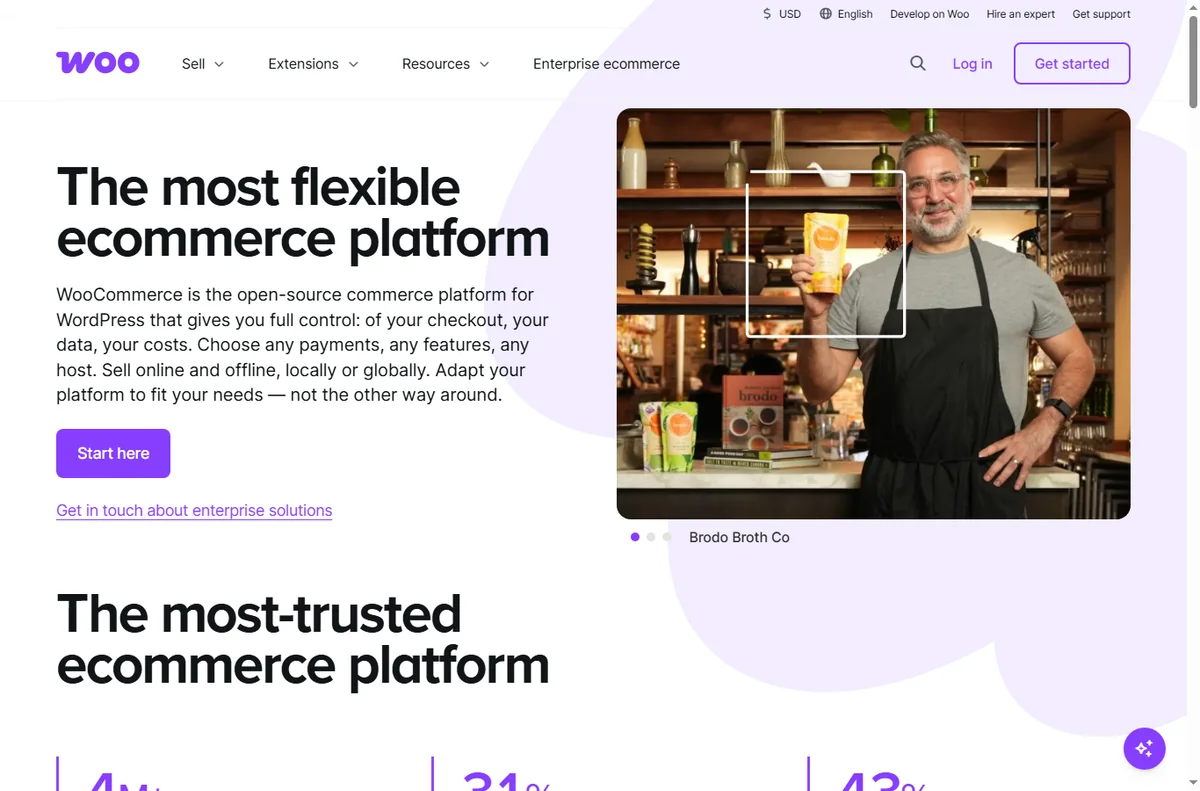
WooCommerce is an extension of WordPress, not a separate platform, so your site is the foundation. Use a host that supports WordPress well, keep the core, theme and plugins updated, and remove anything you are not using before you add a store.
Confirm that SSL is active so the site loads over HTTPS. A store that asks for card details on an insecure page will lose trust and may lose search visibility. If your host offers a one-click staging site, build the store there first.
Step 2 — Install WooCommerce and run the wizard
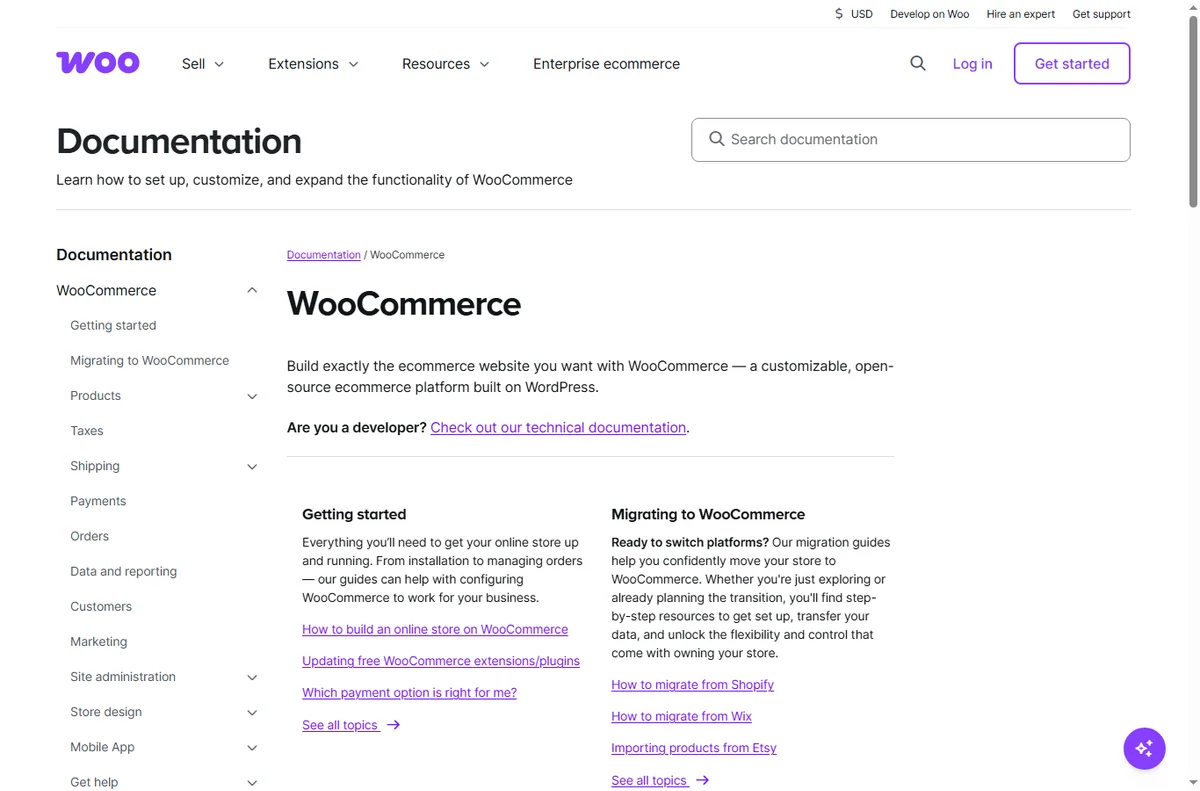
Install the WooCommerce plugin from the WordPress plugin directory and activate it. A setup wizard then walks you through the essentials: store address, currency, what you sell, and whether you want to enable payments and shipping.
- Install and activate the WooCommerce plugin.
- Answer the setup wizard questions honestly — they set sensible defaults.
- Choose a store theme you can live with, or let WooCommerce use your current theme.
- Skim the status screen: it flags missing pages or extensions.
Step 3 — Add your first products
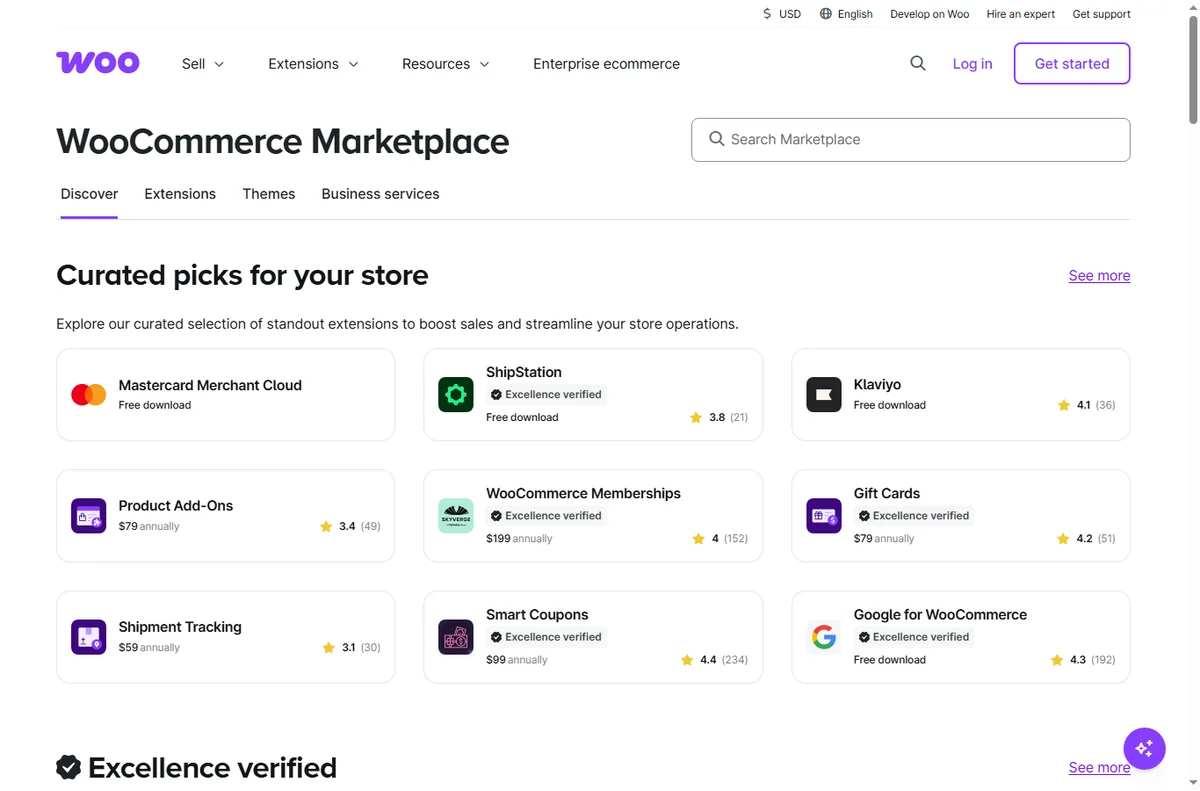
Create a single product first and complete every field: title, description, image, price and stock. Only once that product looks right should you duplicate the pattern for the rest of the catalogue.
- Give each product one clear name, not a keyword pile.
- Write the description for a buyer, not for a search engine.
- Set stock so you cannot oversell.
- Use simple products first; add variable products only when options exist.
Step 4 — Set tax and shipping
Tax and shipping are where most first stores lose money quietly. Configure them before you take an order, because both rules depend on where you and your customers are.
Set up at least one shipping zone and one method, then check a sample basket to see the total a customer would pay. We do not quote fees here because rates and rules change — check the current settings your host and gateway provide for your region.

Step 5 — Connect a payment gateway
WooCommerce itself does not process cards; a payment gateway does. Add at least one gateway, connect it in test mode, and confirm the connection with a sandbox transaction.
Run one real test purchase with a live-eligible gateway, then refund it. A checkout that fails only for real customers is the most expensive kind of bug.
Step 6 — Test the full journey and launch
Place a test order as a brand-new customer: add to cart, check out, pay, receive the confirmation email, and view the order in your dashboard. Repeat the same flow on a phone.
Publish only once the loop works without your help, then remove any test products so reports start clean.

Where this fits
Start from the e-commerce hub and compare platforms in Shopify vs WooCommerce. To pick an environment first, read best hosting for WooCommerce, and for day-to-day operation see how to use WooCommerce for a small business.

Frequently asked
Do I need a special host for WooCommerce?
No, but a host tuned for WordPress makes a store faster and easier to maintain. Check that it supports the PHP and database versions WooCommerce recommends.
Is WooCommerce free?
The plugin is free and open source. Extensions, premium themes and hosting may cost money, and rates change, so check the current pricing before you budget.
Can I sell subscriptions or memberships?
Yes, through additional extensions. Add them only when you actually need recurring billing, because each extension is another thing to maintain.
What should I set up before launch?
SSL, tax, at least one shipping method, one payment gateway, and a tested order confirmation email.
Open your WooCommerce store
WordPress base, product, tax, shipping, payments — in that order.
Some links on this page may be referral links — we may earn a reward if you sign up, at no extra cost to you. We are an independent publisher. See our Affiliate Disclosure.
Leave a Reply