We’re reader-supported — some links are affiliate links. Learn more →

Skip to content

Independent software research. Some links may earn us a commission at no extra cost to you. Learn more →

ICode

Category: Automation

  • Make vs Pabbly Connect: which is better in 2026?

    Make vs Pabbly Connect: which is better in 2026?

    Home / Automation / Guides / Make vs Pabbly Connect

    Comparison · Automation · updated 2026

    Make vs Pabbly Connect: which is better in 2026?

    Choosing between Make and Pabbly Connect? Here is a side-by-side look at pricing, strengths and fit, so you can pick the right one in a few minutes.
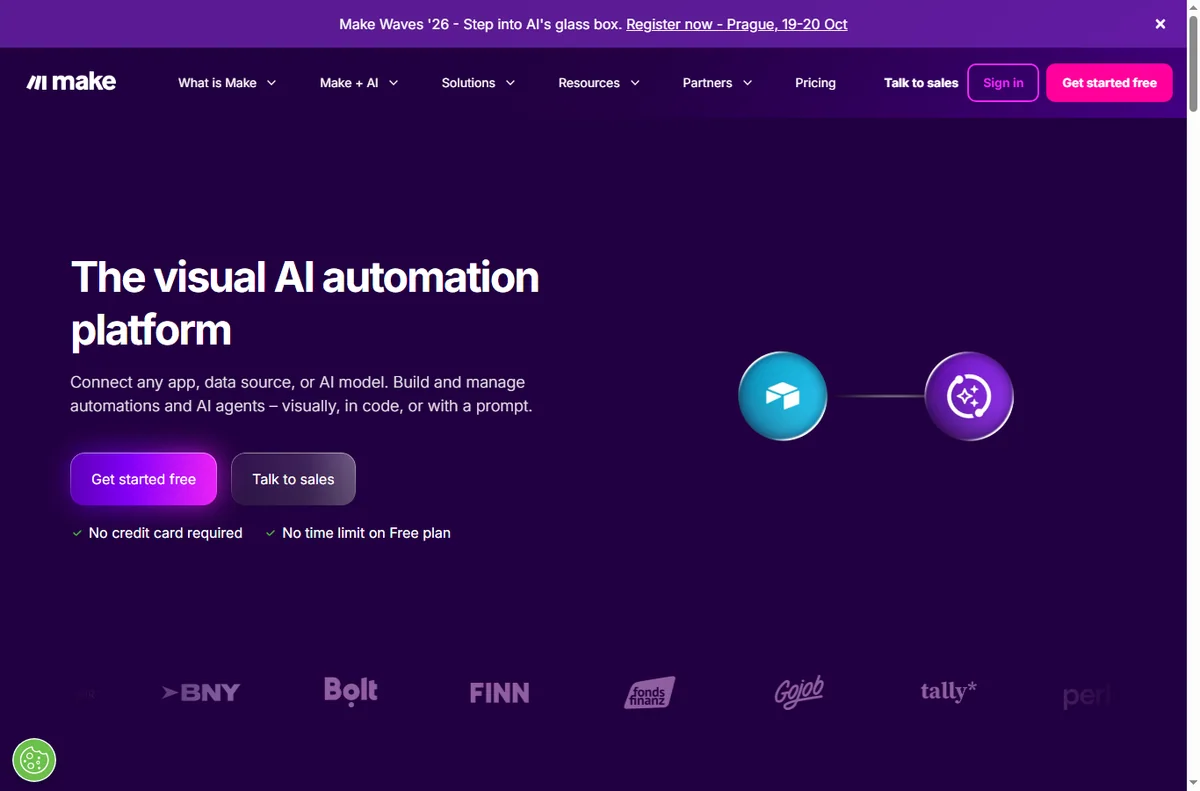
    Make screenshot
    Make official site (image: make.com)

    Independent analysis. This page may contain affiliate links. Some links here are referral links; if you sign up through one we may earn a reward at no extra cost to you, and it never changes what we recommend. See our Affiliate Disclosure.

    TL;DR

    • Make is a better fit for teams that want visual control over complex workflows.
    • Pabbly Connect is a better fit for budget-conscious users with high task volume.
    • Pick Make when visual power at volume matters most to you.
    • Pick Pabbly Connect when flat-rate pricing matters most to you.

    At a glance

    FeatureMakePabbly Connect
    Starting priceFree; paid plans from about $9/moFree; paid plans from about $16/mo
    Free planYesYes
    Best forteams that want visual control over complex workflowsbudget-conscious users with high task volume
    Standout strengthvisual power at volumeflat-rate pricing
    Main trade-offSteeper learning curve than simpler toolsSmaller integration library
    Make workflow templates library
    Make templates (image: make.com)

    Make in brief

    Visual, no-code automation for multi-step workflows.

    • Pros: Drag-and-drop scenario builder; Large app library plus HTTP and webhook modules; Cheaper than rivals at high operation counts
    • Cons: Steeper learning curve than simpler tools; Operations-based pricing can surprise you; Errors often need manual debugging
    • Review: Make review
    Pabbly Connect home page
    Pabbly Connect (image: pabbly.com)

    Pabbly Connect in brief

    Flat-rate automation with unlimited tasks on paid plans.

    • Pros: Unlimited tasks on paid tiers; Lower cost than task-based rivals; Supports multi-step workflows
    • Cons: Smaller integration library; Interface is less polished; Some apps lag behind
    • Review: Pabbly Connect review

    Where each one falls short

    Make

    • Steeper learning curve than simpler tools
    • Operations-based pricing can surprise you
    • Errors often need manual debugging

    Pabbly Connect

    • Smaller integration library
    • Interface is less polished
    • Some apps lag behind
    Make pricing plans and tiers
    Make pricing (image: make.com)

    Which should you choose?

    Choose Make if you are teams that want visual control over complex workflows, or you value visual power at volume.

    Choose Pabbly Connect if you are budget-conscious users with high task volume, or you value flat-rate pricing.

    You can also use both together: Make and Pabbly Connect connect through native integrations, so many teams run one for visual power at volume and the other for flat-rate pricing. Start with the one that matches your budget and workflow, and add the second when a clear gap appears.

    Compare on the official sites before you buy. Make →  |  Pabbly Connect → (affiliate links)

    Frequently asked questions

    Is Make better than Pabbly Connect?

    There is no universal winner. Make leads on visual power at volume, while Pabbly Connect leads on flat-rate pricing. Match the tool to your budget and workflow.

    Is Pabbly Connect cheaper than Make?

    On published pricing, Make starts at free; paid plans from about $9/mo and Pabbly Connect starts at free; paid plans from about $16/mo. Always check current pricing and renewal rates.

    Can I use Make and Pabbly Connect together?

    Yes. Both offer integrations and APIs, so you can run them side by side and send data between them.

    Related reading

  • Common Pabbly problems and how to fix them

    Common Pabbly problems and how to fix them

    Home / Automation / Guides / Common Pabbly problems

    Problem · automation · updated October 9, 2026

    Common Pabbly problems and how to fix them

    Most Pabbly problems fall into a few areas: a workflow that will not fire, a connection that has expired, tasks that run out mid-month, data that arrives in the wrong field, or a schedule that stops running. Here are the ones that come up most, and what to check first.

    Independent analysis. This page may contain affiliate links. If you sign up through a link on this page we may earn a reward at no extra cost to you, and it never changes what we recommend. We are an independent publisher and are not affiliated with, endorsed by, or an official partner of any tool mentioned. See our Affiliate Disclosure.

    TL;DR

    • A workflow that will not fire usually has a trigger that never matches.
    • An expired connection stops every step that depends on it.
    • Running out of tasks mid-month is a plan limit, not a bug.
    • Data in the wrong field is usually a mapping mistake.
    • A schedule that stops is often disabled or waiting on its interval.

    On this page: Why things go wrong · Workflow not firing · Connection expired · Task limit reached · Wrong data mapped · Schedule not running · Symptom to fix · Where this fits

    Why things go wrong

    An automation depends on a chain: a live trigger, an authorised connection, and a mapping that puts each field where it belongs. A fault in any link shows up as a workflow that does nothing.

    The quickest way to locate it is to look at one run end to end: did the trigger fire, did the step run, and what does the task history show?

    Usage limits are the one cause that is easy to mistake for a bug, because a plan that has run out of tasks stops silently until it resets.

    For anything that touches a live workflow, change one step at a time and run a test, because several fixes at once make it hard to see which one helped.

    Pabbly home page
    Pabbly home (image: pabbly.com)

    Workflow not firing

    A workflow only runs when its trigger matches, so a condition that is never true or an event that never occurs leaves it idle.

    Read the workflow from the start, confirm the trigger app and event, and run a test to see whether a run appears.

    Pabbly about page
    Pabbly about (image: pabbly.com)

    Connection expired

    A connection can lose its authorisation when a password changes or a provider revokes access, which stops every step that relies on it.

    Reconnect the app, re-authorise the account, and re-run the workflow before assuming the logic is wrong.

    Task limit reached

    Plans include a number of tasks, and once they are used the workflows wait until the next cycle, which looks like nothing working.

    Check usage against your plan, cut the runs you do not need, and move up a plan if the work is genuinely needed.

    Pabbly connect page
    Pabbly connect (image: pabbly.com)

    Wrong data mapped

    Data that lands in the wrong place is almost always a mapping problem, because a field was left unset or mapped from the wrong step.

    Open the step, re-pick the fields, and send a test record to confirm each value lands where it should.

    Pabbly integrations page
    Pabbly integrations (image: pabbly.com)

    Schedule not running

    A scheduled workflow that stops is usually switched off, waiting on its interval, or limited by how often the plan allows it to run.

    Confirm the schedule is enabled, check the interval, and look at the task history for the last few runs.

    Symptom to fix

    SymptomLikely causeFix
    Workflow not firingTrigger never matchesFix the trigger, run a test
    Connection expiredAuthorisation lostReconnect and re-authorise
    Task limit reachedPlan tasks used upCheck usage, adjust the plan
    Wrong data mappedField left unset or wrong stepRe-pick the fields and test
    Schedule not runningDisabled or wrong intervalEnable it and check the interval
    General guidance, checked October 9, 2026. Confirm specifics inside your own Pabbly setup.
    Pabbly x blog page
    Pabbly x blog (image: pabbly.com)

    Where this fits

    Start with the automation hub. For the basics read what Pabbly is, and for the setup steps see how to set up Pabbly.

    Pabbly x email page
    Pabbly x email (image: pabbly.com)

    Frequently asked

    Can I fix these myself?

    Most of them. Triggers, connections and mappings are in your account. A provider-side limit can need a support ticket.

    Why did my workflow stop?

    Often a connection lost its authorisation, or the plan ran out of tasks. Check the task history and reconnect the app.

    What happens when I run out of tasks?

    The workflows wait until the next cycle, so nothing runs until usage resets or you move up a plan.

    How do I test a workflow?

    Run it manually with sample data and watch the task history to see each step complete.

    Keep your workflows running

    Fix the common snags and stay automated.

    Some links on this page may be referral links — we may earn a reward if you sign up, at no extra cost to you. We are an independent publisher. See our Affiliate Disclosure.

    Related reading

  • What is Pabbly?

    What is Pabbly?

    Home / Automation / Guides / What is Pabbly

    Knowledge · automation · updated October 9, 2026

    What is Pabbly?

    Pabbly is a family of business tools, best known for Pabbly Connect, an automation platform that moves data between the apps you already use. This guide explains what each part does, how an account is organised, and what it is not.

    Independent analysis. This page may contain affiliate links. If you sign up through a link on this page we may earn a reward at no extra cost to you, and it never changes what we recommend. We are an independent publisher and are not affiliated with, endorsed by, or an official partner of any tool mentioned. See our Affiliate Disclosure.

    TL;DR

    • Pabbly is a family of business tools, with Pabbly Connect as the best-known product.
    • It covers workflow automation, subscriptions, email marketing, forms and invoicing.
    • Connect moves data between apps with triggers and actions.
    • Each product is priced separately and usage is metered in tasks, so check the current pricing before you commit.
    • It is not a single all-in-one CRM.

    On this page: What Pabbly is · How it is organised · What it is good at · What it is not · Concept cheat sheet · Where this fits

    Pabbly home page
    Pabbly home (image: pabbly.com)

    What Pabbly is

    Pabbly is a cloud service rather than software you install. Pabbly Connect is the piece most people mean: a workflow builder that links two or more apps together.

    You choose a trigger in one app and actions in another, and the workflow runs whenever that trigger fires, without anyone copying data by hand.

    Alongside Connect sit the other Pabbly products: subscriptions and billing, email marketing, forms and invoicing, each sold and used on its own.

    Because the products are separate, an account can use just one of them, and you only pay for what you switch on.

    The organising idea is that a small business can replace repetitive manual work with a workflow it builds once.

    Pabbly about page
    Pabbly about (image: pabbly.com)

    How Pabbly is organised

    Connect is organised around workflows. Each workflow has a trigger that starts it and one or more actions that follow, and steps can be filtered or routed so only matching data continues.

    Each workflow leans on connections you authorise once, so an app stays linked until you remove or refresh it.

    Tasks are the unit of work: every time a workflow runs it consumes a task, and reports show how many ran and where they stalled.

    Pabbly connect page
    Pabbly connect (image: pabbly.com)

    What Pabbly is good at

    • Automating a handoff between two apps you already use.
    • Building multi-step workflows with filters and routing.
    • Capturing data from a webhook or form and filing it elsewhere.
    • Replacing copy-and-paste work without hiring a developer.
    • Starting on a single product and adding others later.
    Pabbly integrations page
    Pabbly integrations (image: pabbly.com)

    What Pabbly is not

    • Not a single all-in-one CRM: the products are separate tools.
    • Not a general website builder: it connects apps rather than publishing a site.
    • Not unlimited on a free tier, so check the current pricing and task limits.
    • Not a guarantee that every run succeeds: the limits of each app still apply.

    Concept cheat sheet

    ConceptMeaningWhy it matters
    WorkflowA sequence of a trigger and actionsAutomate a repeatable job
    TriggerThe event that starts a workflowDecide when it runs
    ActionA step performed in an appDo the work automatically
    TaskOne run of a workflowMeasure usage against a plan
    Filter / routerA condition that splits the flowSend only matching data
    ConnectionAn authorised link to an appKeep the app signed in
    Based on publicly documented behaviour, checked October 9, 2026.
    Pabbly x blog page
    Pabbly x blog (image: pabbly.com)

    Where this fits

    Start with the automation hub. For the practical steps see how to set up Pabbly, and for everyday usage read how to use Pabbly for a small business.

    Pabbly x email page
    Pabbly x email (image: pabbly.com)

    Frequently asked

    Is Pabbly one product?

    No. It is a family of products, each with its own purpose. Pabbly Connect, the automation tool, is the one most people start with.

    Do I need to code?

    No. Workflows are built from triggers and actions you pick from a list, though a webhook option exists when you need it.

    What is a task?

    A task is one run of a workflow. Every execution uses one, which is how usage is measured against your plan.

    Can I connect any app?

    There are many built-in integrations plus a webhook route for apps that are not on the list.

    Is there a free plan?

    Each product has a free tier with limits. For regular use you will want a paid plan, so check the current pricing.

    Put your busywork on autopilot

    Connect your apps and let the workflows run.

    Some links on this page may be referral links — we may earn a reward if you sign up, at no extra cost to you. We are an independent publisher. See our Affiliate Disclosure.

    Related reading

  • Common Zapier problems and how to fix them

    Common Zapier problems and how to fix them

    Home / Automation / Guides / Common Zapier problems

    Problem · automation · updated October 9, 2026

    Common Zapier problems and how to fix them

    Most Zapier problems are not mysteries — they are Zaps that stopped running, one step that keeps erroring, or task limits that ran out. Here are the failures that come up again and again, and what to do about them.

    Independent analysis. This page may contain affiliate links. If you sign up through a link on this page we may earn a reward at no extra cost to you, and it never changes what we recommend. We are an independent publisher and are not affiliated with, endorsed by, or an official partner of any tool mentioned. See our Affiliate Disclosure.

    TL;DR

    • A Zap that stopped running is usually off or failed at one step.
    • Most errors come from a single app connection or permission.
    • Task limits running out can pause automations silently.
    • Duplicate data usually means a trigger fired more than once.
    • Fix the failing step before you switch the Zap back on.

    On this page: Why Zaps go wrong · Zap is off · A step keeps erroring · Ran out of tasks · Duplicate data · Field mapping · Symptom to fix · Where this fits

    Why Zaps go wrong

    A Zap depends on several moving parts: your trigger, each connected app, and your plan limits. Most problems happen at one of those, and the task history usually names the step that failed.

    The habit that prevents most of these is simple: open the task history and read the error before you rebuild anything, because rebuilding rarely fixes a permissions or mapping problem.

    Zapier home page
    Zapier home (image: zapier.com)

    The Zap is off or has stopped

    A paused or off Zap does not run, and neither does one whose trigger app has disconnected. Check the Zap’s on/off state first, then confirm every connected account is still authorised.

    If the trigger is a schedule or a poll, confirm the interval and that the source app still contains the events you expect.

    Zapier apps page
    Zapier apps (image: zapier.com)

    A step keeps erroring

    An error on a step usually means the app rejected the data or the connection lost permission. The history shows which step failed and what the app returned.

    • Reconnect the app account if the token expired.
    • Check that required fields are present and correctly typed.
    • Confirm the app still supports the action you are using.
    • Test the step on its own before re-running the whole Zap.

    You ran out of tasks

    Every successful action counts as a task, and when a plan’s quota is used up, Zaps can stop running until the next cycle. That is a limit, not a bug.

    Check your task usage, then either trim unnecessary steps or move to a plan with more headroom. Confirm current limits on Zapier’s own pricing page.

    Zapier pricing page
    Zapier pricing (image: zapier.com)

    Duplicate or repeated data

    Duplicates usually come from a trigger firing more than once, or from a Zap being switched on while older events are still queued.

    Use a filter or a de-duplication step, and make sure you are not running two Zaps that both handle the same event.

    Zapier signup page
    Zapier signup (image: zapier.com)

    Field mapping is wrong

    Wrong values in the destination app usually mean a field is mapped to the wrong source, or a format does not match. Dates, numbers and lists are common offenders.

    Open the step, review each mapped field against the source, and re-test with a fresh sample before enabling the Zap.

    Symptom to fix

    SymptomLikely causeFix
    Zap never runsZap off or trigger disconnectedSwitch it on and reconnect accounts
    One step errorsApp rejected data or lost accessReconnect and fix the field
    Zaps stopped entirelyTask quota used upCheck usage and adjust the plan
    Same record twiceTrigger fired more than onceAdd a filter or de-duplicate
    Wrong values savedField mapped incorrectlyRe-map the field and re-test
    General guidance, checked October 9, 2026. Confirm specifics in the Zapier app.
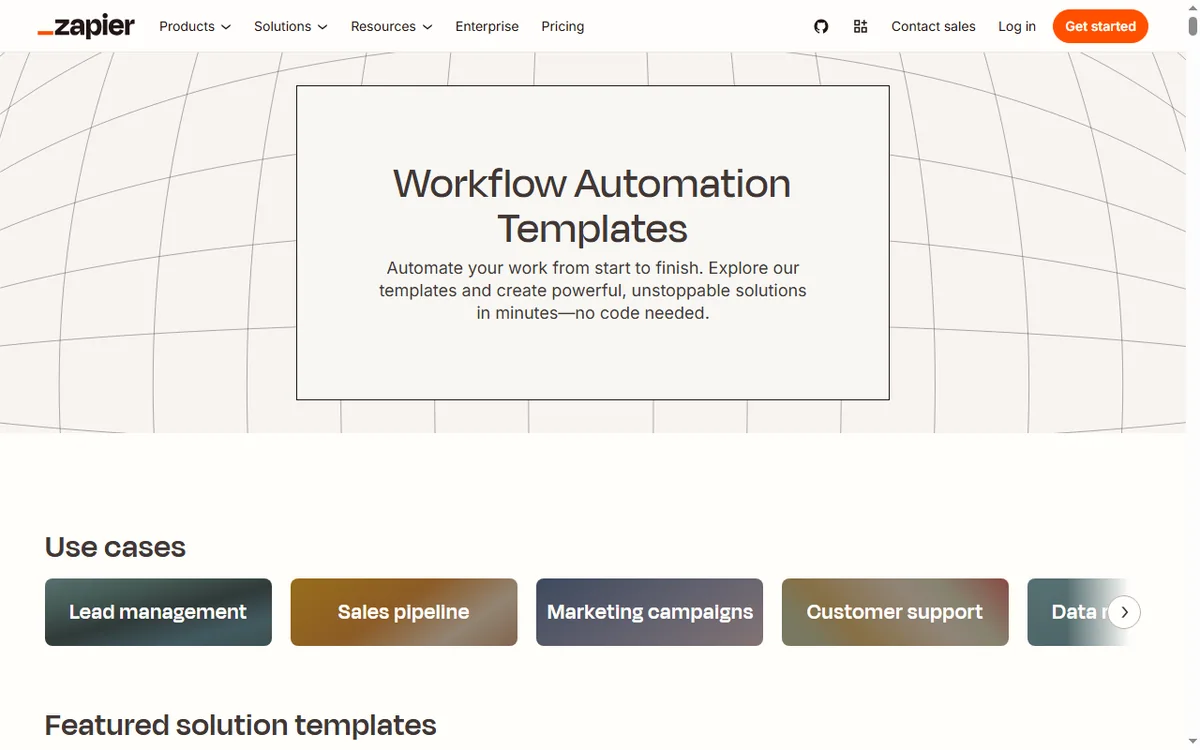
    Zapier templates page
    Zapier templates (image: zapier.com)

    Where this fits

    Start with the automation hub. For the basics read what Zapier is, and for the setup steps see how to set up Zapier.

    Icode editorial illustration
    Icode editorial illustration (image: icode.io.vn)

    Frequently asked

    Is my data lost if a Zap fails?

    No. A failed step usually just did not complete. Fix the step, then re-run and check the history for what was already processed.

    Why did my Zap stop overnight?

    Automations can pause when a plan’s task quota is used up. Check your usage and limits.

    Can I retry a failed task?

    Often yes, from the task history, once you have fixed the underlying cause.

    Do I need to rebuild the Zap?

    Rarely. Most issues are a disconnected account or a field mapping, which you can fix in place.

    Automate more with Zapier

    Fix the failing step, then let your Zaps run.

    Some links on this page may be referral links — we may earn a reward if you sign up, at no extra cost to you. We are an independent publisher. See our Affiliate Disclosure.

    Related reading

  • What is Zapier?

    What is Zapier?

    Home / Automation / Guides / What is Zapier

    Knowledge · automation · updated October 9, 2026

    What is Zapier?

    Zapier is an automation platform that connects apps together so an event in one tool can run an action in another. This guide explains what that means in practice and when it is worth using.

    Independent analysis. This page may contain affiliate links. If you sign up through a link on this page we may earn a reward at no extra cost to you, and it never changes what we recommend. We are an independent publisher and are not affiliated with, endorsed by, or an official partner of any tool mentioned. See our Affiliate Disclosure.

    TL;DR

    • Zapier connects apps so one event can trigger actions in others.
    • It works through Zaps: a trigger, then one or more actions.
    • It is strongest for no-code automations between cloud apps.
    • Plans differ by task limits, which change over time.
    • It is not a full development platform or a data warehouse.

    On this page: What Zapier is · How a Zap works · What it is good at · What it is not · Concept cheat sheet · Where this fits

    Zapier home page
    Zapier home (image: zapier.com)

    What Zapier is

    Zapier is a cloud automation service. It connects thousands of apps through their APIs and lets you build automations without writing code.

    The point is to remove manual copy-paste work between tools: instead of moving data by hand, you describe the trigger and the action once and Zapier runs it for you.

    Because the connections are maintained for you, the same automation keeps working even when an app updates its interface, which is the part that usually breaks hand-built scripts.

    Zapier apps page
    Zapier apps (image: zapier.com)

    How a Zap works

    A Zap has a trigger (the event that starts it) and one or more actions (what happens next). A new form response, for example, can trigger creating a contact in your CRM and sending a message.

    Because each step is a separate app connection, the value comes from chaining tools that otherwise do not talk to each other.

    Most people start with a single trigger and one action, then add more steps once they trust the first ones. Keeping each Zap small makes failures easier to find.

    Zapier pricing page
    Zapier pricing (image: zapier.com)

    What Zapier is good at

    • Connecting cloud apps that have no built-in integration.
    • Replacing repetitive copy-paste work between tools.
    • Letting non-developers build reliable, repeatable automations.
    • Handling multi-step workflows with filters and conditions.
    Zapier signup page
    Zapier signup (image: zapier.com)

    What Zapier is not

    • Not a replacement for custom code when the logic gets complex.
    • Not free of limits: task quotas and step counts depend on the plan.
    • Not a data warehouse or a place to store large datasets.
    • Not instant in every case; some triggers poll on an interval.

    Concept cheat sheet

    ConceptMeaningWhy it matters
    ZapOne automation with a trigger and actionsThe basic unit you build
    TriggerThe event that starts a ZapDefines when it runs
    ActionA step Zapier performsDoes the work in an app
    TaskOne successful action runCounts against your plan
    FilterA condition that stops or continuesKeeps bad data out
    Based on publicly documented behaviour, checked October 9, 2026.
    Zapier templates page
    Zapier templates (image: zapier.com)

    Where this fits

    Start with the automation hub. For the practical steps see how to set up Zapier, and for everyday usage read how to use Zapier for a small business.

    Icode editorial illustration
    Icode editorial illustration (image: icode.io.vn)

    Frequently asked

    What is a Zap?

    A Zap is a single automation: one trigger that starts the workflow, plus the actions that follow.

    Do I need to know how to code?

    No. Zaps are built in a visual editor. Advanced steps can call webhooks or code if you need them, but that is optional.

    Is there a free plan?

    Zapier has offered a free tier and paid plans with higher limits. Plans change, so check the current pricing on Zapier’s own page.

    What are task limits?

    Each successful action counts as a task. How many you get depends on your plan, so check the current details before you commit.

    Can one Zap do several things?

    Yes. A Zap can run multiple actions in order and can branch with filters, though very complex logic is often better split into a few smaller Zaps.

    Connect your apps with Zapier

    A trigger in one app, an action in another — without code.

    Some links on this page may be referral links — we may earn a reward if you sign up, at no extra cost to you. We are an independent publisher. See our Affiliate Disclosure.

    Related reading

  • How to automate lead follow-up with Make

    How to automate lead follow-up with Make

    Home / Automation / Guides / How to automate lead follow-up with Make

    Guide · automation · updated October 9, 2026

    How to automate lead follow-up with Make

    Most leads go cold because follow-up depends on someone remembering. Make can run a consistent sequence instead: catch the new lead, wait the right amount of time, send the next message, and stop when the lead replies.

    Independent analysis. This page may contain affiliate links. If you sign up through a link on this page we may earn a reward at no extra cost to you, and it never changes what we recommend. We are an independent publisher and are not affiliated with, endorsed by, or an official partner of any tool mentioned. See our Affiliate Disclosure.

    TL;DR

    • Follow-up wins are about timing, not volume.
    • Start with one sequence and one clear goal.
    • Use a delay between touches so messages are not spammy.
    • Stop the sequence the moment a lead replies.
    • Log everything so nothing is sent twice and no lead slips through.

    On this page: What good follow-up looks like · Anatomy of the scenario · Build it · Branch on replies · Avoid the pitfalls · Where this fits

    Make home page
    Make home (image: make.com)

    What good follow-up looks like

    A useful follow-up is short, timely and relevant. Before automating anything, write down the sequence you would send by hand: how many messages, how far apart, and what each one adds.

    Automation does not fix a bad sequence — it just sends it faster. Get the manual version right first, then let Make run it.

    Make integrations page
    Make integrations (image: make.com)

    Anatomy of the scenario

    Every follow-up scenario has the same skeleton: a trigger when the lead arrives, a delay, a send step, a branch to detect a reply, and a step that records what happened.

    • Trigger: a new lead from your form or store.
    • Delay: the gap before the next message.
    • Send: an email step or a step that queues a message in your email tool.
    • Branch: check whether the lead has replied.
    • Log: mark the lead as contacted so it is not processed twice.
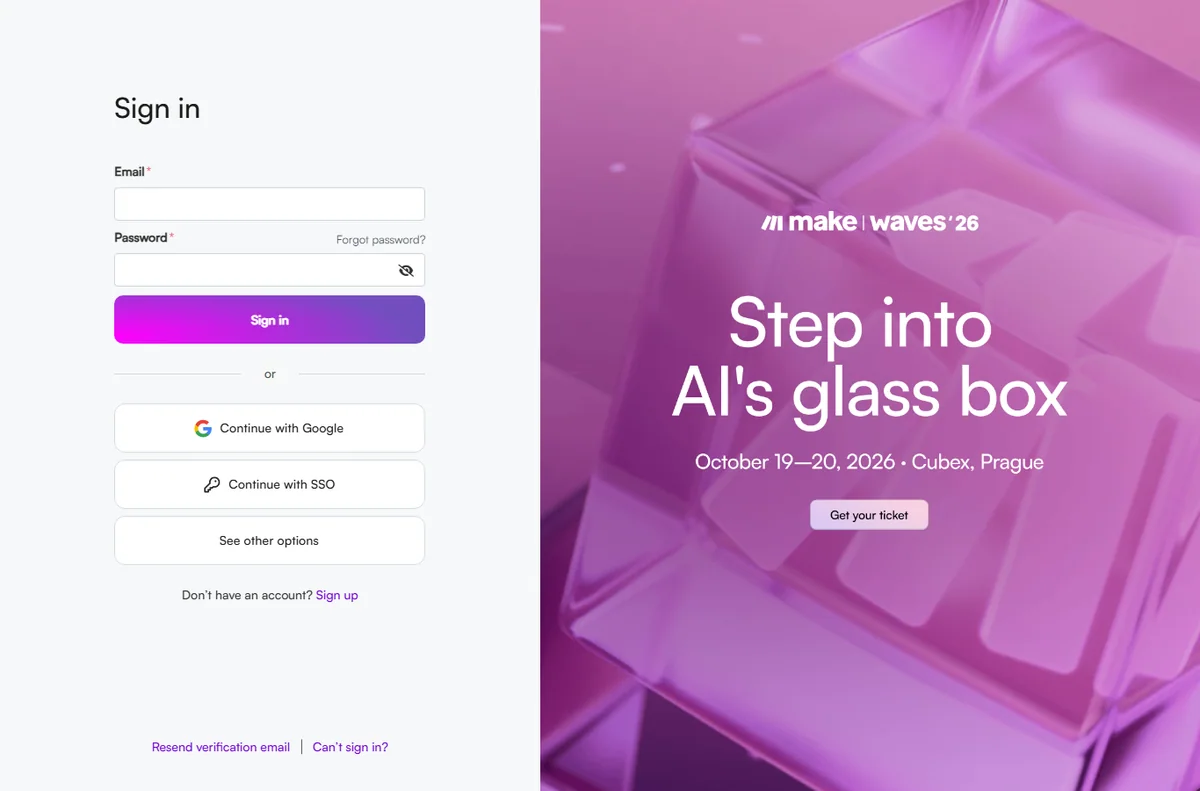
    Make login page
    Make login (image: make.com)

    Build it step by step

    Keep the first version small and let it prove itself before you add branches.

    1. Add the trigger for a new lead.
    2. Add a delay that matches your written sequence.
    3. Add the step that sends or queues the first follow-up.
    4. Add a step that tags the lead as contacted.
    5. Test with a sample lead you create yourself.
    Make pricing page
    Make pricing (image: make.com)

    Branch on replies

    The single most important safeguard is stopping the sequence when a human replies. A router in the scenario can check for a reply and take one path if there is one and another if there is not.

    When a reply is detected, exit the sequence and hand the lead to a person. Automated messages that keep firing after a real conversation are the fastest way to lose trust.

    Avoid the pitfalls

    • Do not queue so many touches that the sequence reads as spam.
    • Do not send the same message twice because a step re-ran — use a log or tag.
    • Do not forget time zones when scheduling delays.
    • Do not chase someone who already bought; branch them out early.
    Make register page
    Make register (image: make.com)

    Where this fits

    Start with the business automation hub and the independent Make review. To choose a platform, read Make vs n8n and the best workflow automation tools; for setup, see how to set up Make.

    Make templates page
    Make templates (image: make.com)

    Frequently asked

    How many follow-ups should I send?

    Fewer than you think. Two to four well-timed, genuinely useful messages usually beat a long sequence.

    Should every message be automated?

    No. Automate the first touches and the internal reminders; write the personal replies yourself.

    How do I stop messages after a reply?

    Add a router that checks for a reply and exits the sequence when one is found.

    What does it cost?

    Make meters operations on paid plans. Because tiers and caps change, check the current pricing on the vendor’s page before you scale.

    Automate follow-up with Make

    Catch the lead, wait, send, stop on reply.

    Some links on this page may be referral links — we may earn a reward if you sign up, at no extra cost to you. We are an independent publisher. See our Affiliate Disclosure.

    Related reading

  • How to send leads to GetResponse using Make

    How to send leads to GetResponse using Make

    Home / Automation / Guides / How to send leads to GetResponse using Make

    Guide · automation · updated October 9, 2026

    How to send leads to GetResponse using Make

    A form or checkout captures a lead, and you want it in GetResponse without copy-pasting. Make connects the two: a scenario watches for the new lead, cleans the data, and adds it to the right list. This guide builds that scenario step by step.

    Independent analysis. This page may contain affiliate links. If you sign up through a link on this page we may earn a reward at no extra cost to you, and it never changes what we recommend. We are an independent publisher and are not affiliated with, endorsed by, or an official partner of any tool mentioned. See our Affiliate Disclosure.

    TL;DR

    • The scenario needs a trigger (new lead) and an action (add contact).
    • Connect both apps once, then reuse the connection.
    • Filter out obvious junk before it reaches your list.
    • Map fields carefully — a wrong field means a wrong email.
    • Test with sample data before switching the scenario on.

    On this page: What the scenario does · Prepare the connections · Build the scenario · Map the fields · Test safely · Where this fits

    Make home page
    Make home (image: make.com)

    What the scenario does

    The goal is a repeatable path from capture to list. Whatever the lead source — a website form, a landing page or a checkout — the scenario watches for a new record and pushes a clean contact into GetResponse.

    Keeping the logic visible on a canvas means you can change one step without breaking the rest, which is the whole reason to automate this rather than wire it manually into every form.

    Make integrations page
    Make integrations (image: make.com)

    Prepare the connections

    Before building, connect both apps in Make and confirm each has the access it needs. You only do this once per app, and the connection is reused by every scenario that needs it.

    1. Add a connection to your lead source (your form tool or store).
    2. Add a connection to GetResponse.
    3. Confirm the GetResponse connection can see the list you plan to write to.
    4. Note the exact field names on both sides — you will map them later.
    Make login page
    Make login (image: make.com)

    Build the scenario

    A minimal scenario is a trigger plus a filter plus a Create Contact action. Add steps only when they earn their place.

    1. Choose the trigger: a new submission or new order.
    2. Add a filter so empty or obviously fake submissions are ignored.
    3. Add the GetResponse module that creates or updates a contact.
    4. Choose the destination list or tag in that module.
    Make pricing page
    Make pricing (image: make.com)

    Map the fields

    Field mapping is where most integrations quietly go wrong. Match the source fields to the GetResponse fields one at a time, and preview the data Make shows you after a test run.

    • Email must land in the email field, not a name field.
    • Send a first name only if you actually collect one.
    • Add a tag or list that reflects where the lead came from.
    • Leave optional fields empty rather than guessing.

    Test safely, then switch it on

    Run the scenario by hand with sample data and read the input and output of each module. Only when the contact arrives in GetResponse exactly as expected should you switch the scenario on.

    Keep one test contact you can delete afterwards, and check the first few live runs so a small mapping mistake does not reach your whole list.

    Make register page
    Make register (image: make.com)

    Where this fits

    Start with the business automation hub and the independent Make review. For the email side, see the GetResponse review and how to set up GetResponse; for the tool itself, how to set up Make.

    Make templates page
    Make templates (image: make.com)

    Frequently asked

    Do I need to code?

    No. The scenario is built by choosing modules and mapping fields. Code only comes in if a transformation the built-in functions cannot do is required.

    What if the same lead submits twice?

    Add a step that checks for an existing contact before creating a new one, so you update rather than duplicate.

    Does this cost extra?

    Make meters operations on paid plans and GetResponse plans vary. Rates change, so check the current pricing on each vendor’s page.

    How do I know it worked?

    After a test run, confirm the contact appears in the correct GetResponse list with the fields you mapped.

    Move leads to GetResponse with Make

    Trigger, filter, action — then test before you switch it on.

    Some links on this page may be referral links — we may earn a reward if you sign up, at no extra cost to you. We are an independent publisher. See our Affiliate Disclosure.

    Related reading

  • How to use Pabbly for a small business

    How to use Pabbly for a small business

    Home / Automation / Guides / How to use Pabbly for a small business

    Guide · automation · updated October 9, 2026

    How to use Pabbly for a small business

    Once the account is live, the question changes from how to set it up to how to run it without wasting time. This guide is the day-to-day playbook: keep the stack lean, send on a rhythm customers expect, automate the boring parts, and watch the few numbers that actually move the business.

    Independent analysis. This page may contain affiliate links. If you sign up through a link on this page we may earn a reward at no extra cost to you, and it never changes what we recommend. We are an independent publisher and are not affiliated with, endorsed by, or an official partner of any tool mentioned. See our Affiliate Disclosure.

    TL;DR

    • Keep the stack lean instead of buying every add-on.
    • Send on a predictable rhythm, not in bursts.
    • Automate the repetitive tasks first.
    • Use forms and tags to segment from day one.
    • Watch a few metrics instead of all of them.

    On this page: Keep it lean · Email rhythm · Automation · Forms and tags · Subscriptions · Cost

    Pabbly home page
    Pabbly home (image: pabbly.com)

    Keep the stack lean

    Pabbly covers email, forms, automation and billing, so the value is in using what is included instead of stacking unrelated subscriptions underneath it.

    List the tools you already pay for and check whether the bundle replaces any of them. If it does not, a narrower, cheaper tool may fit better overall.

    Pabbly about page
    Pabbly about (image: pabbly.com)

    Email on a rhythm that fits a small business

    A short welcome sequence plus one useful newsletter a month beats sporadic blasts. Consistency trains people to open; long silence trains them to forget you.

    Segment by behaviour — buyers, subscribers, lapsed — so the same list is not sent the same message. Relevance is what keeps open rates alive.

    Pabbly connect page
    Pabbly connect (image: pabbly.com)

    Automate the tasks that repeat

    Tag new signups, send a welcome, move a customer into a sequence, and post new orders to a sheet. These are the jobs that quietly eat an afternoon every week.

    Start with the trigger you trust most. A workflow is only as good as the event that starts it, so test that the trigger fires before you build anything downstream.

    Use forms and tags to segment early

    Every form is a chance to learn something: which offer attracted the person, which page they came from, what they asked for. Capture it as a tag while it is fresh.

    Clean, deliberate tags make later automations simple; a mess of untagged contacts makes them impossible and turns segmentation into guesswork.

    Pabbly integrations page
    Pabbly integrations (image: pabbly.com)

    If you sell subscriptions

    Pabbly’s billing product handles recurring charges and invoices for simple subscription businesses. Use it when your model is genuinely recurring rather than one-off.

    Test a real signup, a renewal and a cancellation end to end before you rely on it. Billing bugs are the ones customers remember.

    Plan for pricing and limits

    Flat pricing is a strength, but limits on contacts, sends or tasks still apply. Know your ceiling before a campaign pushes you past it.

    Review the plan once a quarter; if you outgrow it, that is a decision you make calmly rather than a surprise you discover mid-campaign.

    Pabbly x blog page
    Pabbly x blog (image: pabbly.com)

    Where this fits

    Start from the independent Pabbly review and the automation hub. For setup mechanics, see how to set up Pabbly. Compare the field with best workflow automation tools.

    Pabbly x email page
    Pabbly x email (image: pabbly.com)

    Frequently asked

    Can I run email and automation in one account?

    Yes, and for most small businesses that is the point — one vendor, one bill, one place to get help.

    How often should I email?

    Monthly at minimum; more often if you have something genuinely useful to say. The quality of the send matters more than the volume.

    Do I need a separate CRM?

    Not to start. Tags and sequences inside Pabbly cover simple pipelines; a dedicated CRM earns its place once the sales process grows.

    When should I think about switching?

    When limits, deliverability or support stop fitting the business. Migrate in a quiet period and export your lists first.

    Run your business on Pabbly

    Email, forms and automation from one vendor.

    Some links on this page may be referral links — we may earn a reward if you sign up, at no extra cost to you. We are an independent publisher. See our Affiliate Disclosure.

    Related reading

  • How to set up Pabbly (step-by-step)

    How to set up Pabbly (step-by-step)

    Home / Automation / Guides / How to set up Pabbly

    Tutorial · automation · updated October 9, 2026

    How to set up Pabbly: email, forms and automation in one account

    Setting up Pabbly comes down to a short, ordered list: create one account, pick the product you actually need, verify your sending domain, import or build your first list, and launch a simple automation. Work in that order and you avoid the rework that comes from skipping ahead. This guide walks each step the way a first-time owner actually does it.

    Independent analysis. This page may contain affiliate links. If you sign up through a link on this page we may earn a reward at no extra cost to you, and it never changes what we recommend. We are an independent publisher and are not affiliated with, endorsed by, or an official partner of any tool mentioned. See our Affiliate Disclosure.

    TL;DR

    • Decide whether you need email marketing, automation, or both.
    • Create one account and keep billing in a single place.
    • Verify your sending domain before the first campaign.
    • Import contacts and confirm the consent you hold.
    • Build one small automation before scaling up.

    On this page: Account · Product · Domain · List · Automate · Checks

    Pabbly home page
    Pabbly home (image: pabbly.com)

    Step 1 — Create your account and choose the right product

    Pabbly bundles several products under one login, so the first decision is which one you are actually buying: email marketing for campaigns, Connect for automation, or the billing tool for subscriptions. Many small businesses start with email and add automation later.

    Sign up with a business address you monitor, and note which products are included in the plan you pick rather than assuming everything is bundled. We do not quote prices — plans and promotional terms change, so check the current pricing on Pabbly’s own site before you buy.

    Pabbly about page
    Pabbly about (image: pabbly.com)

    Step 2 — Verify your sending domain

    Before you send anything, add and verify your domain so email is signed correctly. Add the DNS records Pabbly gives you, then wait for verification to turn green.

    Set up SPF and DKIM at minimum, and DMARC if your DNS provider supports it. This is the difference between landing in an inbox and landing in spam, and it protects your domain reputation from the very first send.

    Pabbly connect page
    Pabbly connect (image: pabbly.com)

    Step 3 — Build your first list and import contacts

    1. Create a list with a clear name, such as Newsletter or Customers.
    2. Import an existing CSV, or add a signup form to your site.
    3. Map only the fields you actually use, not every column.
    4. Confirm each contact agreed to hear from you before you mail them.

    Keep purchased or scraped lists out of the account entirely. A clean, opted-in list of a few hundred beats a cold list of thousands for both deliverability and legal safety.

    Step 4 — Send a first campaign

    Build one simple broadcast: a clear from name, a subject that reads like a sentence, and a single call to action. Send a test to yourself and open it on a phone before it goes to the list.

    Start with a segment rather than the whole list so you can watch opens, clicks and bounces before committing. Check the spam score Pabbly reports and fix the obvious issues before you scale.

    Pabbly integrations page
    Pabbly integrations (image: pabbly.com)

    Step 5 — Automate one repetitive task

    Pick a single job worth automating: a welcome email when someone joins, or a tag when a form is submitted. Build it in Connect or the built-in automation, then test the trigger end to end.

    Resist building a dozen workflows on day one. One automation that reliably runs is worth more than ten half-finished ones, and it teaches you how the account behaves before you depend on it.

    Final checks before you build

    • Send a test campaign and confirm it lands in the inbox.
    • Verify the DNS records took effect.
    • Check that the unsubscribe link works.
    • Record your billing date and plan limits.
    Pabbly x blog page
    Pabbly x blog (image: pabbly.com)

    Where this fits

    See the independent Pabbly review and the automation hub for context. For a shortlist sized to a small team, see best workflow automation tools, and for the decision itself, Make vs n8n.

    Pabbly x email page
    Pabbly x email (image: pabbly.com)

    Frequently asked

    Is Pabbly good for beginners?

    Yes. The dashboard is approachable and one account covers email, forms and automation, which suits a first-time owner.

    Do I need a separate email tool?

    Not necessarily. If you mainly send campaigns, Pabbly’s email product can replace a standalone service; a dedicated tool may win once your list is large.

    Can I automate without coding?

    Yes. The visual builder connects triggers and actions; code is optional, not required.

    Should I buy the longest term?

    Longer terms usually cost less per month but lock you in. A medium term lets you test reliability and support before committing further.

    Start with Pabbly

    Email, forms and automation from one account.

    Some links on this page may be referral links — we may earn a reward if you sign up, at no extra cost to you. We are an independent publisher. See our Affiliate Disclosure.

    Related reading

  • How to Use n8n for a Small Business: Seven Workflows

    How to Use n8n for a Small Business: Seven Workflows

    Home / Automation / Guides / How to use n8n for a small business

    Use case · automation · updated October 8, 2026

    How to use n8n for a small business

    A small team rarely needs an army of automations. It needs five to seven reliable ones that remove the work nobody wants to repeat. These are the n8n workflows that pay back fastest for a small business.

    Independent analysis. This page may contain affiliate links. Some links here are referral links; if you sign up through one we may earn a reward at no extra cost to you, and it never changes what we recommend. We are an independent publisher and are not affiliated with, endorsed by, or an official partner of any tool mentioned. See our Affiliate Disclosure.

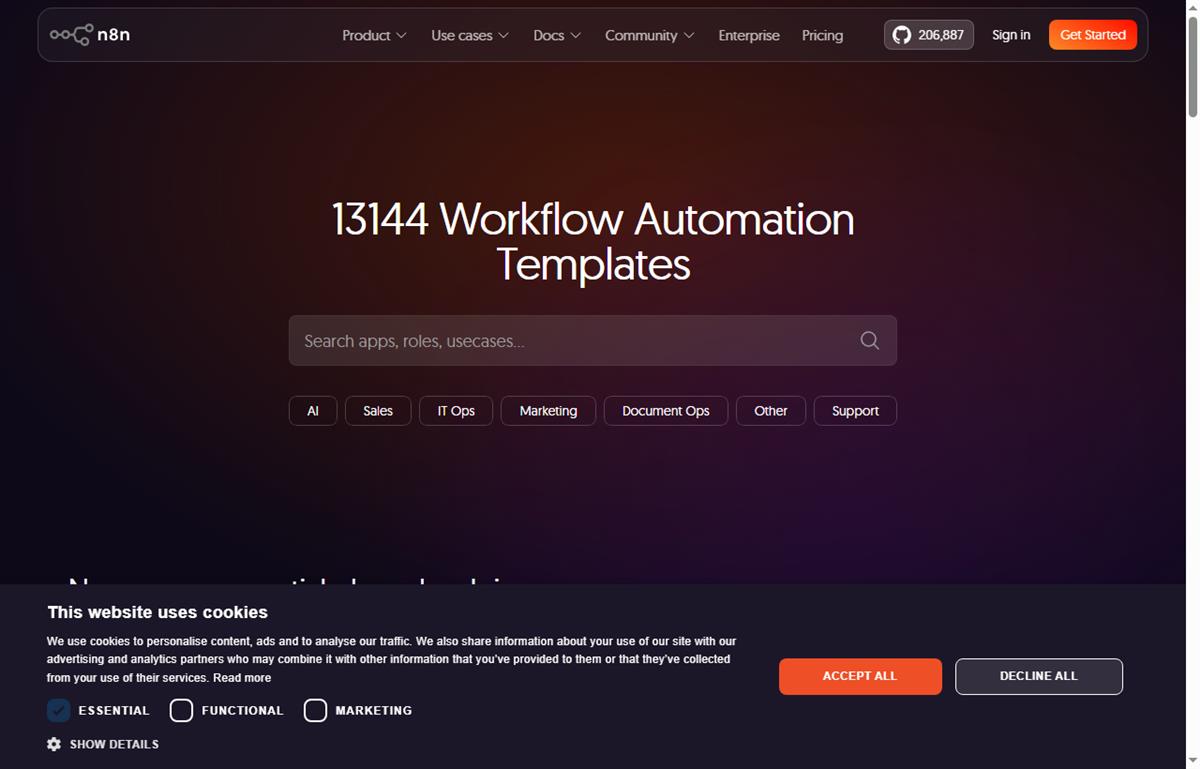
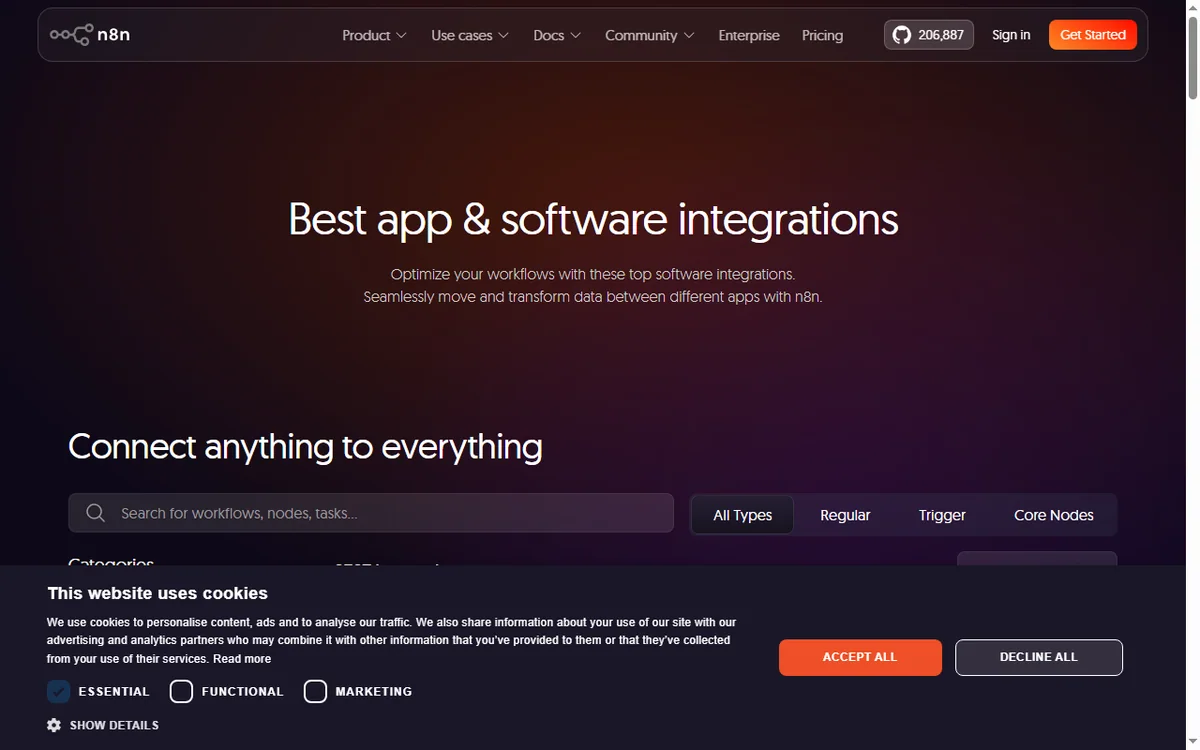
    n8n workflow templates you can build from
    Example n8n workflows you can start from at n8n.io/workflows (image: n8n.io)

    TL;DR

    • Start with the workflow that removes the most repetitive manual work, not the cleverest one.
    • Lead capture and routing is usually the highest-value first automation.
    • Internal notifications and reporting save time without touching customer-facing steps.
    • Self-hosting becomes attractive once you run several busy workflows.
    • Track time saved, not the number of workflows you build.

    On this page: Why a small business uses n8n · Seven practical workflows · Which to build first · The core skills you reuse · Guardrails for a small team · Where this fits

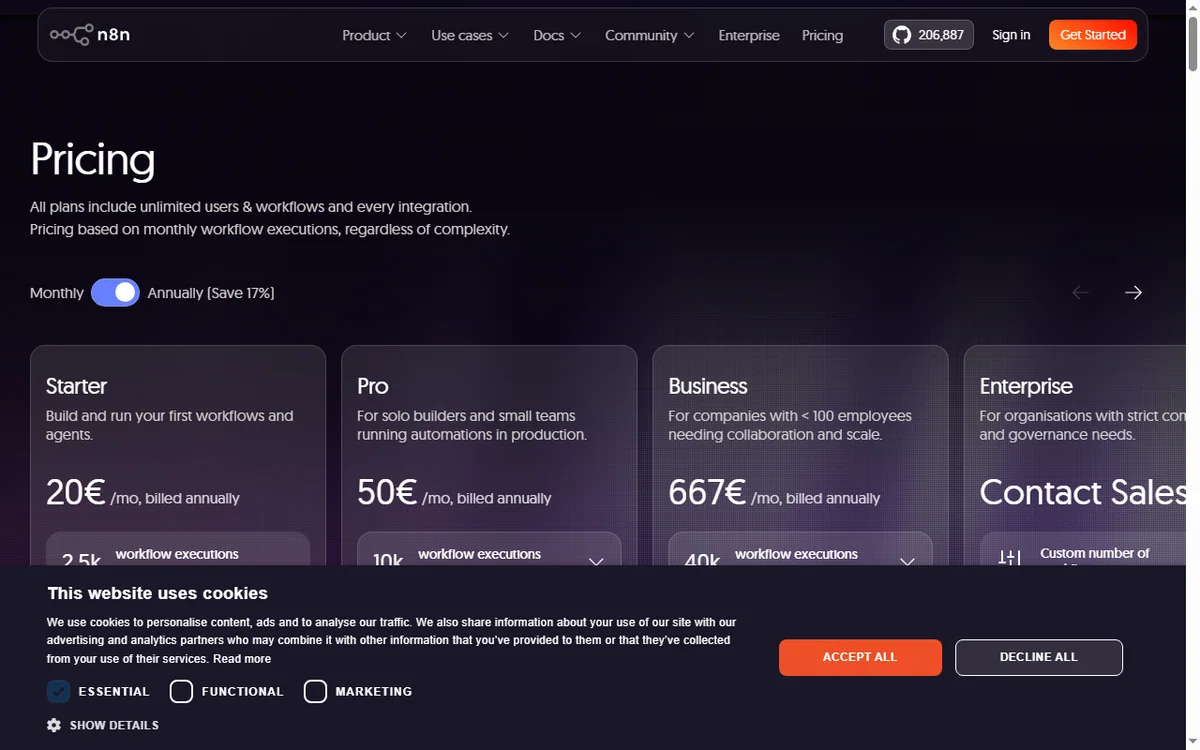
    N8n pricing page
    N8n pricing (image: n8n.com)

    Why a small business uses n8n

    The pattern is familiar: a form arrives, someone copies it into a spreadsheet, someone else emails the customer, and a third person forgets to follow up. n8n turns that chain into one workflow that runs the moment the trigger fires.

    You do not need a developer for this. You need one clear process, two or three connected apps, and the discipline to test before you switch it on.

    N8n home page
    N8n home (image: n8n.com)

    Seven practical workflows

    • Lead capture and routing — a form submission creates a contact and notifies the right person.
    • Invoice chasing — a scheduled check flags overdue invoices and sends a reminder.
    • Daily reporting digest — pull key numbers each morning into one message.
    • Order or booking notifications — alert the team the moment a sale lands.
    • Content publishing — draft to review to scheduled publish without manual copying.
    • Internal approvals — a request routes to the right approver and records the decision.
    • Appointment reminders — confirmations and reminders sent on a schedule.

    Which to build first

    Priority Workflow Typical payback
    1Lead capture and routingImmediate — stops lost leads
    2Invoice chasingDays — improves cash flow
    3Order or booking notificationsImmediate — faster response
    4Daily reporting digestWeekly — saves admin time
    5Internal approvalsWeeks — removes email chains
    Based on publicly documented behaviour, checked October 8, 2026.
    N8n docs page
    N8n docs (image: n8n.com)

    The core skills you reuse

    Every workflow above is built from the same few moves: a trigger, one or more actions, field mapping, and a filter or branch. Learn those once and each new automation is faster than the last.

    Keep a simple naming convention so you can tell at a glance what a workflow does and who owns it.

    Guardrails for a small team

    • Give every workflow an owner and a short description.
    • Add error notifications so failures are noticed, not discovered later.
    • Log key runs to a spreadsheet or database for an audit trail.
    • Review automations quarterly and retire the ones nobody uses.
    N8n integrations page
    N8n integrations (image: n8n.com)

    Where this fits in your wider stack

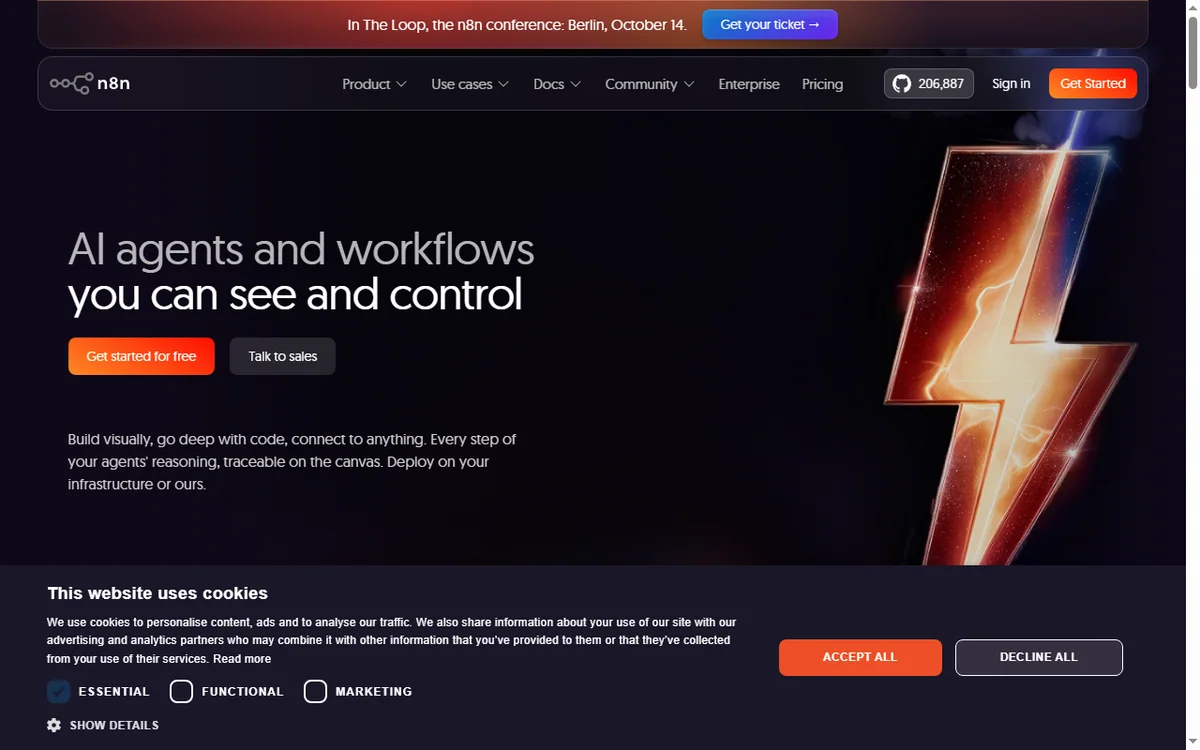
    Read the independent n8n review and start from the automation hub. Comparing tools? See Make vs n8n and best workflow automation tools. If you plan to host it yourself, read the n8n self-hosting guide.

    N8n register page
    N8n register (image: n8n.com)

    Frequently asked

    How many workflows does a small business need?

    Most small teams get most of the value from five to seven. Add more only when a process is genuinely repeated and painful.

    Is n8n overkill for a very small team?

    Not necessarily. If you value self-hosting or expect volume, it fits early. If you want zero maintenance, a hosted option may suit you better.

    Who should own automations?

    One person should own them even if several use them. Clear ownership is what keeps workflows from quietly breaking.

    How do I know an automation is working?

    Add error notifications and a simple run log. If a workflow fails silently, you lose the data it was meant to move.

    Turn one recurring task into an n8n workflow

    Pick the process that wastes the most time this week and automate it first.

    Referral link — we may earn a reward if you sign up, at no extra cost to you. We are an independent publisher. See our Affiliate Disclosure.