Home / Email Marketing / Guides / How to set up GetResponse
Tutorial · email marketing · updated October 7, 2026
How to set up GetResponse: from empty account to your first automation
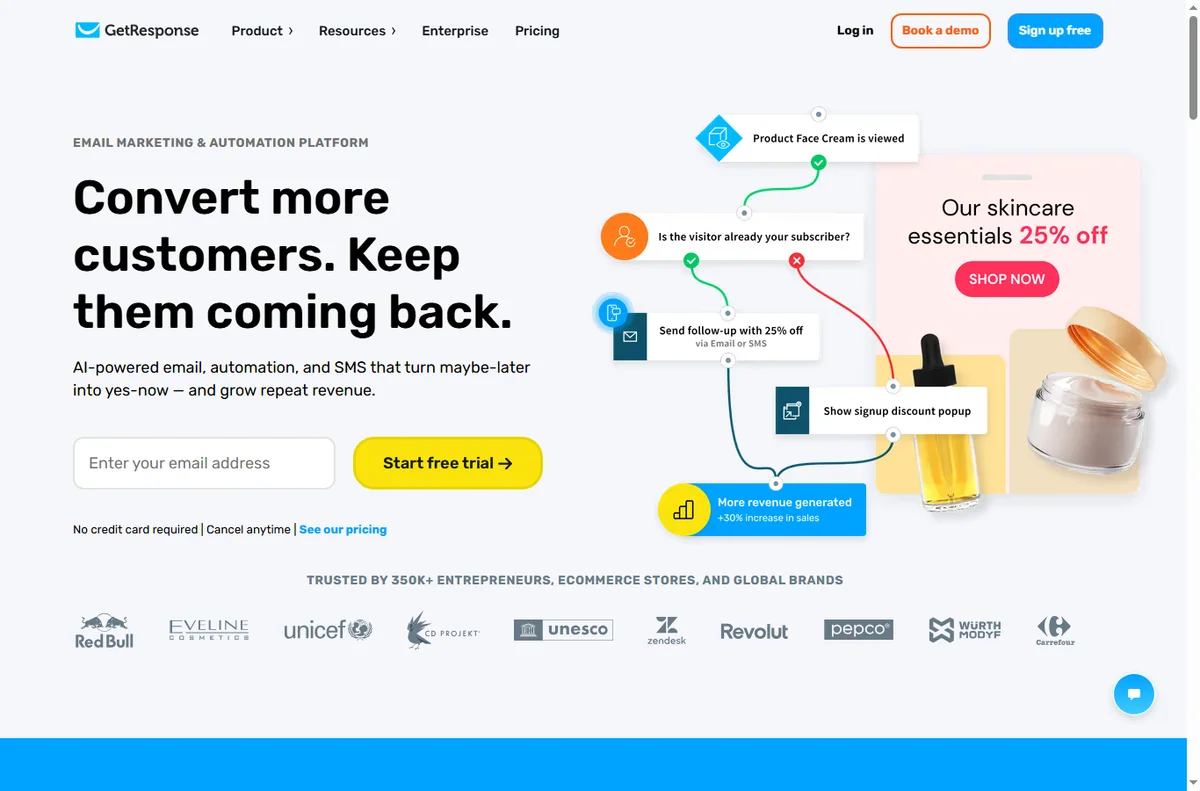
GetResponse is more than a send button: it is a contact database, a form builder and an automation engine. Setting it up well means getting the list clean and the first automation correct.
Independent analysis. This page may contain affiliate links. Some links here are referral links; if you sign up through one we may earn a reward at no extra cost to you, and it never changes what we recommend. We are an independent publisher and are not affiliated with, endorsed by, or an official partner of any tool mentioned. See our Affiliate Disclosure.
TL;DR
- Create the account, then set your sender identity before you send anything.
- Import contacts only with a clear consent basis.
- Build one signup form and connect it to one list.
- Start with a single autoresponder, not a complex flowchart.
- Verify deliverability with a real test before a campaign.
On this page: What setup involves · Create account + sender identity · Import contacts · Build a signup form · First automation · Check deliverability · Where this fits
What setting up GetResponse really involves
Setup is four jobs: identify yourself as a sender, get contacts in with consent, connect a form so new contacts arrive automatically, and launch one automation that proves the system works.
Do them in that order. Most new-account problems trace back to skipping the sender identity or importing contacts with no consent basis.
Step 1 — Create the account and set your sender identity
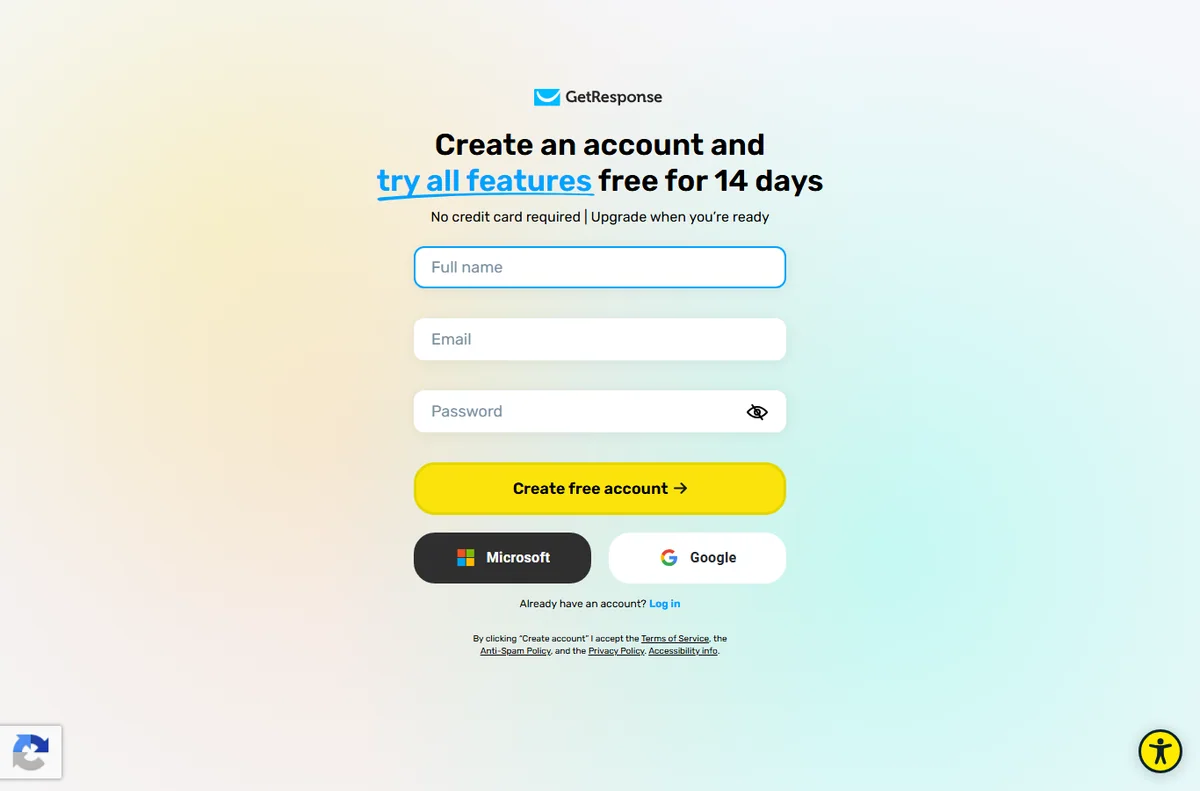
Sign up and confirm your email. Before anything else, set your sender name, from-address and reply-to. Use a real, monitored address on your own domain — deliverability depends on it.
Step 2 — Import contacts with consent
Only import people who agreed to hear from you. Purchased or scraped lists damage deliverability and usually break the provider’s terms. If consent is unclear, send a re-permission email rather than importing.
Step 3 — Build one signup form
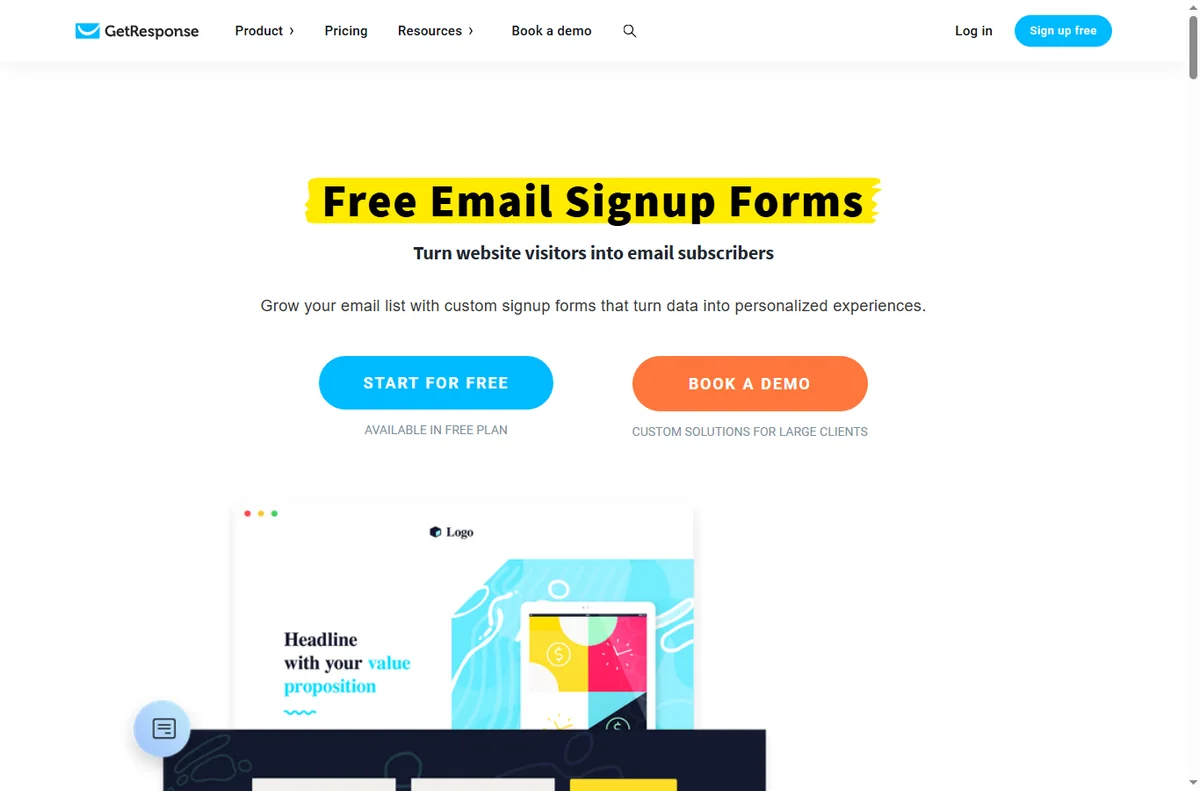
Create a single signup form with as few fields as you need, connect it to one list, and embed it on your site. One clear form beats five half-used ones.

Step 4 — Launch your first automation
- Create a welcome automation triggered when someone joins the list.
- Add the delivery email for whatever you promised.
- Add one value email and one offer email.
- Turn it on and subscribe yourself to test the whole sequence.
Step 5 — Check deliverability
Before a big campaign, send a real test to yourself and to a free mailbox provider. Ask recipients to check the spam folder. Authentication basics like SPF and DKIM should be in place on your sending domain.

Where this fits
See the independent GetResponse review and the GetResponse pricing guide. For platform choice, start at the email marketing hub and the best email marketing software shortlist. Deliverability basics are covered in the email deliverability guide.
Frequently asked
Can I import my old contacts?
Only those who gave consent to receive email from you. Importing purchased or scraped lists risks deliverability and breaches provider terms; when in doubt, re-permission first.
What is an autoresponder?
An automated email (or sequence) triggered by an event such as joining a list. It sends without manual effort, which is why it is the first automation most accounts should build.
Do I need to set up SPF and DKIM?
They materially improve deliverability. Follow your provider’s authentication guidance on your sending domain before running campaigns.
How many emails should my welcome sequence have?
Start with three: deliver what you promised, add value, and make one clear offer. Add more only if you can keep the quality high.
How do I test before sending?
Subscribe using a real address, walk the sequence, and send a campaign test to a free mailbox provider to check inbox placement.
Set the list straight, then automate
One form, one list, one welcome sequence.
Referral link — we may earn a reward if you sign up, at no extra cost to you. We are an independent publisher. See our Affiliate Disclosure.
Leave a Reply