We’re reader-supported — some links are affiliate links. Learn more →

Skip to content

Independent software research. Some links may earn us a commission at no extra cost to you. Learn more →

ICode

Author: admin

  • What Is GetResponse? Email, Automation and Funnels Explained

    What Is GetResponse? Email, Automation and Funnels Explained

    Home / Email marketing / Guides / What is GetResponse

    Knowledge · email marketing · updated October 8, 2026

    What is GetResponse?

    GetResponse started as an email marketing tool and grew into a platform that also handles automation, landing pages and webinars. This guide explains what it actually covers and where it fits for a small team.
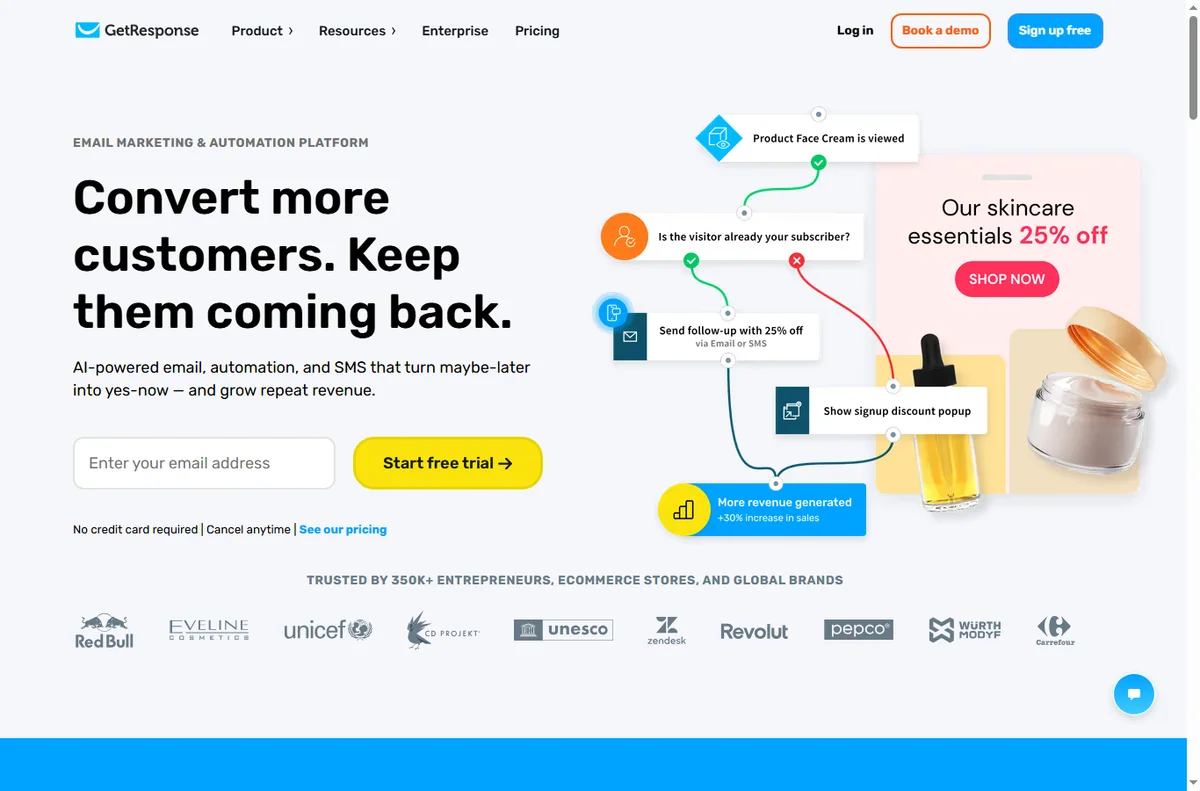
    GetResponse homepage for email marketing and automation
    GetResponse official homepage (image: getresponse.com)

    Independent analysis. This page may contain affiliate links. Some links here are referral links; if you sign up through one we may earn a reward at no extra cost to you, and it never changes what we recommend. We are an independent publisher and are not affiliated with, endorsed by, or an official partner of any tool mentioned. See our Affiliate Disclosure.

    TL;DR

    • GetResponse is an email marketing platform with automation and funnel extras.
    • Its core value is still email: lists, forms, sequences and broadcasts.
    • Built-in automation moves beyond simple autoresponders.
    • Extra features (pages, webinars) reduce the number of tools you need.
    • Confirm current plan limits on the vendor’s pricing page.

    On this page: What GetResponse is · What it covers · When it is the right fit · Things to consider · Core building blocks · Where this fits

    GetResponse email marketing feature page
    GetResponse email marketing (image: getresponse.com)

    What GetResponse is

    GetResponse is an email marketing platform. You build a list, send broadcasts and set up automated sequences, then use the extras — landing pages, forms and marketing automation — to grow and convert that list.

    It sits in the middle ground between a simple newsletter tool and a heavyweight marketing suite, which is why small teams often land on it.

    GetResponse landing page builder feature page
    GetResponse landing pages (image: getresponse.com)

    What it covers

    • Email campaigns: newsletters, broadcasts and autoresponders.
    • Automation: multi-step sequences triggered by behaviour.
    • Signup forms and landing pages to grow the list.
    • Segmentation using tags and behaviour.
    • Extras such as webinar and funnel features on higher tiers.
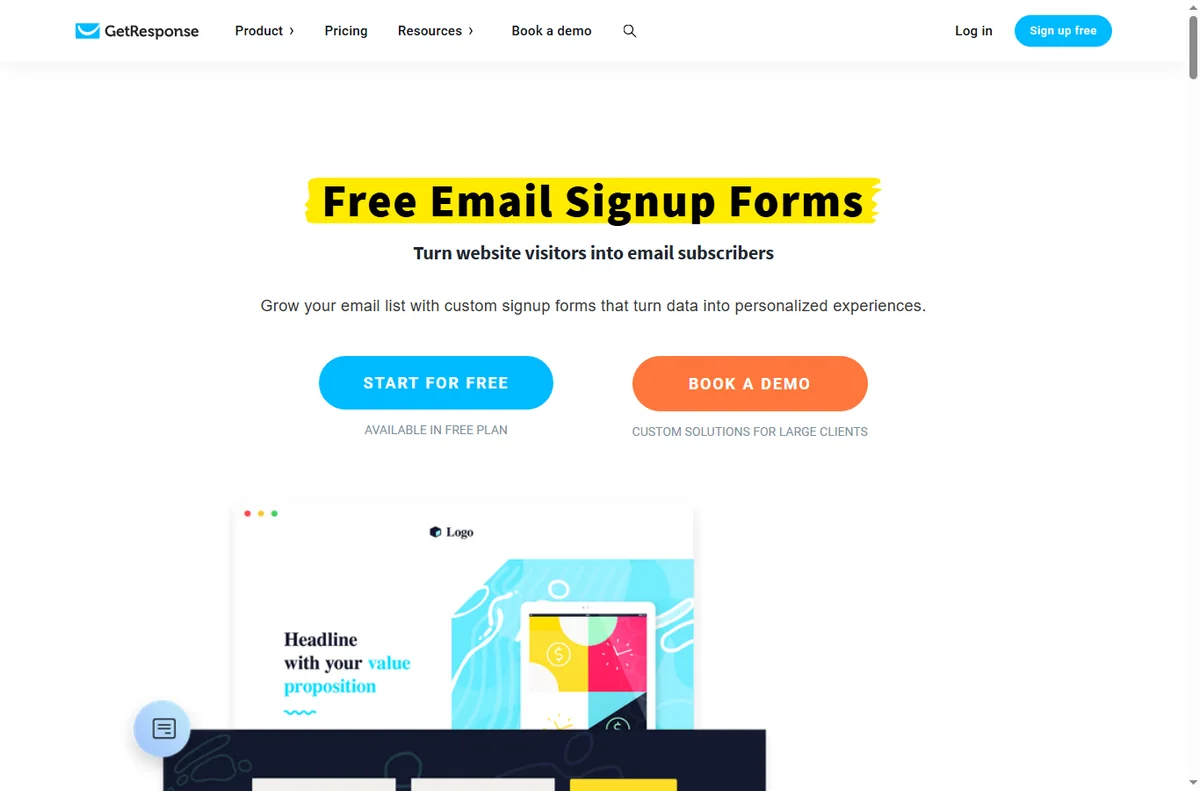
    Getresponse form builder page
    Getresponse form builder (image: getresponse.com)

    When it is the right fit

    It fits when email is central to your business and you want automation without assembling three tools. If you send regularly and want sequences, segmentation and forms in one place, the bundled extras remove integration work.

    Things to consider

    • Pricing scales with list size, so model your growth before committing.
    • The most advanced extras sit on higher tiers.
    • If you only send occasional newsletters, a simpler tool may be cheaper.
    • Deliverability depends on your own sending habits and domain setup as much as the platform.
    GetResponse marketing automation feature page
    GetResponse marketing automation (image: getresponse.com)

    Core building blocks

    Block What it does Typical use
    ListsWhere contacts liveSegmented audiences
    Forms and pagesCapture new contactsLead magnets
    AutorespondersScheduled sequencesWelcome and nurture
    AutomationBehaviour-triggered flowsRoute and follow up
    SegmentationTags and conditionsRelevant messaging
    Based on publicly documented behaviour, checked October 8, 2026.
    GetResponse pricing page with plan tiers
    GetResponse pricing (image: getresponse.com)

    Where this fits in your wider stack

    Start with the email marketing hub and the independent GetResponse review. For cost, see the GetResponse pricing guide; compare platforms in GetResponse vs ActiveCampaign and the best email marketing software roundup.

    Frequently asked

    Is GetResponse just email?

    No. Email is the core, but it also includes automation, forms, landing pages and some higher-tier extras such as webinars.

    Who is it best for?

    Small businesses where email drives sales and automation matters, and that prefer one tool over several.

    Does pricing scale with my list?

    Yes, plans generally scale with list size, so model your growth before you commit. Check current tiers on the vendor’s pricing page.

    Do I need the highest tier?

    Only if you need the extras it unlocks. Many teams get everything they use from a mid tier.

    Grow a list you actually use

    If email drives revenue, automation and segmentation earn their keep.

    Referral link — we may earn a reward if you sign up, at no extra cost to you. We are an independent publisher. See our Affiliate Disclosure.

  • How to Use Zapier for a Small Business: Seven Automations Worth Building

    How to Use Zapier for a Small Business: Seven Automations Worth Building

    Home / Automation / Guides / How to use Zapier for a small business

    Use case · automation · updated October 8, 2026

    How to use Zapier for a small business

    Zapier is most useful to a small business when it removes the repetitive glue work: moving leads, sending follow-ups, logging orders. These seven automations are the ones worth building first, in the order most teams should build them.

    Independent analysis. This page may contain affiliate links. Some links here are referral links; if you sign up through one we may earn a reward at no extra cost to you, and it never changes what we recommend. We are an independent publisher and are not affiliated with, endorsed by, or an official partner of any tool mentioned. See our Affiliate Disclosure.

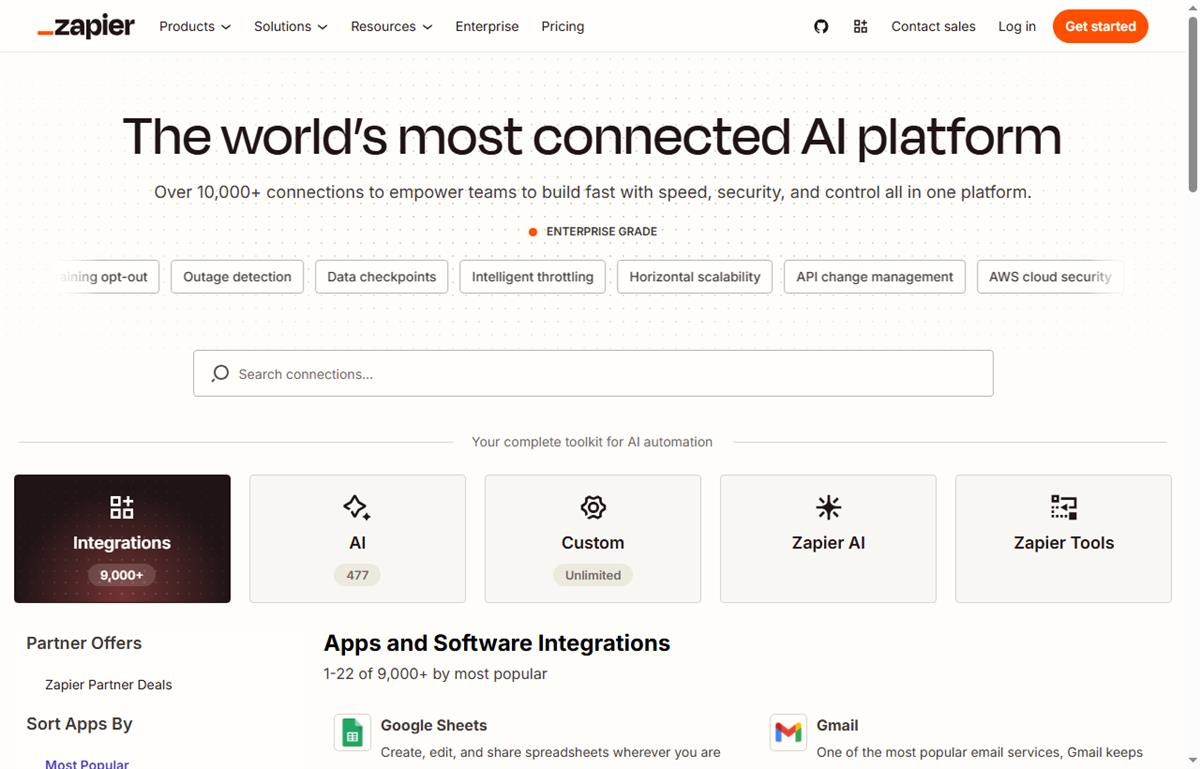
    Zapier app directory for connecting tools
    Connecting your tools in the Zapier app directory (image: zapier.com/apps)

    TL;DR

    • Start with the automation that saves the most manual minutes.
    • Lead capture and follow-up is usually automation number one.
    • Keep each Zap narrow rather than building one giant flow.
    • Watch task usage; a busy Zap can consume the free cap quickly.
    • Only automate a process you already do consistently by hand.

    On this page: Where automation pays off · Seven automations · Which one first · Keeping tasks under control · Where this fits

    Zapier home page
    Zapier home (image: zapier.com)

    Where automation pays off

    Automation pays off when a task is repetitive, rule-based and triggered by an event. If you already do the same thing every time a lead arrives, a Zap can do it instead.

    The rule of thumb: if a task happens more than a few times a week and follows a fixed pattern, it is a candidate.

    How a Zap connects a trigger to an action
    How a Zap connects a trigger to an action (image: zapier.com/how-it-works)

    Seven automations worth building

    1. Send new form leads into your CRM or spreadsheet automatically.
    2. Start a follow-up email sequence when someone opts in.
    3. Notify your team in chat when an order or payment lands.
    4. Create a task when a client replies to a proposal.
    5. Log invoices and receipts into bookkeeping software.
    6. Add new customers to an onboarding checklist automatically.
    7. Post new content or listings to social channels from one source.
    Zapier apps page
    Zapier apps (image: zapier.com)

    Which automation to build first

    Count the minutes each task costs you per week, then pick the highest. For most small businesses that is lead capture and follow-up, because it touches revenue and is done constantly.

    Build that one, watch it for a week, and only then add the next. Automating five things at once makes failures hard to trace.

    Zapier task usage and plans
    Zapier plans and task usage (image: zapier.com/pricing)

    Keeping task usage under control

    • Keep Zaps narrow: fewer steps per Zap means fewer tasks per run.
    • Add filters so a Zap only runs on the events that matter.
    • Estimate monthly tasks from volume before you rely on it in production.
    • Check the current cap on the vendor’s pricing page, because tiers change.

    Where this fits in your wider stack

    Start with the business automation hub and the independent Zapier review. For cost, see the Zapier pricing guide; for context read what is Make, compare in Make vs Zapier, and browse the best workflow automation tools roundup.

    Zapier pricing page
    Zapier pricing (image: zapier.com)

    Frequently asked

    What should I automate first?

    The task that costs the most minutes per week and follows a fixed pattern. For most small businesses that is lead capture and follow-up.

    How many Zaps should I start with?

    One. Prove it works for a week before adding the next, so failures stay easy to trace.

    How do I avoid burning through tasks?

    Keep Zaps narrow, add filters so they only run on relevant events, and estimate volume before relying on them in production.

    Do I still need manual checks?

    Yes. Automations handle the repetitive path; judgement calls still need a human.

    Automate the task that eats your week

    Pick the one that costs the most minutes, and build only that.

    Referral link — we may earn a reward if you sign up, at no extra cost to you. We are an independent publisher. See our Affiliate Disclosure.

  • How to Set Up Zapier: Your First Zap, Step by Step

    How to Set Up Zapier: Your First Zap, Step by Step

    Home / Automation / Guides / How to set up Zapier

    Tutorial · automation · updated October 8, 2026

    How to set up Zapier: from sign-up to your first Zap

    Zapier connects apps so work happens without you. Setup is really about getting one Zap to run correctly end to end. This walkthrough takes you from a blank account to a working automation without the usual detours.

    Zapier homepage for building AI-powered workflow automations
    Zapier official homepage (image: zapier.com)

    Independent analysis. This page may contain affiliate links. Some links here are referral links; if you sign up through one we may earn a reward at no extra cost to you, and it never changes what we recommend. We are an independent publisher and are not affiliated with, endorsed by, or an official partner of any tool mentioned. See our Affiliate Disclosure.

    TL;DR

    • A Zap is a trigger plus one or more actions.
    • Start on the free tier to learn; it meters tasks.
    • Connect one app first and prove a two-step Zap works.
    • Always test the Zap by hand before switching it on.
    • Upgrade only when a real workflow outgrows the free task cap.

    On this page: What setting up Zapier means · Before you start · Create your account · Learn three words · Build a two-step Zap · Test it · Turn it on · When to upgrade · Common mistakes · Where this fits

    Icode editorial illustration
    Icode editorial illustration (image: icode.io.vn)

    What setting up Zapier actually means

    Zapier is a connector service built around Zaps: a trigger that starts a workflow and one or more actions that follow. Setting it up is less about installation and more about getting a single Zap to behave.

    Three milestones cover most of it: create the account, connect an app, and run one Zap successfully. Multi-step Zaps and filters come later.

    Before you start

    • An email address you can confirm right away.
    • One app you already use that can act as a trigger.
    • A one-sentence job description: when this happens, do that.
    • A few minutes to run the Zap by hand once.
    Zapier sign-up screen used to create a free account
    Zapier sign-up (image: zapier.com)

    Step 1 — Create your account

    Sign up and confirm your email. You land in a dashboard that lists Zaps and apps rather than in the editor, which surprises people who expect to start building immediately.

    Begin on the free tier. It meters tasks, so treat it as a sandbox rather than production.

    Step 2 — Learn three words

    • Trigger — the event that starts a Zap.
    • Action — a step that does one job, such as creating a record or sending a message.
    • Task — one unit of work an action consumes; this is what paid plans meter.
    Zapier integrations library for choosing trigger and action apps
    Zapier app integrations (image: zapier.com)

    Step 3 — Build a two-step Zap

    1. Choose “Create Zap” rather than a template, so you learn the parts.
    2. Pick your trigger app and event, then connect the app by authorising it once.
    3. Add an action and pick what it should do with the data.
    4. Map fields so the trigger output flows into the action input.

    Step 4 — Test before you trust it

    Use the test control to pull sample data through the Zap. Read each step’s input and output; the first failure is almost always a mis-mapped field or an authorisation that expired.

    Step 5 — Turn it on and watch the first runs

    Once a manual test succeeds, switch the Zap on and watch the first few runs rather than assuming they are fine — especially the first time real traffic hits it.

    Zapier pricing page with plan tiers and task limits
    Zapier pricing (image: zapier.com)

    Step 6 — Know when to upgrade

    Upgrade when a genuine workflow outgrows the free task cap, not before. Estimate monthly tasks from real volume, then pick the smallest paid tier that covers it comfortably. We do not quote prices — vendors change tiers often, so confirm current figures on the vendor’s pricing page.

    Common setup mistakes

    Mistake Why it hurts Fix
    Starting from a complex templateYou inherit logic you do not understandBuild one simple Zap first
    Ignoring the task countThe free cap is hit mid-monthModel monthly volume early
    No error handlingA silent failure breaks the flowAdd a fallback step
    Testing with live data onlyFailures are hard to reproduceUse sample data, then a live run
    Turning on before a manual testThe first real run failsAlways test by hand once
    Based on publicly documented behaviour, checked October 8, 2026.
    Zapier template library of ready-made automation workflows
    Zapier workflow templates (image: zapier.com)

    Where this fits in your wider stack

    If you are still choosing a platform, start with the business automation hub and the independent Zapier review. For cost, see the Zapier pricing guide; if you are weighing platforms, read Make vs Zapier and the best workflow automation tools roundup.

    Frequently asked

    How long does it take to set up Zapier?

    The account and first simple Zap take roughly 20–40 minutes for a first-timer. Multi-step Zaps take longer because they add concepts, not because setup itself is long.

    Do I need to know how to code?

    No. The first Zaps are built by clicking steps and mapping fields.

    Is the free plan enough to start?

    It is enough to learn and to run low-volume workflows. It meters tasks, so busy automations reach the cap quickly — check the current cap on the vendor’s pricing page.

    What is a task, exactly?

    A task is one unit of work an action performs during a run. That is why volume matters more than the number of Zaps.

    Build one Zap, then judge the tool

    Count your steps first, then prototype on the free tier.

    Referral link — we may earn a reward if you sign up, at no extra cost to you. We are an independent publisher. See our Affiliate Disclosure.
  • Common Systeme.io Problems and How to Fix Them

    Common Systeme.io Problems and How to Fix Them

    Home / Funnel builders / Guides / Common Systeme.io problems

    Problem · funnel builders · updated October 8, 2026

    Common Systeme.io problems and how to fix them

    When an all-in-one platform carries your pages, email and checkout, one misconfiguration can affect all three. These are the problems small sellers hit most often, and the practical fix for each.

    Systeme.io homepage for building an online business
    Systeme.io official homepage (image: systeme.io)

    Independent analysis. This page may contain affiliate links. Some links here are referral links; if you sign up through one we may earn a reward at no extra cost to you, and it never changes what we recommend. We are an independent publisher and are not affiliated with, endorsed by, or an official partner of any tool mentioned. See our Affiliate Disclosure.

    TL;DR

    • A page that will not publish is usually a domain or DNS step, not a broken editor.
    • Emails landing in spam are often a missing domain authentication, not the copy.
    • A broken upsell is usually an order-form or tag mismatch.
    • Failed checkouts are often a payment connection or currency issue.
    • Test the whole funnel end to end with a real test purchase.

    On this page: Why all-in-one funnels break · Page will not publish · Emails go to spam · Upsell not showing · Checkout or payment fails · Symptom to fix · Where this fits

    Systeme.io sales funnel builder page
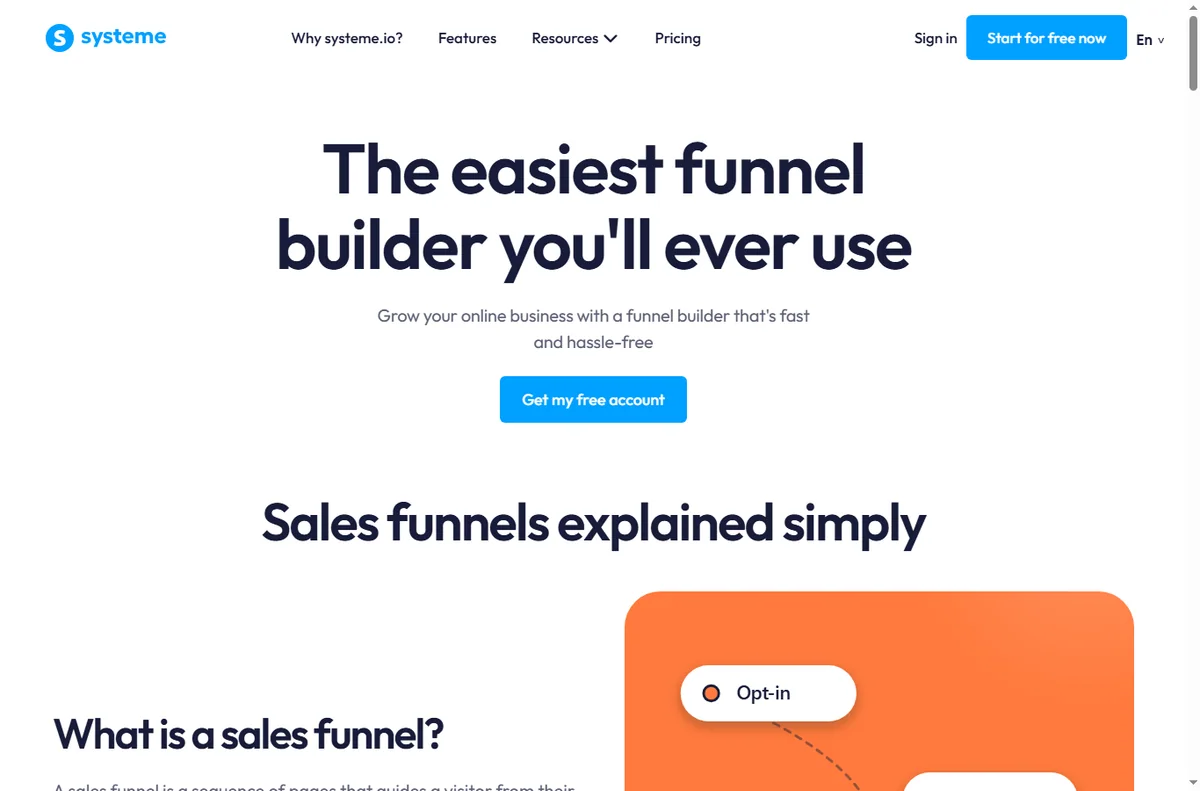
    Systeme.io sales funnels (image: systeme.io)

    Why all-in-one funnels break

    Because the platform owns several jobs at once, a problem in one area looks like a problem in another. An email that never arrives may be an authentication setting; an upsell that never shows may be a tag that did not fire.

    The reliable method is to test the funnel the way a customer does — land, opt in, buy, receive — and fix the first broken link rather than guessing.

    Systeme.io website and page builder page
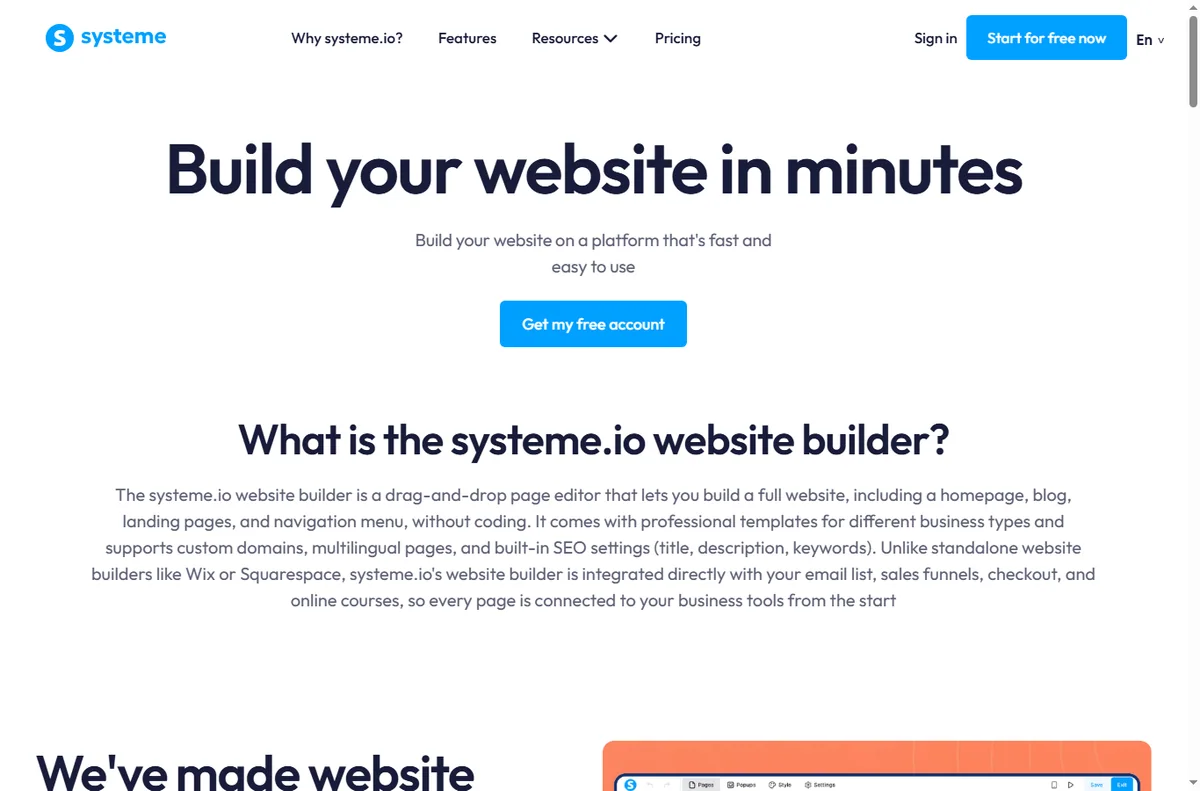
    Systeme.io website builder (image: systeme.io)

    Page will not publish or shows the wrong domain

    Check that the custom domain is connected and its DNS records have propagated. Publishing to a temporary address usually works while DNS settles; once the domain resolves, republish to the custom domain.

    Systeme.io email marketing features page
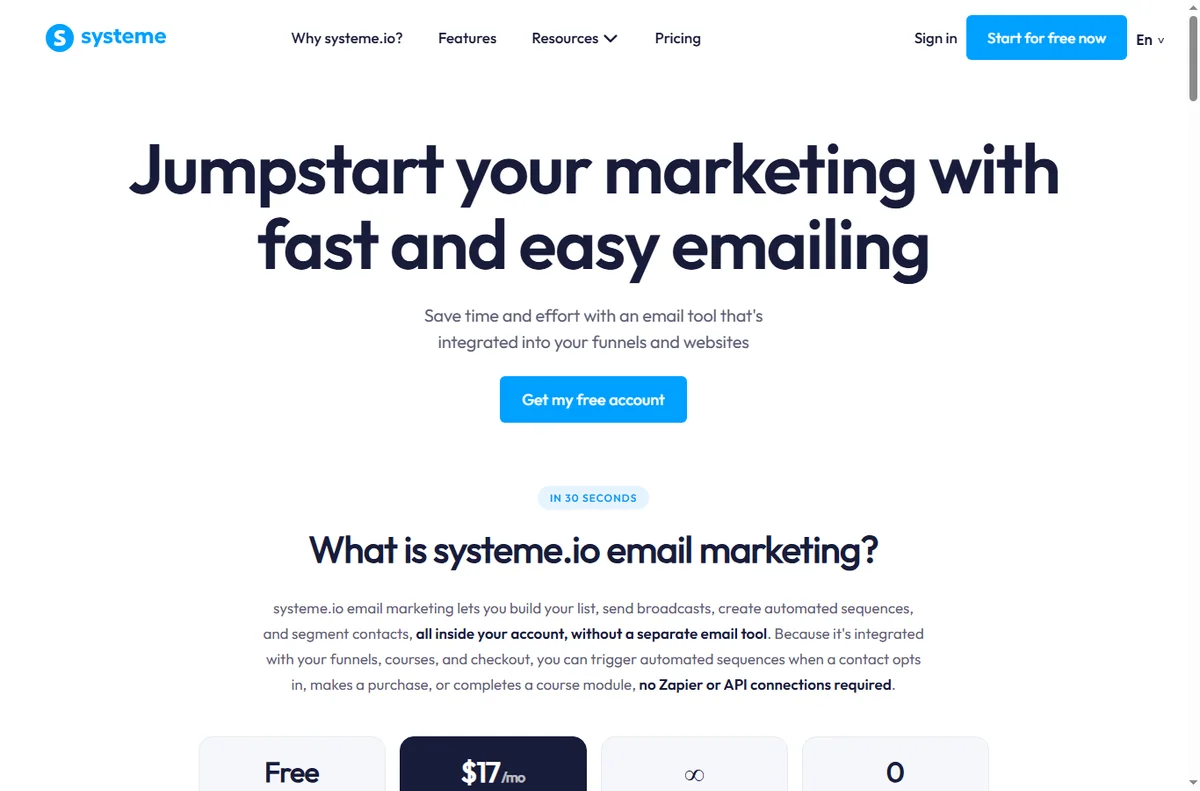
    Systeme.io email marketing (image: systeme.io)

    Emails land in spam

    • Authenticate your sending domain (the verification records the platform provides).
    • Send from a domain you own rather than a generic address.
    • Warm up a new sending domain gradually instead of blasting day one.
    • Check for spammy subject lines and broken links that hurt deliverability.
    Systeme.io marketing automation features page
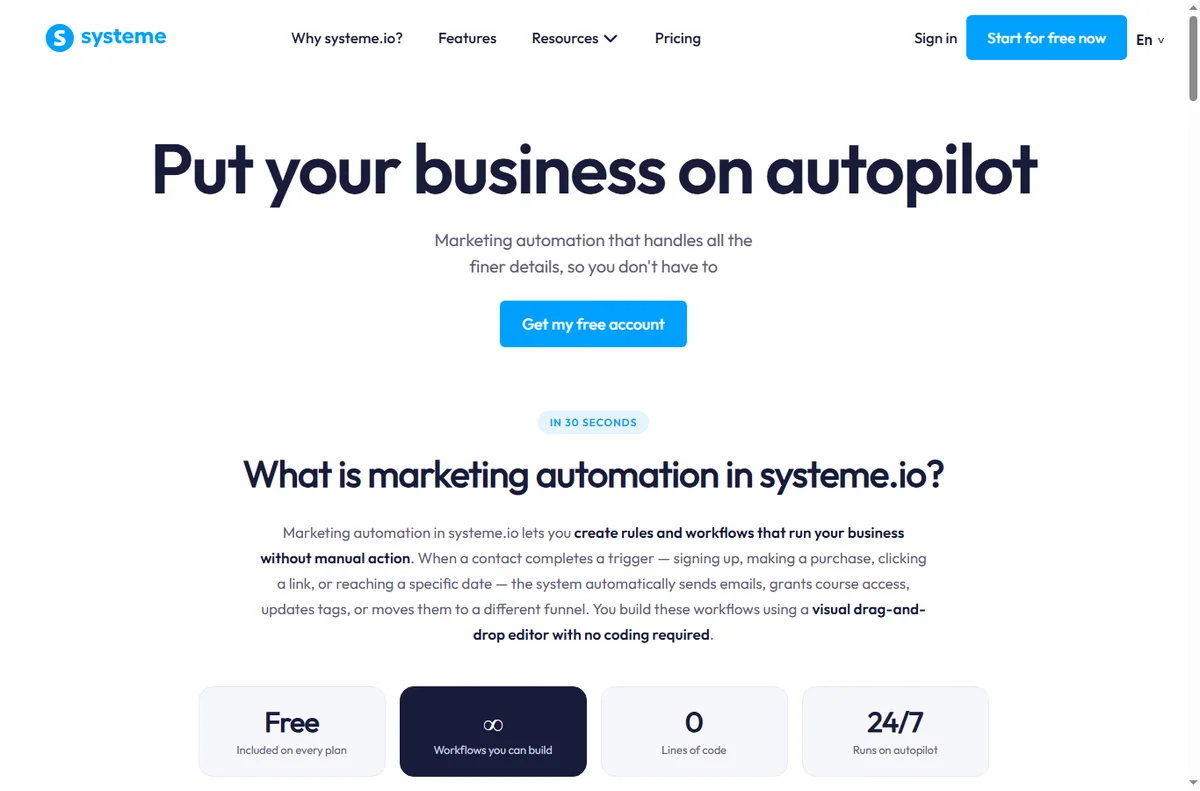
    Systeme.io marketing automation (image: systeme.io)

    Upsell or downsell not showing

    Upsells trigger on rules such as a tag or a purchase state. Confirm the triggering action actually fires after the first purchase, and that the upsell is attached to the right funnel step.

    Systeme.io pricing page with plan and payment options
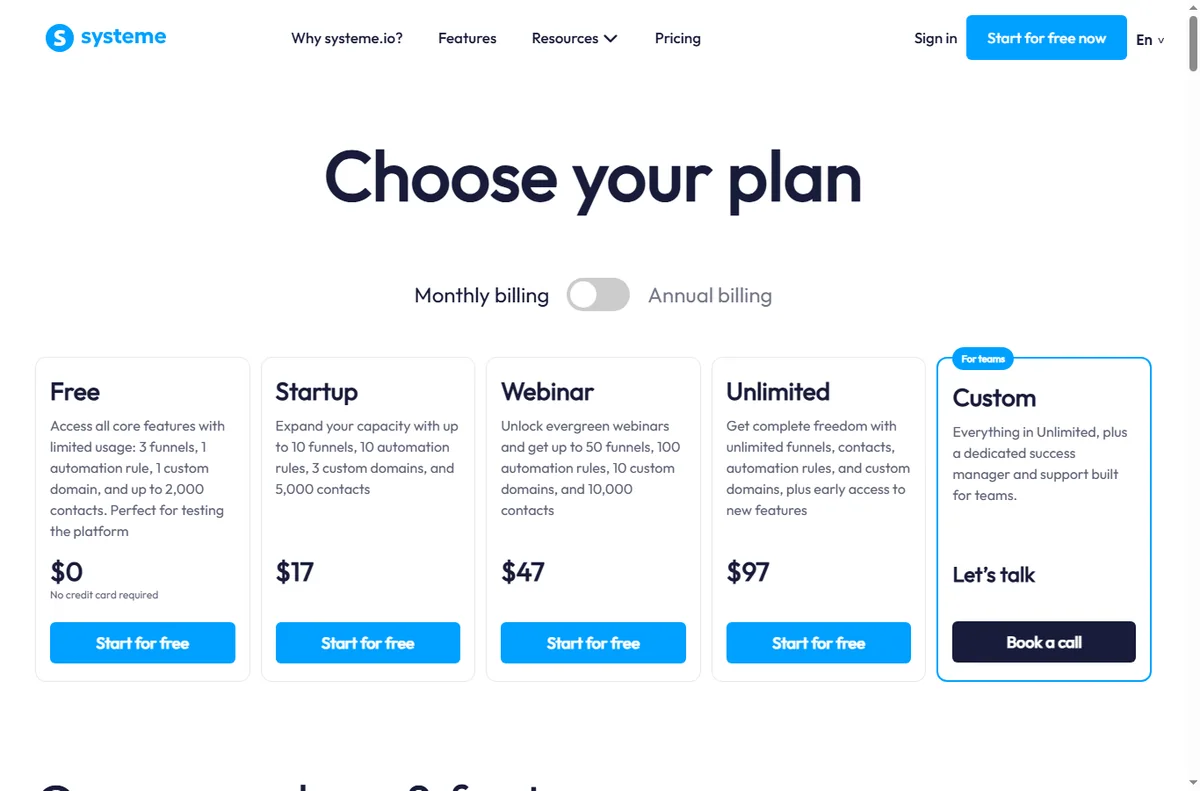
    Systeme.io pricing (image: systeme.io)

    Checkout or payment fails

    Confirm the payment connection is live and supports the buyer’s currency and region. Test with a real transaction rather than relying on preview mode, because preview often skips the parts that fail.

    Symptom to fix

    Symptom Likely cause Fix
    Page 404s after publishDomain or DNS not readyConnect domain, wait for DNS, republish
    Emails in spamMissing domain authenticationAdd and verify sending records
    Upsell never showsTag or purchase rule did not fireCheck trigger and funnel step
    Checkout errorsPayment connection or currencyReconnect gateway, test a live order
    Contacts not taggedAutomation rule not appliedVerify the rule and its conditions
    Based on publicly documented behaviour, checked October 8, 2026.
    Systeme.io online courses features page
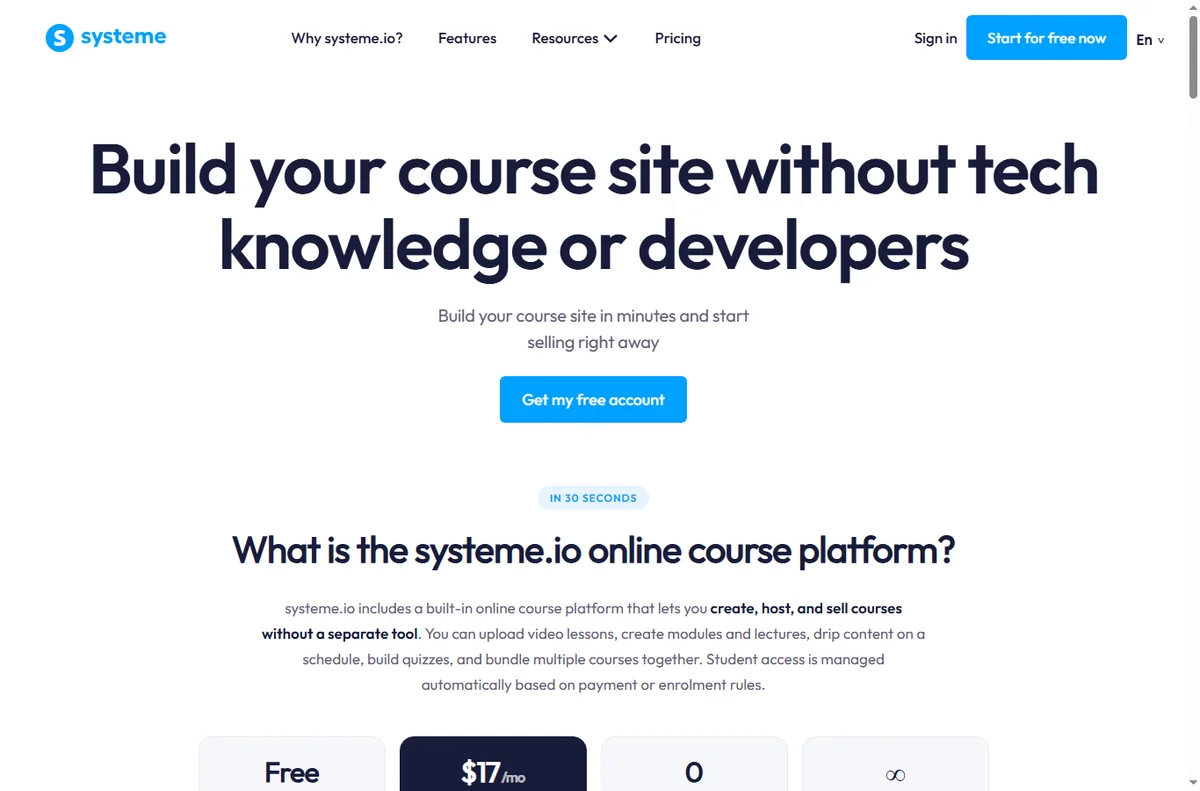
    Systeme.io online courses (image: systeme.io)

    Where this fits in your wider stack

    If you are new to the platform, read what is Systeme.io first, then the independent Systeme.io review. For cost, see the Systeme.io pricing guide; browse the funnel builders hub, the best funnel builders roundup, and the course platforms hub.

    Frequently asked

    Why will my Systeme.io page not load?

    Most often the custom domain or its DNS records are not fully connected. Publish to the temporary address while DNS settles, then switch to your domain.

    Why do my emails go to spam?

    Usually a missing domain authentication record or a cold sending domain. Authenticate the domain and warm it up gradually.

    Why is my upsell not appearing?

    The trigger that should show it — a tag or a purchase state — is not firing, or the upsell is attached to the wrong step.

    Should I test with a real purchase?

    Yes. Preview mode can skip the parts that fail, so run one small live transaction through the whole funnel.

    Test the funnel the way a customer buys

    Land, opt in, buy, receive — fix the first broken step.

    Referral link — we may earn a reward if you sign up, at no extra cost to you. We are an independent publisher. See our Affiliate Disclosure.
  • What Is Systeme.io? Funnels, Email and Courses in One Tool

    What Is Systeme.io? Funnels, Email and Courses in One Tool

    Home / Funnel builders / Guides / What is Systeme.io

    Knowledge · funnel builders · updated October 8, 2026

    What is Systeme.io?

    Systeme.io is an all-in-one platform that bundles funnel pages, email marketing, courses and payments into a single account. This guide explains what it actually covers, where that helps, and where a specialist tool still wins.

    Systeme.io homepage for building an online business
    Systeme.io official homepage (image: systeme.io)

    Independent analysis. This page may contain affiliate links. Some links here are referral links; if you sign up through one we may earn a reward at no extra cost to you, and it never changes what we recommend. We are an independent publisher and are not affiliated with, endorsed by, or an official partner of any tool mentioned. See our Affiliate Disclosure.

    TL;DR

    • Systeme.io combines funnels, email, courses and payments under one login.
    • The main draw is replacing several subscriptions with one.
    • It suits solo founders and small teams selling a course or offer.
    • Deep integrations and advanced design features are not its strength.
    • Confirm current limits and pricing on the vendor’s own page.

    On this page: What Systeme.io is · What it covers · When all-in-one wins · Where it is limited · Building blocks · Where this fits

    Systeme.io sales funnel builder page
    Systeme.io sales funnels (image: systeme.io)

    What Systeme.io is

    Systeme.io is a platform for building and running an online offer end to end. Instead of paying for a page builder, an email service and a course host separately, you get one account that connects the funnel, the list and the product.

    That consolidation is the whole proposition: fewer logins, fewer integrations to maintain, and one place to see what a visitor does after they land.

    Systeme.io email marketing features page
    Systeme.io email marketing (image: systeme.io)

    What it covers

    • Funnel and landing pages with templates and a drag-and-drop editor.
    • Email marketing: forms, sequences and broadcasts to your list.
    • Online courses and memberships hosted on the same platform.
    • Payments and checkout so you can sell without a separate tool.
    • Basic automation to move people through a funnel.
    Systeme.io online courses features page
    Systeme.io online courses (image: systeme.io)

    When an all-in-one wins

    It wins when you are selling a single clear offer and want to launch quickly without wiring tools together. For a solo founder, removing three integrations and their monthly bills is often worth more than the best-in-class features of each specialist.

    It also wins when your team is small and nobody wants to maintain a connector between a page builder, an email tool and a checkout.

    Where it is limited

    • Advanced design control is narrower than a dedicated page builder.
    • The integration ecosystem is smaller than a standalone email platform.
    • Very large lists or unusual workflows can outgrow the bundled features.
    • If you already run a mature stack, migrating may cost more than it saves.
    Systeme.io website and page builder page
    Systeme.io website builder (image: systeme.io)

    The building blocks

    Block What it does Typical use
    PagesLanding and funnel pagesLead capture and sales pages
    EmailSequences and broadcastsWelcome and follow-up
    CoursesHosted lessons and accessSell a course
    PaymentsCheckout and ordersTake payment in the funnel
    AutomationRules that move contactsRoute leads by behaviour
    Based on publicly documented behaviour, checked October 8, 2026.
    Systeme.io pricing page with plan tiers
    Systeme.io pricing (image: systeme.io)

    Where this fits in your wider stack

    Start with the funnel builders hub and the independent Systeme.io review. For cost, see the Systeme.io pricing guide; for alternatives, read the best funnel builders roundup and the email marketing hub.

    Frequently asked

    Is Systeme.io a page builder or an email tool?

    Both, plus course hosting and checkout. It is an all-in-one platform, not a single-purpose tool.

    Who is it best for?

    Solo founders and small teams selling a course, membership or a single offer who want to avoid stitching tools together.

    Does it replace my email service?

    For many small setups, yes. Very large lists or advanced segmentation may still favour a specialist email platform.

    How much does it cost?

    Plans and limits change; we do not quote prices here. Check the vendor’s current pricing page.

    Launch one offer on a single platform

    If you are juggling three tools to sell one product, consolidation is the win.

    Referral link — we may earn a reward if you sign up, at no extra cost to you. We are an independent publisher. See our Affiliate Disclosure.

  • Common Make Problems and How to Fix Them

    Common Make Problems and How to Fix Them

    Home / Automation / Guides / Common Make problems

    Problem · automation · updated October 8, 2026

    Common Make problems and how to fix them

    Most Make problems are not exotic bugs — they are mis-mapped fields, expired authorisations and scenarios that run more often than intended. Here are the failures that come up again and again, and what to do about them.

    Make homepage with visual automation canvas
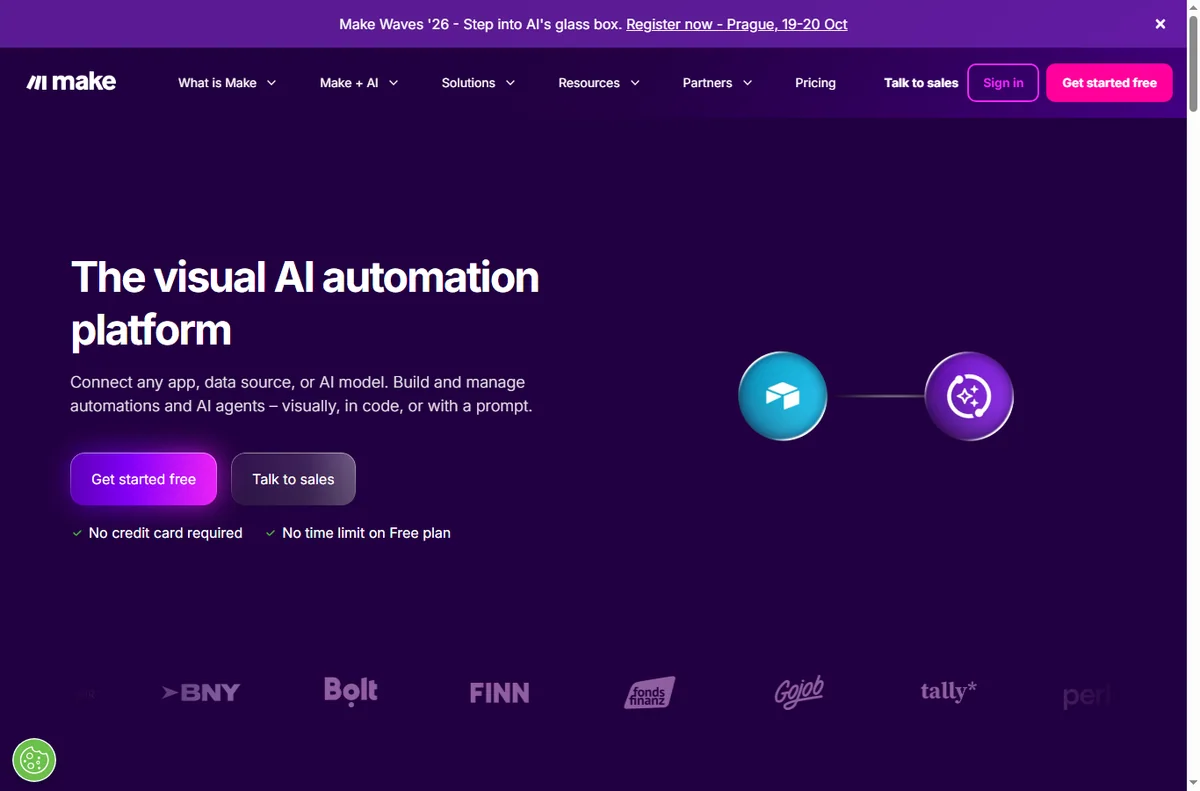
    Make official homepage (image: make.com)

    Independent analysis. This page may contain affiliate links. Some links here are referral links; if you sign up through one we may earn a reward at no extra cost to you, and it never changes what we recommend. We are an independent publisher and are not affiliated with, endorsed by, or an official partner of any tool mentioned. See our Affiliate Disclosure.

    TL;DR

    • A failed run is almost always a mis-mapped field or an expired connection.
    • Scenarios that seem to ‘run twice’ usually have a trigger firing on both create and update.
    • Hitting the operation cap means volume outgrew the plan, not that the scenario is broken.
    • Duplicate records come from a trigger with no de-duplication step.
    • Test with sample data before switching a scenario on.

    On this page: Why Make runs fail · Failed run or error · Scenario runs too often · Operation cap reached · Duplicate data · Expired authorisation · Symptom to fix · Where this fits

    Make workflow template gallery to review scenario structure
    Make workflow templates (image: make.com)

    Why Make scenarios fail

    Because a scenario depends on data flowing between apps, most failures are data or permission problems rather than a fault in the platform. Reading the input and output of the module that failed tells you which one it is.

    The habit that prevents most of these is simple: run the scenario by hand once, with sample data, before switching it on.

    Make register page
    Make register (image: make.com)

    Failed run or error

    Open the failed execution and read the module input and output. A missing field, a wrong data type or a stale connection accounts for the majority of errors. Re-map the field or reconnect the app, then re-run just that execution.

    The scenario runs too often

    A trigger set to fire on ‘updated’ records can run on changes you did not intend, including changes the scenario itself causes. Narrow the trigger with a filter, or switch to a create-only event.

    Make pricing page showing operation limits and plan tiers
    Make pricing and plans (image: make.com)

    Operation cap reached

    • Estimate monthly operations from real volume: runs per day times modules per run.
    • Tidy the scenario so it does not perform needless steps.
    • Only upgrade to the smallest paid tier that covers your estimate comfortably.
    • Check the current cap on the vendor’s pricing page — caps change.

    Duplicate records appear

    Duplicates usually mean the trigger fires more than once for the same event, or a retry replays a step. Add a de-duplication step, or check for an existing record before creating a new one.

    Make sign-in screen to re-authorise a connection
    Make sign-in (image: make.com)

    Authorisation expired

    Connections to apps break when a password changes, a token expires or an app revokes access. Reconnect the app in Make, then re-run the failed executions. If it keeps happening, check whether the connected account has a policy that rotates credentials.

    Symptom to fix

    Symptom Likely cause Fix
    Red failed runMis-mapped field or bad dataRead module I/O, re-map, re-run
    Runs twice per eventTrigger fires on create and updateFilter the trigger or use create-only
    Operations run out mid-monthVolume exceeds the plan capModel volume and right-size the plan
    Duplicate rows createdTrigger replays or retriesAdd a de-duplication step
    Sudden auth errorExpired or revoked connectionReconnect the app and re-run
    Based on publicly documented behaviour, checked October 8, 2026.
    Make integrations library to re-check app connections
    Make integrations library (image: make.com)

    Where this fits in your wider stack

    For background, see what is Make, then the independent Make review. Compare platforms in Make vs n8n, check cost in the Make pricing guide, and browse the automation hub or the best workflow automation tools roundup.

    Frequently asked

    Why did my scenario fail after working fine?

    Usually an expired connection or a field that changed in one of the connected apps. Open the failed execution and read the module input and output to find which.

    How do I stop duplicate records?

    Add a step that checks for an existing record before creating one, and narrow the trigger so it does not fire on updates you did not intend.

    My operations ran out. Is the scenario broken?

    No — it means real volume exceeded the plan cap. Model your operations, tidy the scenario, and pick the smallest plan that covers the estimate.

    Should I add error handling?

    Yes. An error handler or fallback path turns a silent failure into a visible, recoverable one.

    Fix the scenario, not the symptom

    Read the failed module’s input and output first — it usually names the cause.

    Referral link — we may earn a reward if you sign up, at no extra cost to you. We are an independent publisher. See our Affiliate Disclosure.
  • What Is Make? A Plain-English Guide to Visual Automation

    What Is Make? A Plain-English Guide to Visual Automation

    Home / Automation / Guides / What is Make

    Knowledge · automation · updated October 8, 2026

    What is Make?

    Make is a visual automation platform: you connect apps on a canvas and let data move between them without writing code. This guide explains what that means in practice, what a ‘scenario’ does, and when it is worth using.

    Make homepage with visual automation canvas
    Make official homepage (image: make.com)

    Independent analysis. This page may contain affiliate links. Some links here are referral links; if you sign up through one we may earn a reward at no extra cost to you, and it never changes what we recommend. We are an independent publisher and are not affiliated with, endorsed by, or an official partner of any tool mentioned. See our Affiliate Disclosure.

    TL;DR

    • Make connects apps so work happens without you repeating it.
    • A scenario is a trigger plus one or more modules acting on the data.
    • An operation is one unit of work a module performs — it is what paid plans meter.
    • It is strongest for multi-step workflows that simpler if-this-then-that tools cannot express.
    • It is not a replacement for a database or a human decision.

    On this page: What Make is · How a scenario works · What it is good at · What it is not · Concept cheat sheet · Where this fits

    Make workflow template gallery showing how scenarios are built
    Make workflow templates (image: make.com)

    What Make is

    Make is a cloud automation tool with a visual editor. Instead of writing scripts, you drag modules onto a canvas and connect them, and the platform runs the flow whenever its trigger fires.

    The point is not the canvas itself — it is that a non-developer can build and maintain a workflow that would otherwise need code or repetitive manual work.

    Make integrations library connecting apps on a scenario
    Make integrations library (image: make.com)

    How a scenario works

    Every scenario has a trigger and at least one action. The trigger is the event that starts a run; modules are the steps that act on the data. A single run can branch, filter and transform data between steps.

    Paid plans meter operations, so a scenario with three modules that runs once typically consumes three operations. Volume, not the number of scenarios, is what drives cost.

    Make sign-up screen to start building a first scenario
    Make sign-up (image: make.com)

    What Make is good at

    • Multi-step workflows that branch or transform data between apps.
    • Replacing repetitive copy-paste work with a scheduled or event-driven flow.
    • Connecting a long tail of apps through a large connector catalogue.
    • Giving a non-developer a maintainable automation they can edit visually.
    Make login page
    Make login (image: make.com)

    What Make is not

    • Not a database: it moves and transforms data, it does not replace a proper store of record.
    • Not a decision-maker: judgement calls still need a human or clear rules.
    • Not free at scale: high-volume workflows consume operations and need a paid plan.
    • Not always the simplest choice: for a one-step rule, a smaller tool can be enough.

    Concept cheat sheet

    Concept Meaning Why it matters
    ScenarioA trigger plus one or more modulesIt is the unit you build and run
    TriggerThe event that starts a runWrong trigger means wrong timing
    ModuleA step that does one jobEach module consumes operations
    OperationOne unit of workWhat paid plans meter
    ConnectionAn authorised link to an appExpired connections break runs
    Based on publicly documented behaviour, checked October 8, 2026.
    Make pricing page with plan tiers and operation limits
    Make pricing and plans (image: make.com)

    Where this fits in your wider stack

    Start with the business automation hub and the independent Make review. For cost, see the Make pricing guide; if you are choosing between platforms, read Make vs n8n and the best workflow automation tools roundup.

    Frequently asked

    Do I need to code to use Make?

    No. The main flows are built by clicking modules and mapping fields. Code only enters if you use a code module for a transformation the built-in functions cannot do.

    Is Make the same as a simple if-this-then-that tool?

    It goes further: scenarios can branch, filter and transform data across many steps, which one-step rules cannot express.

    What does it cost?

    Plans meter operations. Because caps and tiers change, we do not quote prices here — check the vendor’s current pricing page.

    When is Make overkill?

    When your automation is a single trigger and a single action with no transformation. A simpler tool may do that for less.

    Build one real scenario, then judge the tool

    If a workflow repeats more than once a week, it is a candidate.

    Referral link — we may earn a reward if you sign up, at no extra cost to you. We are an independent publisher. See our Affiliate Disclosure.

  • How to Use Wise for a Small Business: Six Money Workflows

    How to Use Wise for a Small Business: Six Money Workflows

    Home / Payments / Guides / How to use Wise for a small business

    Use case · payments · updated October 8, 2026

    How to use Wise for a small business

    Once a small business starts paying suppliers, contractors or overseas customers, money stops being a single-currency problem. These six workflows show how a small team can use Wise without hiring a finance department.

    Wise homepage for international money transfers
    Wise official homepage (image: wise.com)

    Independent analysis. This page may contain affiliate links. Some links here are referral links; if you sign up through one we may earn a reward at no extra cost to you, and it never changes what we recommend. We are an independent publisher and are not affiliated with, endorsed by, or an official partner of any tool mentioned. See our Affiliate Disclosure.

    TL;DR

    • Wise is most useful the moment you pay or get paid across borders.
    • The highest-value workflow is usually paying overseas suppliers at the real exchange rate.
    • Holding balances in a currency you get paid in avoids repeated conversion.
    • Small teams can pay contractors individually without a payroll system.
    • Keep a simple record of every transfer for bookkeeping from day one.

    On this page: Why a small business uses Wise · Six practical workflows · Which workflow fits · Guardrails for a small team · Where this fits

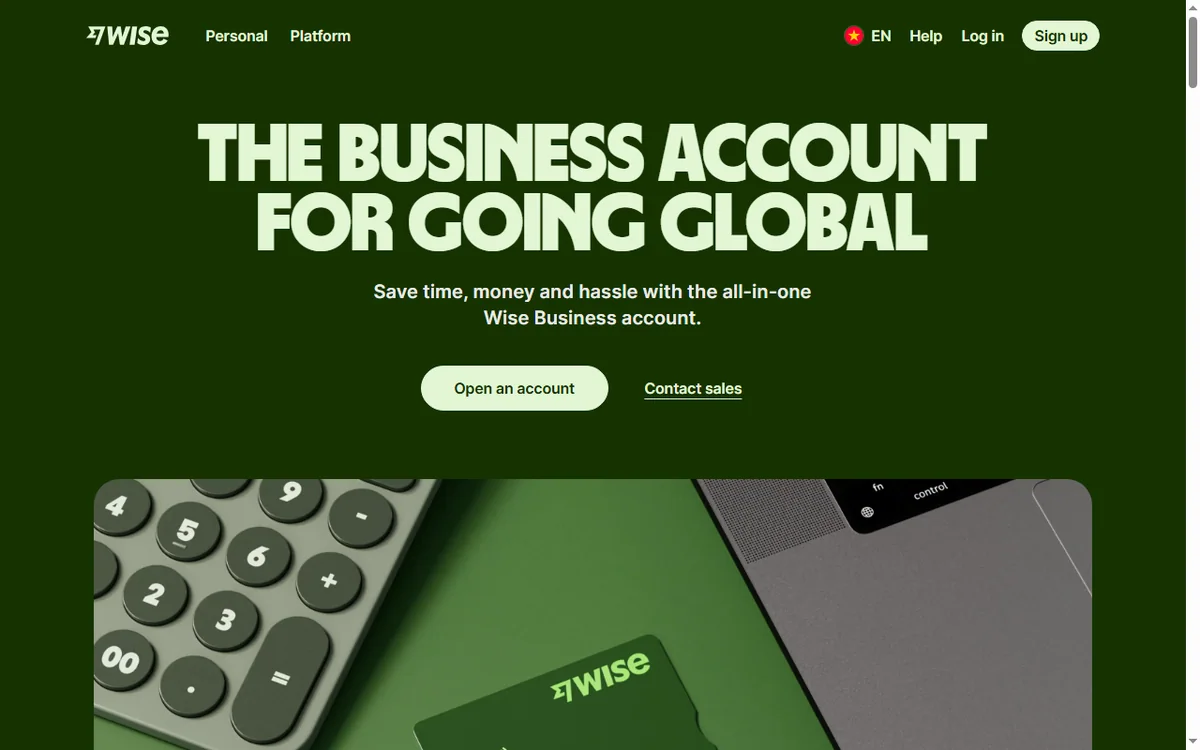
    Wise Business international business account page
    Wise Business (image: wise.com)

    Why a small business uses Wise

    A solo founder or a five-person team hits the same wall: suppliers, freelancers and customers sit in different countries, and a bank charges a spread on every conversion. A multi-currency account removes the repeated conversion and makes the cost visible.

    You do not need a finance team for this. You need a base currency, a few saved recipients, and a habit of checking the recipient-gets figure before you confirm.

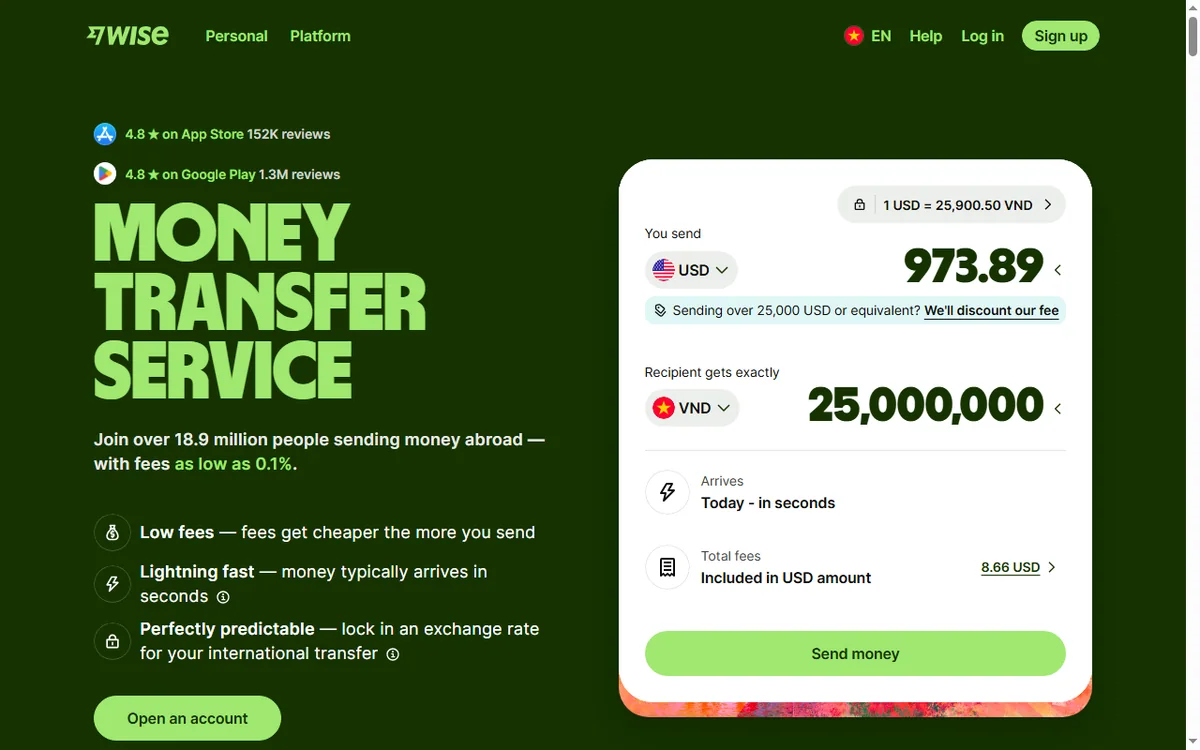
    Wise international money transfer page
    Wise send money (image: wise.com)

    Six practical workflows

    • Pay overseas suppliers directly in their currency so they receive the expected amount.
    • Pay international contractors one transfer at a time, or batch routine payouts on a schedule.
    • Get paid by overseas clients into local account details in supported currencies.
    • Hold income in the currency you were paid in and convert only when you need to.
    • Reimburse staff or founders for foreign expenses without a personal card spreading fees.
    • Fund ad or software accounts billed in another currency with a predictable rate.
    Wise fees and pricing page
    Wise fees and pricing (image: wise.com)

    Which workflow fits your need

    Need Workflow Why it helps
    Monthly supplier invoices abroadPay overseas suppliersYou quote them in their own currency
    Occasional freelancer payoutsPay international contractorsNo payroll system required
    Foreign clients pay youReceive in local detailsThey avoid their own cross-border fees
    Income arrives in another currencyHold and convert laterYou choose the conversion moment
    Mixed foreign expensesReimburse via accountFees stay visible and recorded
    Based on publicly documented behaviour, checked October 8, 2026.
    Wise multi-currency account page
    Wise multi-currency account (image: wise.com)

    Guardrails for a small team

    • Reconcile transfers weekly so bookkeeping never becomes a backlog.
    • Decide a rule for when you convert — for example, at invoice payment, not on a hunch.
    • Store recipient details once and reuse them to avoid typos.
    • Keep personal and business flows separate as soon as you invoice as a company.
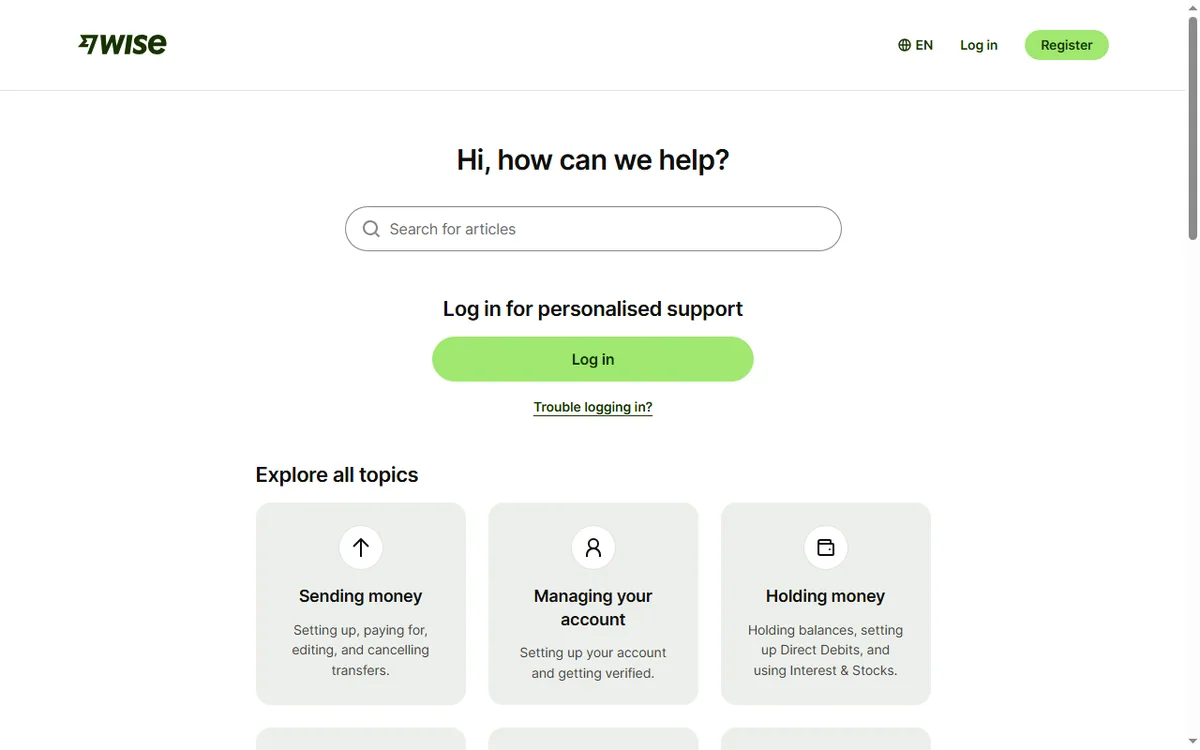
    Wise Help Centre
    Wise Help Centre (image: wise.com)

    Where this fits in your wider stack

    Start with the payments hub to see where money tools sit, then read the independent Wise review. If you are comparing providers, see Wise vs PayPal. Selling abroad? Pair this with how to sell internationally.

    Frequently asked

    Is Wise a bank?

    It is a money-transfer and multi-currency account service rather than a traditional bank. Balances and protections depend on your region; check the vendor’s terms for your country.

    Can I pay a contractor with it?

    Yes — you add the contractor as a recipient and send in their currency. For routine payouts, a schedule keeps it consistent.

    Do I need a business account to pay suppliers?

    Not always, but a business account is cleaner once you invoice as a company and need proper records and multiple users.

    How do I avoid conversion fees stacking up?

    Hold the currency you are paid in and convert only when you need it, rather than converting on every incoming and outgoing transfer.

    Put one cross-border workflow on a real rate

    Start with the workflow that costs you the most today, then expand.

    Referral link — we may earn a reward if you sign up, at no extra cost to you. We are an independent publisher. See our Affiliate Disclosure.
  • How to Set Up Wise: Account, Verification and Your First Transfer

    How to Set Up Wise: Account, Verification and Your First Transfer

    Home / Payments / Guides / How to set up Wise

    Tutorial · payments · updated October 8, 2026

    How to set up Wise: from sign-up to your first transfer

    Wise is a multi-currency account and money-transfer service, and setting it up is mostly about verification and getting your first transfer priced correctly. This walkthrough covers the account, the identity checks, your first recipient, and how to read fees before you commit.

    Wise homepage for international money transfers
    Wise official homepage (image: wise.com)

    Independent analysis. This page may contain affiliate links. Some links here are referral links; if you sign up through one we may earn a reward at no extra cost to you, and it never changes what we recommend. We are an independent publisher and are not affiliated with, endorsed by, or an official partner of any tool mentioned. See our Affiliate Disclosure.

    TL;DR

    • Wise is a multi-currency account: you can hold, convert and send money in different currencies.
    • Opening the account is free; verification is the slow part, so have your ID ready.
    • Your first transfer is about choosing the route and checking the recipient-gets figure.
    • You can send to a bank account, receive into your own balances, or use a card where available.
    • Always confirm current fees and limits on Wise’s own pricing page — they change by route and region.

    On this page: What setting up Wise means · Before you start · Open the account · Verify your identity · Add a recipient · Make your first transfer · Read the fees · Common mistakes · Where this fits

    What setting up Wise actually means

    Wise is often described as “a cheap way to send money abroad”, but the product is really a multi-currency account with transfer rails attached. Setting it up has three milestones: create the account, pass identity verification, and complete one successful transfer.

    Because the value sits in the transfer, most of the effort lands on the middle step. Verification is what unlocks real balances and higher limits, and it is the step people underestimate.

    Before you start

    • A government ID (passport or national ID) and, for a business account, company documents.
    • A phone number and email you can access right away.
    • The recipient’s bank details for your first transfer.
    • A rough idea of how much you send and how often — that decides whether a personal or business account fits.
    Wise account creation screen
    Wise create account (image: wise.com)

    Step 1 — Open the account

    Sign up with your email, choose personal or business, and set your base currency. Your base currency is the one you think in; you can still hold others alongside it.

    Start with a personal account unless you are sending on behalf of a registered company. Business accounts add verification steps you do not want until you actually need them.

    Wise Help Centre covering account and identity verification
    Wise Help Centre (image: wise.com)

    Step 2 — Verify your identity

    Upload your ID and take a quick selfie if asked. Verification usually finishes within a day, but it can take longer if the photo is unclear or your details do not match.

    Once verified you can get local account details in supported currencies and higher sending limits. Until then you are in a limited state, which is normal.

    Wise international money transfer page to set up a recipient
    Wise send money (image: wise.com)

    Step 3 — Add a recipient

    Add the person or business you are paying: name, country and their bank details. The service checks that the name matches the account to reduce failed transfers.

    If you send to the same recipient often, save them so future transfers are two clicks.

    Wise multi-currency account page
    Wise multi-currency account (image: wise.com)

    Step 4 — Make your first transfer

    1. Enter the amount and the currency you are sending from.
    2. Check the recipient-gets figure — that is the number that actually matters.
    3. Pick the payment method; some methods settle faster than others.
    4. Confirm, then track the transfer until it shows as complete.
    Wise fees and pricing page
    Wise fees and pricing (image: wise.com)

    How to read the fees before you commit

    Two numbers decide the real cost: the exchange rate applied and any transfer fee. A “low fee” headline means little if the rate is worse than the mid-market rate.

    Compare the recipient-gets figure against what a bank would deliver for the same amount. We deliberately do not quote prices here because rates and fees move daily — confirm them on Wise’s own pricing page at the moment you send.

    Common setup mistakes

    Mistake Why it hurts Fix
    Sending before verificationTransfers stall or hit low limitsFinish verification first
    Ignoring the exchange rateA cheap fee can hide a poor rateCompare the recipient-gets figure
    Wrong recipient nameTransfer is rejected or delayedMatch the bank account name exactly
    Personal account for a companyVolume and records get messyOpen a business account if you invoice as a company
    Not saving recipientsYou re-enter details and risk typosSave frequent recipients
    Based on publicly documented behaviour, checked October 8, 2026.
    Wise Business international business account page
    Wise Business (image: wise.com)

    Where this fits in your wider stack

    If you are still choosing a provider, start with our payments hub and the independent Wise review. If you are weighing alternatives, see the Wise vs PayPal comparison, and for a broader shortlist read the best money transfer services and best currency exchange tools roundups.

    Frequently asked

    Is opening a Wise account free?

    Opening the account is free. You pay fees when you convert or send money; those depend on the route and are shown before you confirm. Check the current figures on the vendor’s pricing page.

    How long does verification take?

    Often within a day, sometimes longer if documents are unclear or your details do not match. A sharp photo and exact name spelling speed it up.

    Do I need a business account?

    Only if you send on behalf of a registered company or need business invoices and multi-user access. Solo senders usually stay on a personal account.

    Can I hold several currencies?

    Yes. The account supports multiple currency balances where available, and you convert between them as needed.

    Open the account, verify once, send with the real rate in view

    Finish verification, then compare the recipient-gets figure before your first transfer.

    Referral link — we may earn a reward if you sign up, at no extra cost to you. We are an independent publisher. See our Affiliate Disclosure.

  • How to Use Semrush for a Small Business (SEO Without a Team)

    How to Use Semrush for a Small Business (SEO Without a Team)

    Home / SEO Tools / Guides / How to use Semrush for a small business

    Use case · seo tools · updated October 7, 2026

    How to use Semrush for a small business: SEO without a team

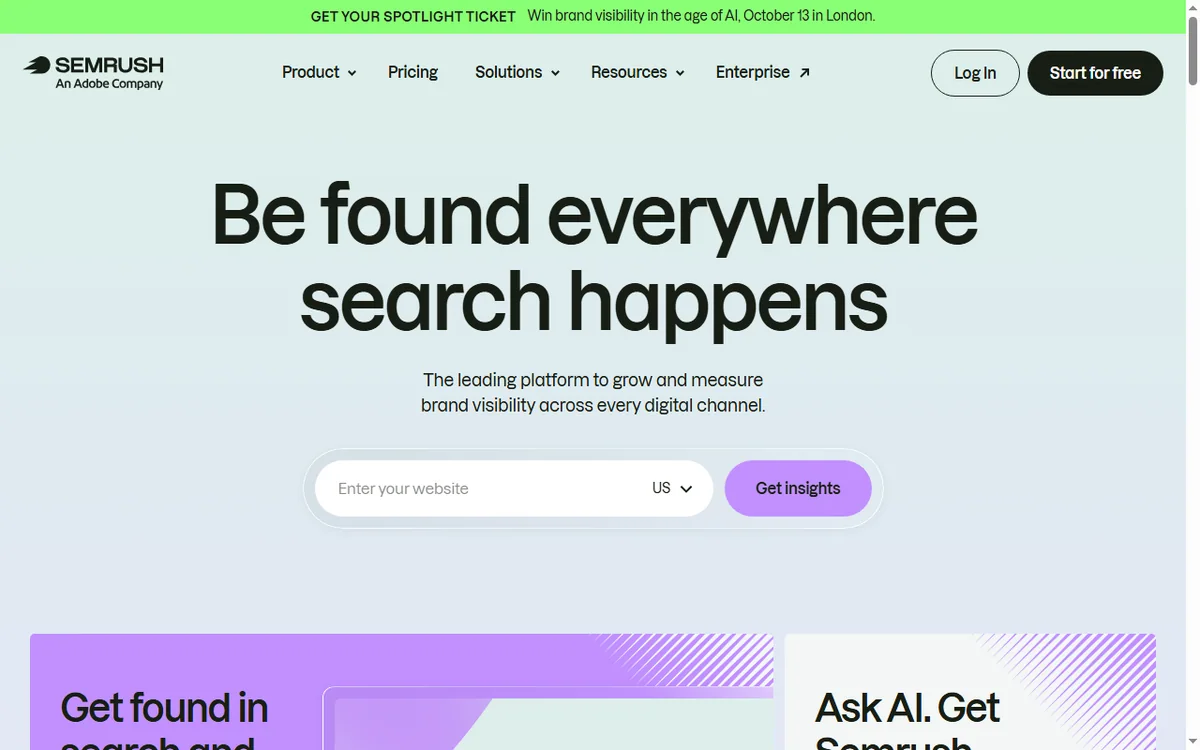
    A small business cannot outspend competitors on SEO. It can out-focus them. Semrush is useful here as a filter — it helps you find the few actions that move revenue and ignore the rest.

    Semrush homepage for SEO and competitor research
    Semrush official homepage (image: semrush.com)

    Independent analysis. This page may contain affiliate links. Some links here are referral links; if you sign up through one we may earn a reward at no extra cost to you, and it never changes what we recommend. We are an independent publisher and are not affiliated with, endorsed by, or an official partner of any tool mentioned. See our Affiliate Disclosure.
    TL;DR

    • Focus on a small set of keywords tied to revenue.

    • Fix technical problems before chasing new content.
    • Study two or three competitors, not the whole market.
    • Build a modest content plan around intent, not volume.
    • Measure a few metrics consistently and act monthly.

    On this page: Find winnable keywords · Fix technical issues · Watch competitors · A modest content plan · Local SEO · Measure · Where this fits

    Semrush keyword research feature page for finding keyword opportunities
    Semrush keyword research (image: semrush.com)

    Find keywords you can actually win

    Big-volume terms are usually owned by large sites with deep authority. Filter for specific, lower-competition phrases that match what your customers type when they are close to buying. Those are the ones a small site can realistically rank for.

    Semrush technical SEO audit feature page
    Semrush site audit (image: semrush.com)

    Fix technical issues before publishing more

    • Broken links and redirect chains.
    • Missing or duplicated titles and descriptions.
    • Slow, heavy pages that hurt both users and rankings.
    • Mobile problems — most local traffic is mobile.
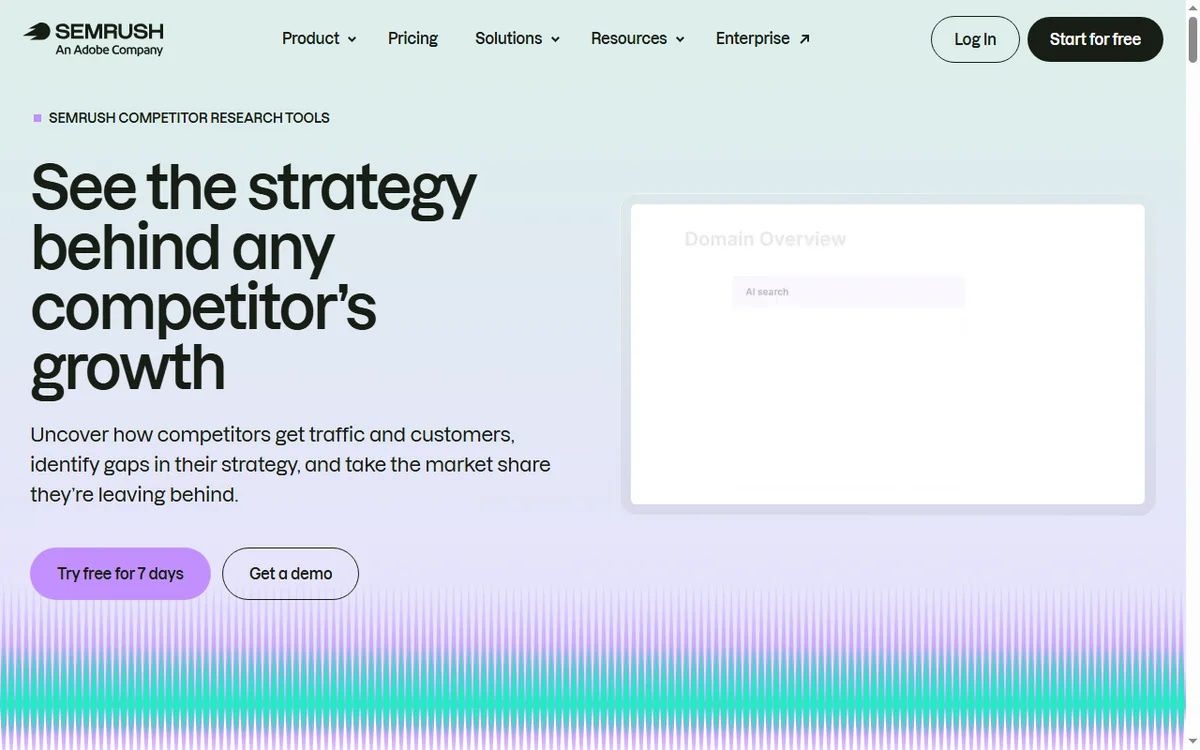
    Semrush competitor analysis feature page
    Semrush competitor analysis (image: semrush.com)

    Watch a small set of competitors

    Pick two or three competitors who already rank for your target terms. Look at the pages that earn them traffic and the gaps you could fill with a better, more specific page — not a duplicate.

    Semrush SEO toolkit page for planning content
    Semrush SEO toolkit (image: semrush.com)

    Build a modest content plan

    Map each target keyword to one page and one intent. Update existing pages that are close to ranking before writing new ones; improving a page at position eight is usually cheaper than launching a new one at position eighty.

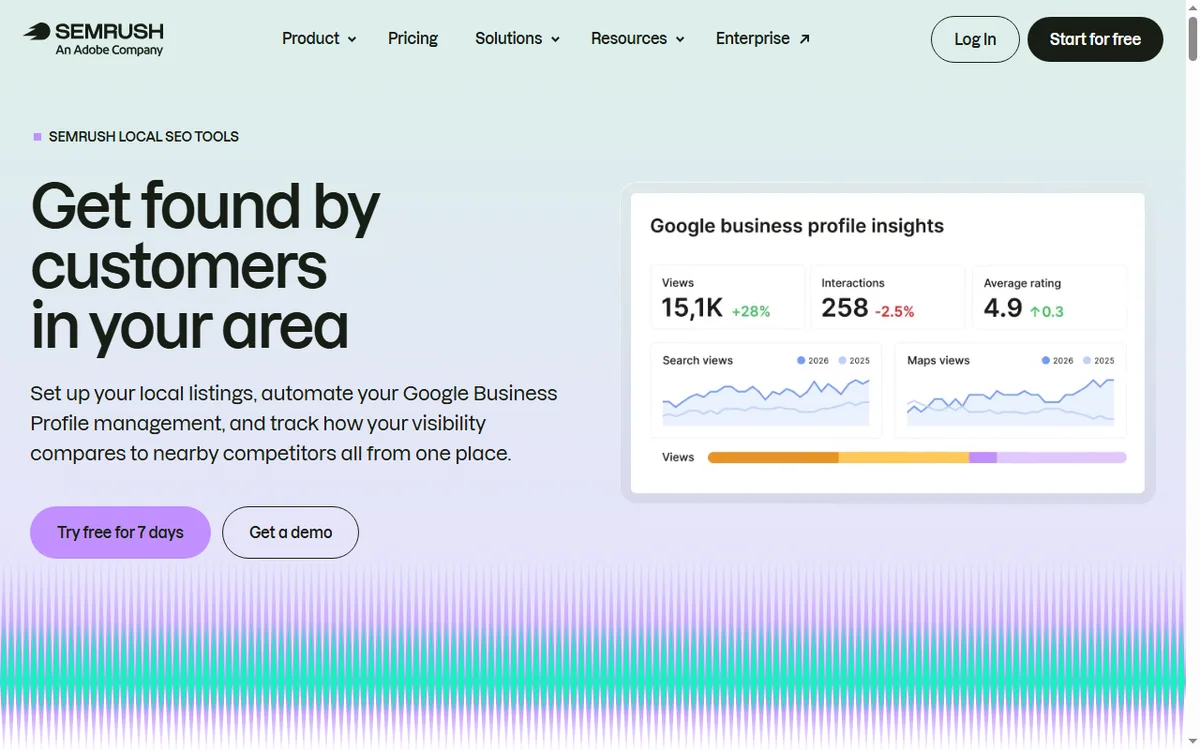
    Semrush local SEO tools page for rankings, listings and reviews
    Semrush local SEO (image: semrush.com)

    If you serve a local area

    Local SEO rewards clarity: consistent business details, a complete profile, real reviews and pages that mention the areas you serve. Semrush helps you find the terms; the local basics do the ranking.

    Semrush position tracking feature page
    Semrush position tracking (image: semrush.com)

    Measure a few things consistently

    • Rankings for your chosen keywords.
    • Organic sessions and which pages earn them.
    • Enquiries or revenue that follow.
    • Technical health from your latest audit.
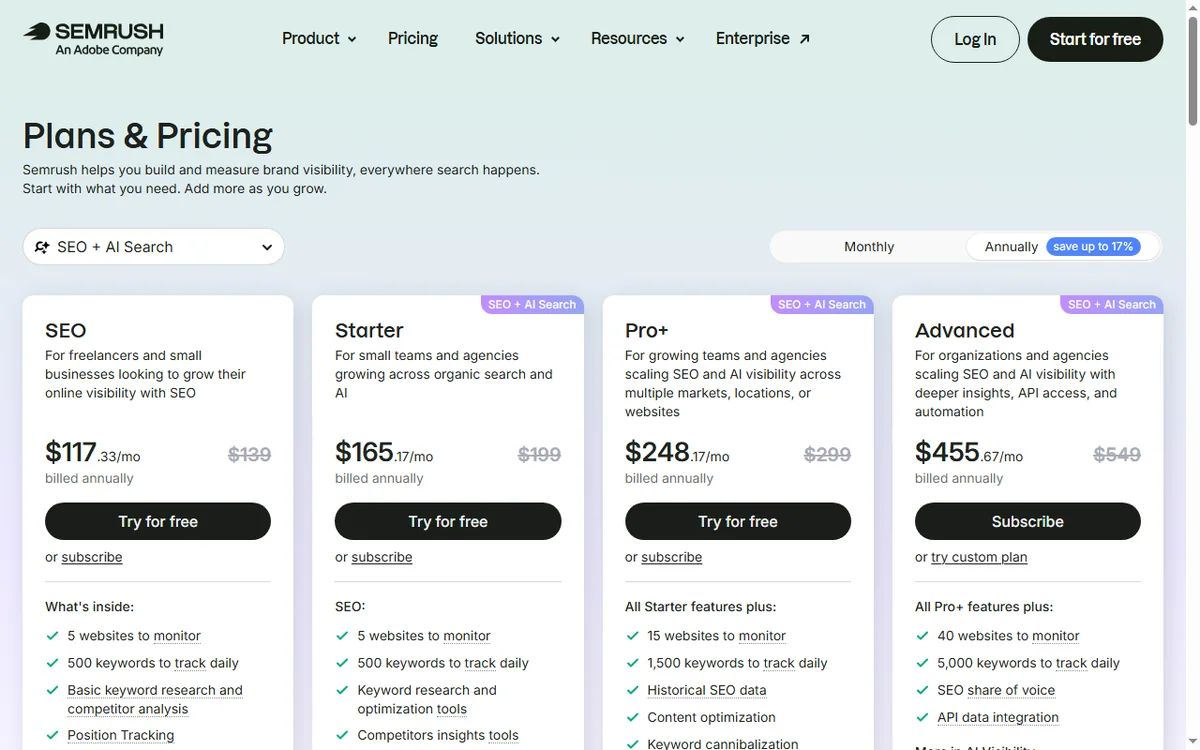
    Semrush pricing page with plan tiers
    Semrush pricing (image: semrush.com)

    Where this fits

    See the independent Semrush review and the Semrush pricing guide. For tool choice, see the SEO tools hub and the best SEO tools for small business. On-page fundamentals are covered in the on-page SEO guide.

    Frequently asked

    Can this replace an SEO agency?

    It can reduce what you need from one, especially for on-site basics and content planning. Agencies still add value for large-scale link building or complex migrations.

    How long before I see results?

    Expect months, not days. New sites and new pages typically take weeks to be crawled and longer to rank; consistency over several months is what compounds.

    What should I prioritise first?

    Technical health on your own site, then a handful of specific keywords, then improving existing pages before adding new ones.

    Do I need backlinks?

    They help, but small businesses often see more early gain from fixing technical issues and targeting specific terms than from chasing links.

    How often should I review data?

    Monthly is enough for most small businesses. Weekly checks encourage over-reacting to normal fluctuation; monthly reviews reveal real trends.

    Out-focus, do not outspend

    A short keyword list and the technical basics first.

    Referral link — we may earn a reward if you sign up, at no extra cost to you. We are an independent publisher. See our Affiliate Disclosure.