We’re reader-supported — some links are affiliate links. Learn more →

Skip to content

Independent software research. Some links may earn us a commission at no extra cost to you. Learn more →

ICode

Category: Website Builders & Design

  • Best Website Builders software for agencies in 2026

    Best Website Builders software for agencies in 2026

    Home / Website Builders / Guides / Website Builders software for agencies

    Roundup · Website Builders · updated 2026

    Best Website Builders software for agencies in 2026

    If you are digital and marketing agencies, these are the website builders tools worth your time, what each does best, and how to choose without overspending.

    Independent analysis. This page may contain affiliate links. Some links here are referral links; if you sign up through one we may earn a reward at no extra cost to you, and it never changes what we recommend. See our Affiliate Disclosure.
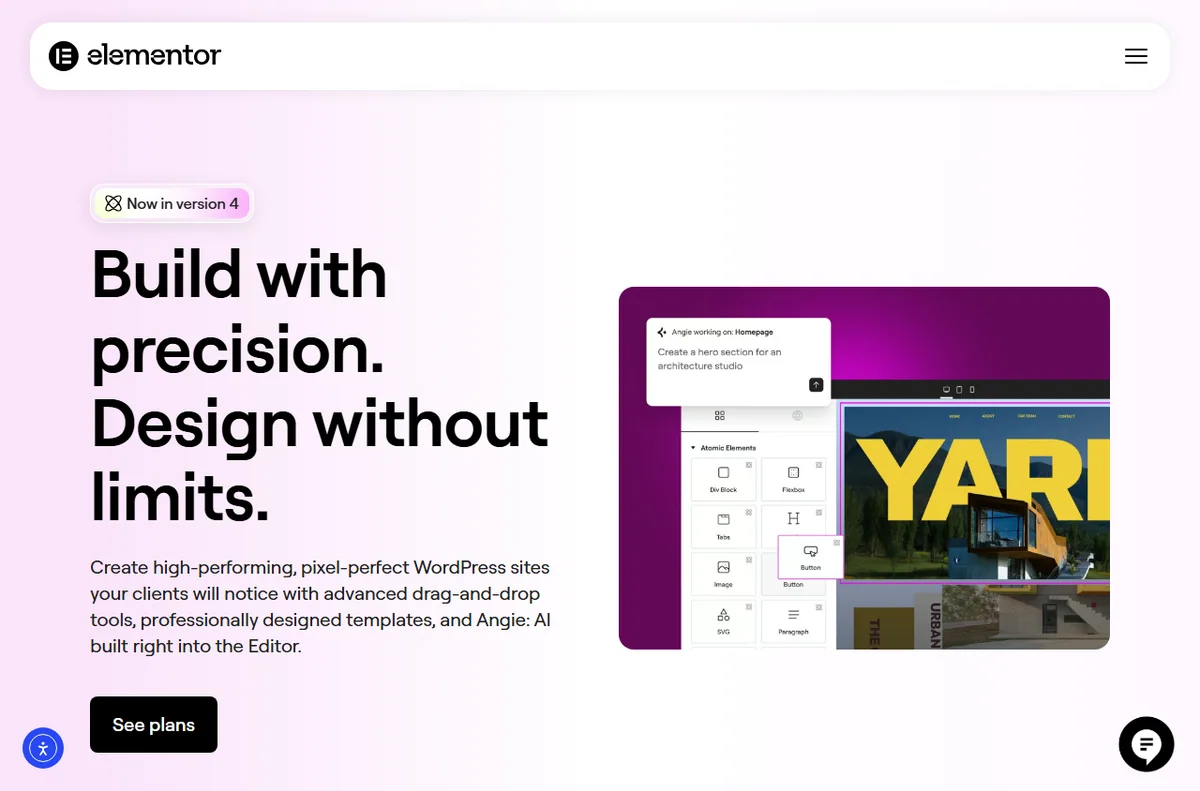
    Elementor page builder interface for building website layouts
    Elementor page builder (image: elementor.com)

    TL;DR

    • 1. Elementor — WordPress users building custom pages.
    • 2. Divi — agencies building many WordPress sites.

    How we picked

    We weighed price against everyday usefulness, looked at how steep each tool is to learn, and checked how well it fits digital and marketing agencies. We favour tools with clear pricing, a sensible entry plan, and room to grow.
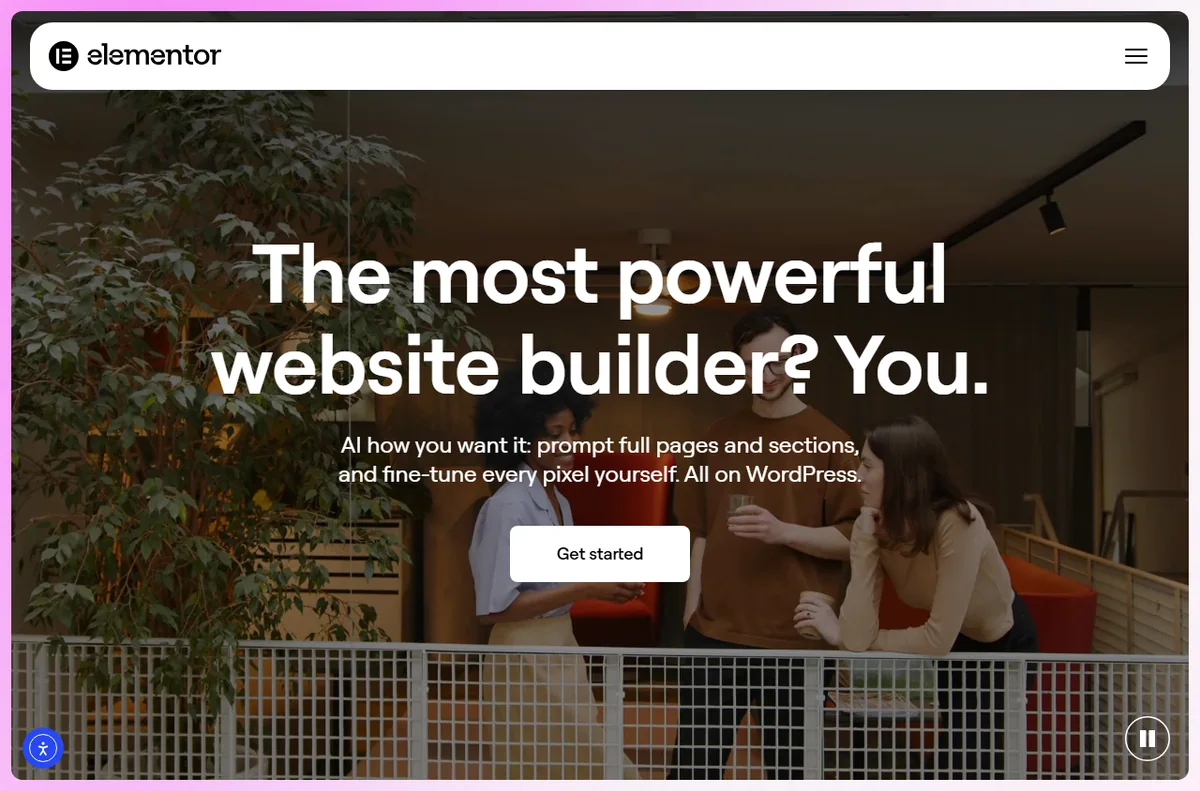
    Elementor homepage for the website builder and design platform
    Elementor homepage (image: elementor.com)

    1. Elementor

    Drag-and-drop WordPress page builder.

    • A flexible visual builder
    • A huge template library
    • A large community

    Best for: WordPress users building custom pages. Read the Elementor review.

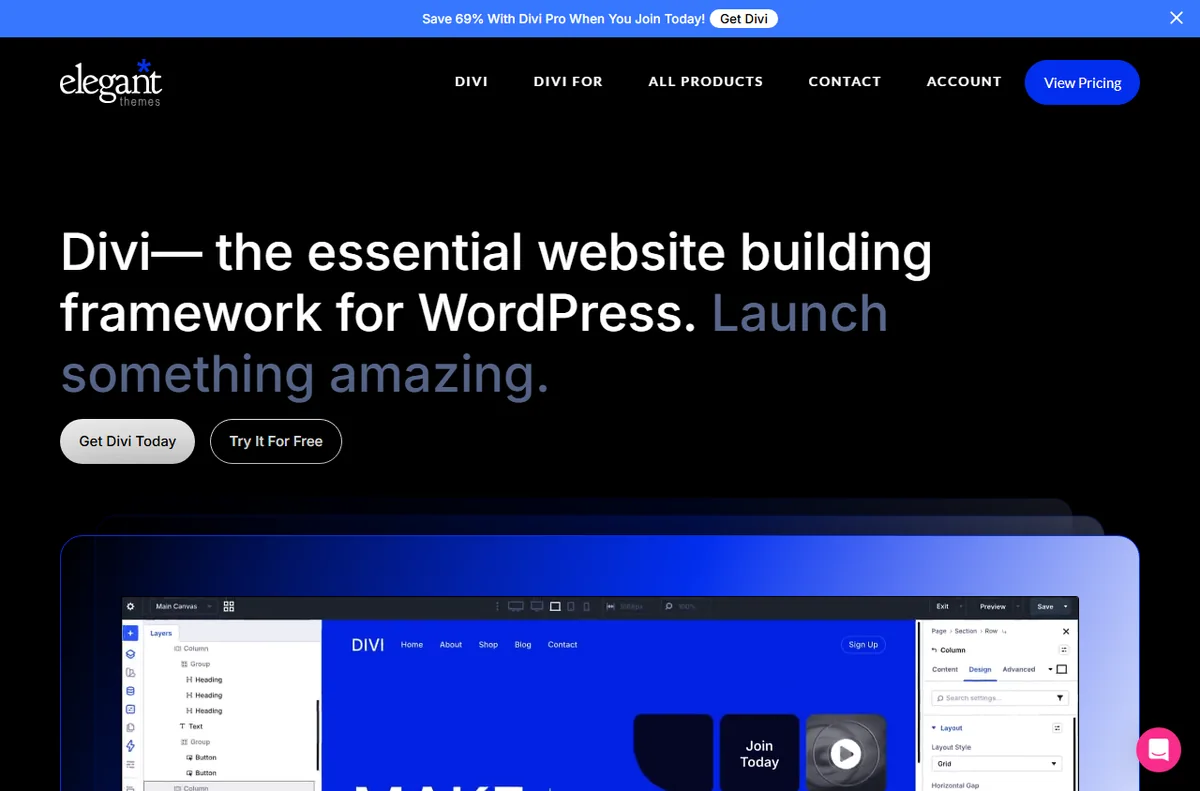
    Divi WordPress theme and visual builder homepage
    Divi homepage (image: elegantthemes.com)

    2. Divi

    WordPress theme and visual builder with lifetime pricing.

    • A lifetime licence option
    • A powerful visual builder
    • A large preset library

    Best for: agencies building many WordPress sites. Read the Divi review.

    Elementor pricing plans for the website builder
    Elementor pricing (image: elementor.com)

    Comparison

    ToolStarting priceFree planBest for
    ElementorFree; Pro from about $59/yrYesWordPress users building custom pages
    DiviFrom about $89/yr or $249 lifetimeNoagencies building many WordPress sites

    How to choose for agencies

    • Start with the smallest plan that covers your current volume.
    • Check the renewal price, not only the intro discount.
    • Prefer a tool that already integrates with what you use today.
    • Leave room to upgrade — switching costs more than upgrading.

    Ready to try Elementor? Check current plans and pricing on the official site. Visit Elementor → (affiliate link)
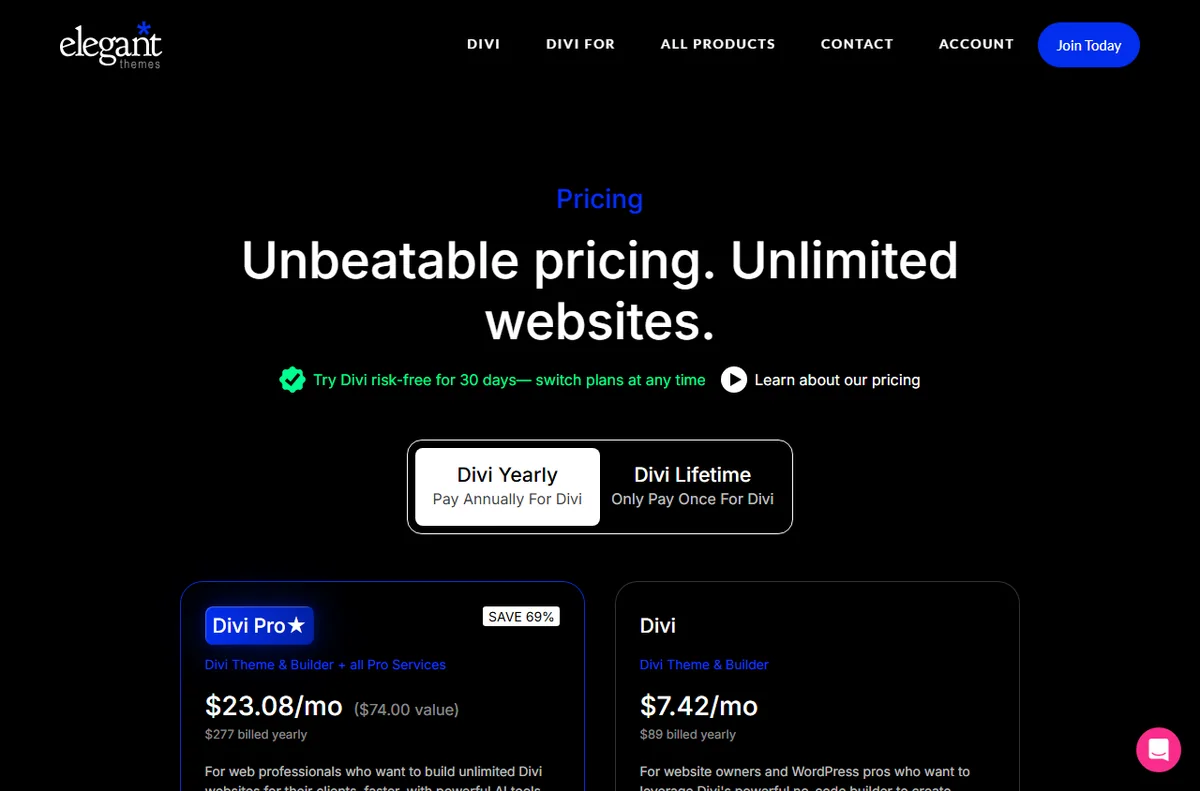
    Divi pricing plans for the theme and builder
    Divi pricing (image: elegantthemes.com)

    Frequently asked questions

    What is the best website builders tool for agencies overall?

    For most digital and marketing agencies, Elementor is the strongest all-round pick because it a flexible visual builder.

    Do I need to pay for website builders software as agencies?

    Several options here offer a free or low-cost entry plan, so you can start small and upgrade later.

    How often should I revisit my choice?

    Re-check once a year or whenever your volume, budget or team changes. Pricing and features move quickly.
    Related reading

  • Common Divi problems and how to fix them

    Common Divi problems and how to fix them

    Home / Developer Tools / Guides / Common Divi problems

    Problem · developer tools · updated October 9, 2026

    Common Divi problems and how to fix them

    Most Divi problems fall into a few areas: a builder that will not load, changes that do not show on the live site, layouts that break on mobile, modules that go missing, or conflicts with other plugins. Here are the ones that come up most, and what to check first.

    Independent analysis. This page may contain affiliate links. If you sign up through a link on this page we may earn a reward at no extra cost to you, and it never changes what we recommend. We are an independent publisher and are not affiliated with, endorsed by, or an official partner of any tool mentioned. See our Affiliate Disclosure.

    Divi by Elegant Themes homepage and visual builder
    Divi official homepage (image: elegantthemes.com)

    TL;DR

    • A builder that will not load is usually a memory, cache or plugin issue.
    • Changes that do not appear are often a caching problem between the builder and the live page.
    • Layout that breaks on mobile usually traces back to per-device settings.
    • Missing modules are about the theme version or an add-on.
    • Check the exact step that failed before you rebuild anything.

    On this page: Why things go wrong · Builder will not load · Changes do not appear · Layout breaks on mobile · Modules are missing · Conflicts and speed · Symptom to fix · Where this fits

    Why things go wrong

    Divi sits on top of WordPress, so a problem can come from the builder, the theme, another plugin, the host or the browser. The useful first move is to work out which of those changed.

    Another habit that saves time: check whether the issue follows the page or follows the browser and account. That tells you whether to look at content or at your setup.

    Divi product page describing the visual builder
    Divi product overview (image: elegantthemes.com)

    The builder will not load

    A blank or endless-loading builder is usually about resources or a clash. The visual builder is heavier than the default editor, and a tight memory limit or a plugin that hooks into it can stop it loading.

    Work through the likely causes in order and note the first error you see rather than rebuilding the page.

    Changes do not appear on the live site

    You edit a page, save, and the front end still shows the old version. Most of the time a cache is serving the earlier copy, either a plugin cache, the host cache, the CDN or the browser.

    Clear those layers in order, then reload in a private window. If the change shows there but not in your normal window, the browser is the one holding the old file.

    Divi layout library with prebuilt page designs
    Divi layout library (image: elegantthemes.com)

    Layout breaks on mobile

    Divi lets you set values per device. A size chosen on desktop does not always suit a phone, and a value that was never set can inherit an awkward default.

    Switch to the mobile preview and check each level from section down to module, looking for fixed widths and large padding that do not shrink.

    Modules or saved layouts are missing

    If a module you expect is not in the list, the theme is probably out of date, or the module belongs to an add-on or a layout pack you have not imported.

    Update the theme and its plugins, then check whether the item belongs to something you actually have installed.

    Elegant Themes pricing page with Divi plans
    Divi pricing and plans (image: elegantthemes.com)

    Conflicts and performance problems

    A slow or broken page is often the result of several builders, caches or optimisers pulling in different directions. Two plugins doing the same job is a common cause.

    Disable overlapping tools one at a time and measure the page after each change, keeping a note of what you turned off.

    Symptom to fix

    SymptomLikely causeFix
    Builder will not loadMemory limit or plugin clashRaise the limit and test plugins
    Changes do not appearA cache is serving the old pageClear plugin, host, CDN and browser caches
    Broken mobile layoutPer-device settings not setCheck each level in mobile preview
    Module missingOutdated theme or missing add-onUpdate the theme and add-ons
    Slow or unstable pageConflicting pluginsDisable overlapping tools one by one
    General guidance, checked October 9, 2026. Confirm specifics inside your own Divi setup.
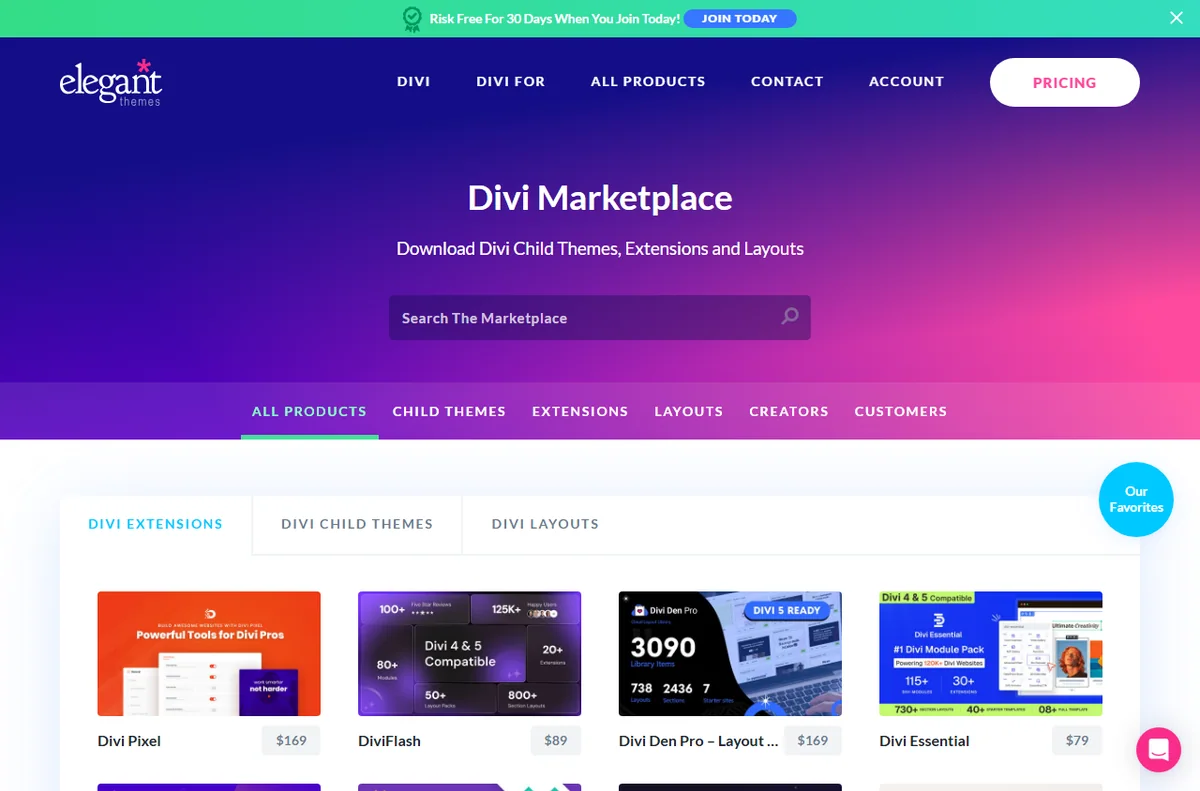
    Divi marketplace with third-party modules and layouts
    Divi marketplace (image: elegantthemes.com)

    Where this fits

    Start with the developer tools hub. For the basics read what Divi is, and for the setup steps see how to set up Divi.

    Frequently asked

    Is my content lost if the builder will not load?

    No. The content is stored by WordPress and Divi. Once the builder loads again it should still be there; the failure is usually in loading, not in saving.

    Why does the preview look right but the live page does not?

    The builder can render slightly differently from the front end, and caching adds another layer. Check the live page in a private window after clearing caches.

    Should I disable all plugins to test?

    Do it briefly and one at a time, on a staging copy where possible, so you can tell which plugin is responsible without disturbing visitors.

    Does Divi need a special host?

    It runs on ordinary WordPress hosting. A host with decent memory limits and a staging option makes troubleshooting easier.

    Divi documentation and help center
    Divi documentation (image: elegantthemes.com)

    Get the builder loading again

    Fix the common clashes and get back to building.

    Some links on this page may be referral links — we may earn a reward if you sign up, at no extra cost to you. We are an independent publisher. See our Affiliate Disclosure.

    Related reading

  • What is Divi?

    What is Divi?

    Home / Developer Tools / Guides / What is Divi

    Knowledge · developer tools · updated October 9, 2026

    What is Divi?

    Divi is a WordPress theme and page builder made by Elegant Themes, built around a visual builder plus a growing library of modules. This guide explains what it does, how it is organised, and what it is not.

    Independent analysis. This page may contain affiliate links. If you sign up through a link on this page we may earn a reward at no extra cost to you, and it never changes what we recommend. We are an independent publisher and are not affiliated with, endorsed by, or an official partner of any tool mentioned. See our Affiliate Disclosure.

    TL;DR

    • Divi is a WordPress theme and page builder from Elegant Themes.
    • Pages are built from sections, rows, columns and modules.
    • A visual builder and a backend builder cover the same content in different ways.
    • It comes with an Elegant Themes membership, so check the current pricing.
    • It is not a hosting service and it does not replace WordPress.

    On this page: What Divi is · How it is organised · What it is good at · What it is not · Concept cheat sheet · Where this fits

    Divi home page
    Divi home (image: divi.com)

    What Divi is

    Divi is a theme that ships with its own builder. Once it is active, you can lay out pages visually rather than by writing blocks in the default editor.

    The builder is the product. It lets you assemble a page from nested containers and style each one with controls instead of code, and it saves that structure so it can be edited or reused later.

    It sits on top of WordPress. The theme handles site-wide behaviour while the builder stores the page layout, and both render as normal markup for visitors.

    Divi blog page
    Divi blog (image: divi.com)

    How Divi is organised

    A page is built from four nested levels: sections, rows, columns and modules. A section spans the width, rows divide it, columns split a row, and modules are the actual content such as text, images and buttons.

    The Divi Library stores saved layouts and modules so you can drop them onto other pages. Global defaults and presets hold colours and fonts so a change in one place flows through the site.

    You can work in the visual builder in the front end or the backend builder in the dashboard. Both edit the same content, and the responsive settings let you tune each level per device.

    Divi docs page
    Divi docs (image: divi.com)

    What Divi is good at

    • Building and editing pages without writing code.
    • Reusing saved layouts and modules across a site.
    • Adjusting layout separately for desktop, tablet and mobile.
    • Extending the builder with extra modules from Divi and third parties.
    • Keeping one membership across several WordPress sites.
    Divi layouts page
    Divi layouts (image: divi.com)

    What Divi is not

    • Not a host: you still need a server and WordPress.
    • Not free on its own: it is sold with an Elegant Themes membership, so check the current pricing.
    • Not a one-click replacement for a developer on custom work.
    • Not immune to plugin conflicts and performance trade-offs.

    Concept cheat sheet

    ConceptMeaningWhy it matters
    SectionA full-width containerSets the overall structure
    RowA horizontal band inside a sectionGroups columns
    ColumnA vertical slice inside a rowHolds modules side by side
    ModuleA single content elementThe heading, image or button
    BuilderThe visual or backend editorWhere you assemble pages
    Divi LibraryA store of saved layouts and modulesReused to start a page quickly
    Based on publicly documented behaviour, checked October 9, 2026.
    Divi marketplace page
    Divi marketplace (image: divi.com)

    Where this fits

    Start with the developer tools hub. For the practical steps see how to set up Divi, and for everyday usage read how to use Divi for a small business.

    Divi pricing page
    Divi pricing (image: divi.com)

    Frequently asked

    Do I need to know code to use Divi?

    No. The point of the builder is that you assemble pages with modules and controls. Some custom styling still benefits from knowing CSS, but it is not required to start.

    Does Divi work with any WordPress site?

    It runs on WordPress as a theme. Other plugins that also replace the editor can clash, so test them together before rolling out.

    Is there a free version?

    The theme and builder come with a paid membership. Features and terms change, so check the current pricing on the maker’s own site.

    Can I use Divi on more than one site?

    The membership tiers differ in how many sites they cover. Check the current plan details for the count you need.

    Will Divi slow my site down?

    It adds its own assets, so the effect depends on the page and the host. Test your own pages after you build them.

    Design without code

    A visual builder for WordPress sites.

    Some links on this page may be referral links — we may earn a reward if you sign up, at no extra cost to you. We are an independent publisher. See our Affiliate Disclosure.

    Related reading

  • Common Elementor problems and how to fix them

    Common Elementor problems and how to fix them

    Home / Developer Tools / Guides / Common Elementor problems

    Problem · developer tools · updated October 9, 2026

    Common Elementor problems and how to fix them

    Most Elementor problems fall into a few areas: an editor that will not load, changes that do not show on the live site, layouts that break on mobile, widgets that go missing, or conflicts with other plugins. Here are the ones that come up most, and what to check first.

    Independent analysis. This page may contain affiliate links. If you sign up through a link on this page we may earn a reward at no extra cost to you, and it never changes what we recommend. We are an independent publisher and are not affiliated with, endorsed by, or an official partner of any tool mentioned. See our Affiliate Disclosure.

    Elementor homepage with the drag-and-drop website builder
    Elementor official homepage (image: elementor.com)

    TL;DR

    • An editor that will not load is usually a memory, cache or plugin issue.
    • Changes that do not appear are often a caching problem between the editor and the live page.
    • Layout that breaks on mobile usually traces back to per-device settings.
    • Missing widgets are about the plugin version or an add-on.
    • Check the exact step that failed before you rebuild anything.

    On this page: Why things go wrong · Editor will not load · Changes do not appear · Layout breaks on mobile · Widgets are missing · Conflicts and speed · Symptom to fix · Where this fits

    Why things go wrong

    Elementor sits on top of WordPress, so a problem can come from the editor, the theme, another plugin, the host or the browser. The useful first move is to work out which of those changed.

    Another habit that saves time: check whether the issue follows the page or follows the browser and account. That tells you whether to look at content or at your setup.

    Elementor website builder editor canvas
    Elementor website builder (image: elementor.com)

    The editor will not load

    A blank or endless-loading editor is usually about resources or a clash. The editor is heavier than the default one, and a tight memory limit or a plugin that hooks into it can stop it loading.

    • Raise the WordPress memory limit if your host allows it.
    • Deactivate other plugins briefly to see whether one is the cause.
    • Try a different browser or a private window to rule out extensions.
    • Check the browser console for errors and note the first one.

    Changes do not appear on the live site

    You edit a page, save, and the front end still shows the old version. Most of the time a cache is serving the earlier copy, either a plugin cache, the host cache or the browser.

    Clear those layers in order, then reload in a private window. If the change shows there but not in your normal window, the browser is the one holding the old file.

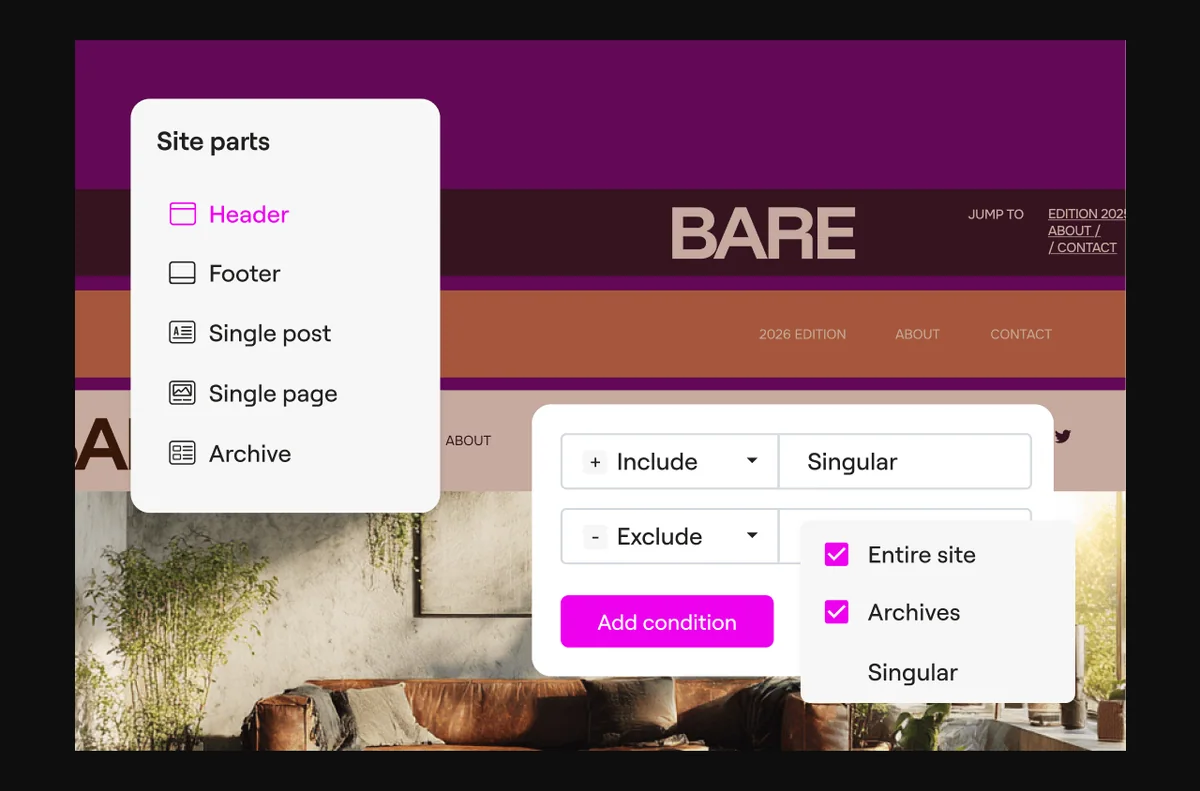
    Elementor Theme Builder for headers, footers and page templates
    Elementor Theme Builder (image: elementor.com)

    Layout breaks on mobile

    Elementor lets you set values per device. A size chosen on desktop does not always suit a phone, and a value that was never set can inherit an awkward default.

    • Switch to the mobile preview in the editor and check each setting.
    • Look for fixed widths and large padding that do not shrink.
    • Confirm the theme’s breakpoints and use the ones Elementor exposes.
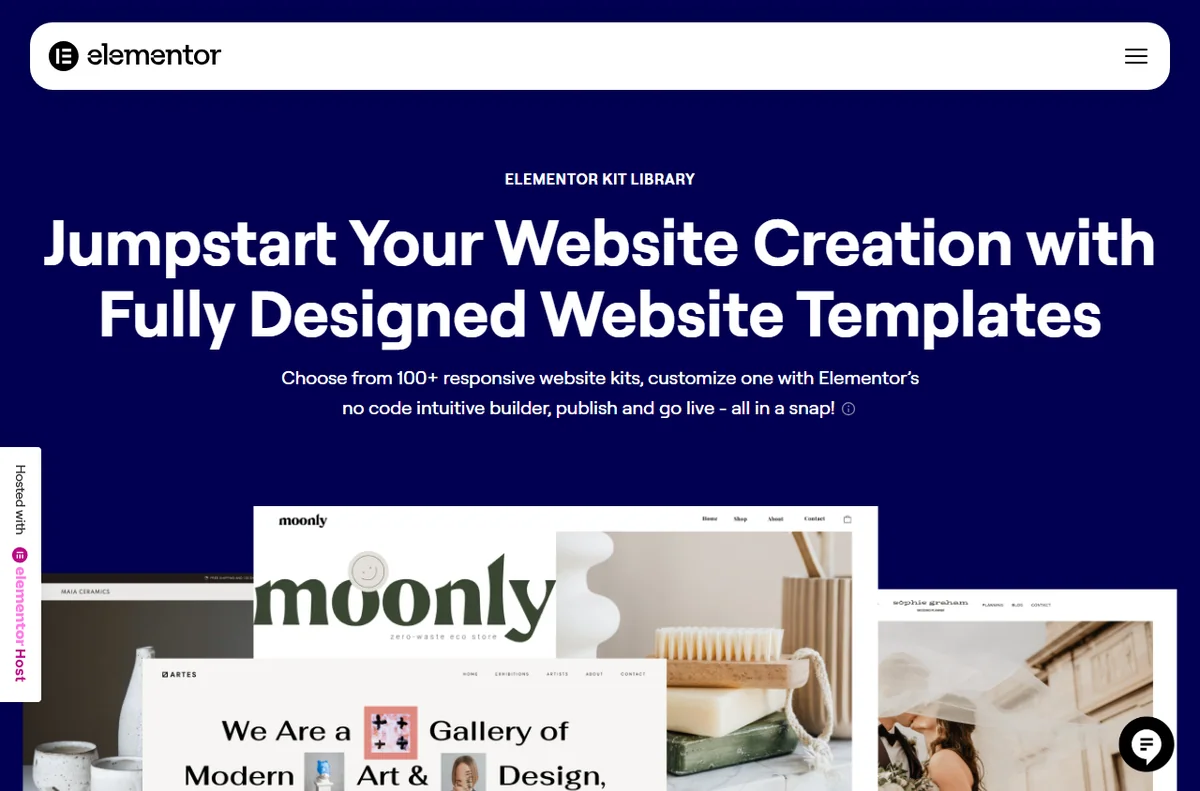
    Elementor template library with ready-made blocks and pages
    Elementor template library (image: elementor.com)

    Widgets or templates are missing

    If a widget you expect is not in the panel, the plugin is probably out of date or a template kit has not been installed. Some widgets also belong to add-ons rather than the core plugin.

    Update the plugin and any add-ons, then check whether the widget belongs to a plan or kit you actually have.

    Conflicts and performance problems

    A slow or broken page is often the result of several builders, caches or optimisers pulling in different directions. Two plugins doing the same job is a common cause.

    Disable overlapping tools one at a time, and measure the page again after each change. Keep a note of what you turned off so you can restore it.

    Symptom to fix

    SymptomLikely causeFix
    Editor will not loadMemory limit or plugin clashRaise the limit and test plugins
    Changes do not appearA cache is serving the old pageClear plugin, host and browser caches
    Broken mobile layoutPer-device settings not setCheck each level in mobile preview
    Widget missingOutdated plugin or missing kitUpdate the plugin and add-ons
    Slow or unstable pageConflicting pluginsDisable overlapping tools one by one
    General guidance, checked October 9, 2026. Confirm specifics inside your own Elementor setup.
    Elementor pricing page with plan tiers and feature limits
    Elementor pricing and plans (image: elementor.com)

    Where this fits

    Start with the developer tools hub. For the basics read what Elementor is, and for the setup steps see how to set up Elementor.

    Frequently asked

    Is my content lost if the editor will not load?

    No. The content is stored by WordPress and Elementor. Once the editor loads again it should still be there; the failure is usually in loading, not in saving.

    Why does the preview look right but the live page does not?

    The editor can render slightly differently from the front end, and caching adds another layer. Check the live page in a private window after clearing caches.

    Should I disable all plugins to test?

    Do it briefly and one at a time, on a staging copy where possible, so you can tell which plugin is responsible without disturbing visitors.

    Does Elementor need a special theme?

    No, but a theme built around it will integrate more smoothly. If the layout looks off, the theme is a reasonable suspect.

    Elementor account sign-in screen
    Elementor account sign-in (image: elementor.com)

    Get the editor loading again

    Fix the common clashes and get back to building.

    Some links on this page may be referral links — we may earn a reward if you sign up, at no extra cost to you. We are an independent publisher. See our Affiliate Disclosure.

    Related reading

  • What is Elementor?

    What is Elementor?

    Home / Developer Tools / Guides / What is Elementor

    Knowledge · developer tools · updated October 9, 2026

    What is Elementor?

    Elementor is a visual page builder that plugs into WordPress and lets you lay out pages by dragging widgets onto a canvas. This guide explains what it does, how it is organised, and what it is not.

    Independent analysis. This page may contain affiliate links. If you sign up through a link on this page we may earn a reward at no extra cost to you, and it never changes what we recommend. We are an independent publisher and are not affiliated with, endorsed by, or an official partner of any tool mentioned. See our Affiliate Disclosure.

    TL;DR

    • Elementor is a drag-and-drop page builder for WordPress.
    • Pages are built from sections, columns and widgets on a canvas.
    • A free core plugin covers the basics; paid plans add widgets, templates and support.
    • A hosted cloud version exists for people who do not want to run WordPress themselves.
    • It is not a hosting company and it does not replace WordPress on its own.

    On this page: What Elementor is · How it is organised · What it is good at · What it is not · Concept cheat sheet · Where this fits

    Elementor home page
    Elementor home (image: elementor.com)

    What Elementor is

    Elementor is an editor that replaces the default WordPress block editor with a visual canvas. Instead of writing blocks in a list, you drag elements onto a page and see the result as you go.

    The idea is to let someone who does not write code build a professional-looking page. You choose a structure, drop in widgets such as headings, images, buttons and forms, then style them with controls rather than CSS.

    It sits on top of WordPress. The theme still controls some site-wide behaviour, but the page content is stored by Elementor and rendered as markup when a visitor loads the page.

    Elementor academy page
    Elementor academy (image: elementor.com)

    How Elementor is organised

    A page is built from three nested levels: sections, columns and widgets. A section spans the width of the page, columns divide it, and widgets are the actual content inside a column.

    Templates and blocks let you save a layout and reuse it. You can apply a page template to a whole page, or drop a saved block into a single section.

    Global styles and site settings hold colours and fonts so a change in one place updates everywhere, and the responsive controls let you adjust each level per device.

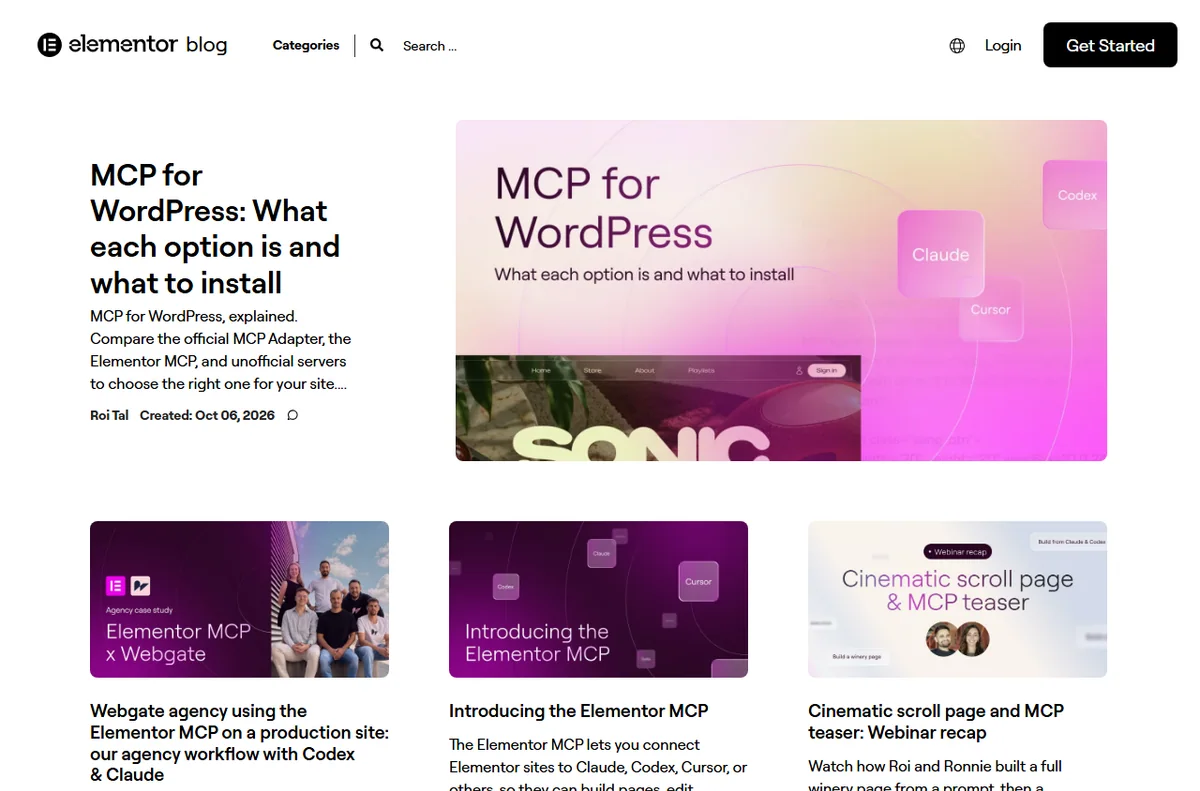
    Elementor blog page
    Elementor blog (image: elementor.com)

    What Elementor is good at

    • Building and editing pages without touching code.
    • Reusing saved templates and blocks across a site.
    • Adjusting layout separately for desktop, tablet and mobile.
    • Extending the editor with extra widgets from Elementor and third parties.
    • Working with most WordPress themes without a rebuild.
    Elementor hello theme page
    Elementor hello theme (image: elementor.com)

    What Elementor is not

    • Not a hosting service: you still need a host and WordPress for the self-hosted plugin.
    • Not entirely free: the core plugin is free, but advanced widgets and support sit behind paid plans, so check the current pricing.
    • Not a one-click replacement for a developer on complex custom work.
    • Not immune to plugin conflicts and performance trade-offs.

    Concept cheat sheet

    ConceptMeaningWhy it matters
    SectionA full-width containerSets the overall structure
    ColumnA slice inside a sectionDivides content side by side
    WidgetA single content elementThe heading, image or button
    TemplateA saved full-page layoutReused to start a page quickly
    Global styleSite-wide colour and font rulesKeeps pages consistent
    Based on publicly documented behaviour, checked October 9, 2026.
    Elementor library page
    Elementor library (image: elementor.com)

    Where this fits

    Start with the developer tools hub. For the practical steps see how to set up Elementor, and for everyday usage read how to use Elementor for a small business.

    Elementor login page
    Elementor login (image: elementor.com)

    Frequently asked

    Do I need to know code to use Elementor?

    No. The point of the editor is that you build with widgets and controls. Some custom styling still benefits from knowing CSS, but it is not required to start.

    Does Elementor work with any theme?

    It works with most themes, though some are built around it and integrate more tightly. A theme designed for the block editor may need small adjustments.

    Is there a free version?

    Yes. A free core plugin covers the basics, and paid plans add tools and support. Plans change, so check the current options on Elementor’s own site.

    Can I use Elementor without WordPress?

    There is a hosted cloud version for people who do not want to run WordPress. The plugin route requires a WordPress site.

    Will Elementor slow my site down?

    It can add weight, because it loads its own assets. How much depends on the page and the host, so test your own pages.

    Start building visually

    Drag-and-drop design for WordPress.

    Some links on this page may be referral links — we may earn a reward if you sign up, at no extra cost to you. We are an independent publisher. See our Affiliate Disclosure.

    Related reading

  • How to Use Divi for a Small Business

    How to Use Divi for a Small Business

    Home / Developer Tools / Guides / How to use Divi for a small business

    Use case · developer tools · updated October 8, 2026

    How to use Divi for a small business

    A small business rarely needs a sprawling website. It needs a handful of pages that load quickly, look consistent and are easy to update without a developer on call. Divi is built for exactly that middle ground between a rigid template and a custom build.

    Divi by Elegant Themes WordPress theme and visual page builder
    Divi by Elegant Themes (image: elegantthemes.com)

    Independent analysis. This page may contain affiliate links. Some links here are referral links; if you sign up through one we may earn a reward at no extra cost to you, and it never changes what we recommend. We are an independent publisher and are not affiliated with, endorsed by, or an official partner of any tool mentioned. See our Affiliate Disclosure.

    TL;DR

    • Start from saved templates so every page shares a consistent structure.
    • Keep one clear action per page instead of several competing buttons.
    • Use the Divi library to reuse sections across campaigns and pages.
    • Assign global headers, footers and post templates in the Theme Builder.
    • Document your setup so anyone can edit pages later.

    On this page: What this covers · What a small business needs · Getting the foundations right · Landing pages that do a job · Reusable layouts and the library · Theme Builder across the site · Maintenance and handover · Keeping effort and cost in check · Where this fits

    What this covers

    A small business rarely needs a sprawling website. It needs a handful of pages that work hard, look consistent and are quick to update.

    This guide looks at how Divi fits that reality: where it saves time, where it needs discipline, and how to keep the site easy to maintain.

    Elegant Themes homepage
    Elegant Themes homepage (image: elegantthemes.com)

    What a small business needs from a builder

    Not every feature matters equally. These are the priorities that usually decide whether a builder earns its place.

    Priority Why it matters How Divi helps
    Fast page creationYou need pages live without a long build cycleLayout packs and the Visual Builder get a page up quickly
    ConsistencyYour brand should look the same everywhereGlobal defaults and Theme Builder templates apply styling site-wide
    Low maintenanceYou may not have a full-time developerVisual edits and a library reduce the need to touch code
    ReuseSimilar pages should not be rebuilt each timeSaved sections can be dropped into new pages
    Cost controlBudgets are tightOne licence covers design and layout without a stack of separate tools
    Based on publicly documented behaviour, checked October 8, 2026.
    Divi documentation and help center
    Divi documentation (image: elegantthemes.com)

    Getting the foundations right

    Set your brand colours, fonts and button styles once, then leave them alone. Consistency is what makes a small site look considered rather than assembled.

    Decide on a simple set of page types: home, a service or product page, about, and contact. Build each from a saved template so they share structure.

    Divi Marketplace with layout packs
    Divi Marketplace (image: elegantthemes.com)

    Landing pages that do a job

    Most small business pages have one job: to get a call, a form fill or a purchase. Keep the primary action obvious on every page. One clear button beats five competing calls to action.

    Build a reusable hero section and reuse it, changing only the headline and image. That keeps campaign pages quick to ship without losing consistency.

    Divi Layouts library of reusable layouts
    Divi Layouts library (image: elegantthemes.com)

    Reusable layouts and the library

    Save the sections you like to the Divi library and give them clear names, such as Hero Services or CTA Contact.

    A tidy library is the difference between a ten-minute page and an afternoon of rebuilding. It also makes it easy to reuse a layout across campaigns.

    Elegant Themes blog with Theme Builder tutorials
    Elegant Themes blog (image: elegantthemes.com)

    Theme Builder across the site

    Assign a global header and footer so navigation and contact details stay consistent on every page.

    Add templates for blog posts and archives if you publish content, so new posts inherit the right layout automatically.

    Maintenance and handover

    Document which template controls which part of the site. A short note saves time when a colleague or a freelancer edits a page later.

    Keep a staging copy for larger changes and push them live once checked. It is far cheaper than fixing a live page in a hurry.

    Keeping effort and cost in check

    The main cost is your time plus the licence. Compare that with what a custom build would take. Check the official pricing page for current licence options.

    Avoid buying add-ons you do not need. A focused setup is easier to maintain than a large stack of overlapping plugins.

    GreenGeeks hosting/Div plan page
    Elegant Themes pricing (image: elegantthemes.com)

    Where this fits in your wider stack

    For a fuller picture, read the independent Divi review and browse the developer tools hub. If you are filling gaps around the builder, see best WordPress plugins for small business, or step back and compare best website builders for small business.

    Frequently asked

    Is Divi a good fit for a small business site?

    It suits teams that want visual control and consistency without a developer for every change. Large, highly custom projects may still need code.

    Can I reuse one design across several pages?

    Yes. Save sections and pages to the library and assign templates in the Theme Builder to apply styling site-wide.

    Do I need extra plugins with Divi?

    You can run a functional site without many. Add plugins only when a specific need, such as SEO or forms, is not already covered.

    How do I know which licence to buy?

    Licence tiers and site limits change. Check the official pricing page to match a plan to the number of sites you run.

    Put Divi to work on your site

    Review the current plans and what each licence covers.

    Referral link — we may earn a reward if you sign up, at no extra cost to you. We are an independent publisher. See our Affiliate Disclosure.

  • How to Set Up Divi: Step by Step

    How to Set Up Divi: Step by Step

    Home / Developer Tools / Guides / How to set up Divi

    Tutorial · developer tools · updated October 8, 2026

    How to set up Divi: a practical walkthrough

    Divi is a WordPress theme and visual builder from Elegant Themes that lets you design pages on the front end without writing code. This guide walks through a clean setup: installing the theme, opening the Visual Builder, setting global defaults, and publishing a first layout. The aim is a working, maintainable starting point rather than a tour of every module.

    Divi by Elegant Themes WordPress theme and visual page builder
    Divi by Elegant Themes (image: elegantthemes.com)

    Independent analysis. This page may contain affiliate links. Some links here are referral links; if you sign up through one we may earn a reward at no extra cost to you, and it never changes what we recommend. We are an independent publisher and are not affiliated with, endorsed by, or an official partner of any tool mentioned. See our Affiliate Disclosure.

    TL;DR

    • Install Divi from your Elegant Themes account and activate the licence in WordPress.
    • Learn the section, row and module hierarchy before you start building.
    • Set colours, fonts and buttons once in the Theme Options and Customiser.
    • Save sections and pages to the Divi library so you can reuse them.
    • Use the Theme Builder for headers, footers and post templates.

    On this page: What this covers · Before you start · Step 1 – install and activate Divi · Step 2 – the Visual Builder · Choosing how to build · Step 3 – set global defaults · Step 4 – build a first layout · Templates and the Theme Builder · Where this fits

    What this covers

    Divi is a WordPress theme and visual builder that lets you design pages on the front end without writing code. This guide walks through a clean setup: installing the theme, opening the Visual Builder, setting global defaults, and publishing a first layout.

    The goal is not to cover every module. It is to get a working, maintainable starting point you can build on, whether you are redesigning an existing site or starting fresh.

    Before you start

    • A WordPress site on a recent version, with administrator access.
    • Your Elegant Themes account details, or a licence to activate.
    • A staging or local copy if the site is already live.
    • Your brand colours, fonts and logo files to hand.
    • A rough sitemap of the pages you plan to build.
    Elegant Themes plans to get Divi
    Elegant Themes plans (image: elegantthemes.com)

    Step 1 — Install and activate Divi

    1. Download the Divi theme package from your Elegant Themes account.
    2. In WordPress, go to Appearance, then Themes, then Add New, and upload the theme zip.
    3. Activate the theme and enter your username and API key when prompted.
    4. Confirm the update settings so Divi can receive future releases.
    Divi documentation and help center
    Divi documentation (image: elegantthemes.com)

    Step 2 — Open and learn the Visual Builder

    Open a page and click Enable Visual Builder. Divi loads the page on the front end with editing controls overlaid, so what you see is close to what visitors get.

    Learn the three-part structure: sections hold rows, and rows hold modules. Almost every layout question comes back to that hierarchy.

    Save early and often, and use the history panel to roll back a change that did not work out.

    Choosing how to build

    There is more than one way to work in Divi. Pick the one that matches your experience and the time you have.

    Approach What it means Choose it when
    Visual BuilderEdit the real page with drag-and-drop controlsYou want precise, visual control of a live layout
    Backend builderUse the same modules in a classic admin screenYou prefer a distraction-free editor or a slower connection
    Pre-made layout packImport a full page and adjust itYou need a solid starting point quickly
    Blank canvasBuild each section from scratchYou have a clear design and want no leftover demo content
    Based on publicly documented behaviour, checked October 8, 2026.
    Divi Layouts library of ready-made page layouts
    Divi Layouts library (image: elegantthemes.com)

    Step 3 — Set global defaults

    Open the Divi Theme Options and the Customiser. Set your logo, primary and secondary colours, fonts and button styles once.

    Global defaults save time and keep pages consistent. When you later change a brand colour, updating it in one place propagates across the site.

    Decide the default content width and a simple spacing scale here too. Consistency early avoids a patchwork feel later.

    Divi Marketplace with child themes and layout packs
    Divi Marketplace (image: elegantthemes.com)

    Step 4 — Build your first layout

    1. Create a page and add a section, then choose a column structure.
    2. Add modules such as text, image and button, and adjust spacing under the Design tab.
    3. Use the responsive controls to preview mobile and fine-tune padding per breakpoint.
    4. Publish, then review the live page on a phone as well as a desktop.
    Elegant Themes blog with Divi tutorials
    Elegant Themes blog (image: elegantthemes.com)

    Templates and the Theme Builder

    Save a section or a full page to your Divi library so you can reuse it. A small library of well-made blocks is faster than rebuilding each page.

    The Theme Builder assigns templates to headers, footers, blog posts and archives, so styling applies everywhere without editing each page by hand.

    If you install pre-made layouts, remove anything you do not need. Leftover demo images and unused modules add weight and maintenance.

    Where this fits in your wider stack

    If you are still deciding, read the independent Divi review and start from the developer tools hub. Weighing the two big builders? See Elementor vs Divi, and for a broader shortlist read best website builders for small business.

    Frequently asked

    Do I need to know code to use Divi?

    No. You can build layouts visually, though basic CSS helps when you want to fine-tune a detail. A Custom CSS box lets you add small tweaks without a child theme.

    Can I try Divi before paying?

    Pricing and any trial terms change over time. Check the official pricing page for the current options before you commit.

    Will Divi slow down my site?

    The theme itself is reasonably lean, but large images and a very long page add weight. Optimise images and keep layouts focused.

    Can I use Divi on more than one site?

    Licence terms depend on your plan. Check the official page for how many sites your plan covers.

    Elegant Themes homepage
    Elegant Themes homepage (image: elegantthemes.com)

    Ready to build with Divi

    Compare plans and see what the current licence includes.

    Referral link — we may earn a reward if you sign up, at no extra cost to you. We are an independent publisher. See our Affiliate Disclosure.

  • How to Use Elementor for a Small Business

    How to Use Elementor for a Small Business

    Home / Developer Tools / Guides / How to use Elementor

    Use case · developer tools · updated October 8, 2026

    How to use Elementor for a small business

    Elementor is only useful if it solves real jobs for your business. This post looks at how a small business uses it in practice: landing pages, a theme you can maintain, reusable blocks, freelancer handoff and ongoing upkeep.

    Elementor official homepage for the WordPress page builder
    Elementor official homepage (image: elementor.com)

    Independent analysis. This page may contain affiliate links. Some links here are referral links; if you sign up through one we may earn a reward at no extra cost to you, and it never changes what we recommend. We are an independent publisher and are not affiliated with, endorsed by, or an official partner of any tool mentioned. See our Affiliate Disclosure.

    TL;DR

    • Use Elementor for landing pages when speed to launch matters.
    • A theme builder removes the need for custom header and footer code.
    • Reusable blocks keep repeated sections consistent.
    • Clear naming and structure make freelancer handoff easier.
    • Budget time for updates and performance checks each month.

    On this page: What this covers · Where Elementor earns its place · Landing pages for campaigns · A theme you can maintain · Reusable blocks and global widgets · Deciding what to build first · Working with freelancers · Keeping it healthy · Where this fits in your wider stack

    What this covers

    A page builder is a tool, and the return comes from the jobs you point it at. For a small team, that usually means shipping pages faster, keeping site-wide elements consistent and avoiding a developer bottleneck for routine changes.

    This post stays practical. It covers the patterns that tend to pay off and the maintenance that keeps a built site from drifting.

    Where Elementor earns its place

    Small teams rarely need every feature a builder offers. These are the jobs where it tends to pay off.

    • Campaign landing pages built and shipped in hours.
    • A custom header, footer and blog template without code.
    • Reusable hero and call-to-action sections.
    • Client-friendly editing for non-technical staff.
    • Rapid redesigns when the brand or offer changes.
    Elementor template library for building campaign landing pages
    Elementor template library (image: elementor.com)

    Landing pages for campaigns

    When a campaign needs a focused page, Elementor lets a marketer assemble it from sections, then duplicate and adjust for the next offer. The win is turnaround time, not novelty: the same page template can serve several campaigns with small edits.

    Elementor Hello theme page for a maintainable WordPress theme
    Elementor Hello theme (image: elementor.com)

    A theme you can maintain

    The theme builder lets you design headers, footers, archive and single templates visually. That means a small business can change site-wide elements without waiting on a developer for every tweak, and it keeps those elements consistent across the site.

    Elementor Theme Builder for global templates and widgets
    Elementor Theme Builder (image: elementor.com)

    Reusable blocks and global widgets

    Save a section as a template or promote a widget to global, and an edit propagates everywhere it is used. This is the difference between a tidy site and one where five versions of the same button slowly drift apart.

    Elementor pricing plans to match scope
    Elementor pricing (image: elementor.com)

    Deciding what to build first

    A simple priority order keeps the first build phase focused and avoids rework.

    Job Priority Why it comes first
    Landing page for the current campaignHighDirectly tied to revenue this month
    Header and footer templatesHighTouches every page on the site
    Reusable call-to-action blockMediumReused across many pages
    Blog and archive templatesMediumNeeded once content volume grows
    Full redesign of old pagesLowBetter done once patterns are settled
    Based on publicly documented behaviour, checked October 8, 2026.
    Elementor blog resources for working with builders
    Elementor blog (image: elementor.com)

    Working with freelancers

    Naming conventions and saved templates make a site easier to hand to a freelancer. A short document listing global colours, fonts and template names saves billable hours later, because the next person is not reverse-engineering your layout decisions.

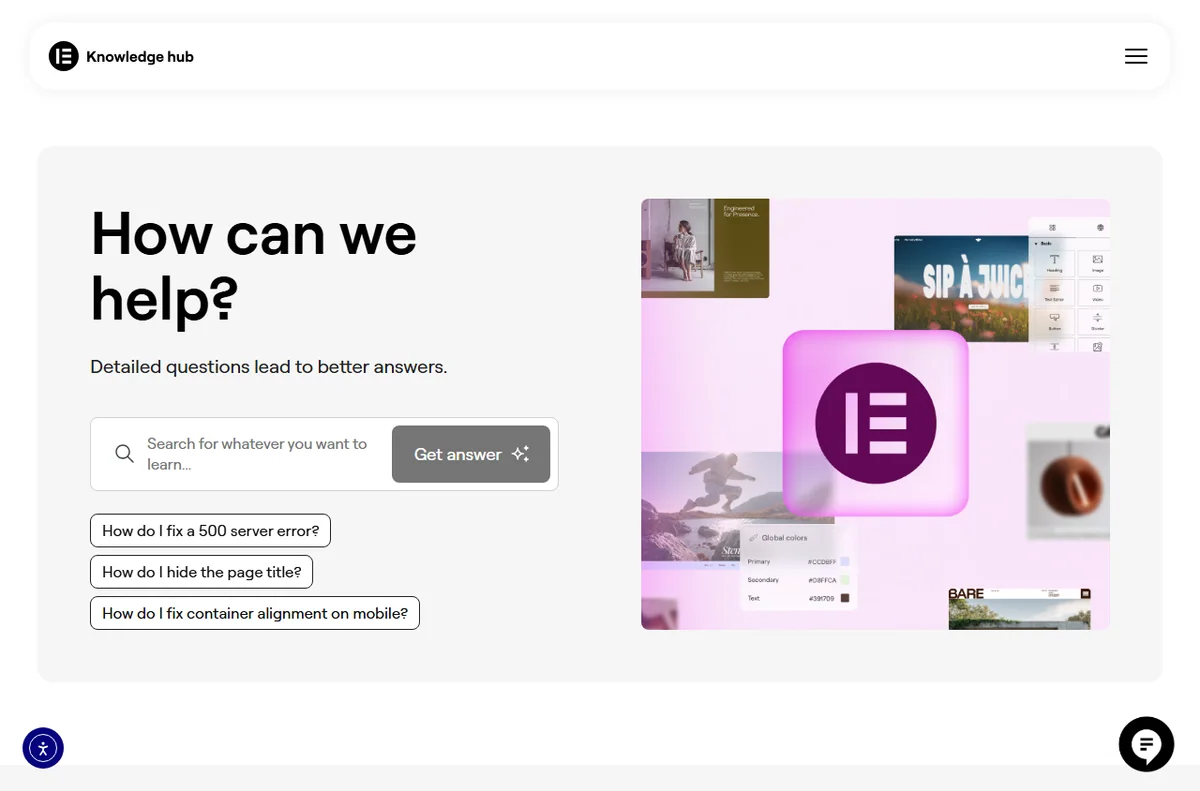
    Elementor Knowledge Hub for maintenance tutorials
    Elementor Knowledge Hub (image: elementor.com)

    Keeping it healthy

    Schedule a monthly pass: update the plugin and its add-ons, check a live page for layout drift, and confirm images are still reasonably sized. Small habits prevent the slow accumulation that makes a site feel heavy.

    Where this fits in your wider stack

    If you are still choosing, read the independent Elementor review and the Elementor vs Divi comparison. For the wider context, start from the developer tools hub, compare best website builders for small business, and review website performance tools.

    Frequently asked

    Is Elementor good for a small business website?

    It suits teams that want to ship pages without a developer, as long as they keep plugins lean and images optimised.

    Do I need a developer to use Elementor?

    No, but a developer is useful for the initial theme setup and for anything involving custom code.

    Can my staff edit the site safely?

    Yes. Assign appropriate user roles and rely on saved templates so edits stay consistent.

    How do I keep an Elementor site fast?

    Compress images, limit plugins and test a real page with a performance tool.

    Elementor website builder product page for WordPress
    Elementor website builder (image: elementor.com)

    Put Elementor to work

    Start with the pages that matter this month, then build templates from them.

    Referral link — we may earn a reward if you sign up, at no extra cost to you. We are an independent publisher. See our Affiliate Disclosure.

  • How to Set Up Elementor: WordPress Page Builder, Step by Step

    How to Set Up Elementor: WordPress Page Builder, Step by Step

    Home / Developer Tools / Guides / How to set up Elementor

    Tutorial · developer tools · updated October 8, 2026

    How to set up Elementor: a practical walkthrough

    Elementor is a drag-and-drop page builder for WordPress, and setting it up properly saves hours later. This walkthrough covers installation, global styles, your first page, reusable templates and the performance settings worth touching on day one.

    Elementor official homepage for the WordPress page builder
    Elementor official homepage (image: elementor.com)

    Independent analysis. This page may contain affiliate links. Some links here are referral links; if you sign up through one we may earn a reward at no extra cost to you, and it never changes what we recommend. We are an independent publisher and are not affiliated with, endorsed by, or an official partner of any tool mentioned. See our Affiliate Disclosure.

    TL;DR

    • Install Elementor from the WordPress plugin directory, then activate it.
    • Connect a license so the extra widgets and templates become available.
    • Set global colours and fonts once, before you build any pages.
    • Save repeated layouts as templates instead of rebuilding them.
    • Check performance settings and image sizes before you launch.

    On this page: What this covers · Before you start · Step 1 — Install and activate the plugin · Step 2 — Connect a license if you need more · Step 3 — Set global colours and fonts · Step 4 — Build your first page · Step 5 — Save reusable templates · Step 6 — Cover performance basics · Choosing how you build · Where this fits in your wider stack

    What this covers

    Elementor replaces the classic WordPress editor with a visual canvas. You drag widgets onto a page and style them without writing CSS, which is why it is popular with small teams that do not have a full-time developer.

    This guide assumes a working WordPress install and administrator access. It walks through a clean setup so your styles, templates and performance settings are sensible from the start rather than patched in later.

    Before you start

    • A WordPress site on hosting that meets Elementor’s requirements.
    • Administrator access to the WordPress dashboard.
    • A staging copy if the site is already live and busy.
    • Your brand colours and font names written down.
    • A recent backup, so a failed experiment costs minutes rather than days.
    Elementor website builder product page for WordPress
    Elementor website builder (image: elementor.com)

    Step 1 — Install and activate the plugin

    1. In the dashboard, open Plugins and choose Add New.
    2. Search for Elementor and locate the plugin by its publisher.
    3. Install it, then activate it and follow the onboarding prompt.
    4. Confirm the Elementor menu appears in the sidebar.
    Elementor pricing plans including Pro licenses
    Elementor pricing and Pro licenses (image: elementor.com)

    Step 2 — Connect a license if you need more

    Elementor has a free core plugin and paid plans. If you need the additional widgets, the theme builder and support, connect a license from the account screen inside Elementor. Do not guess at what a plan includes; check the official pricing page and match the tier to the features you actually plan to use.

    Elementor Theme Builder for site-wide templates and styles
    Elementor Theme Builder (image: elementor.com)

    Step 3 — Set global colours and fonts

    Open Site Settings and define your global colours and typography first. Every widget then inherits those values, so a brand refresh later is a handful of edits rather than a hunt through dozens of pages.

    Elementor template library of ready-made website sections
    Elementor template library (image: elementor.com)

    Step 4 — Build your first page

    1. Create a new page and choose Edit with Elementor.
    2. Pick a container structure that matches the layout you have in mind.
    3. Drag heading, text and image widgets into the container.
    4. Style each widget in the panel on the left.
    5. Preview on a mobile width before you publish.
    Elementor Knowledge Hub with tutorials and reusable resources
    Elementor Knowledge Hub (image: elementor.com)

    Step 5 — Save reusable templates

    When a section works, save it as a template so you can drop it into future pages. Reusable sections keep spacing and styling consistent, and they cut the time spent rebuilding the same hero or call-to-action block.

    Elementor blog with performance and optimization guides
    Elementor blog (image: elementor.com)

    Step 6 — Cover performance basics

    Page builders add markup, so a few habits keep pages fast: compress images before upload, avoid stacking background videos, and enable the performance features your stack supports. Test with a real page rather than an empty one.

    Elementor Hello theme page for a lightweight WordPress theme
    Elementor Hello theme (image: elementor.com)

    Choosing how you build

    A quick way to decide what to install and how much to configure up front.

    Situation What to do Why
    New site, no theme yetUse Elementor with a lightweight themeKeeps markup lean and lets the builder own the layout
    Existing site with a custom themeAdd Elementor to specific templates firstLimits risk while you learn the builder
    Marketing landing pagesEnable the theme builder on paid plansLets you design headers and footers without code
    Tight performance budgetKeep plugins minimal and optimise imagesAddresses the main sources of slow pages
    Based on publicly documented behaviour, checked October 8, 2026.

    Where this fits in your wider stack

    If you are still comparing builders, read the independent Elementor review and the Elementor vs Divi comparison. To see the wider picture, start from the developer tools hub, weigh best website builders for small business, and keep an eye on website performance tools.

    Frequently asked

    How much does Elementor cost?

    Pricing depends on the tier and changes over time, so check the official pricing page for current plans and what each one includes.

    Do I need a paid plan to start?

    No. The free core plugin covers the basics, while paid plans add widgets, the theme builder and support.

    Will Elementor slow down my site?

    It adds markup like any builder, but sensible image sizes and a lean plugin stack keep the effect small.

    Can I use Elementor with my existing theme?

    Yes. You can enable it per page or template, which is a safe way to test it on a live site.

    Elementor account sign-up page
    Elementor account sign-up (image: elementor.com)

    Build your first page with Elementor

    Install the plugin, set your globals once and design from there.

    Referral link — we may earn a reward if you sign up, at no extra cost to you. We are an independent publisher. See our Affiliate Disclosure.