Home / Developer Tools / Guides / How to set up Divi
Tutorial · developer tools · updated October 8, 2026
How to set up Divi: a practical walkthrough
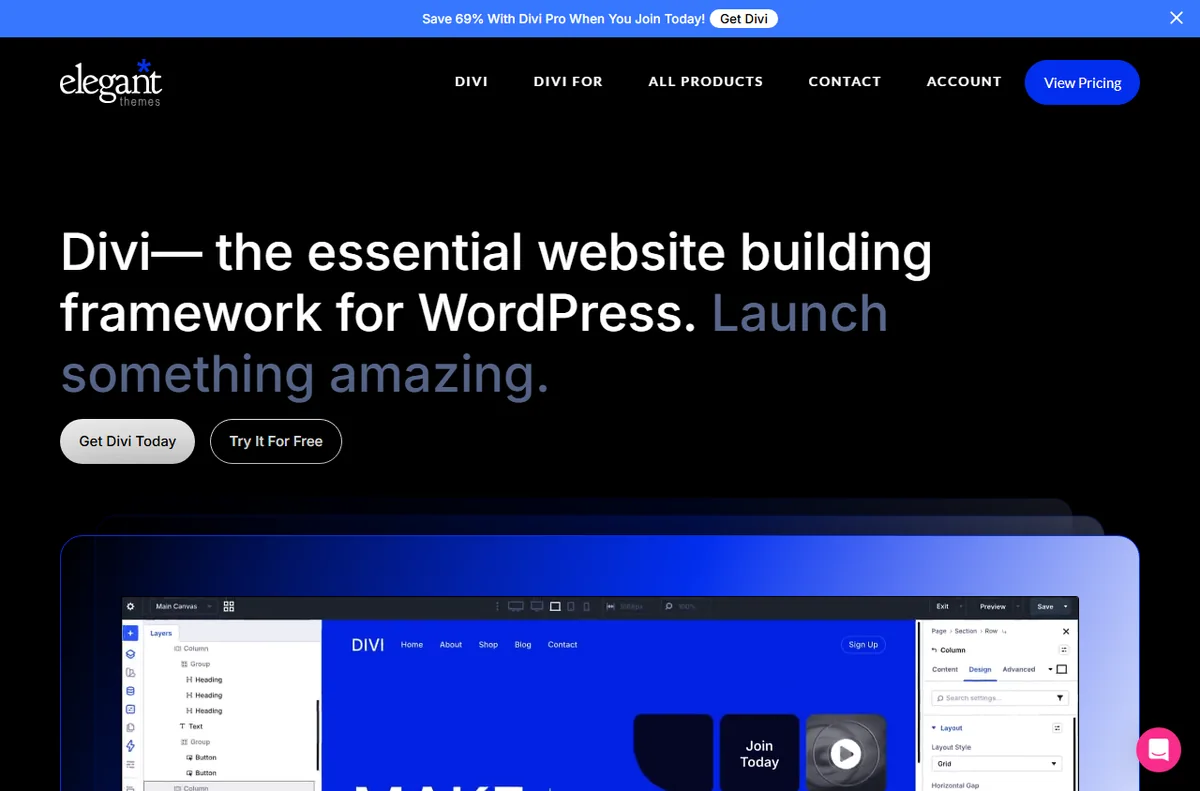
Divi is a WordPress theme and visual builder from Elegant Themes that lets you design pages on the front end without writing code. This guide walks through a clean setup: installing the theme, opening the Visual Builder, setting global defaults, and publishing a first layout. The aim is a working, maintainable starting point rather than a tour of every module.
Independent analysis. This page may contain affiliate links. Some links here are referral links; if you sign up through one we may earn a reward at no extra cost to you, and it never changes what we recommend. We are an independent publisher and are not affiliated with, endorsed by, or an official partner of any tool mentioned. See our Affiliate Disclosure.
TL;DR
- Install Divi from your Elegant Themes account and activate the licence in WordPress.
- Learn the section, row and module hierarchy before you start building.
- Set colours, fonts and buttons once in the Theme Options and Customiser.
- Save sections and pages to the Divi library so you can reuse them.
- Use the Theme Builder for headers, footers and post templates.
On this page: What this covers · Before you start · Step 1 – install and activate Divi · Step 2 – the Visual Builder · Choosing how to build · Step 3 – set global defaults · Step 4 – build a first layout · Templates and the Theme Builder · Where this fits
What this covers
Divi is a WordPress theme and visual builder that lets you design pages on the front end without writing code. This guide walks through a clean setup: installing the theme, opening the Visual Builder, setting global defaults, and publishing a first layout.
The goal is not to cover every module. It is to get a working, maintainable starting point you can build on, whether you are redesigning an existing site or starting fresh.
Before you start
- A WordPress site on a recent version, with administrator access.
- Your Elegant Themes account details, or a licence to activate.
- A staging or local copy if the site is already live.
- Your brand colours, fonts and logo files to hand.
- A rough sitemap of the pages you plan to build.
Step 1 — Install and activate Divi
- Download the Divi theme package from your Elegant Themes account.
- In WordPress, go to Appearance, then Themes, then Add New, and upload the theme zip.
- Activate the theme and enter your username and API key when prompted.
- Confirm the update settings so Divi can receive future releases.

Step 2 — Open and learn the Visual Builder
Open a page and click Enable Visual Builder. Divi loads the page on the front end with editing controls overlaid, so what you see is close to what visitors get.
Learn the three-part structure: sections hold rows, and rows hold modules. Almost every layout question comes back to that hierarchy.
Save early and often, and use the history panel to roll back a change that did not work out.
Choosing how to build
There is more than one way to work in Divi. Pick the one that matches your experience and the time you have.
| Approach What it means Choose it when | ||
|---|---|---|
| Visual Builder | Edit the real page with drag-and-drop controls | You want precise, visual control of a live layout |
| Backend builder | Use the same modules in a classic admin screen | You prefer a distraction-free editor or a slower connection |
| Pre-made layout pack | Import a full page and adjust it | You need a solid starting point quickly |
| Blank canvas | Build each section from scratch | You have a clear design and want no leftover demo content |

Step 3 — Set global defaults
Open the Divi Theme Options and the Customiser. Set your logo, primary and secondary colours, fonts and button styles once.
Global defaults save time and keep pages consistent. When you later change a brand colour, updating it in one place propagates across the site.
Decide the default content width and a simple spacing scale here too. Consistency early avoids a patchwork feel later.
Step 4 — Build your first layout
- Create a page and add a section, then choose a column structure.
- Add modules such as text, image and button, and adjust spacing under the Design tab.
- Use the responsive controls to preview mobile and fine-tune padding per breakpoint.
- Publish, then review the live page on a phone as well as a desktop.
Templates and the Theme Builder
Save a section or a full page to your Divi library so you can reuse it. A small library of well-made blocks is faster than rebuilding each page.
The Theme Builder assigns templates to headers, footers, blog posts and archives, so styling applies everywhere without editing each page by hand.
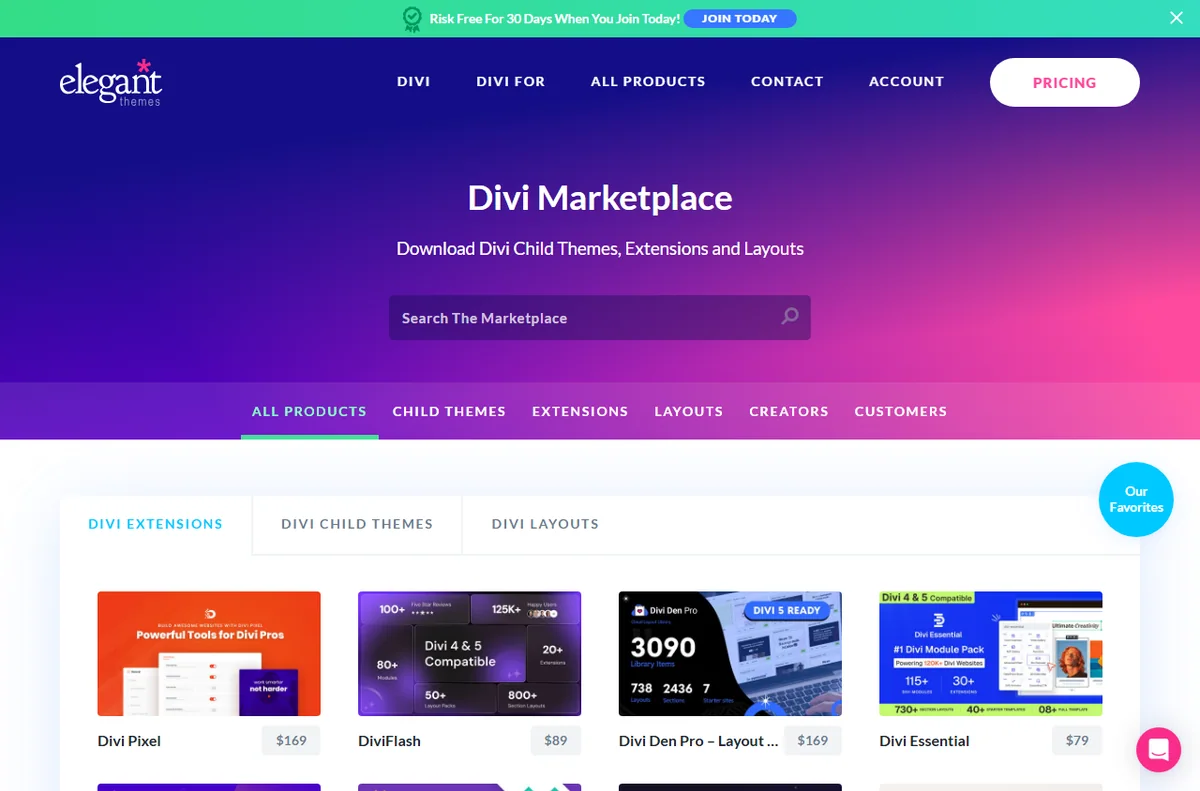
If you install pre-made layouts, remove anything you do not need. Leftover demo images and unused modules add weight and maintenance.
Where this fits in your wider stack
If you are still deciding, read the independent Divi review and start from the developer tools hub. Weighing the two big builders? See Elementor vs Divi, and for a broader shortlist read best website builders for small business.
Frequently asked
Do I need to know code to use Divi?
No. You can build layouts visually, though basic CSS helps when you want to fine-tune a detail. A Custom CSS box lets you add small tweaks without a child theme.
Can I try Divi before paying?
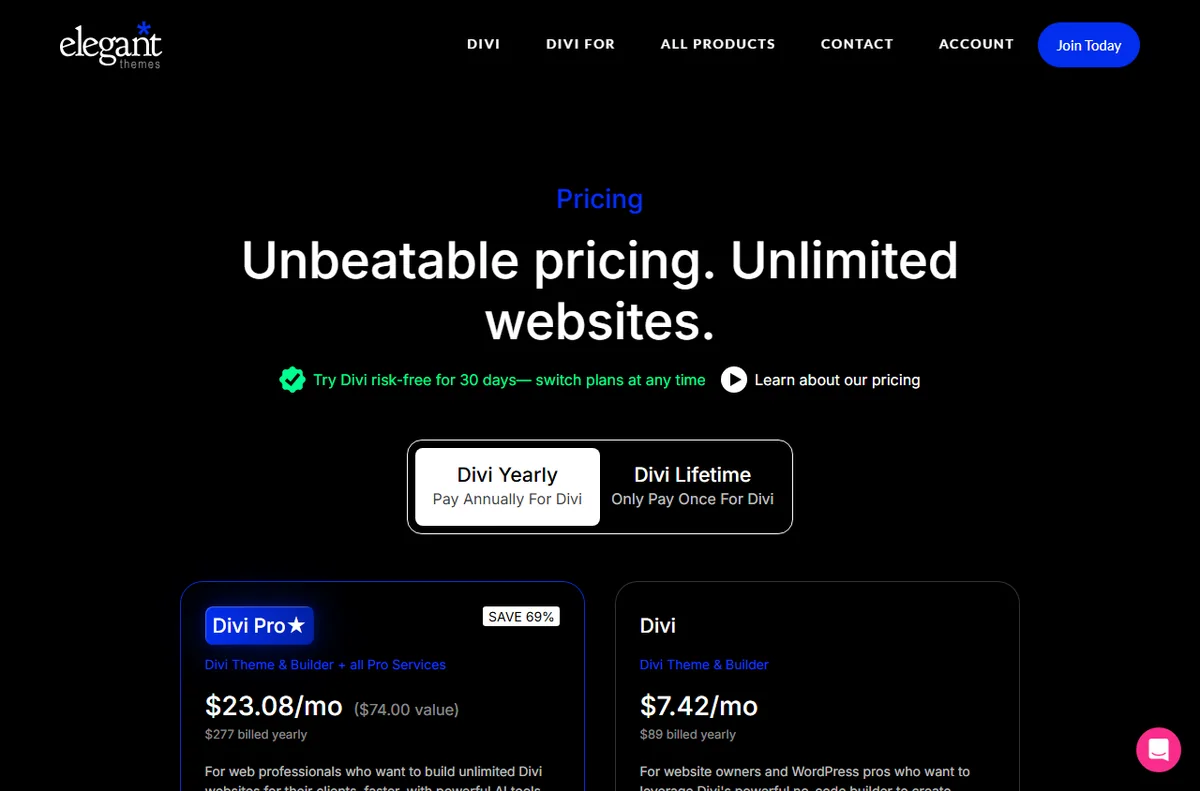
Pricing and any trial terms change over time. Check the official pricing page for the current options before you commit.
Will Divi slow down my site?
The theme itself is reasonably lean, but large images and a very long page add weight. Optimise images and keep layouts focused.
Can I use Divi on more than one site?
Licence terms depend on your plan. Check the official page for how many sites your plan covers.

Ready to build with Divi
Compare plans and see what the current licence includes.
Referral link — we may earn a reward if you sign up, at no extra cost to you. We are an independent publisher. See our Affiliate Disclosure.
Leave a Reply