
Home / Developer Tools / Guides / Common Elementor problems
Problem · developer tools · updated October 9, 2026
Common Elementor problems and how to fix them
Most Elementor problems fall into a few areas: an editor that will not load, changes that do not show on the live site, layouts that break on mobile, widgets that go missing, or conflicts with other plugins. Here are the ones that come up most, and what to check first.
Independent analysis. This page may contain affiliate links. If you sign up through a link on this page we may earn a reward at no extra cost to you, and it never changes what we recommend. We are an independent publisher and are not affiliated with, endorsed by, or an official partner of any tool mentioned. See our Affiliate Disclosure.
TL;DR
- An editor that will not load is usually a memory, cache or plugin issue.
- Changes that do not appear are often a caching problem between the editor and the live page.
- Layout that breaks on mobile usually traces back to per-device settings.
- Missing widgets are about the plugin version or an add-on.
- Check the exact step that failed before you rebuild anything.
On this page: Why things go wrong · Editor will not load · Changes do not appear · Layout breaks on mobile · Widgets are missing · Conflicts and speed · Symptom to fix · Where this fits
Why things go wrong
Elementor sits on top of WordPress, so a problem can come from the editor, the theme, another plugin, the host or the browser. The useful first move is to work out which of those changed.
Another habit that saves time: check whether the issue follows the page or follows the browser and account. That tells you whether to look at content or at your setup.
The editor will not load
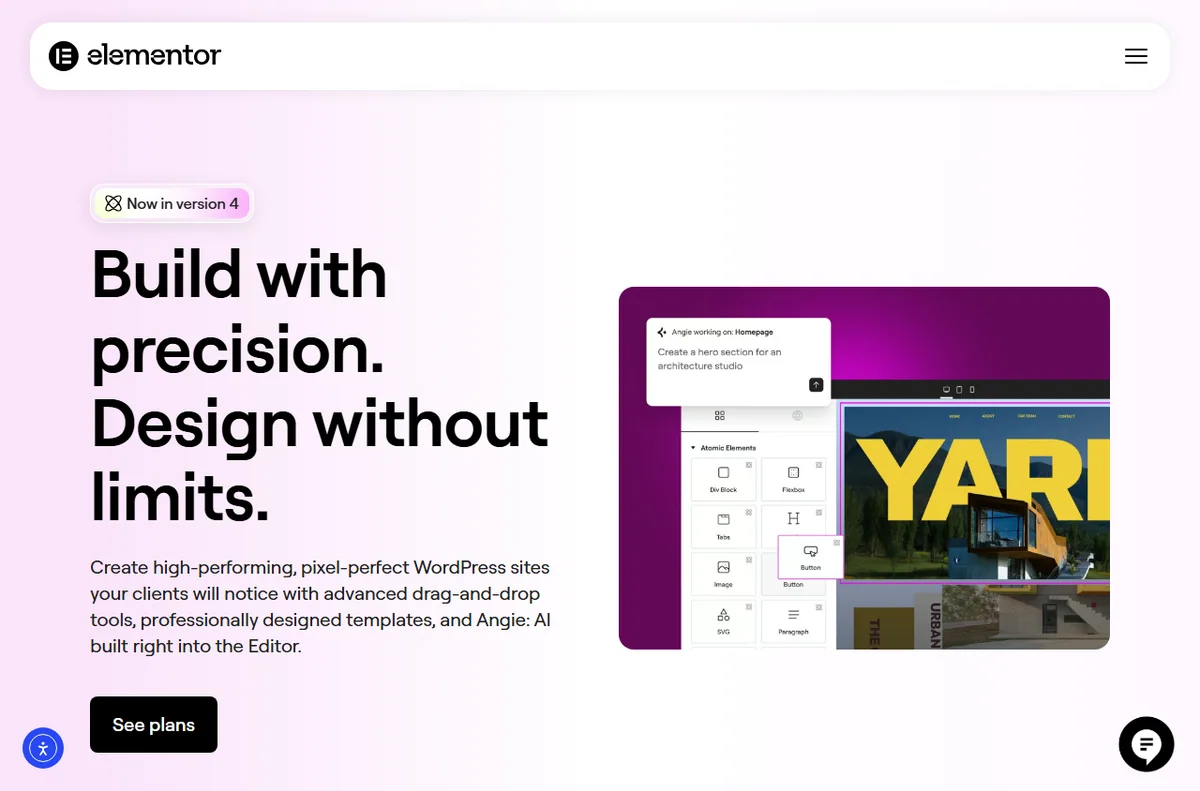
A blank or endless-loading editor is usually about resources or a clash. The editor is heavier than the default one, and a tight memory limit or a plugin that hooks into it can stop it loading.
- Raise the WordPress memory limit if your host allows it.
- Deactivate other plugins briefly to see whether one is the cause.
- Try a different browser or a private window to rule out extensions.
- Check the browser console for errors and note the first one.
Changes do not appear on the live site
You edit a page, save, and the front end still shows the old version. Most of the time a cache is serving the earlier copy, either a plugin cache, the host cache or the browser.
Clear those layers in order, then reload in a private window. If the change shows there but not in your normal window, the browser is the one holding the old file.
Layout breaks on mobile
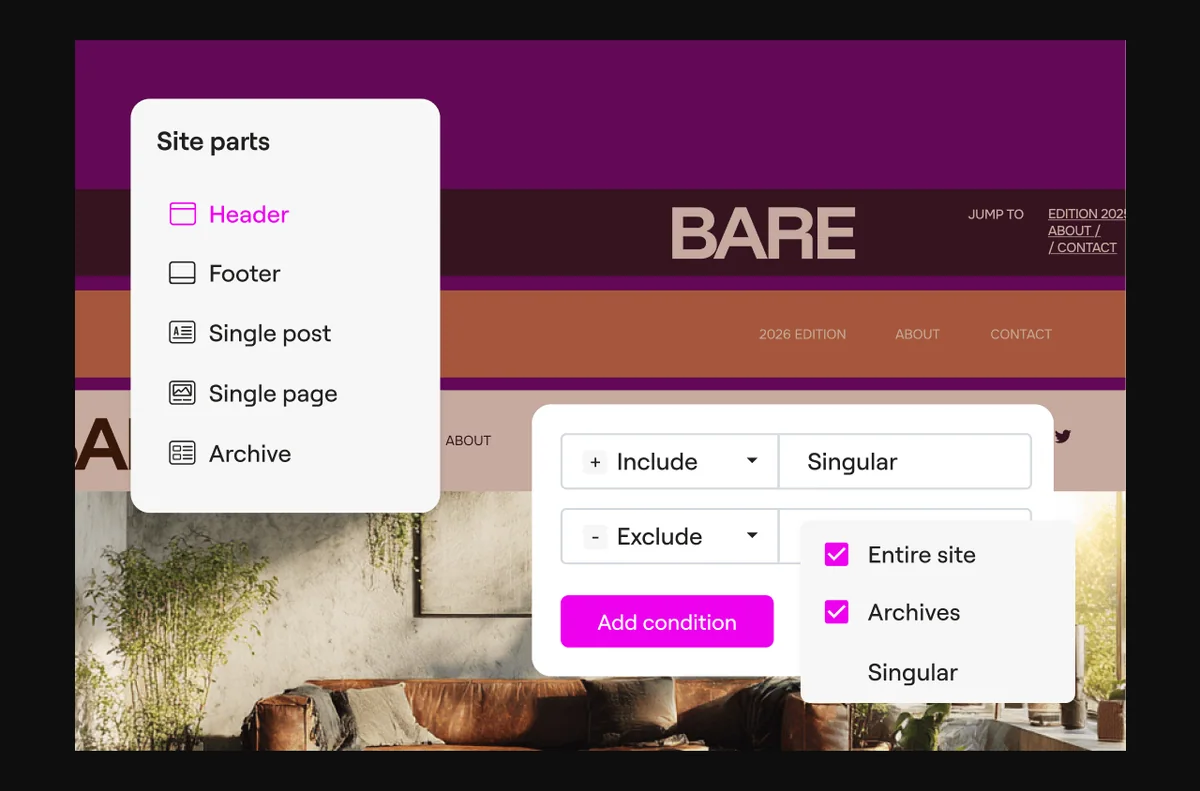
Elementor lets you set values per device. A size chosen on desktop does not always suit a phone, and a value that was never set can inherit an awkward default.
- Switch to the mobile preview in the editor and check each setting.
- Look for fixed widths and large padding that do not shrink.
- Confirm the theme’s breakpoints and use the ones Elementor exposes.
Widgets or templates are missing
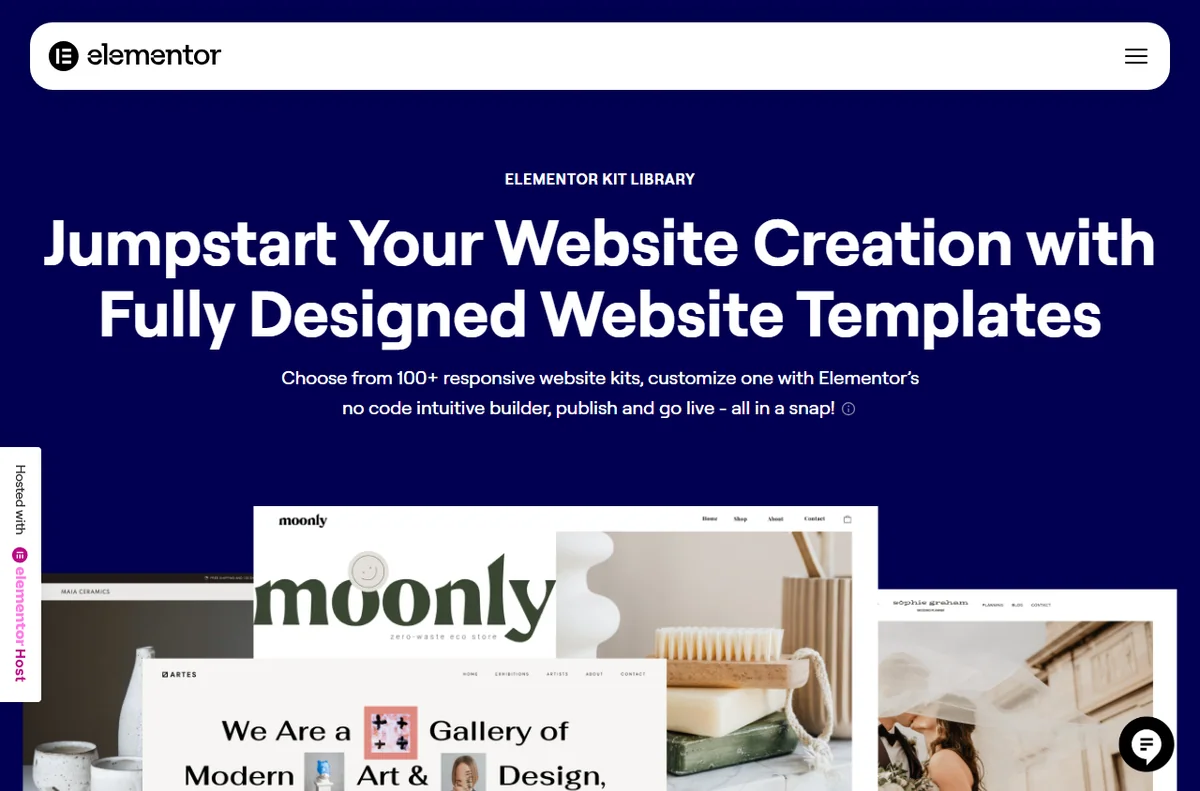
If a widget you expect is not in the panel, the plugin is probably out of date or a template kit has not been installed. Some widgets also belong to add-ons rather than the core plugin.
Update the plugin and any add-ons, then check whether the widget belongs to a plan or kit you actually have.
Conflicts and performance problems
A slow or broken page is often the result of several builders, caches or optimisers pulling in different directions. Two plugins doing the same job is a common cause.
Disable overlapping tools one at a time, and measure the page again after each change. Keep a note of what you turned off so you can restore it.
Symptom to fix
| Symptom | Likely cause | Fix |
|---|---|---|
| Editor will not load | Memory limit or plugin clash | Raise the limit and test plugins |
| Changes do not appear | A cache is serving the old page | Clear plugin, host and browser caches |
| Broken mobile layout | Per-device settings not set | Check each level in mobile preview |
| Widget missing | Outdated plugin or missing kit | Update the plugin and add-ons |
| Slow or unstable page | Conflicting plugins | Disable overlapping tools one by one |

Where this fits
Start with the developer tools hub. For the basics read what Elementor is, and for the setup steps see how to set up Elementor.
Frequently asked
Is my content lost if the editor will not load?
No. The content is stored by WordPress and Elementor. Once the editor loads again it should still be there; the failure is usually in loading, not in saving.
Why does the preview look right but the live page does not?
The editor can render slightly differently from the front end, and caching adds another layer. Check the live page in a private window after clearing caches.
Should I disable all plugins to test?
Do it briefly and one at a time, on a staging copy where possible, so you can tell which plugin is responsible without disturbing visitors.
Does Elementor need a special theme?
No, but a theme built around it will integrate more smoothly. If the layout looks off, the theme is a reasonable suspect.

Get the editor loading again
Fix the common clashes and get back to building.
Some links on this page may be referral links — we may earn a reward if you sign up, at no extra cost to you. We are an independent publisher. See our Affiliate Disclosure.
Leave a Reply