
We’re reader-supported — some links are affiliate links. Learn more →

Skip to content

Independent software research. Some links may earn us a commission at no extra cost to you. Learn more →

ICode

Tag: make

  • How to Use Make for a Small Business: 7 Practical Workflows

    How to Use Make for a Small Business: 7 Practical Workflows

    Home / Automation / Guides / How to use Make for a small business

    Use case · automation · updated October 7, 2026

    How to use Make for a small business: seven workflows worth automating

    Small businesses rarely need exotic automations. They need a handful of repeatable jobs to stop eating manual time. These seven Make workflows are the ones that tend to pay back fastest.
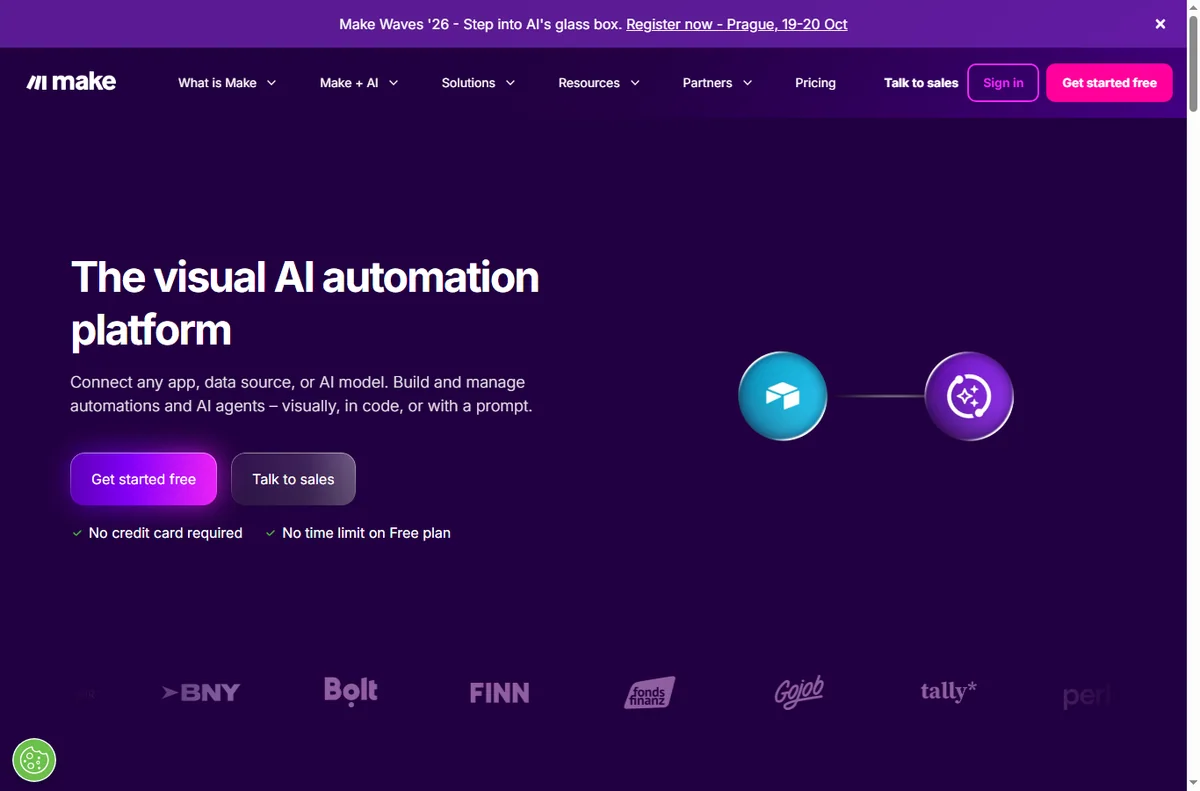
    Make homepage with workflow automation canvas
    Make official homepage (image: make.com)

    Independent analysis. This page may contain affiliate links. Some links here are referral links; if you sign up through one we may earn a reward at no extra cost to you, and it never changes what we recommend. We are an independent publisher and are not affiliated with, endorsed by, or an official partner of any tool mentioned. See our Affiliate Disclosure.

    TL;DR

    • Pick one painful, repetitive process first — not everything at once.
    • The fastest paybacks are lead capture, order handling, invoicing and reporting.
    • Keep each scenario small and single-purpose so failures are easy to spot.
    • Add error notifications before you scale volume.
    • Measure hours saved per workflow, then automate the next one.

    On this page: Pick the first process · Lead and customer workflows · Money workflows · Operations and reporting · Guardrails · Keep costs sane · Where this fits

    Start with the process that hurts most

    The mistake is starting with the most interesting workflow. Start with the most annoying one: the task you do every day by hand, where a copy-paste error costs you a customer.

    A good first workflow fires often, has an obvious trigger, and has a clear single action. If you cannot describe it as “when X, do Y”, break it down until you can.

    • It happens at least weekly.
    • It has one recognisable trigger event.
    • A mistake there costs money or goodwill.
    • You can describe the desired outcome in one sentence.
    Make template gallery of ready-made business workflows
    Make workflow template gallery (image: make.com)

    Workflows 1–3: leads and customers

    • Form to CRM and email: when someone submits a form, create the contact, tag the source, and start a welcome sequence.
    • Lead follow-up reminder: when a lead goes quiet for a set number of days, create a task for the owner and log it.
    • Support triage: when a new support message arrives, route it by keyword and post it to the right channel.

    Workflows 4–5: money

    • Order to fulfilment: when an order is placed, add the item to a fulfilment sheet and alert the team.
    • Invoice reminders: when an invoice passes its due date, send a polite reminder and escalate on a second strike.
    Make integrations connecting CRM, finance and operations apps
    Make integrations library (image: make.com)

    Workflows 6–7: operations and reporting

    • Daily digest: pull the day’s numbers from two or three sources into one message so nobody assembles it by hand.
    • Content scheduling: when an item is marked ready, schedule it and log the post so you can see what actually shipped.

    Guardrails before you scale

    • Turn on error notifications for every scenario you rely on.
    • Keep one scenario to one job; chain scenarios only when they genuinely must be sequential.
    • Prefer a fallback path over a silent failure.
    • Log the count of runs so you can see a workflow quietly stop firing.
    Make pricing page showing operations and plan limits
    Make pricing and plans (image: make.com)

    Keeping automation costs sane

    Automation platforms meter usage, so cost grows with volume, not with ambition. Model the operations or tasks each workflow will fire per month before you commit to a paid tier, and check the current caps and prices on the vendor’s own page — we do not quote figures because they change often.
    Make sign-in screen to access your scenarios
    Make sign-in page (image: make.com)

    Where this fits in your stack

    See the business automation hub for context, the independent Make review for a full evaluation, and the Make pricing guide for cost structure. For a broader shortlist, see the best workflow automation tools. Lead-handling specifics are covered in the sales pipeline automation guide.

    Make register page
    Make register (image: make.com)

    Frequently asked

    How many workflows should a small business automate?

    Start with one, add a second only when the first is stable. Three to five well-chosen workflows cover most small-business needs; beyond that the maintenance cost starts to compete with the time saved.

    Do I need technical skills?

    No for the workflows above. They are built by selecting apps, triggers and actions. Technical help only becomes useful if you need custom data transformations or API work.

    What if a workflow breaks silently?

    That is the main risk. Enable error notifications, and add a small heartbeat scenario that alerts you if a critical workflow has not run when it should have.

    Can I run this alongside other tools?

    Yes. A common pattern is one automation tool for cross-app logic plus a purpose-built tool (for example, an email platform) for its own specialised work. Keep the boundary clear to avoid duplicate actions.

    How do I know it is worth it?

    Estimate the minutes the task costs per week, multiply by your hourly value, and compare with the ongoing cost of the automation plus your setup time. If the payback is under a couple of months, it is usually worth doing.

    Start with the workflow that annoys you most

    Prototype it on the free tier before you commit.

    Referral link — we may earn a reward if you sign up, at no extra cost to you. We are an independent publisher. See our Affiliate Disclosure.

  • How to Set Up Make: First Scenario, Step by Step

    How to Set Up Make: First Scenario, Step by Step

    Home / Automation / Guides / How to set up Make

    Tutorial · automation · updated October 7, 2026

    How to set up Make: from sign-up to your first working scenario

    Make is a visual automation tool, and setting it up is really about getting one scenario to run end to end. This walkthrough takes you from a blank account to a working automation without the usual detours.

    Make homepage with workflow automation canvas
    Make official homepage (image: make.com)

    Independent analysis. This page may contain affiliate links. Some links here are referral links; if you sign up through one we may earn a reward at no extra cost to you, and it never changes what we recommend. We are an independent publisher and are not affiliated with, endorsed by, or an official partner of any tool mentioned. See our Affiliate Disclosure.

    TL;DR

    • Make is a visual automation tool: you build a “scenario” from a trigger plus one or more app modules.
    • Setup is free to start — create an account, connect one app, and run a two-step scenario.
    • You do not need code for the first scenario; you need one clear trigger and one clear action.
    • Watch your monthly operation count — that is what a paid plan meters.
    • Upgrade only when a real workflow outgrows the free cap.

    On this page: What setting up Make means · Before you start · Create your account · Three words that matter · Build a scenario · Test it · Turn it on · When to upgrade · Common mistakes · Where this fits

    Make login page
    Make login (image: make.com)

    What setting up Make actually means

    Make connects apps so that work happens without you. Unlike a simple “if this then that” tool, Make is built around scenarios: a visual canvas where a trigger starts a run and one or more modules act on the data.

    So “setting up Make” is three milestones rather than one install: create an account, learn the scenario editor, and get a single automation running correctly. Templates and advanced modules come later.

    Before you start

    • An email address you can confirm right away.
    • One app you already use that can act as a trigger — a form, a spreadsheet, a store or an inbox.
    • A one-sentence job description: “when this happens, do that”.
    • A few minutes to run the scenario by hand once.
    Make sign-up screen used to create a new account
    Make sign-up page (image: make.com)

    Step 1 — Create your account

    Sign up on the vendor’s site and confirm the email. You land in a dashboard that lists organizations, scenarios and templates — not in the editor, which surprises people who expect to start building immediately.

    Begin on the free tier. It is enough to learn on, but it meters a monthly operation cap, so treat it as a sandbox rather than production.

    Step 2 — Learn the three words that carry the meaning

    • Trigger — the event that starts a scenario (a new form entry, a new row, a new order).
    • Module — a step that does one job, such as creating a contact or sending a message.
    • Operation — one unit of work a module consumes; this is what your plan meters.
    Make template gallery for starting a scenario
    Make workflow template gallery (image: make.com)

    Step 3 — Build a two-step scenario

    1. Open Scenarios and choose “Create a new scenario” rather than a template, so you learn the parts.
    2. Click the first node, pick your trigger app and event, then create a connection (authorise the app once).
    3. Add the second node and pick the action: for example, “Create a row” in a spreadsheet or “Send a message”.
    4. Map the fields — drag the trigger’s output into the action’s input so the data flows across.

    Step 4 — Test before you trust it

    Use the run-once control to pull sample data through the scenario. Read the input and output of each module; the first failure is almost always a mis-mapped field or an authorisation that expired.

    Step 5 — Turn it on and watch the first runs

    Once a manual run succeeds, set the schedule or webhook and switch the scenario on. Watch the first few executions rather than assuming they are fine — especially the first time real traffic hits it.

    Make pricing page with plan tiers and operation limits
    Make pricing and plans (image: make.com)

    Step 6 — Know when to upgrade

    Upgrade when a genuine workflow outgrows the free operation cap, not before. Estimate your monthly operations from real volume, then pick the smallest paid tier that covers it comfortably. We deliberately do not quote prices — vendors change tiers and caps often, so confirm current figures on the vendor’s own pricing page.

    Common setup mistakes

    MistakeWhy it hurtsFix
    Starting from a complex templateYou inherit logic you do not understandBuild one simple scenario first
    Ignoring the operation countThe free cap is hit mid-monthModel monthly volume early
    No error handlingA silent failure breaks the flowAdd an error handler or fallback path
    Testing with live data onlyFailures are hard to reproduceUse sample data, then a live run
    Turning on before a manual runThe first real execution failsAlways run once by hand
    Based on publicly documented behaviour, checked October 7, 2026.
    Make integrations library connecting thousands of apps
    Make integrations library (image: make.com)

    Where this fits in your wider stack

    If you are still choosing a platform, start with the business automation hub and the independent Make review. For cost, see the Make pricing guide, and if you are weighing platforms, the Make vs n8n comparison. Teams that need the broadest connector catalogue often compare against the best workflow automation tools.

    Frequently asked

    How long does it take to set up Make?

    The account and first simple scenario take roughly 20–40 minutes for a first-timer. Multi-step scenarios with branching take longer because they add concepts, not because the setup itself is long.

    Do I need to know how to code?

    No. The first scenarios are built by clicking modules and mapping fields. Code only enters if you use a code module for a transformation the built-in functions cannot do.

    Is the free plan enough to start?

    It is enough to learn and to run low-volume workflows. It meters a monthly operation cap, so busy automations reach it quickly. Check the current cap on the vendor’s pricing page.

    What is an operation, exactly?

    An operation is one unit of work a module performs during a run. A scenario with three modules that runs once typically consumes three operations. That is why volume matters more than the number of scenarios.

    Should I use a template or build from scratch?

    Build your first scenario from scratch so you understand triggers and modules, then use templates once you can read what they do. Templates are shortcuts, not a substitute for understanding.

    Build one scenario, then judge the tool

    Count your steps first, then prototype on the free tier.

    Referral link — we may earn a reward if you sign up, at no extra cost to you. We are an independent publisher. See our Affiliate Disclosure.