
Home / Payments / Guides / How to set up FreshBooks
Tutorial · payments · updated October 9, 2026
How to set up FreshBooks: from account to your first invoice
FreshBooks is accounting and invoicing software aimed at freelancers and small service businesses. Setting it up is mostly about getting your business details, tax and payment options right once, so every invoice that follows is correct.
Independent analysis. This page may contain affiliate links. If you sign up through a link on this page we may earn a reward at no extra cost to you, and it never changes what we recommend. We are an independent publisher and are not affiliated with, endorsed by, or an official partner of any tool mentioned. See our Affiliate Disclosure.
TL;DR
- Complete your business profile before you invoice.
- Add clients as you go rather than all at once.
- Send one real invoice and follow it to payment.
- Connect online payments so clients can pay in a click.
- Track expenses from day one, not at year end.
On this page: Create your profile · Add clients · Send an invoice · Online payments · Track expenses · Read your reports
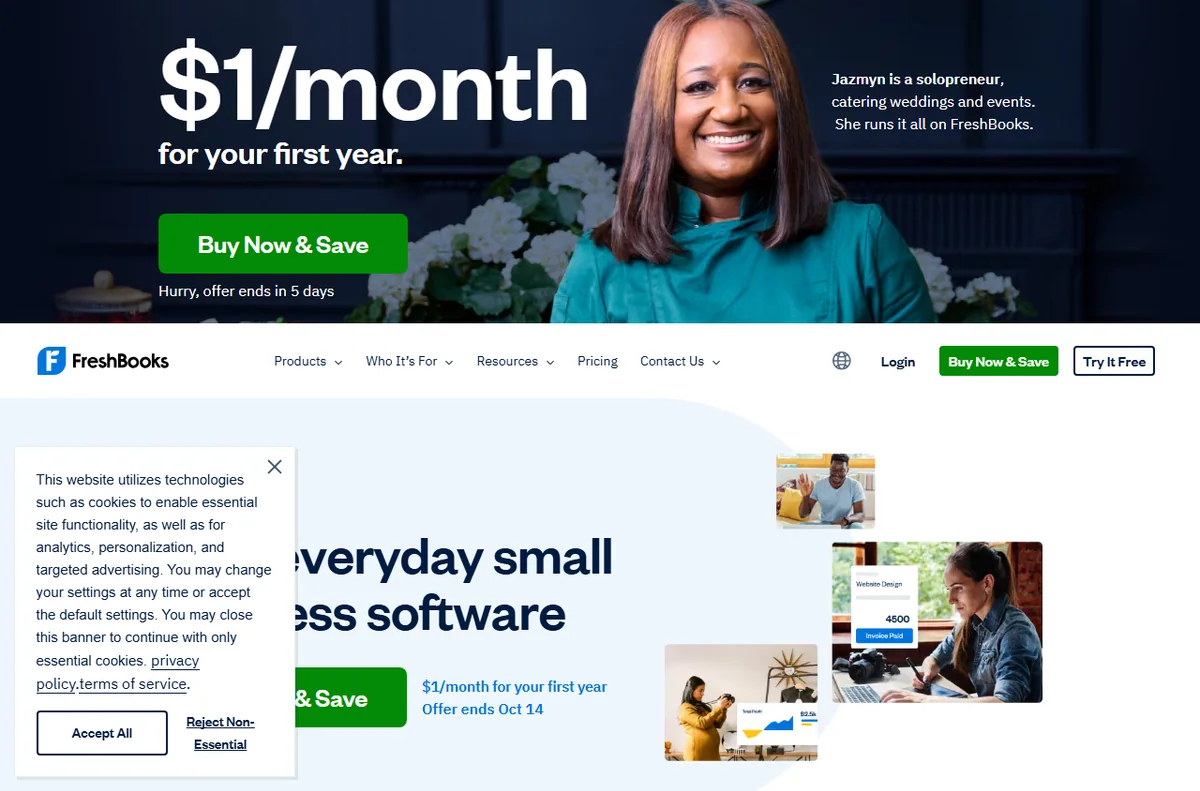
Step 1 — Create your account and business profile
Create your account and fill in the business profile: your business name, address, currency and tax details. These values flow onto every invoice, so getting them right now saves correcting them repeatedly later.
Upload a logo and set the invoice defaults — numbering, payment terms and any late-fee note. Consistency here makes your invoices look professional without extra effort each time.

Step 2 — Add your clients
Add clients as you need them rather than importing everything on day one. Each client record holds the billing details and the currency they pay in.
- Add a client with their billing name and email.
- Set the currency the client is billed in.
- Attach any tax or address details you need.
- Save, then create an invoice from the same record.

Step 3 — Create and send your first invoice
Create an invoice from a client record, add line items with clear descriptions, and check the tax and total before sending. A short, specific description is easier for a client to approve than a vague one.
Send it through the platform so you get a record of when it was viewed and paid. Set a payment term that matches how your clients actually pay.
Step 4 — Connect online payments
Connect at least one online payment method so clients can pay from the invoice. Which processors are available depends on your country and the plan.
Send a small real invoice and pay it yourself to confirm the money lands and the invoice is marked paid automatically. Testing this now prevents an awkward conversation later.

Step 5 — Track expenses and bills
Record expenses as they happen rather than saving a shoebox for year end. Photograph receipts and categorise them while the context is fresh.
Track billable expenses against the right client so they can be passed through on an invoice instead of quietly absorbed as a cost.
Step 6 — Check your first reports
Open the reports a week in and make sure the numbers match reality. A profit-and-loss view and an aged-receivables list are the two most useful starting points.
We do not quote prices — accounting plans and client limits change, so check the current plans on FreshBooks’ own pricing page against the features you actually use.

Where this fits
Start from the independent FreshBooks review and the payments hub. For the day-to-day side, see how to use FreshBooks for a small business. Explore related guides such as how to invoice clients, best expense tracking apps, and best subscription billing software.

Frequently asked
Is FreshBooks only for freelancers?
No. It is built for freelancers and small service teams, and works for any business that invoices clients for time, projects or retainers.
Do I need to import all clients at once?
No. Add clients as you work with them; the records you use most build up quickly.
Should I track expenses myself or leave it to an accountant?
Track them as they happen. Even a light habit saves a painful reconstruction at year end, whatever your accountant does later.
How often should I check reports?
Weekly for unpaid invoices, monthly for profit and cash flow. Little and often beats one annual panic.
Invoice and track with FreshBooks
Invoices, expenses and reports in one place.
Some links on this page may be referral links — we may earn a reward if you sign up, at no extra cost to you. We are an independent publisher. See our Affiliate Disclosure.
Leave a Reply