Home / Security & Privacy / Guides / Common 1Password problems
Problem · security & privacy · updated October 9, 2026
Common 1Password problems and how to fix them
Most 1Password problems fall into a few areas: a vault that will not unlock, credentials that do not fill, items that do not sync, or sharing that goes wrong. Here are the ones that come up most, and what to check first.
Independent analysis. This page may contain affiliate links. If you sign up through a link on this page we may earn a reward at no extra cost to you, and it never changes what we recommend. We are an independent publisher and are not affiliated with, endorsed by, or an official partner of any tool mentioned. See our Affiliate Disclosure.

TL;DR
- An item that will not fill is usually a mismatch between the saved address and the page.
- Sync problems are about the account, not the device.
- Sharing goes wrong when the wrong vault or person is chosen.
- Recovery depends on the emergency kit you saved.
- Check the exact step that failed before you reset anything.
On this page: Why things go wrong · Vault will not unlock · Items do not fill · Items do not sync · Sharing does not work · Account or recovery · Symptom to fix · Where this fits
Why things go wrong
A password manager depends on a few moving parts: your account, the devices that hold a copy of the vault, and the sites you are signing into. Most problems sit at one of those, and the app usually names the step that failed.
The useful habit is to check whether the problem follows the account or only one device.
A vault will not unlock
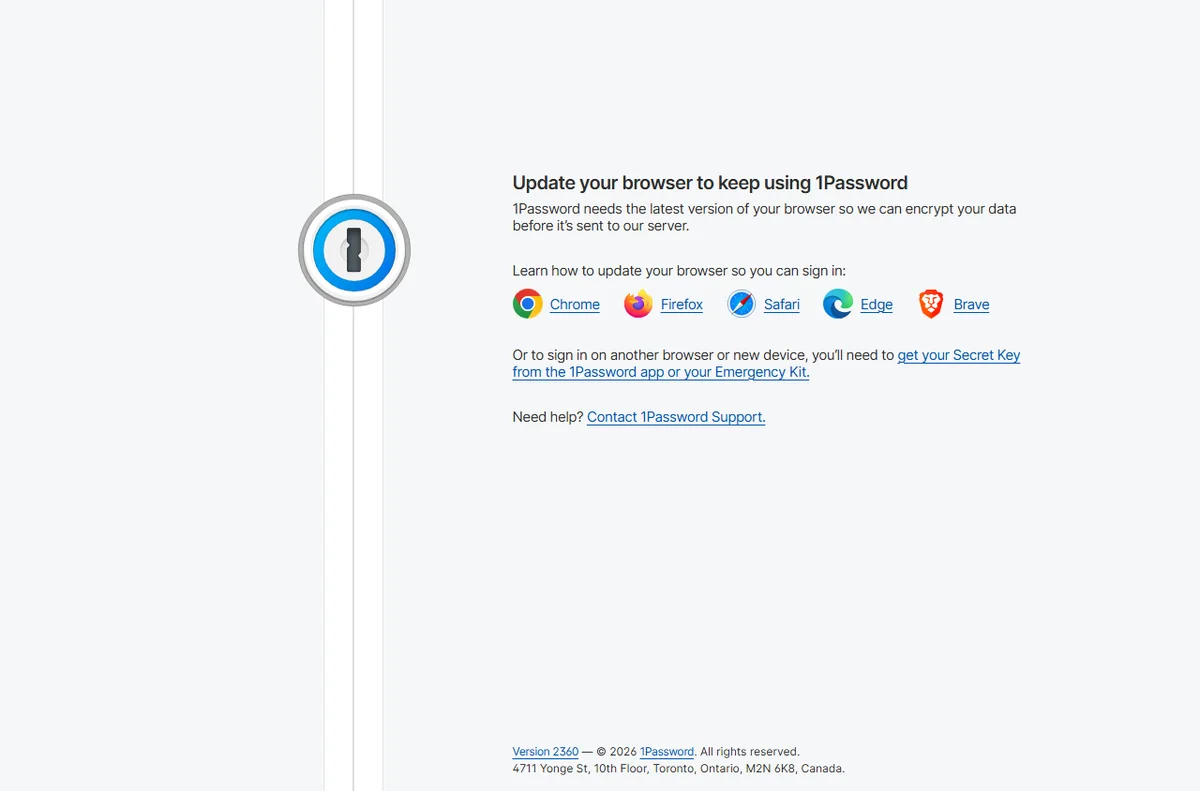
An unlock failure is usually about the credential, not the data. A typo in the master password, a missing secret key, or a device that has been locked out after too many attempts are the common causes.
Check that you are entering the credential for the right account, that the secret key matches, and that the keyboard or clipboard is not adding an invisible character. If the account uses a passkey or biometric unlock, fall back to the password method.
Items do not fill
Autofill fails when the saved website address does not match the page you are on, when the extension is not active, or when the field is inside a frame the app cannot see.
- Confirm the address saved on the item matches the site exactly, including any subdomain.
- Check the browser extension is installed and signed in.
- Try copying the password from the app to rule out a fill problem.
- Some sites block autofill on purpose; use their own flow where required.
Items do not sync
When an item is missing on one device, the cause is usually the account or the network rather than the item itself. Offline edits sit in a queue until the device connects again.
Confirm every device is signed into the same account, that the device has been online, and that the vault is not marked as local only.
Sharing does not work
Sharing problems come from where an item lives and who was invited. You share a vault, not a single item, so the recipient must be in the vault that contains the item.
Check that the item is in the shared vault rather than a personal one, that the invite was accepted, and that the guest has the right permission level. Move the item into the shared vault.
Account or recovery problems
Recovery and billing issues sit with the company rather than the app. A forgotten secret key or a lapsed subscription can lock you out of features even when the vault still opens.
Check the account status and billing page, confirm the emergency kit is stored safely, and contact support with your account details. Recovery without the emergency kit may not be possible by design.
Symptom to fix
| Symptom | Likely cause | Fix |
|---|---|---|
| Vault will not unlock | Wrong password, secret key or lockout | Re-enter credentials and use a fallback |
| Item will not fill | Address mismatch or extension inactive | Match the address and check the extension |
| Item missing on a device | Account or sync issue | Confirm the account and go online |
| Shared item not visible | Item is in a personal vault | Move it into the shared vault |
| Locked out of account | Recovery or billing issue | Use the emergency kit and contact support |
Where this fits
Start with the security and privacy hub. For the basics read what 1Password is, and for the setup steps see how to set up 1Password.
Frequently asked
Is my data lost if the vault will not unlock?
No. The data is still stored; you need the correct credentials or the recovery path you set up to open it again.
Why does autofill work on one browser but not another?
The extension is usually installed and signed in on one browser only. Install and sign in on the browser you are using.
Can support reset my master password?
Not if the account is encrypted end to end. They can help with account and billing issues, but they cannot decrypt your vault.
Do I need to reinstall to fix sync?
Rarely. Check the account, the network and the vault type first.

Get back into your vault
Unlock, fill and sync again.
Some links on this page may be referral links — we may earn a reward if you sign up, at no extra cost to you. We are an independent publisher. See our Affiliate Disclosure.
Leave a Reply