We’re reader-supported — some links are affiliate links. Learn more →

Skip to content

Independent software research. Some links may earn us a commission at no extra cost to you. Learn more →

ICode

Tag: 1password

  • Common 1Password problems and how to fix them

    Common 1Password problems and how to fix them

    Home / Security & Privacy / Guides / Common 1Password problems

    Problem · security & privacy · updated October 9, 2026

    Common 1Password problems and how to fix them

    Most 1Password problems fall into a few areas: a vault that will not unlock, credentials that do not fill, items that do not sync, or sharing that goes wrong. Here are the ones that come up most, and what to check first.

    Independent analysis. This page may contain affiliate links. If you sign up through a link on this page we may earn a reward at no extra cost to you, and it never changes what we recommend. We are an independent publisher and are not affiliated with, endorsed by, or an official partner of any tool mentioned. See our Affiliate Disclosure.

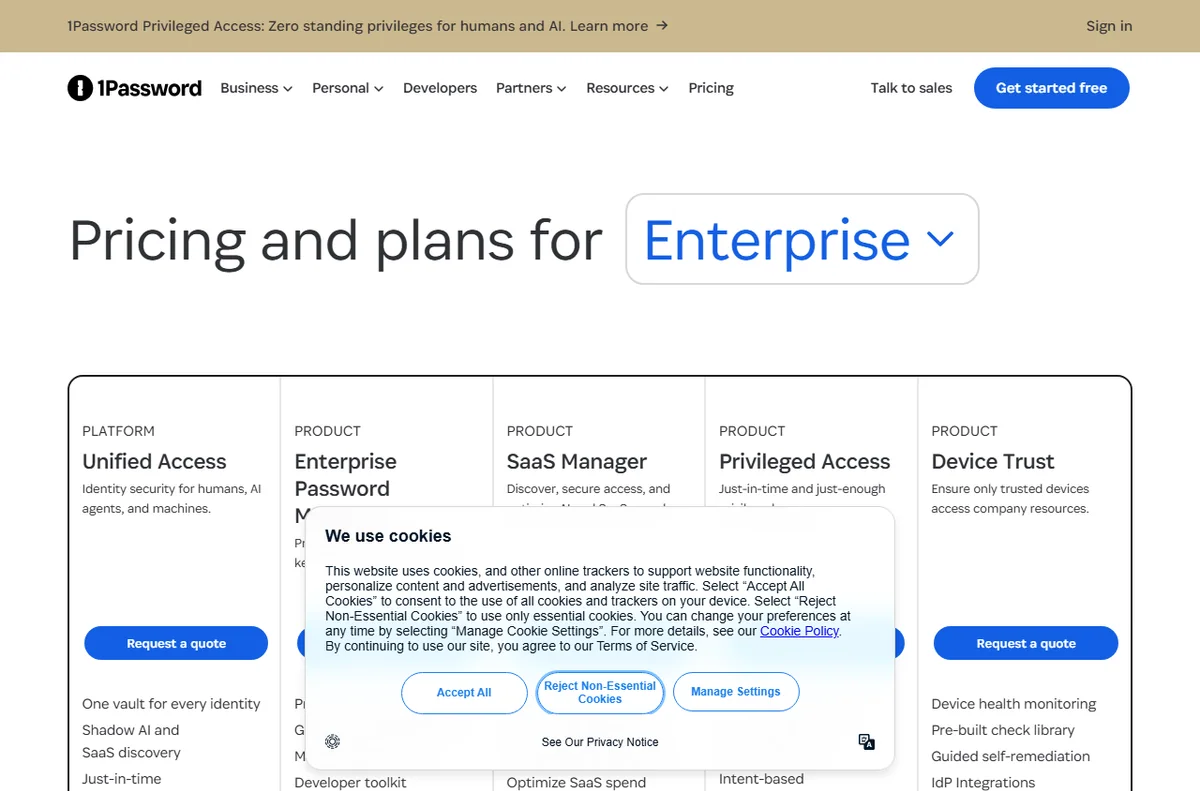
    1Password homepage for password and secrets management
    1Password official homepage (image: 1password.com)

    TL;DR

    • An item that will not fill is usually a mismatch between the saved address and the page.
    • Sync problems are about the account, not the device.
    • Sharing goes wrong when the wrong vault or person is chosen.
    • Recovery depends on the emergency kit you saved.
    • Check the exact step that failed before you reset anything.

    On this page: Why things go wrong · Vault will not unlock · Items do not fill · Items do not sync · Sharing does not work · Account or recovery · Symptom to fix · Where this fits

    Why things go wrong

    A password manager depends on a few moving parts: your account, the devices that hold a copy of the vault, and the sites you are signing into. Most problems sit at one of those, and the app usually names the step that failed.

    The useful habit is to check whether the problem follows the account or only one device.
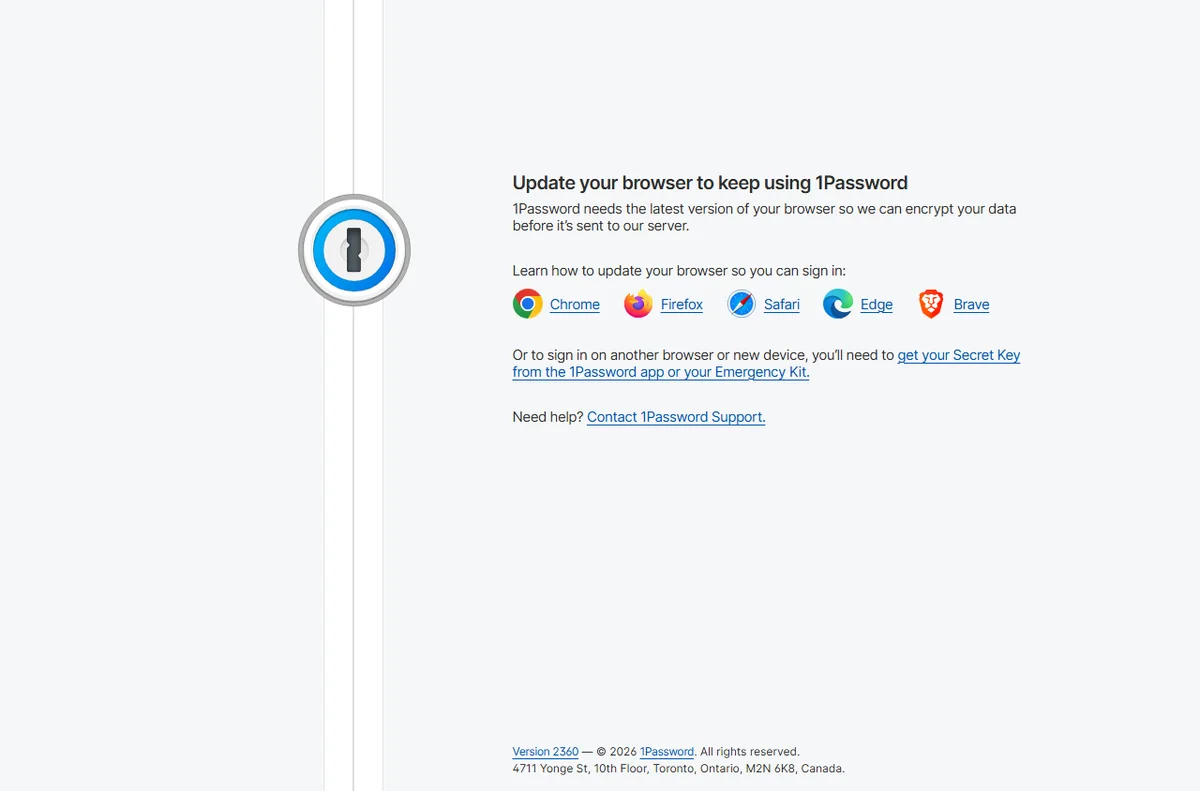
    1Password sign-in screen for unlocking your account
    1Password sign-in (image: 1password.com)

    A vault will not unlock

    An unlock failure is usually about the credential, not the data. A typo in the master password, a missing secret key, or a device that has been locked out after too many attempts are the common causes.

    Check that you are entering the credential for the right account, that the secret key matches, and that the keyboard or clipboard is not adding an invisible character. If the account uses a passkey or biometric unlock, fall back to the password method.

    Items do not fill

    Autofill fails when the saved website address does not match the page you are on, when the extension is not active, or when the field is inside a frame the app cannot see.

    • Confirm the address saved on the item matches the site exactly, including any subdomain.
    • Check the browser extension is installed and signed in.
    • Try copying the password from the app to rule out a fill problem.
    • Some sites block autofill on purpose; use their own flow where required.
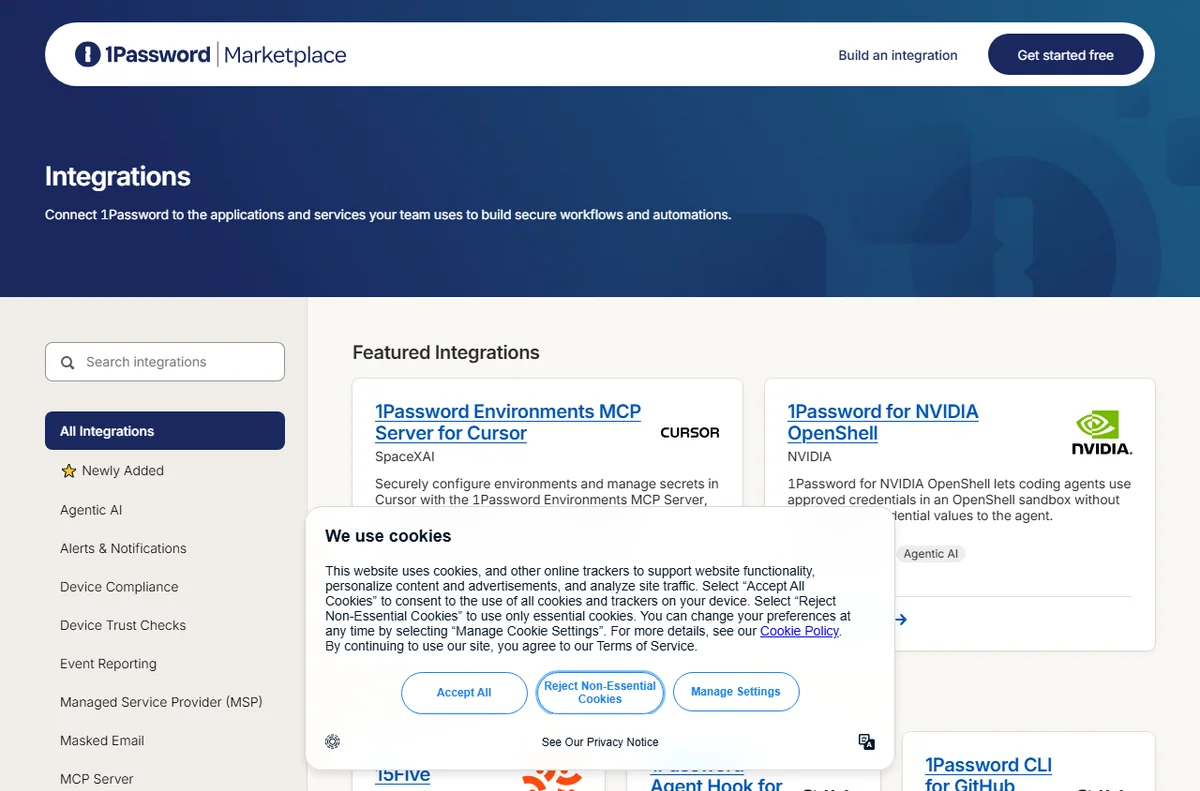
    1Password integrations page with supported apps
    1Password integrations (image: 1password.com)

    Items do not sync

    When an item is missing on one device, the cause is usually the account or the network rather than the item itself. Offline edits sit in a queue until the device connects again.

    Confirm every device is signed into the same account, that the device has been online, and that the vault is not marked as local only.

    Sharing does not work

    Sharing problems come from where an item lives and who was invited. You share a vault, not a single item, so the recipient must be in the vault that contains the item.

    Check that the item is in the shared vault rather than a personal one, that the invite was accepted, and that the guest has the right permission level. Move the item into the shared vault.
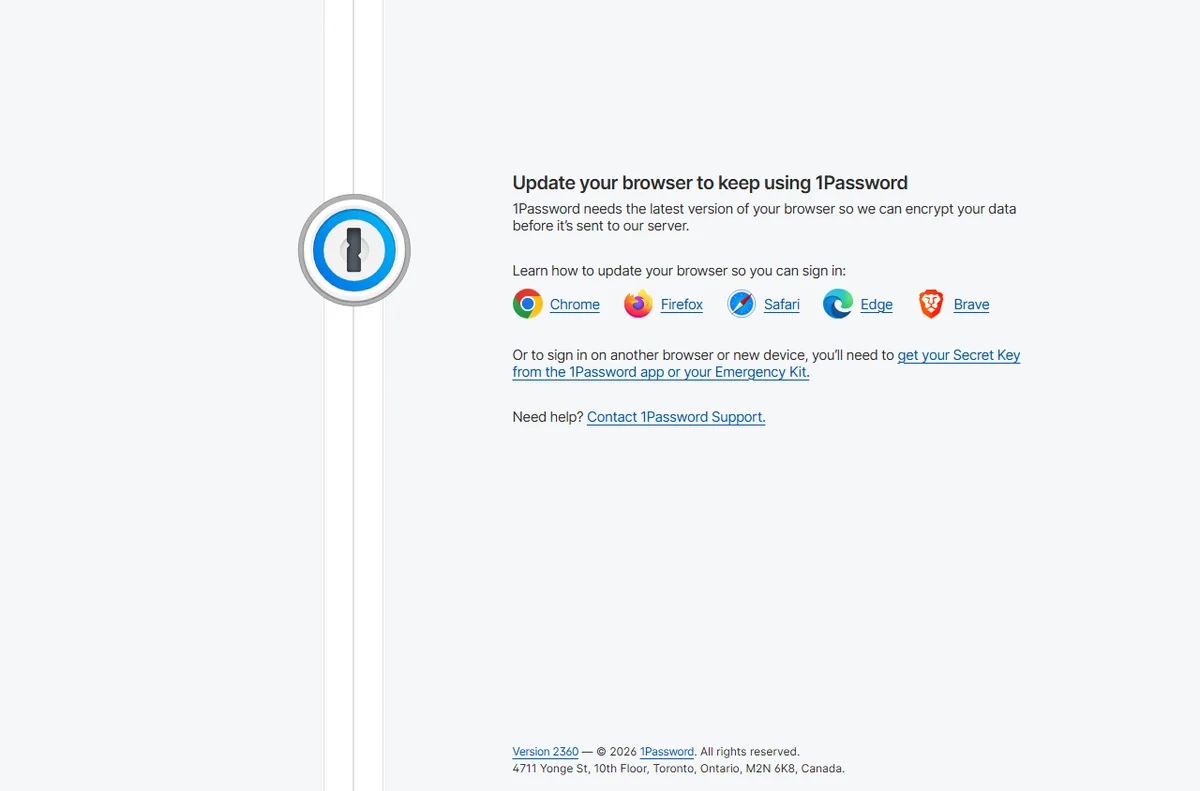
    1Password account creation screen
    1Password account creation (image: 1password.com)

    Account or recovery problems

    Recovery and billing issues sit with the company rather than the app. A forgotten secret key or a lapsed subscription can lock you out of features even when the vault still opens.

    Check the account status and billing page, confirm the emergency kit is stored safely, and contact support with your account details. Recovery without the emergency kit may not be possible by design.

    Symptom to fix

    SymptomLikely causeFix
    Vault will not unlockWrong password, secret key or lockoutRe-enter credentials and use a fallback
    Item will not fillAddress mismatch or extension inactiveMatch the address and check the extension
    Item missing on a deviceAccount or sync issueConfirm the account and go online
    Shared item not visibleItem is in a personal vaultMove it into the shared vault
    Locked out of accountRecovery or billing issueUse the emergency kit and contact support
    General guidance, checked October 9, 2026. Confirm specifics inside your 1Password account.
    1Password pricing page with individual and team plans
    1Password pricing and plans (image: 1password.com)

    Where this fits

    Start with the security and privacy hub. For the basics read what 1Password is, and for the setup steps see how to set up 1Password.

    Frequently asked

    Is my data lost if the vault will not unlock?

    No. The data is still stored; you need the correct credentials or the recovery path you set up to open it again.

    Why does autofill work on one browser but not another?

    The extension is usually installed and signed in on one browser only. Install and sign in on the browser you are using.

    Can support reset my master password?

    Not if the account is encrypted end to end. They can help with account and billing issues, but they cannot decrypt your vault.

    Do I need to reinstall to fix sync?

    Rarely. Check the account, the network and the vault type first.

    1Password for business page for teams
    1Password for business (image: 1password.com)

    Get back into your vault

    Unlock, fill and sync again.

    Some links on this page may be referral links — we may earn a reward if you sign up, at no extra cost to you. We are an independent publisher. See our Affiliate Disclosure.
    Related reading

  • What is 1Password?

    What is 1Password?

    Home / Security & Privacy / Guides / What is 1Password

    Knowledge · security & privacy · updated October 9, 2026

    What is 1Password?

    1Password is a password manager that stores your logins, passkeys and other secrets in encrypted vaults and fills them in for you. This guide explains what it does, how it is organised, and what it is not.

    Independent analysis. This page may contain affiliate links. If you sign up through a link on this page we may earn a reward at no extra cost to you, and it never changes what we recommend. We are an independent publisher and are not affiliated with, endorsed by, or an official partner of any tool mentioned. See our Affiliate Disclosure.

    TL;DR

    • 1Password stores logins, passkeys and secure notes in encrypted vaults.
    • It is organised around vaults, items and the account that holds them.
    • It is aimed at individuals, families and teams who want one secure place for credentials.
    • Apps exist for browsers and phones, and they sync through your account.
    • It is not a free tool, and it is not a VPN or antivirus.

    On this page: What 1Password is · How it is organised · What it is good at · What it is not · Concept cheat sheet · Where this fits

    1password home page
    1password home (image: 1password.com)

    What 1Password is

    1Password is a subscription password manager. It keeps your credentials in an encrypted vault protected by a single master password, and it fills them into websites and apps so you do not reuse weak passwords.

    The premise is simple: remember one strong credential, and let the app remember the rest. Because the vault is encrypted end to end, the company that runs the service cannot read what is inside it.

    It is a product you install rather than a service that lives only on one website, which is why the browser extension and the phone app matter as much as the web vault.

    1password business page
    1password business (image: 1password.com)

    How 1Password is organised

    Everything lives in a vault. A vault is a container for items, and you can keep a personal vault separate from a shared one for work.

    An item is one entry: a login, a credit card, a secure note or a document. Items hold fields, and 1Password can generate, save and fill those fields for you.

    Accounts and teams sit above vaults. A family or business account holds several people, and access is granted by sharing a vault rather than an individual item.

    1password downloads page
    1password downloads (image: 1password.com)

    What 1Password is good at

    • Keeping unique, strong passwords without memorising them.
    • Sharing a login, card or note with family or teammates securely.
    • Storing passkeys and one-time codes alongside your passwords.
    • Working across browsers, phones and desktops from one account.
    1password features page
    1password features (image: 1password.com)

    What 1Password is not

    • Not free of charge: it is a paid subscription, so check the current pricing before you commit.
    • Not a VPN, an antivirus or an identity-theft monitoring service.
    • Not a substitute for good habits, like keeping an emergency kit somewhere safe.
    • Not recoverable if you lose the master password and the recovery material you saved.

    Concept cheat sheet

    ConceptMeaningWhy it matters
    VaultA container for related itemsDecides what is shared and with whom
    ItemOne saved entry such as a loginThe unit you fill and edit
    Master passwordThe key to your accountThe one secret you must remember
    Secret keyA second part of your sign-inCombined with the password to unlock
    PasskeyA passwordless sign-in credentialStored and filled like a login
    Based on publicly documented behaviour, checked October 9, 2026.
    1password integrations page
    1password integrations (image: 1password.com)

    Where this fits

    Start with the security and privacy hub and the best password managers for small business. For the practical steps see how to set up 1Password, and for everyday usage read how to use 1Password for a small business.

    1password login page
    1password login (image: 1password.com)

    Frequently asked

    Is 1Password only for businesses?

    No. It is used by individuals and families as well as teams; the plan you pick decides how many people and vaults you get.

    Do I need to install anything?

    You can use the web vault on its own, but most people install the browser extension and the phone app so it can autofill for them.

    What happens if I forget my master password?

    Recovery depends on the settings you chose. Plan for it by storing an emergency kit somewhere safe, because the data cannot be decrypted without it.

    Does 1Password work offline?

    The apps keep encrypted copies locally, so you can still read and fill saved items when you have no connection.

    Is there a free plan?

    1Password is a paid product with a trial rather than a permanent free tier. Plans change, so check the current options on 1Password’s own site.

    Keep your logins in one secure place

    Vaults, passkeys and sharing from one account.

    Some links on this page may be referral links — we may earn a reward if you sign up, at no extra cost to you. We are an independent publisher. See our Affiliate Disclosure.

    Related reading

  • How to Use 1Password for a Small Business

    How to Use 1Password for a Small Business

    Home / Security & Privacy / Guides / How to use 1Password for a small business

    Use case · security & privacy · updated October 8, 2026

    How to use 1Password for a small business

    For a small business, the value of 1Password is not the encrypted database itself but the routine it creates: people share access through vaults instead of pasting passwords into chat, and access disappears cleanly when someone leaves.

    1Password home for password and secrets management
    1Password official homepage (image: 1password.com)

    Independent analysis. This page may contain affiliate links. Some links here are referral links; if you sign up through one we may earn a reward at no extra cost to you, and it never changes what we recommend. We are an independent publisher and are not affiliated with, endorsed by, or an official partner of any tool mentioned. See our Affiliate Disclosure.

    TL;DR

    • Shared vaults replace passwords sent over chat.
    • Onboarding is faster when access is granted by vault.
    • Offboarding must remove access in one pass.
    • Safe sharing covers one-off secrets, not just logins.
    • Recovery access should be planned, not improvised.

    On this page: What this covers · Shared vaults for shared work · Onboarding new people · Offboarding cleanly · Sharing secrets safely · Recovery and break-glass access · Where to start · Where this fits in your wider stack

    What this covers

    Most small businesses adopt a password manager to stop the same three habits: passwords sent over chat, one login shared by several people, and no clear record of who can reach what.

    This guide focuses on the routines that fix those habits, using 1Password as the example. It steers clear of quoting plan prices or trial terms, since those belong on the official pricing page.

    1Password password manager product page explaining shared vaults
    1Password features (image: 1password.com)

    Shared vaults for shared work

    The core habit is simple: anything more than one person needs goes into a shared vault rather than a private one. That way access is granted once and updated in one place.

    Keep the number of vaults small and meaningful. A team vault plus a couple of role-specific vaults is usually enough; a vault per project quickly becomes a maze nobody can audit.

    1Password sign-up page used to add people to the account
    1Password sign-up (image: 1password.com)

    Onboarding new people

    When access is organised by vault, onboarding becomes a short checklist rather than a scavenger hunt. You invite the person, add them to the vaults their role needs, and they start from day one.

    Pair the invite with a brief note on expectations: use the manager for every logins, turn on two-factor, and ask for access instead of borrowing it. Setting that tone early saves cleanup later.

    1Password business page covering team accounts and permissions
    1Password for business (image: 1password.com)

    Offboarding cleanly

    Offboarding is where password managers prove their worth, because access is revoked in one place. Remove the person from the account or the relevant vaults, then rotate anything sensitive they could have copied.

    Do not skip rotation for high-value logins such as banking or infrastructure. Leaving a known credential in place after someone leaves is the kind of gap that only shows up in an incident review.

    1Password Marketplace of integrations for secure sharing
    1Password integrations (image: 1password.com)

    Sharing secrets safely

    Not every secret is a login. API keys, Wi-Fi codes and recovery phrases also need a home, and secure notes keep them out of email and chat threads.

    For one-off sharing with someone outside the account, use a link that expires rather than a permanent item. Time-limited sharing matches the way a short-term contractor relationship actually works.

    1Password app sign-in page
    1Password app sign-in (image: 1password.com)

    Recovery and break-glass access

    A password manager becomes a single point of failure if nobody can get in when the wrong person is unavailable. Plan the recovery path before you need it.

    Decide who holds emergency access, where the recovery details live, and how often you verify they still work. A recovery plan nobody has tested is a comforting idea, not a safeguard.

    1Password pricing page with plan tiers
    1Password pricing (image: 1password.com)

    Where to start

    New teams do not need every feature immediately. Use the table below to pick the first routines that match your situation.

    Situation Routine to set up first Why it matters
    Two to five peopleOne shared team vaultReplaces passwords sent over chat
    Frequent hiringAccess by role, not by personOnboarding becomes a checklist
    ContractorsTime-limited sharing linksAccess expires without manual cleanup
    Regulated workTested recovery accessKeeps an audit trail intact
    Owner-run businessA written recovery planAvoids a lockout nobody else can fix
    Based on publicly documented behaviour, checked October 8, 2026.
    1Password downloads page for installing the app
    1Password downloads (image: 1password.com)

    Where this fits in your wider stack

    To choose the right tool for a team, read the 1Password vs Bitwarden comparison, then compare the field in the best password managers for small business. Broaden the picture with the best security tools for small business, and if your team works remotely, add the best VPN for small business to the shortlist.

    Frequently asked

    How is a shared vault better than a shared login?

    A shared vault lets each person keep their own account while granting access to the same items. A shared login means one credential known to many people and no clear audit trail.

    What should I check when someone leaves?

    Remove them from the account and relevant vaults, then rotate any high-value credentials they could have saved or copied.

    Can I share a secret with someone outside the team?

    Yes. Use a time-limited share for outside parties so the access expires on its own instead of lingering indefinitely.

    Do we really need a recovery plan?

    Yes. Without one, the manager can lock the whole team out when a single keyholder is unavailable. Test the plan so it works when it matters.

    Use 1Password across your team

    Set up a shared vault and make access a routine rather than an exception.

    Referral link — we may earn a reward if you sign up, at no extra cost to you. We are an independent publisher. See our Affiliate Disclosure.

  • How to Set Up 1Password: Teams and Vaults, Step by Step

    How to Set Up 1Password: Teams and Vaults, Step by Step

    Home / Security & Privacy / Guides / How to set up 1Password

    Tutorial · security & privacy · updated October 8, 2026

    How to set up 1Password: a practical walkthrough

    A password manager only pays off once the whole team actually uses it, and that starts with a clean setup. This walkthrough takes a 1Password account from creation to a first shared vault, then shows how to bring people in without losing control of who can see what.

    1Password home for password and secrets management
    1Password official homepage (image: 1password.com)

    Independent analysis. This page may contain affiliate links. Some links here are referral links; if you sign up through one we may earn a reward at no extra cost to you, and it never changes what we recommend. We are an independent publisher and are not affiliated with, endorsed by, or an official partner of any tool mentioned. See our Affiliate Disclosure.

    TL;DR

    • Create the account with a strong master password you can recover.
    • Start with a small number of vaults, not one per person.
    • Install the browser and mobile apps before inviting anyone.
    • Invite the team and set permissions by vault, not by habit.
    • Turn on two-factor and agree a shared security baseline.

    On this page: What this covers · Before you start · Step 1 — Create the account and choose a plan · Step 2 — Build your first vaults · Step 3 — Install apps and save a first login · Step 4 — Invite the team and set permissions · Step 5 — Enforce good hygiene · Choosing the right plan shape · Where this fits in your wider stack

    What this covers

    1Password stores logins, keys and secure notes behind one strong master password, and it is built for teams as much as individuals. The setup is not difficult, but the choices you make early about vaults and permissions shape everything that follows.

    This guide follows a business setup in order. It avoids quoting plan prices or trial lengths, since those are best confirmed on the official pricing page.

    Before you start

    • A recovery plan for your master password, so a forgotten login does not lock you out.
    • A list of the logins and shared secrets the team reaches for most often.
    • A short agreement on who owns which accounts and who should see them.
    • The email addresses of anyone who will be invited.
    • A device with a modern browser and, ideally, a phone for two-factor.
    1Password sign-up entry for creating an account
    1Password sign-up (image: 1password.com)

    Step 1 — Create the account and choose a plan

    Create the account with an email you control and set a master password that is long and unique. This one password protects everything else, so it deserves more care than any other login you own.

    Store the emergency kit or recovery details somewhere safe and offline. If the account covers a team, decide now whether you need individual or team-based billing, because changing that later touches every user.

    1Password password manager product page explaining vaults
    1Password features (image: 1password.com)

    Step 2 — Build your first vaults

    Vaults are the unit of access control in 1Password, so they do the heavy lifting for permissions. A common mistake is creating a vault per person; a better starting point is a small set organised by function.

    Create a private vault for each person plus a shared vault for the team, then add a separate vault only when a group genuinely needs its own boundary, such as finance or contractors.

    1Password downloads page for installing the app
    1Password downloads (image: 1password.com)

    Step 3 — Install apps and save a first login

    Install the desktop and mobile apps and sign in so the vault syncs across devices. The browser extension is the piece that turns the manager from a filing cabinet into a habit, so add it early.

    Save one real login as a test. Watch how it fills, then confirm it works on a second device. That single loop teaches the whole workflow better than any amount of reading.

    1Password business page for team access and permissions
    1Password for business (image: 1password.com)

    Step 4 — Invite the team and set permissions

    Invite people by email and decide their access vault by vault. Most team members need read access to shared vaults, while a small number need permission to manage them.

    Resist the urge to give everyone full access for convenience. Tight defaults with a clear way to request more access keeps the audit trail meaningful and the blast radius small.

    1Password app sign-in page for daily use
    1Password app sign-in (image: 1password.com)

    Step 5 — Enforce good hygiene

    Setup is not finished until habits are. Turn on two-factor authentication for the account itself, and encourage it for the logins stored inside.

    Agree a short baseline: unique passwords everywhere, no shared logins sent over chat, and a review when someone leaves. Writing it down makes it enforceable rather than aspirational.

    1Password pricing page with plan tiers
    1Password pricing (image: 1password.com)

    Choosing the right plan shape

    The plan question comes down to who needs their own account and how much control you want over access. Use the table below as a starting point.

    Plan shape Who it suits Watch out for
    Single userA founder or freelancer working aloneHard to hand over if the team grows quickly
    Small teamA few people sharing a handful of vaultsDecide vault ownership before you invite anyone
    Team with rolesGroups with different access needsOver-complicated vaults if you plan too finely
    Mixed contractorsStaff plus external helpersMake sure offboarding is quick and complete
    Based on publicly documented behaviour, checked October 8, 2026.
    1Password Marketplace of integrations
    1Password integrations (image: 1password.com)

    Where this fits in your wider stack

    A password manager is one layer of a sensible security setup. Weigh the alternatives in the 1Password vs Bitwarden comparison, then look at the best password managers for small business and the broader best security tools for small business. If remote work is part of your setup, the best VPN for small business is the natural next read.

    Frequently asked

    What happens if I forget my master password?

    Recovery depends on the details you saved at setup, such as the emergency kit. Store them offline and somewhere you will still find them months later.

    Should every person get their own vault?

    Everyone gets a private vault, but shared access should live in a small number of team vaults so permissions stay easy to reason about.

    Do I need two-factor authentication if I use a password manager?

    Yes. Two-factor on the account itself protects the vault, and it is worth enabling for the important logins stored inside as well.

    How many vaults should a small team start with?

    Start with a private vault per person and one shared team vault. Add more only when a group genuinely needs its own boundary.

    Set up 1Password for your team

    Create the account, build your first vaults and invite people with the right access.

    Referral link — we may earn a reward if you sign up, at no extra cost to you. We are an independent publisher. See our Affiliate Disclosure.