Home / Payments / Guides / How to set up PayPal
Tutorial · payments · updated October 8, 2026
How to set up PayPal: a practical walkthrough
Setting up PayPal is mostly a matter of picking the right account type, finishing verification and connecting the account to how you already sell. The steps are short, but the order matters, so this walkthrough takes them one at a time.
Independent analysis. This page may contain affiliate links. Some links here are referral links; if you sign up through one we may earn a reward at no extra cost to you, and it never changes what we recommend. We are an independent publisher and are not affiliated with, endorsed by, or an official partner of any tool mentioned. See our Affiliate Disclosure.
TL;DR
- Choose a business account from the start if you sell at all.
- Verification is what unlocks receiving and withdrawing money.
- Connect PayPal to your checkout, invoices or in-person sales.
- Run one small live test payment before you announce anything.
- Skip pricing questions for now; check the official pricing page.
On this page: What this covers · Before you start · Step 1 — Choose the right account type · Step 2 — Open and upgrade the account · Step 3 — Verify identity and bank details · Step 4 — Connect PayPal to how you sell · Step 5 — Take a first test payment · Choosing your setup path · Where this fits in your wider stack
What this covers
PayPal is one of the most widely recognised ways to send and receive money online, and for a small business it doubles as a checkout option and an invoicing tool. The setup itself is quick, but the order of the steps matters: get the account type right, then verify, then connect payments.
This guide walks through a business account setup end to end. It does not quote prices or plan limits, because those change; check the official pricing page for current figures before you commit.
Before you start
- Your legal business details exactly as they appear on official records.
- A business email address you intend to keep long term.
- A bank account and, where relevant, a card for verification.
- A rough idea of where you sell: your own site, a marketplace, invoices or in person.
- Ten quiet minutes, because verification may ask for document uploads.

Step 1 — Choose the right account type
PayPal separates personal and business accounts. A personal account is fine for occasional purchases, but it lacks the business tooling: invoicing, multiple users and the ability to trade under a business name.
If you sell at all, start with a business account. It takes slightly longer to open, but converting later is more disruptive than choosing correctly now.
Step 2 — Open and upgrade the account
- Create the account with your business email and a strong, unique password.
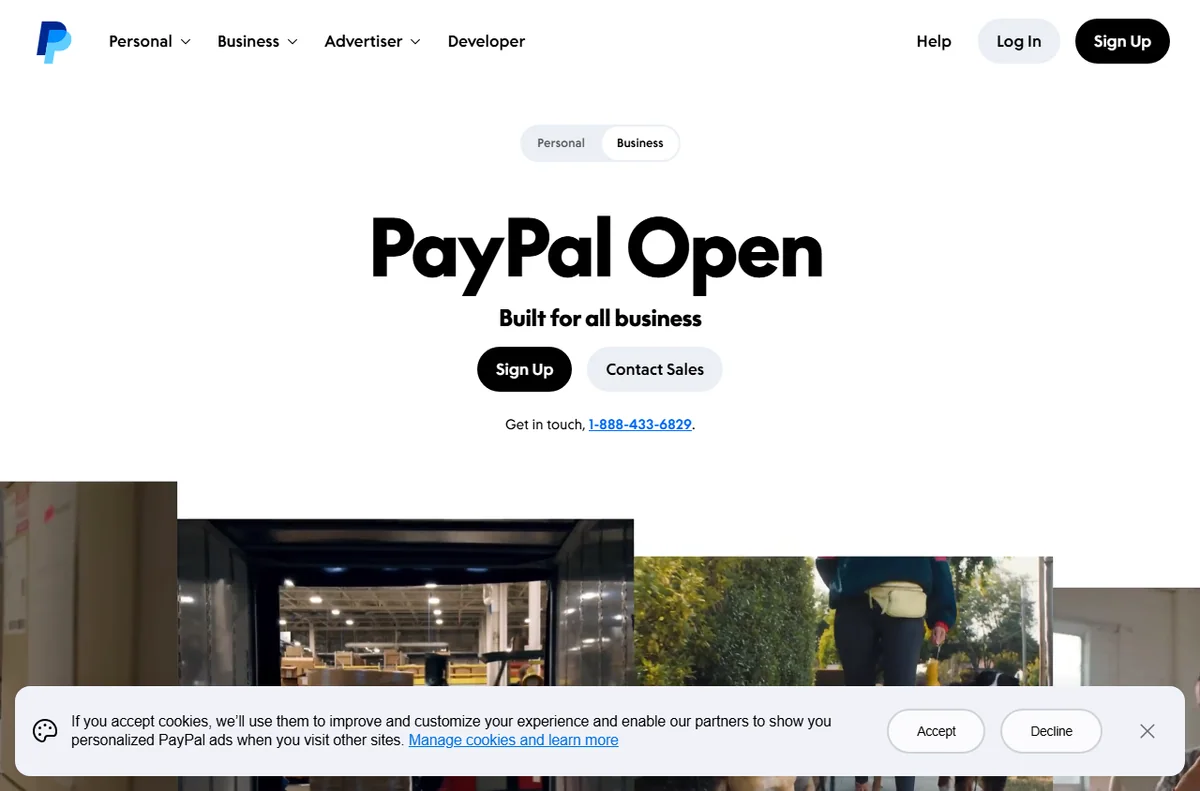
- Choose the business account option during signup, or upgrade an existing personal account from the settings area.
- Enter the legal business name, address and type so they match your registration documents.
- Add a contact number you actually answer, since it may be used for verification.

Step 3 — Verify identity and bank details
Verification is what turns a limited account into one that can hold and withdraw money. Expect to confirm your email, add a bank account and, in most cases, upload identity documents for the account owner.
Business accounts often require additional proof such as a registration document. Submit clear, uncropped images the first time; rejected documents are the most common cause of delay.

Step 4 — Connect PayPal to how you sell
With verification under way, connect PayPal to your selling channels. The exact buttons differ, but the categories are the same.
- Website checkout: add a payment button or a gateway integration to your store.
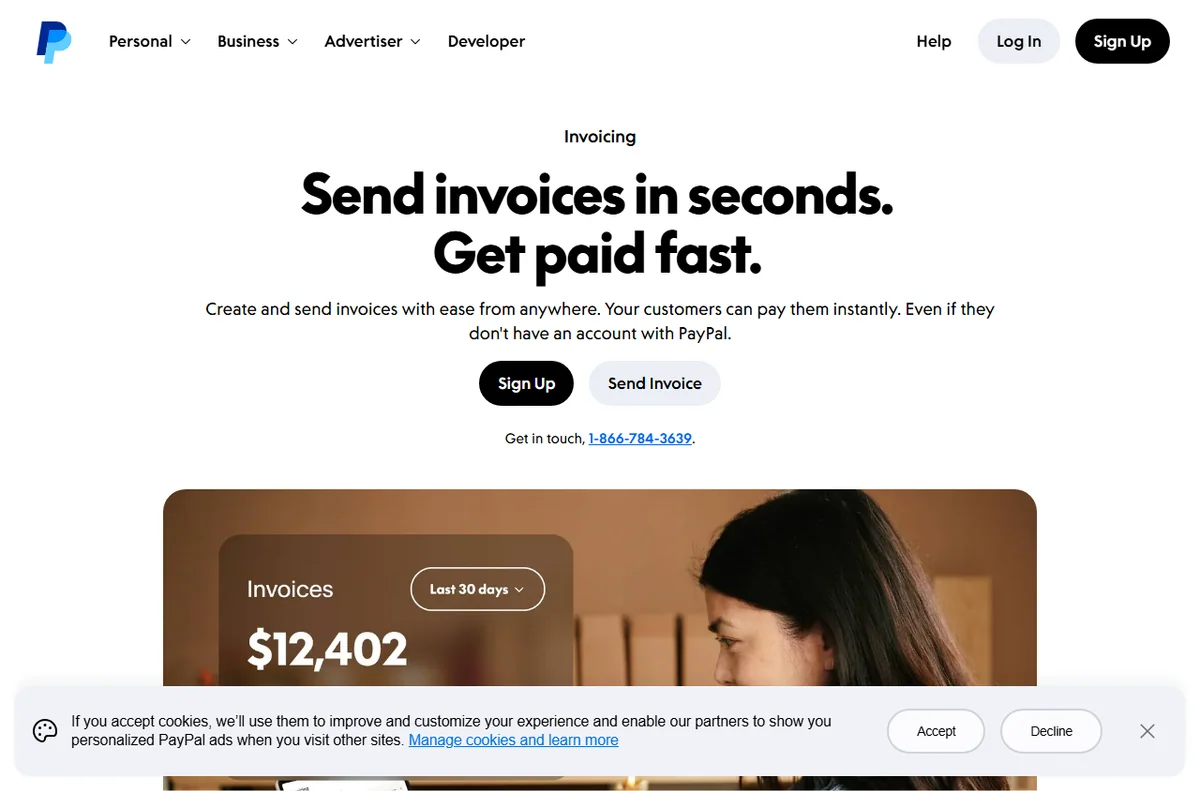
- Invoices: send a payable invoice by email and track its status.
- In person: use a card reader or QR code where PayPal supports it in your region.
- Marketplaces: link the account where the platform pays sellers through PayPal.
Step 5 — Take a first test payment
Before announcing anything, run a small live test. Buy something from your own store with a different account, confirm the money arrives, then refund it.
This single test surfaces the problems that matter: wrong currency, missing tax settings, a broken return URL. Fixing them now is cheaper than fixing them after a customer hits them.

Choosing your setup path
Most small businesses fall into one of a few patterns. Find the row that matches your situation and start there.
| Situation Suggested approach Why | ||
|---|---|---|
| Occasional sales, one person | Business account, single user | Keeps reporting simple while still allowing a business name |
| Selling on your own website | Business account plus a gateway integration | Gives a familiar checkout option alongside cards |
| Invoice-based services | Business account with invoicing | Tracking and reminders are built in |
| Growing team | Business account with multiple users | Avoids sharing one login between people |
Where this fits in your wider stack
If you are still choosing between providers, start with the independent Wise vs PayPal comparison, then browse the wider payments hub. For a fuller view of the alternatives, weigh the best payment gateways for small business and the best money transfer services before you settle on a primary account.
Frequently asked
Do I need a business account to sell?
If you sell regularly, yes. A business account unlocks invoicing, multiple users and a business name, and it avoids the disruption of converting a busy personal account later.
How long does verification take?
It depends on how quickly you supply documents and how clearly they scan. Submitting correct, uncropped files the first time is the single biggest factor you control.
Can I use PayPal and another provider together?
Yes. Many small businesses keep PayPal alongside a card gateway so buyers can choose the method they already trust.
What should I check before going live?
Confirm the currency, tax settings and return URLs with one small test payment, then refund it. That test catches the mistakes customers would otherwise find.
Ready to take payments with PayPal
Open a business account and work through the steps above at your own pace.
Referral link — we may earn a reward if you sign up, at no extra cost to you. We are an independent publisher. See our Affiliate Disclosure.
Leave a Reply