
Home / Security & Privacy / Guides / How to set up Surfshark
Tutorial · security & privacy · updated October 8, 2026
How to set up Surfshark: a practical walkthrough
Setting up a VPN for a small team is mostly a matter of order: pick the plan, install the apps, connect, then tighten the settings you actually care about. This walkthrough covers a standard Surfshark setup from first login to a working rollout across a handful of devices, and it assumes no technical background.
Independent analysis. This page may contain affiliate links. Some links here are referral links; if you sign up through one we may earn a reward at no extra cost to you, and it never changes what we recommend. We are an independent publisher and are not affiliated with, endorsed by, or an official partner of any tool mentioned. See our Affiliate Disclosure.
TL;DR
- Create your account on the official site and pick the plan that matches how many devices you need to cover.
- Install the app on each device, then sign in with the same account.
- Connect, confirm the IP and DNS have changed, then switch on the settings that matter for your team.
- Use the account dashboard to keep an eye on connected devices instead of checking them one by one.
- Check the official pricing page for current plans, device limits and billing terms.
On this page: What this covers · Before you start · Choosing a plan · Step 1 — Create your account · Step 2 — Install on your devices · Step 3 — Connect and verify · Step 4 — Turn on the features that matter · Step 5 — Roll it out to a team · Where this fits in your wider stack
What this covers
This guide walks through a normal Surfshark setup end to end: choosing a plan, creating the account, installing the app on each device, connecting, and confirming that the connection is really doing what you expect. It then covers the handful of settings that carry most of the value for a small team.
The order matters more than the speed. If you install first and plan later, you end up re-installing apps and re-sharing logins. Read the whole page once, then work through it.
Before you start
- A list of the devices and operating systems you intend to cover.
- Logins for the people who will use the account, or one trusted owner if you are setting it up on their behalf.
- A few minutes per device for downloading and installing the app.
- Your password manager, so the account login is stored rather than reused.
- Access to your usual network details, in case a service needs to be excluded later.

Choosing a plan
Surfshark keeps its lineup fairly simple, and the right choice comes down to how many devices and people you are protecting. Terms and device allowances change, so check the official pricing page for the current options before you commit.
| Option What it means Choose it when | ||
|---|---|---|
| Single account | One login used across your own devices. | One person manages everything and the team is very small. |
| Higher device allowance | More simultaneous connections to share with staff. | Several people need to be online at the same time. |
| Longer billing term | A lower effective monthly rate across a longer commitment. | You expect to keep the service and want fewer renewal decisions. |
Step 1 — Create your account
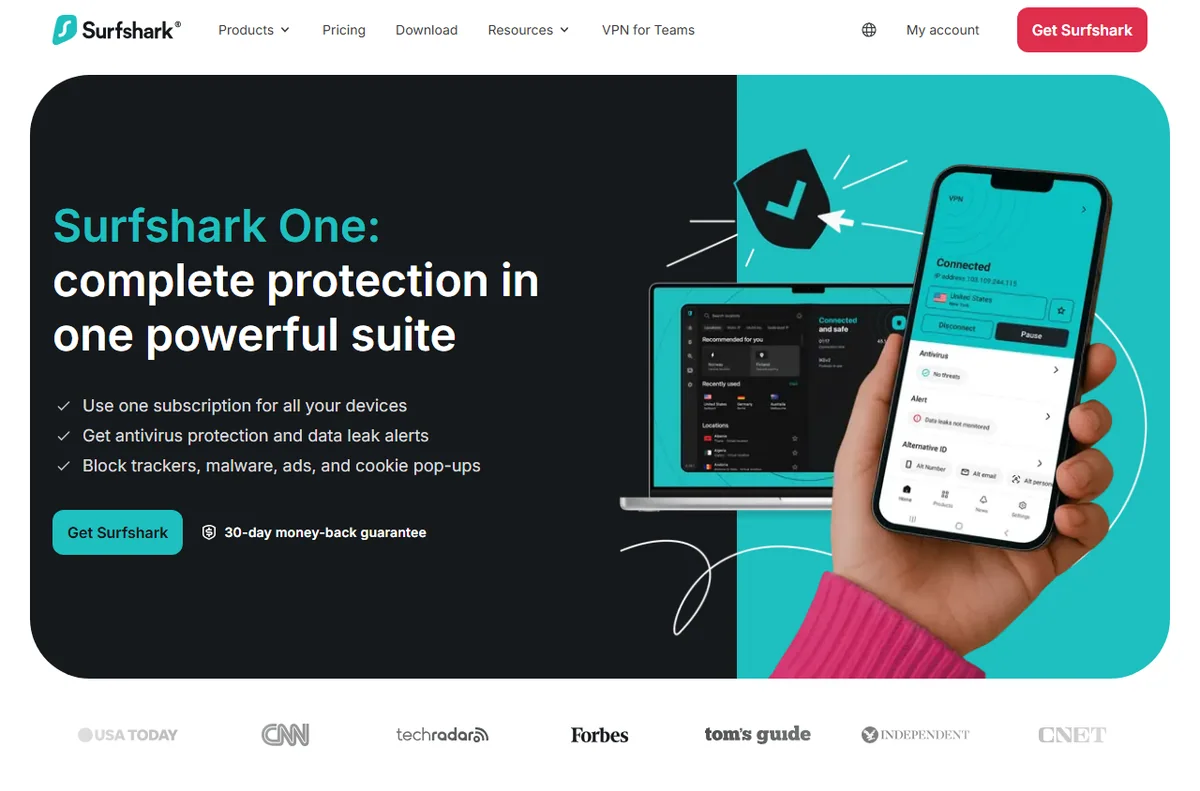
- Go to the official Surfshark site and choose a plan.
- Create an account with an email address you control and will keep.
- Confirm the email, then save the login in your password manager.
- Note the renewal date and price somewhere you will find it again before it renews.
Step 2 — Install on your devices
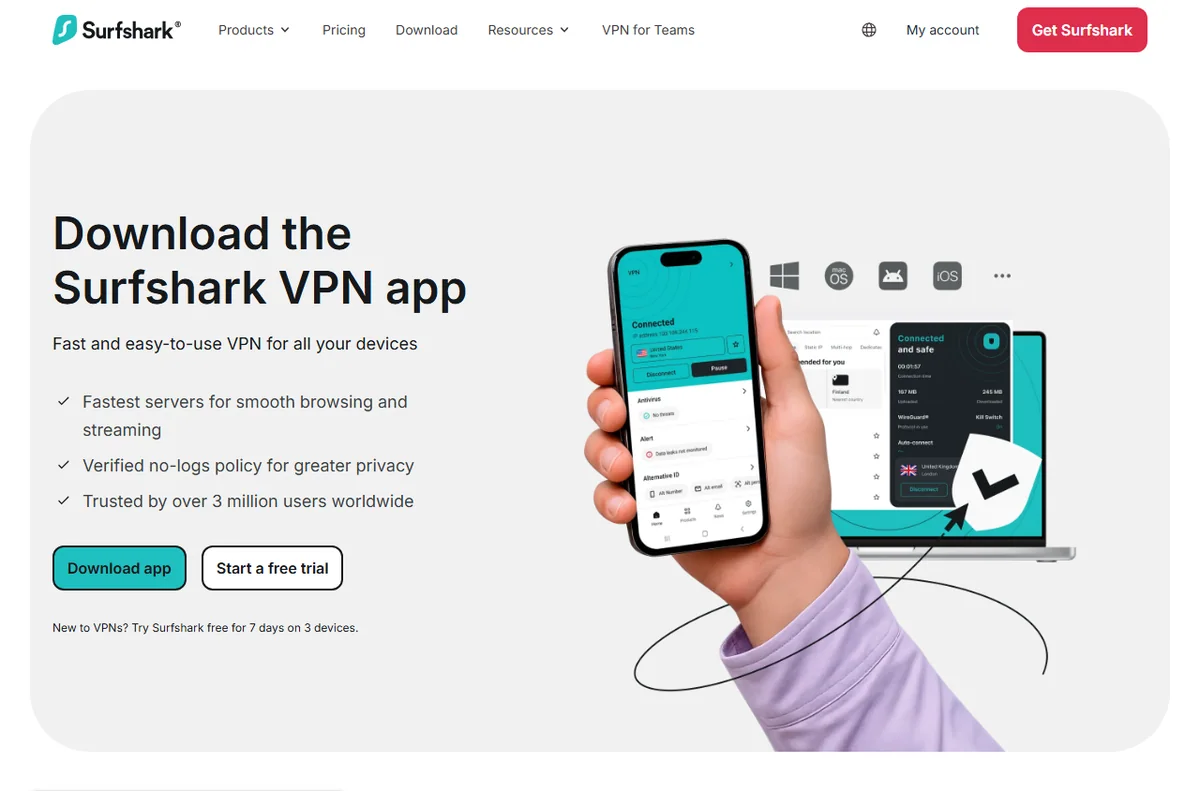
- Download the app for each operating system from the official downloads page.
- Install it and sign in with the account you just created.
- Repeat on phones, laptops and any other devices the team uses.
- Check how many simultaneous connections your plan allows before adding more.
Step 3 — Connect and verify
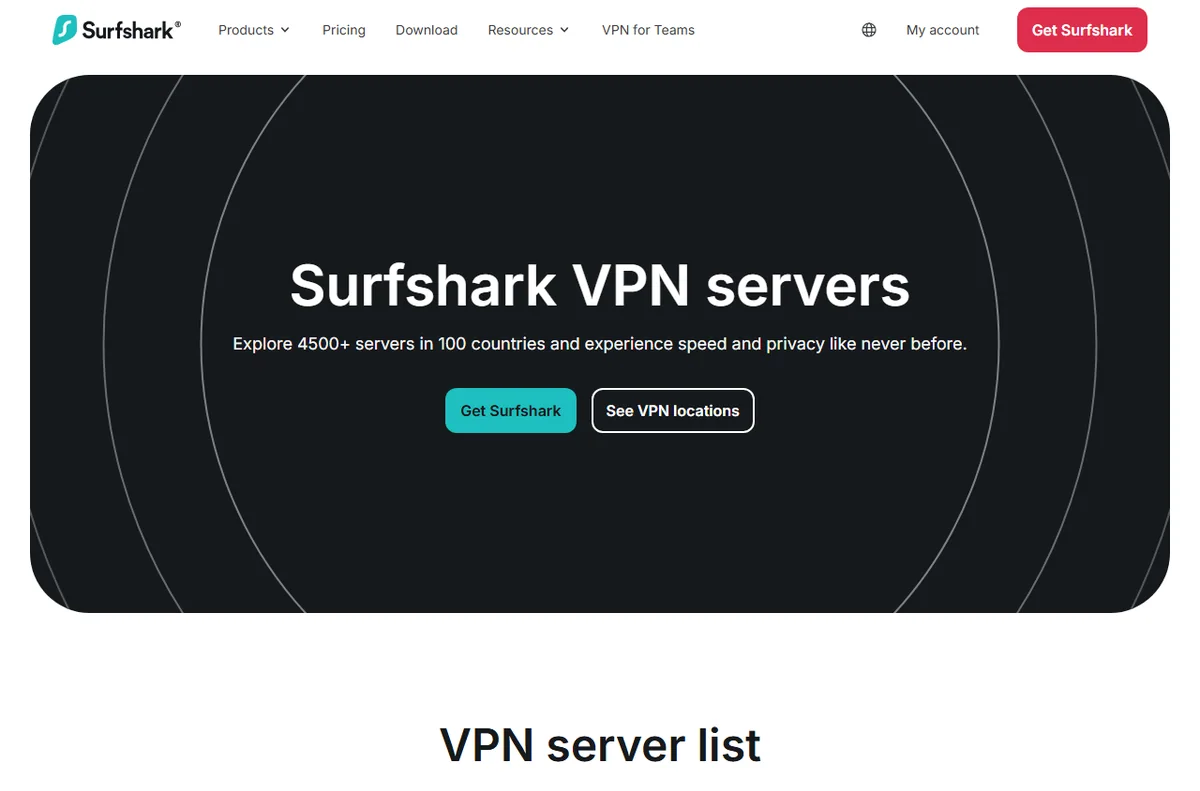
- Open the app and choose a server location, starting with one nearby for speed.
- Connect and wait until the status clearly shows as active.
- Check your visible IP address in a search engine to confirm it has changed.
- Run a DNS leak test and confirm your real network details are not showing.
Step 4 — Turn on the features that matter
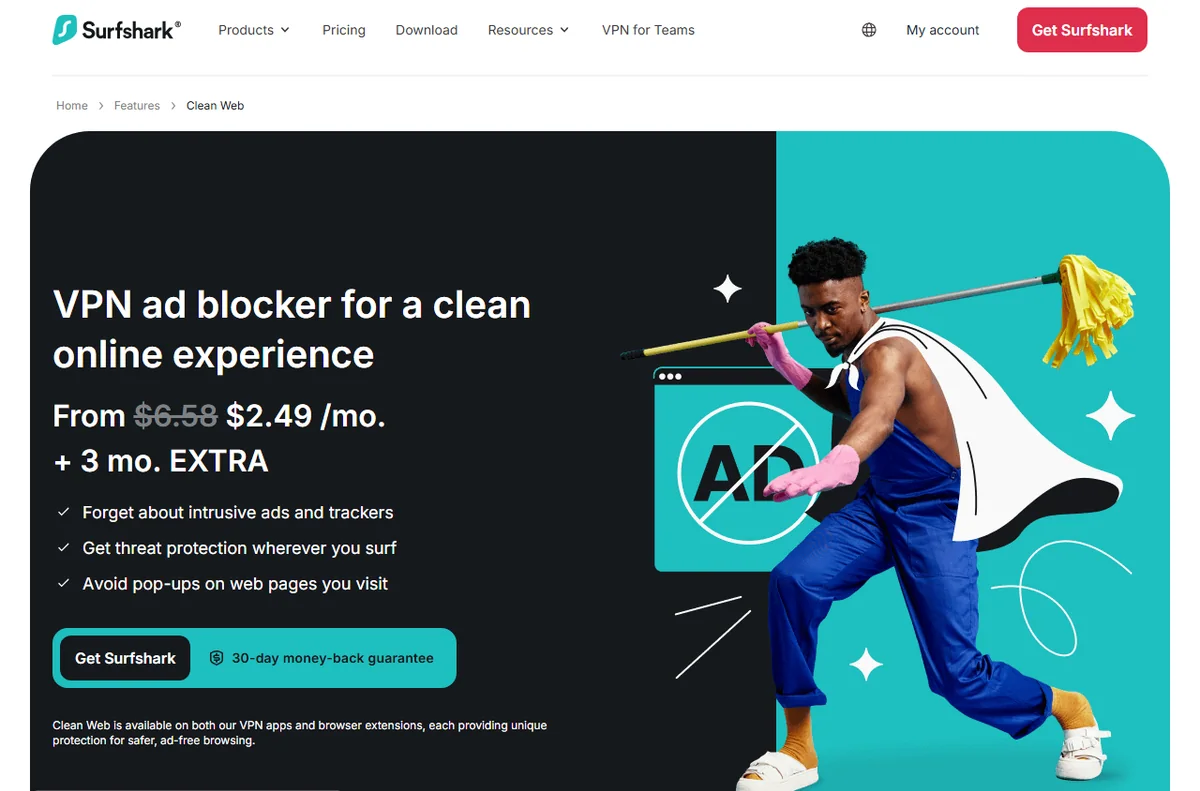
Surfshark bundles more than a plain tunnel. For a small team, a few settings carry most of the value, and the rest can wait until you have a reason to use them.
- Kill switch, so traffic stops instead of leaking if the connection drops.
- Auto-connect on untrusted networks such as public Wi-Fi.
- Multi-hop, which routes traffic through a second server for an extra layer.
- Tracker and ad filtering, to cut down on nuisance scripts while browsing.
Step 5 — Roll it out to a team
Once a single device works, the next step is repetition with a record. Keep a short list of who has installed the app and on what, so you are not hunting for gaps later.
If the account includes a web dashboard, use it to review connected devices rather than checking each machine by hand. When someone leaves, change the account password and reconnect the devices that stay.

Where this fits in your wider stack
If you are still deciding whether Surfshark is the right fit, start with the independent Surfshark review and the security and privacy hub. Comparing providers directly? See Surfshark vs PureVPN, or browse the best VPN options for small business before you settle.
Frequently asked
Do I need technical skills to set Surfshark up?
No. The apps are graphical, and the steps are the same on most platforms: install, sign in, connect. The only part that deserves care is verifying the connection after the first one.
How many devices can I use at once?
That depends on the plan, and it changes over time. Check the official pricing page for the current device allowance before you plan a rollout across a team.
Will a VPN slow my connection down?
Any VPN adds some overhead because traffic is encrypted and routed. In practice the effect varies by server and distance, so pick a nearby location when speed matters more than the country shown.
Is a VPN a replacement for antivirus or a password manager?
No. A VPN protects traffic in transit. It does not scan files or store your passwords, so keep those tools separate and running.
Get Surfshark for your team
Compare the current plans and device allowances on the official site before you decide.
Referral link — we may earn a reward if you sign up, at no extra cost to you. We are an independent publisher. See our Affiliate Disclosure.
Leave a Reply